
Open Ask Albert and get access
Ask Albert is available everywhere in Albert, including the home page, a project, an inventory item, a task. It knows which page you’re on, so you can ask directly about what you’re looking at.
Use the home page for questions across your organization's data. Use a project, or another page, when your question is about that record.
Before you start
Your organization must have Ask Albert turned on for your account. If you do not see it, see "Find Ask Albert when it is missing" below.
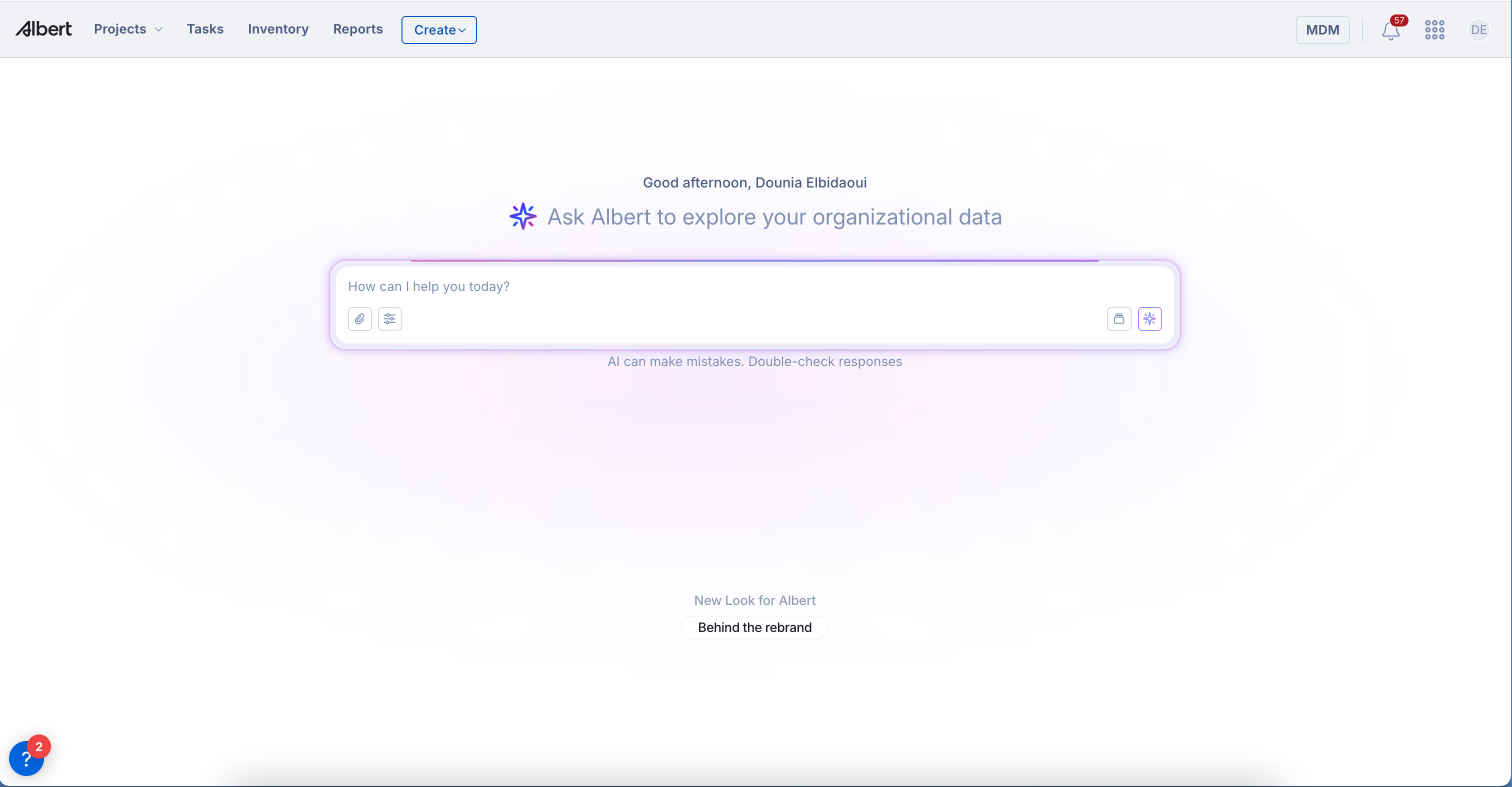
Open Ask Albert from the home page
Select the Albert logo in the top left to go to the home page.
Select the box that says How can I help you today? under "Ask Albert to explore your organizational data".
Type your question.
Press Enter or select the Ask Albert button at the right of the box.
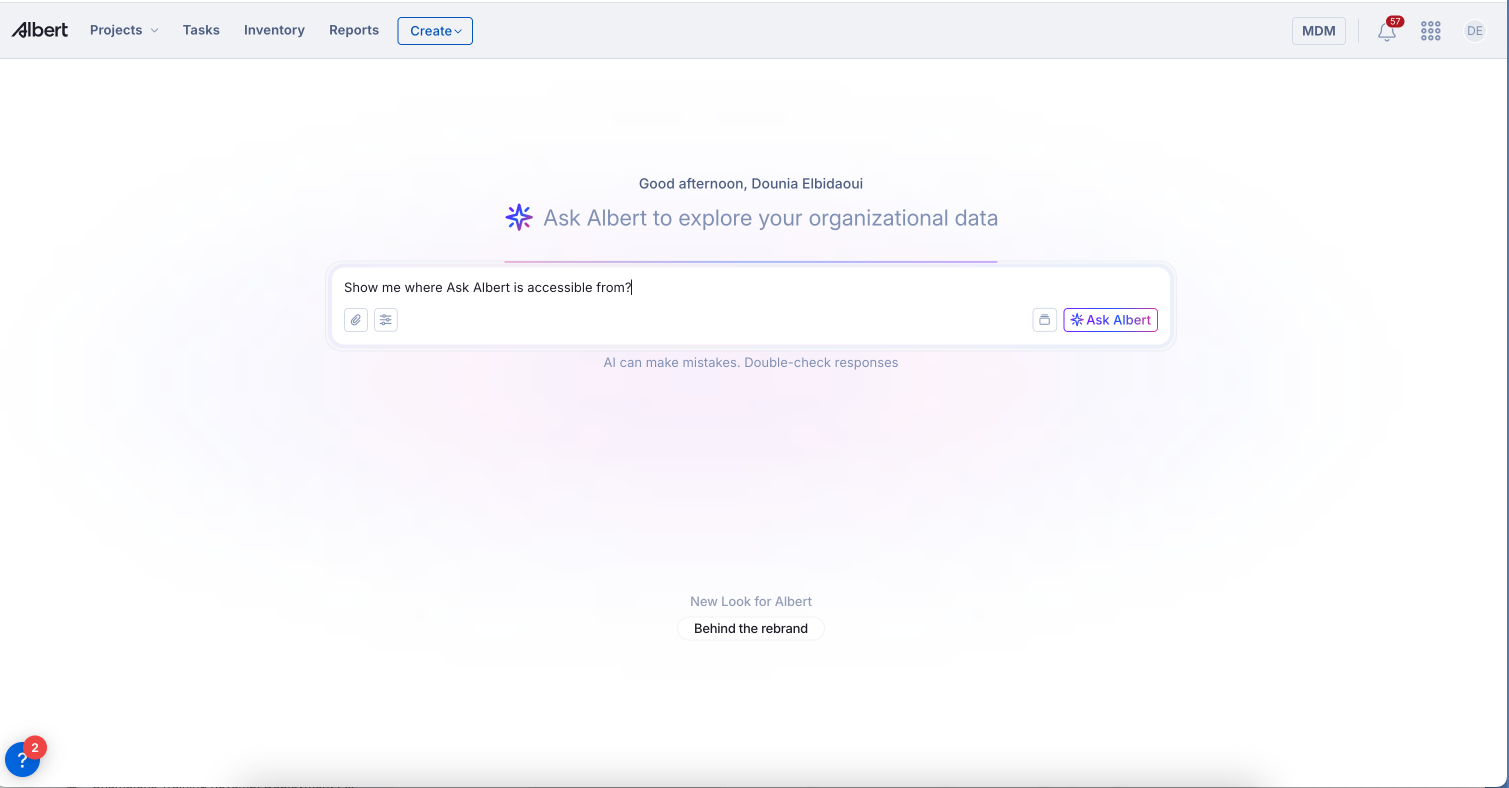
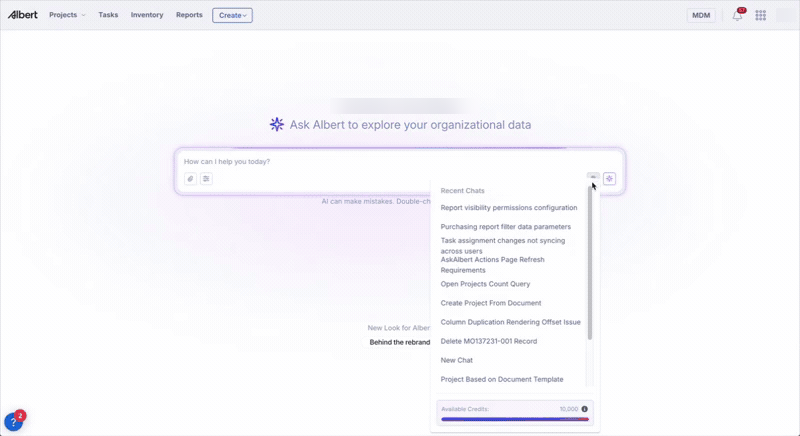
Ask Albert opens a full-page chat with your question at the top and the answer below it. A list of Recent Chats appears on the left, and Start a New Chat begins a fresh conversation.
Use Ask Albert from any page
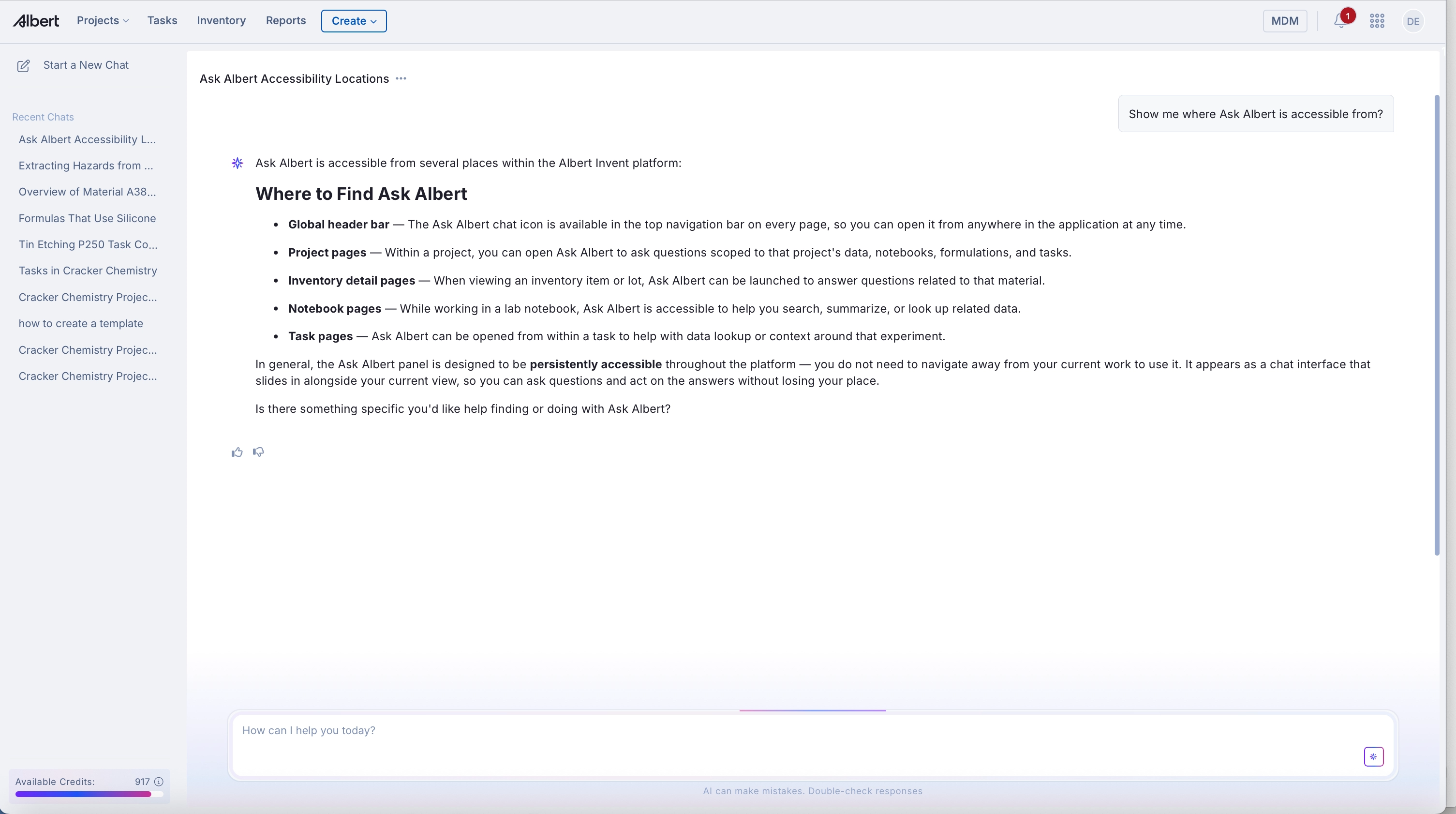
Ask Albert is available from any page in Albert. It uses the page you are on as context, so you can ask about a project, inventory item, task, or notebook without naming it. You can also search across notebooks and worksheets simultaneously. Your chat history follows you as you move between pages.
Find your earlier chats
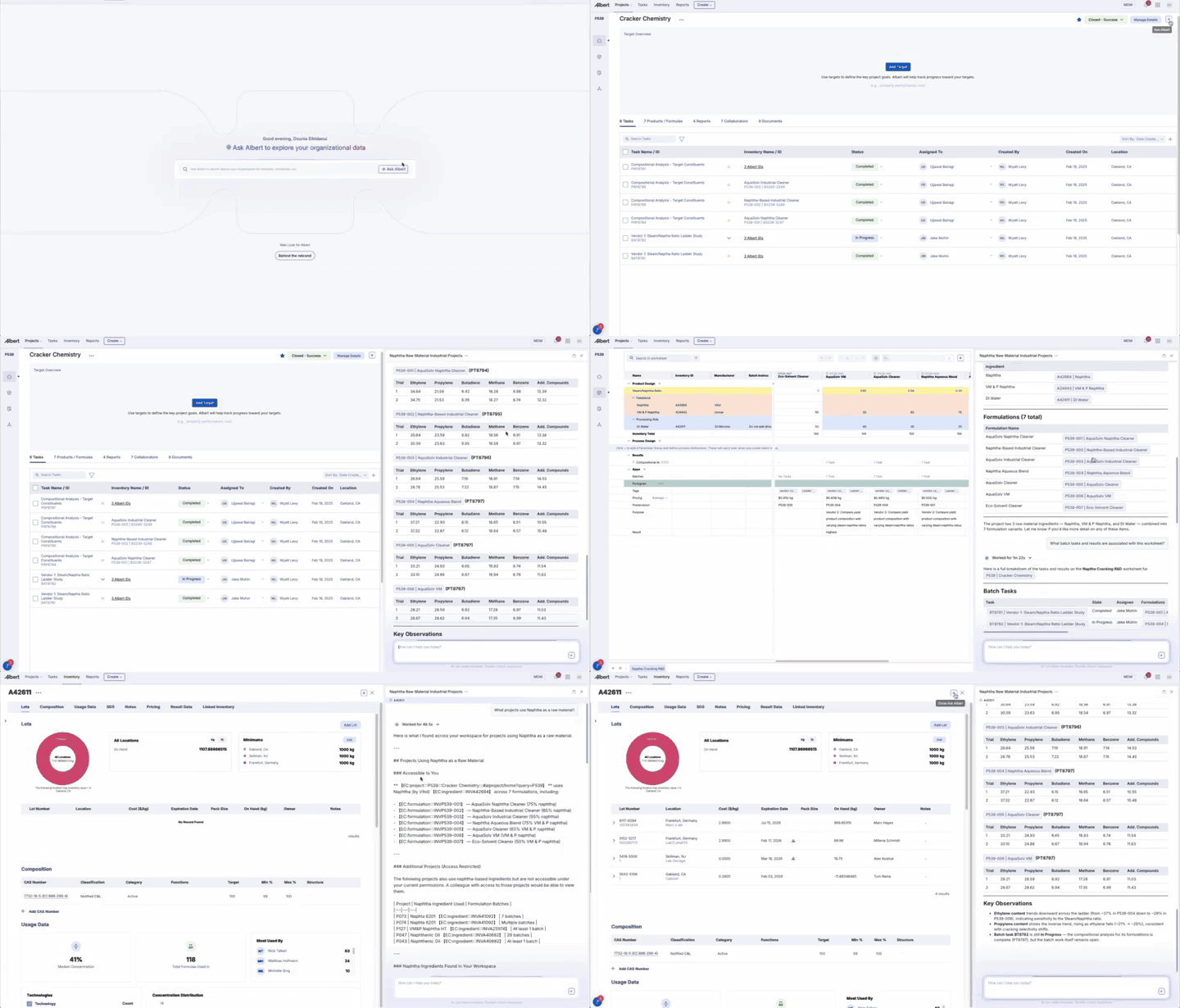
Select the chat history button at the right of the Ask Albert box, or use the Recent Chats list on the left of the full-page chat. Each chat is named automatically from its first question. Select a chat to reopen it and continue from where you left off.
Open the Ask Albert settings
Select the settings button next to the paperclip at the left of the Ask Albert box.
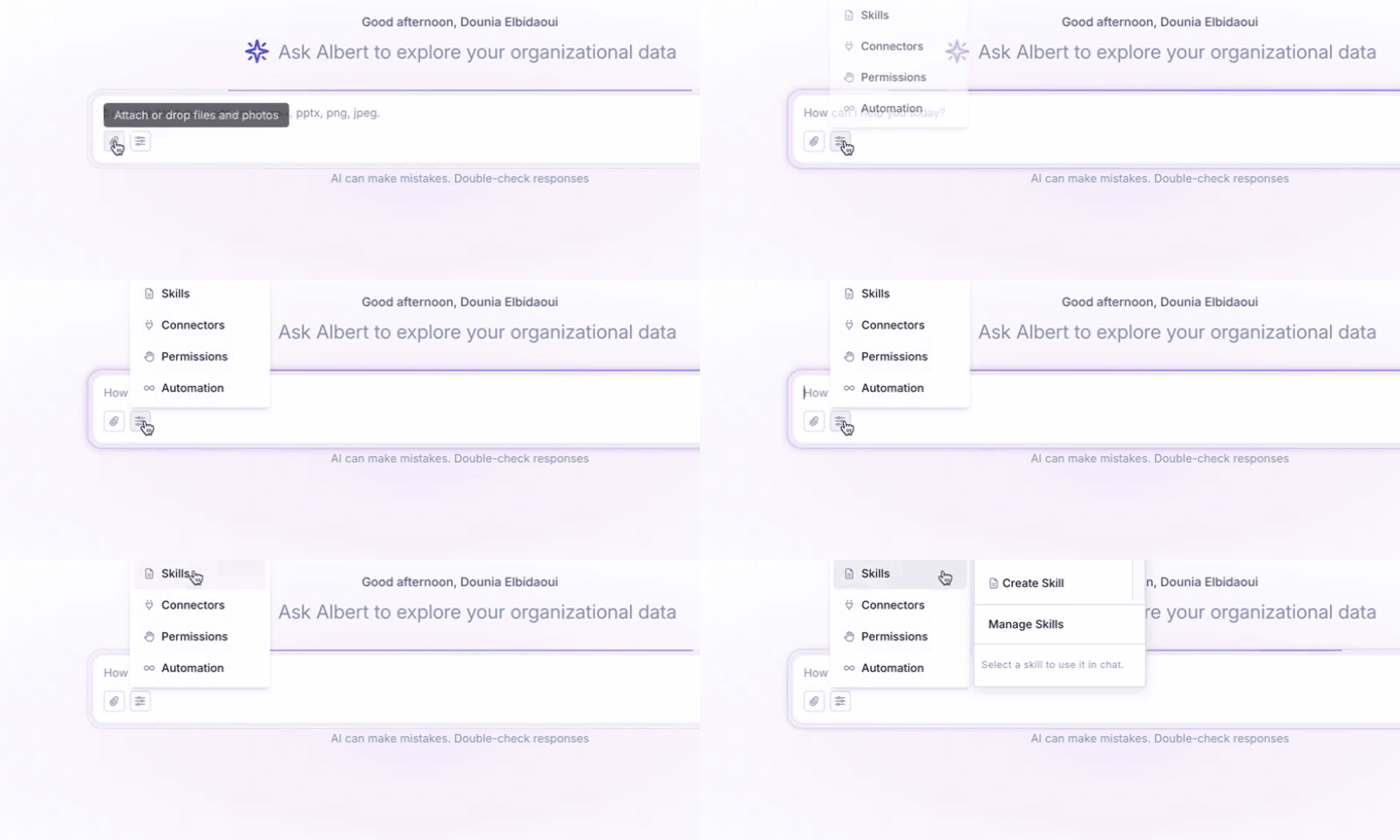
The settings panel has four sections:
Skills – Save and manage reusable workflows that Ask Albert follows when your request matches. Skills can be personal or shared with your organization. Use skills in Ask Albert.
Connectors – Connect external tools and data sources, such as PubChem or CAS Connections, so Ask Albert can retrieve information from them.
Automation – Set up tasks that Ask Albert runs for you on a schedule, such as a weekly summary of your overdue tasks.
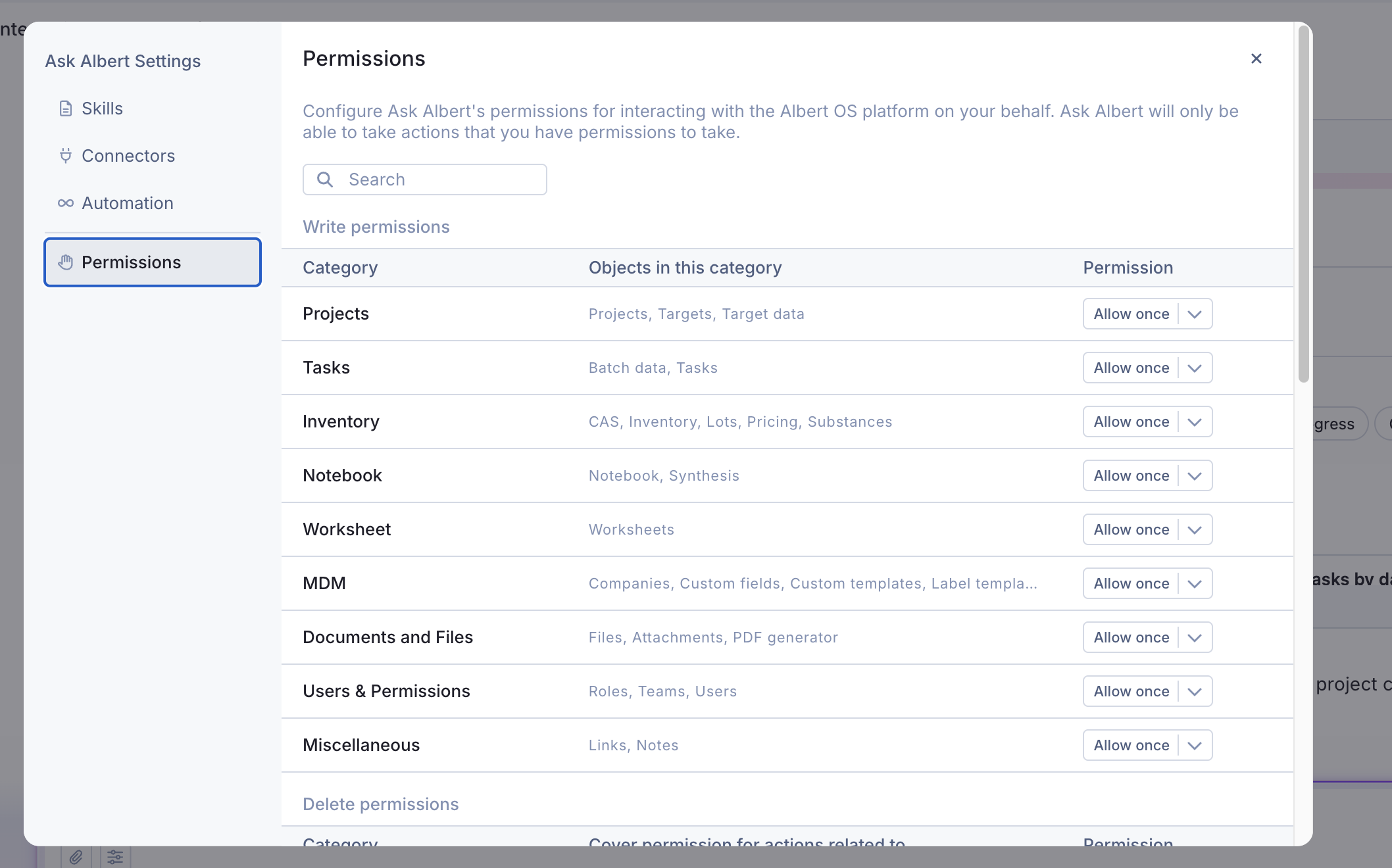
Permissions – Control what Ask Albert can do. For each category (Projects, Tasks, Inventory, and more), choose whether it can create, edit, or delete records, and decide whether to approve each action once, for the current chat, or always. You can also turn optional capabilities, such as web search, on or off. Ask Albert can only take actions that you already have permission to take. Actions, approvals and permissions in Ask Albert
Find Ask Albert when it is missing
If the Ask Albert box is missing from your home page, or the star icon does not appear on a project, your organization may not have turned Ask Albert on for your account. Ask your Albert administrator whether Ask Albert is enabled for you. If it is enabled and you still do not see it, contact your Albert support contact.