
Create, share and manage skills
You can save a workflow that works as an Ask Albert skill so you and your team can run it again without rewriting the instructions. Do this when you find yourself repeating the same request.
Before you start
Open Ask Albert from the home page. See Open Ask Albert and get access.
To share a skill with your organization, an administrator must approve it.
Find and manage your skills
Open Ask Albert from the home page.
Select the settings icon beside the attach button.
Select Skills.
Select Manage Skills.
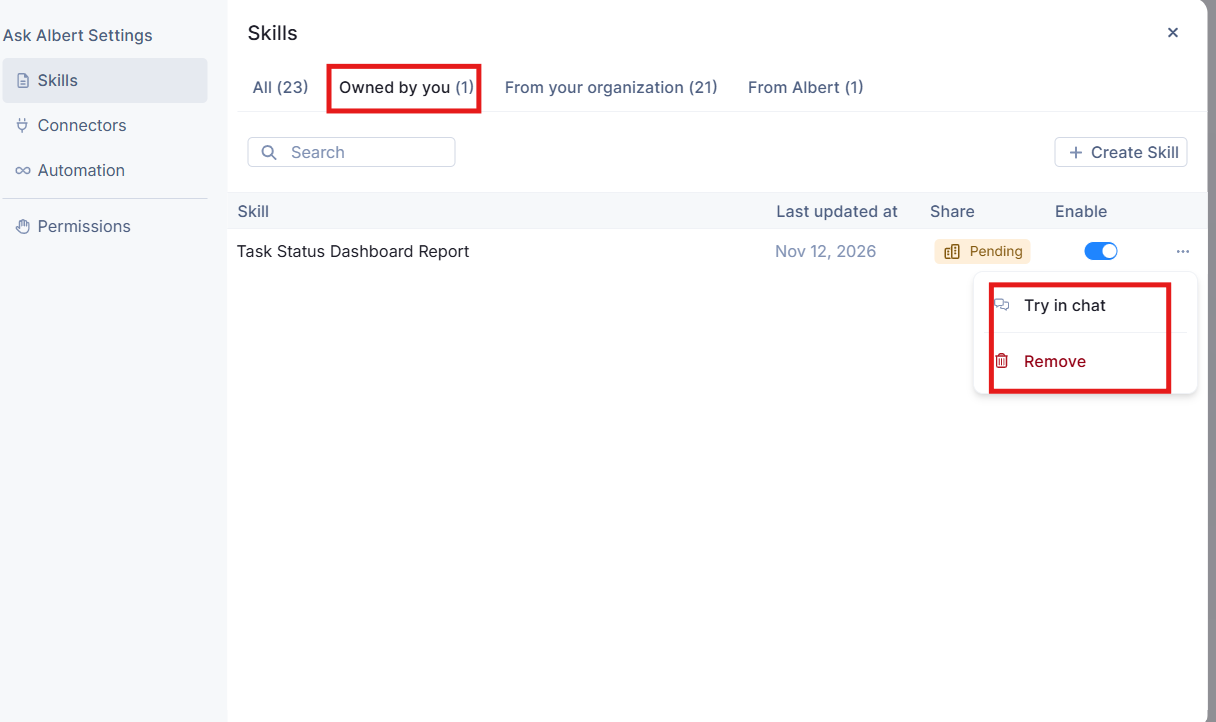
Select the Owned by you tab to see the skills you created.
Select the menu (three dots) at the end of a skill's row to choose Try in chat or Remove.
The row menu runs the skill in a chat or removes it.
Create a skill
Open the Skills page in Ask Albert Settings.
Select Create Skill at the top right.
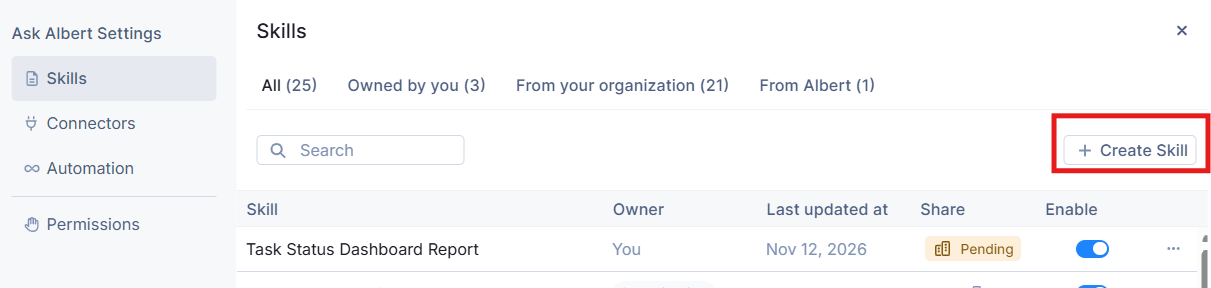
Albert also provides a skill named Create Skill, listed under From Albert, that you can select from the Skills menu. You can also describe the workflow to Ask Albert in a chat after you finish it and ask it to save the workflow as a skill, for example "save this as a skill".
A good skill description names the skill, says when it runs, lists the steps, and describes the answer you want. For example:
Create a skill called monthly-expiration-check. On the first Monday of each month, or when I ask, check Inventory for lots expiring in the current calendar month. Show the results in a table with lot number, material, location and expiration date, sorted by the soonest expiration. If nothing expires, say so. Show me the skill before you save it.
After you save it, select the skill from the Skills menu and ask, “Which lots are expiring this month?”
Edit a skill
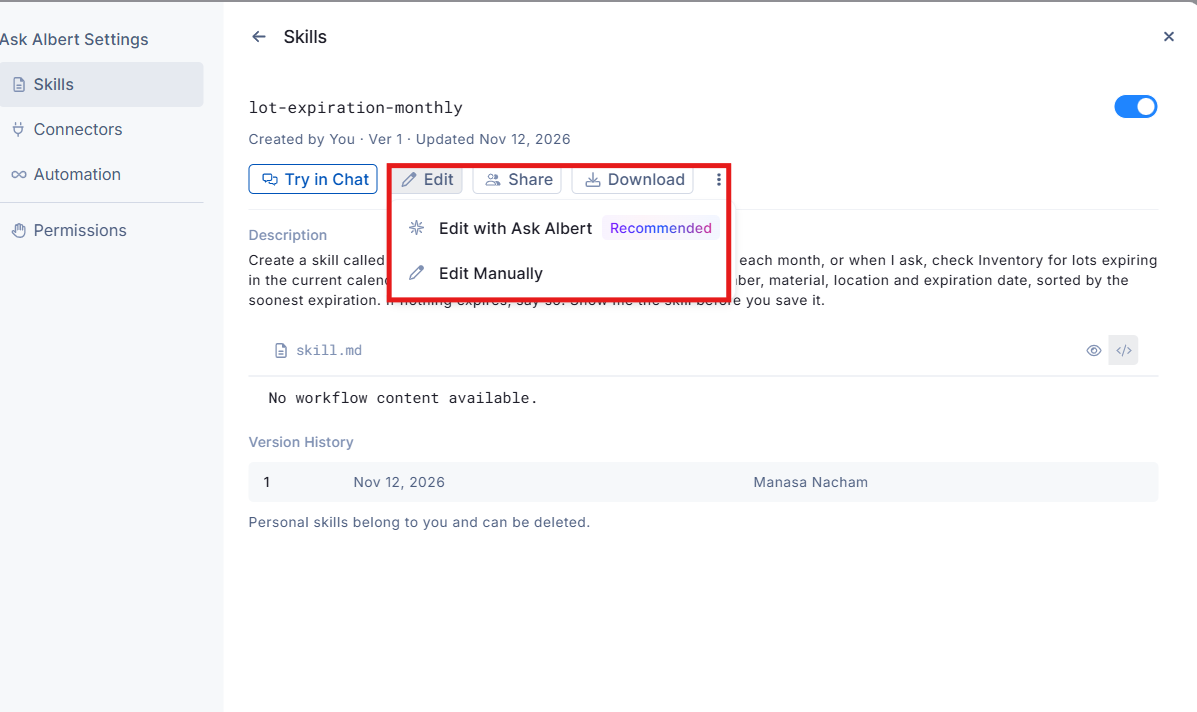
Open the skill and select Edit.
Change the instructions, then save.
Download a skill
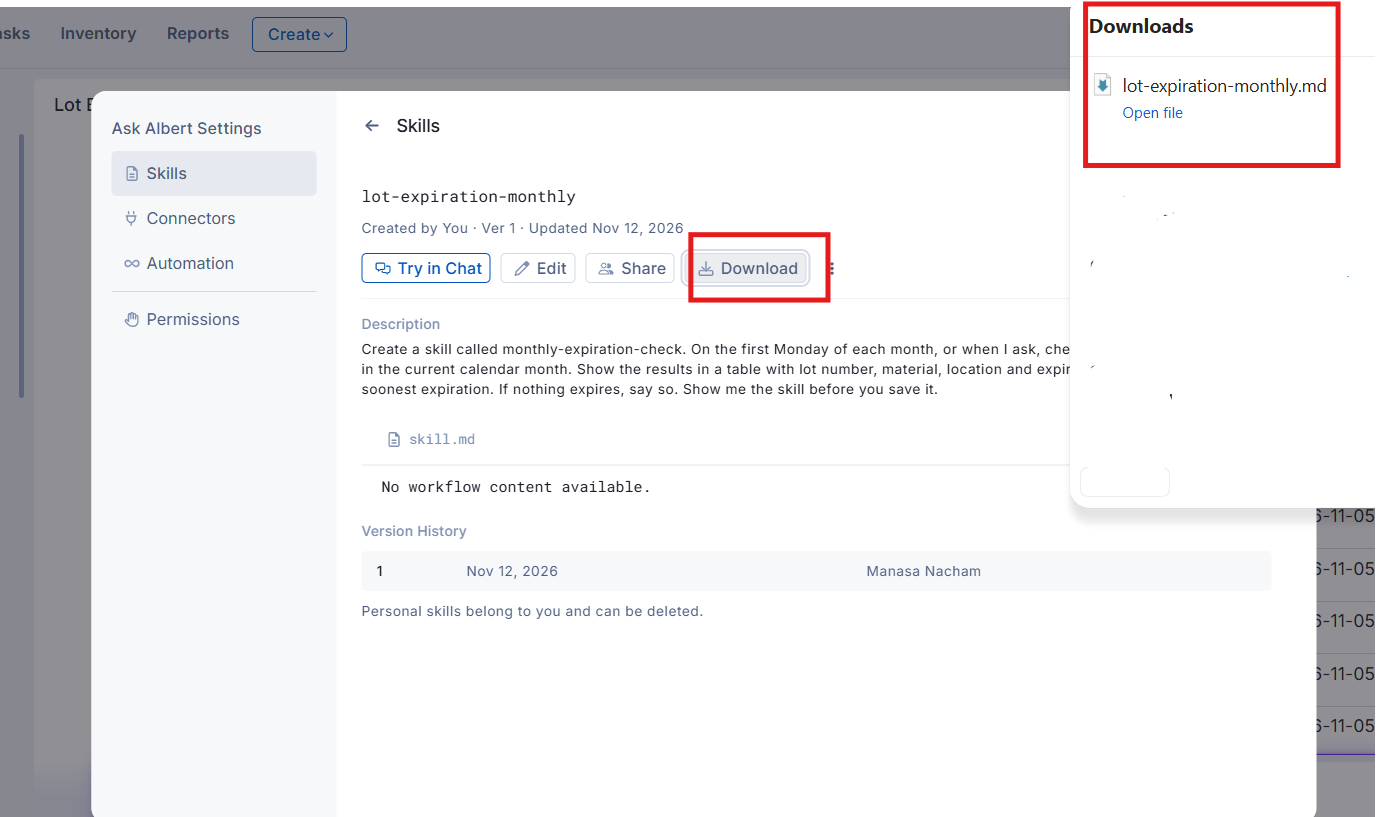
Select Download on the skill page to save a copy.
Share a skill with your organization
Tell Ask Albert in the chat to submit the skill for review.
Check that the Share column shows Pending.
Wait for an administrator to approve the skill.
A skill you create is personal, and it stays personal while it is pending. After approval, the skill appears under From your organization with Organization as the owner, and everyone in your workspace can use it.
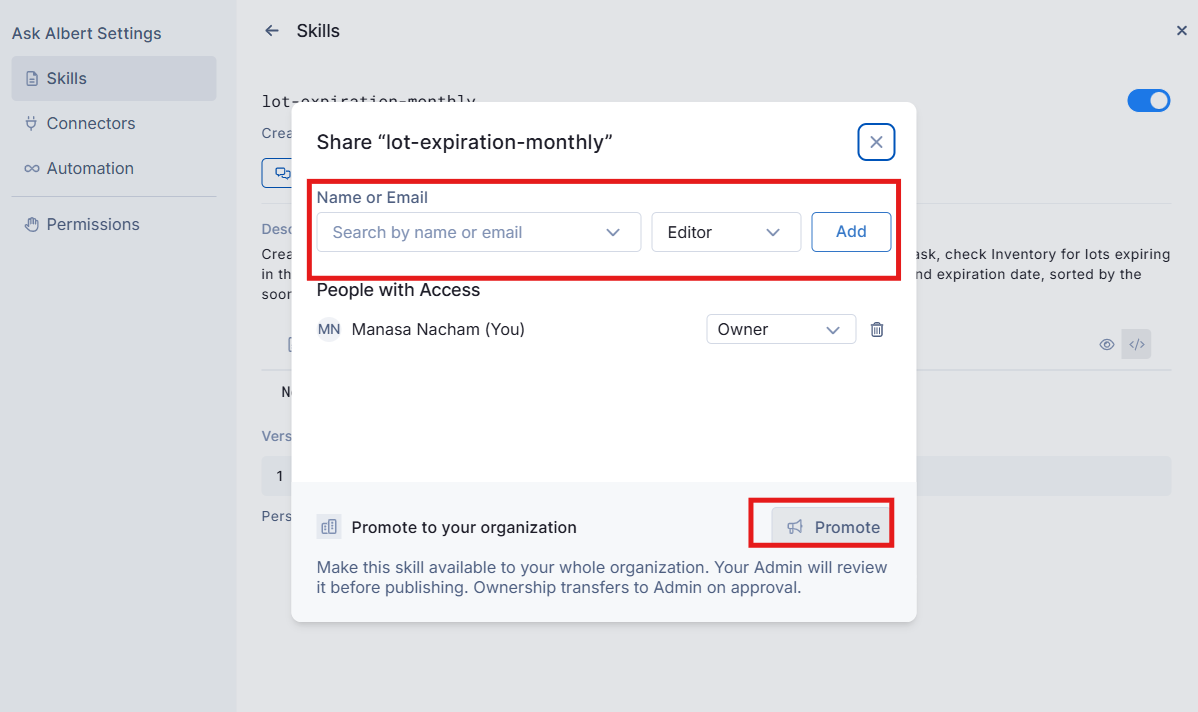
Open the skill and select Share. You can:
Share with specific people. Enter a name or email, choose a role, and select Add.
Promote to your organization. Select Promote. Your Admin reviews the skill before it is published.
[!NOTE] A pending skill is still yours, so you can select it from the Skills menu or choose Try in chat from its row while you wait.
Stop using a skill
Open Manage Skills.
Turn off the Enable switch in the skill's row.
The skill stays in your list, and Ask Albert does not use it.
[!WARNING] Choose Remove from the row menu only when you no longer need the skill. Use the Enable switch to turn a skill off without losing it.
Common questions
Why can't I make a skill available to everyone myself?
Organization skills are reviewed before everyone sees them. If you need a skill approved, ask your organization's administrator to review it. If a skill stays pending, check that the person who approves skills knows it is waiting.