
Use skills in Ask Albert
A skill in Ask Albert is a saved set of instructions that Ask Albert follows for a task you repeat. You often ask for the same kind of work: the same steps, the same checks, the same format for the answer. Typing those instructions every time is slow, and every chemist on your team words them a little differently, so a skill saves them once for reuse.
What a skill does
When you pick a skill in a chat, Ask Albert works from its instructions instead of from your one-off wording. A skill does not add new data to Albert. It changes how Ask Albert carries out a request.
For example, a Task Status Dashboard Report skill builds the same dashboard of tasks every time you ask for it, so you don’t describe the layout again.
Where your skills are
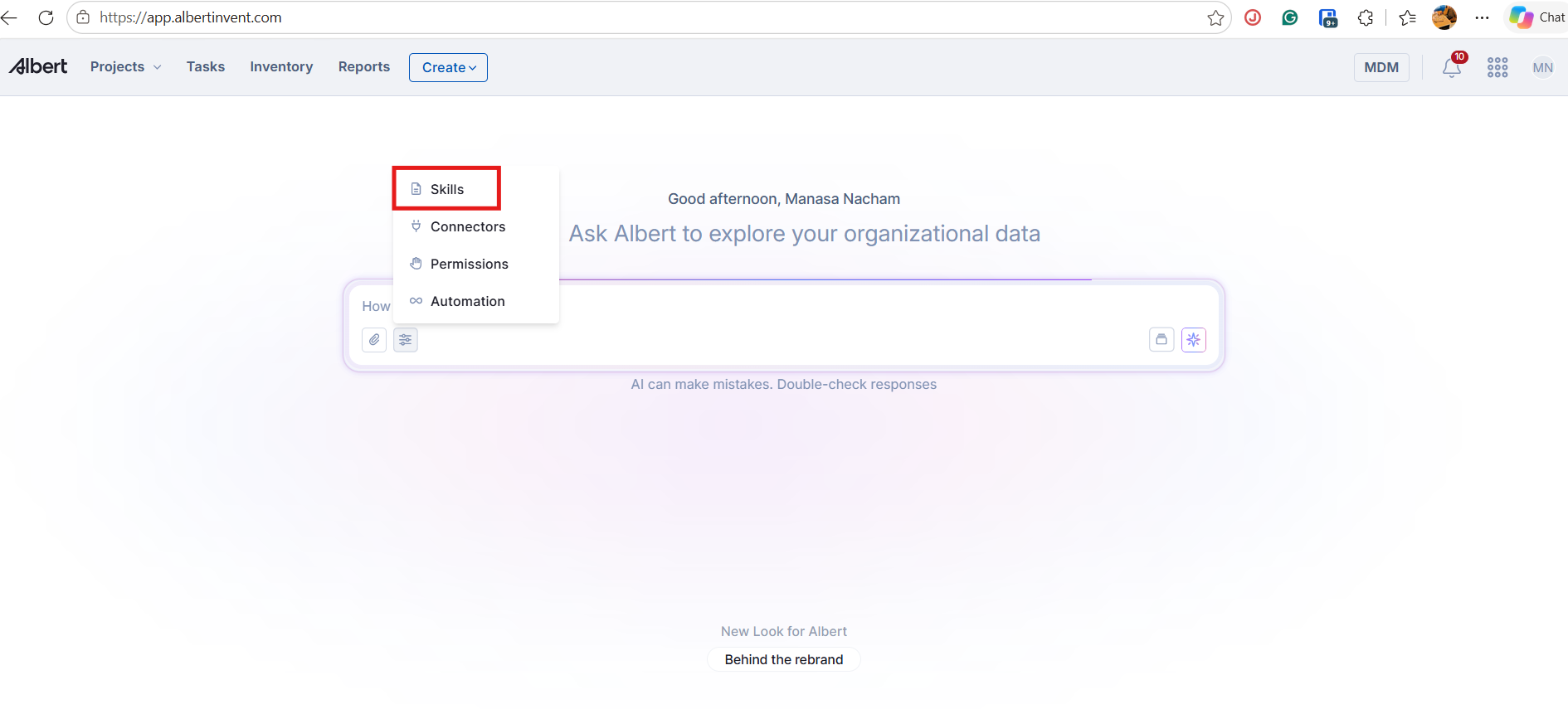
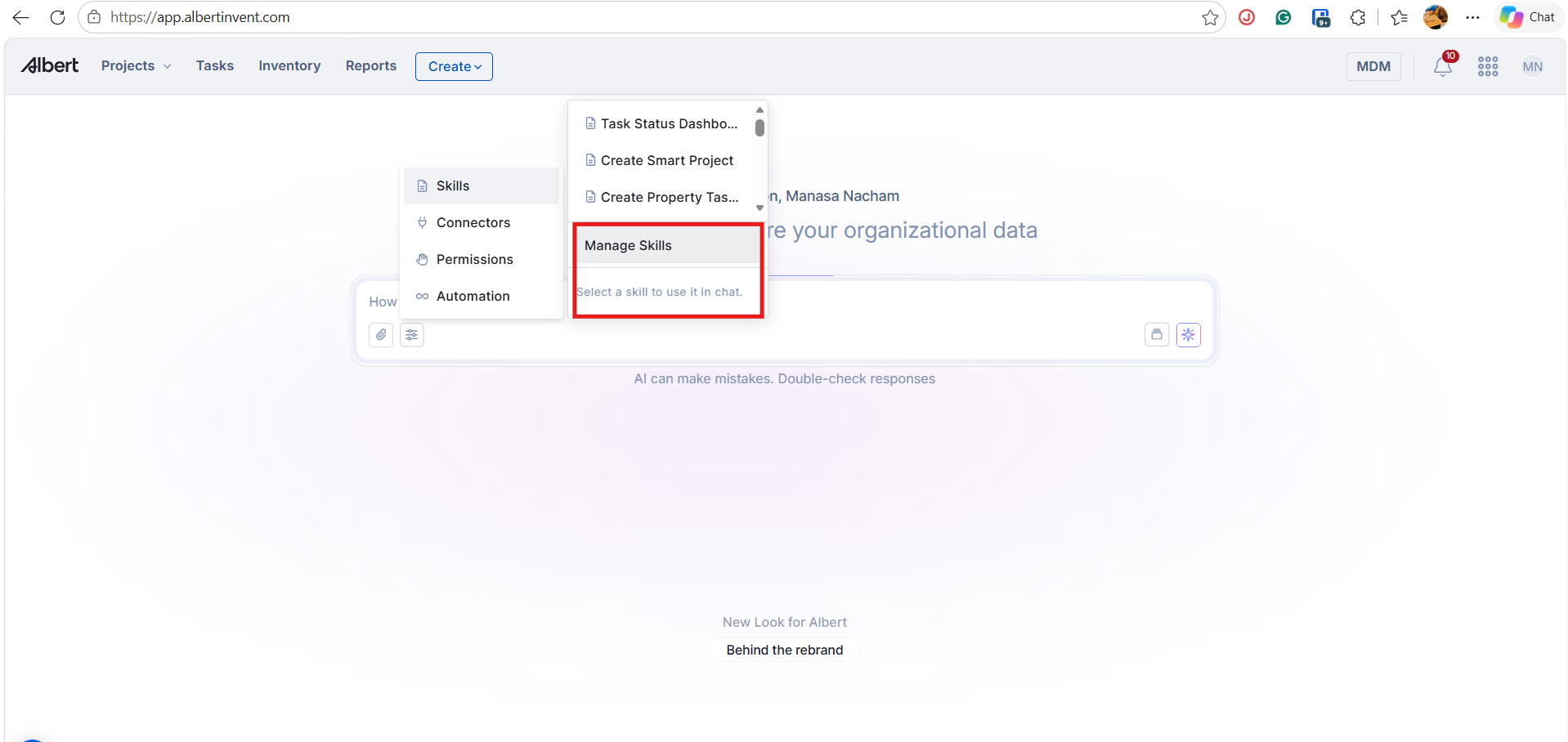
Select the settings icon beside the attach button in the Ask Albert box (see Open Ask Albert and get access), then select Skills. A short list of skills appears with the note "Select a skill to use it in chat". Select Manage Skills at the bottom of that list to see all of them.
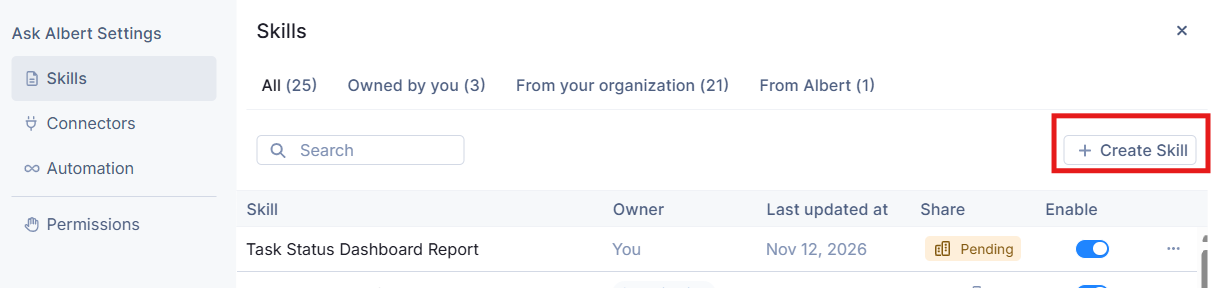
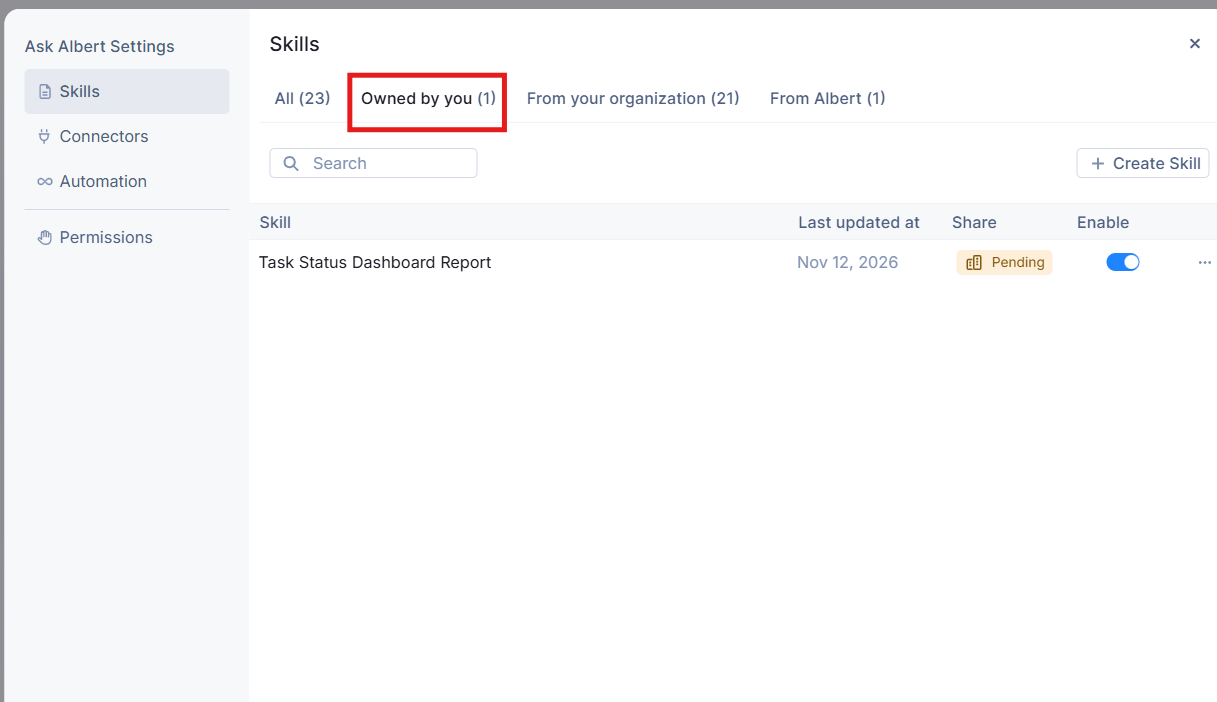
Manage Skills opens Ask Albert Settings on the Skills page. The table shows each skill's name, owner, last updated date, share status, and an Enable switch. Use the search box above the table to find a skill by name, including one you have forgotten the exact name of. The page has four tabs, and each skill has one of three owners.
Tab | What it lists | Owner shown |
|---|---|---|
All | Every skill you can use | Varies |
Owned by you | Skills you created | You |
From your organization | Skills shared across your organization | Organization |
From Albert | Skills that Albert provides | Albert |
Using a skill
Select the skill from the Skills menu in the Ask Albert box, then write your request. You can also open the menu at the end of a skill's row in Manage Skills and choose Try in chat.
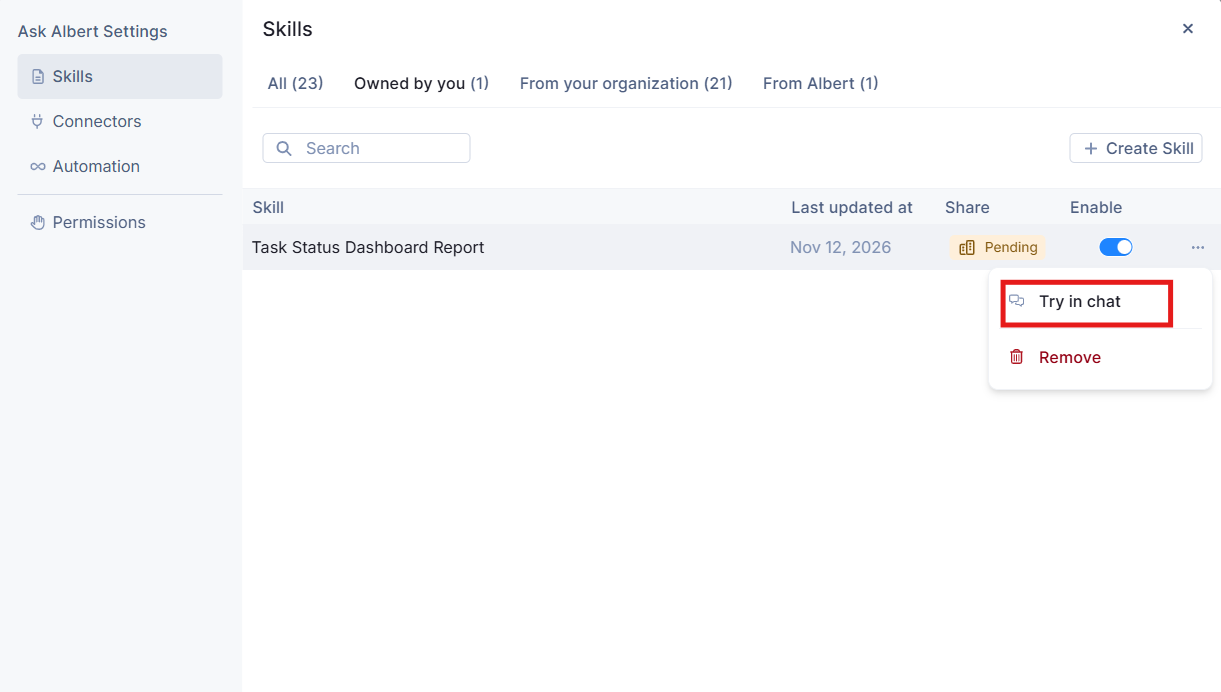
Each skill has an Enable switch, so you can switch off a skill you do not want Ask Albert to use.
Personal and organization skills
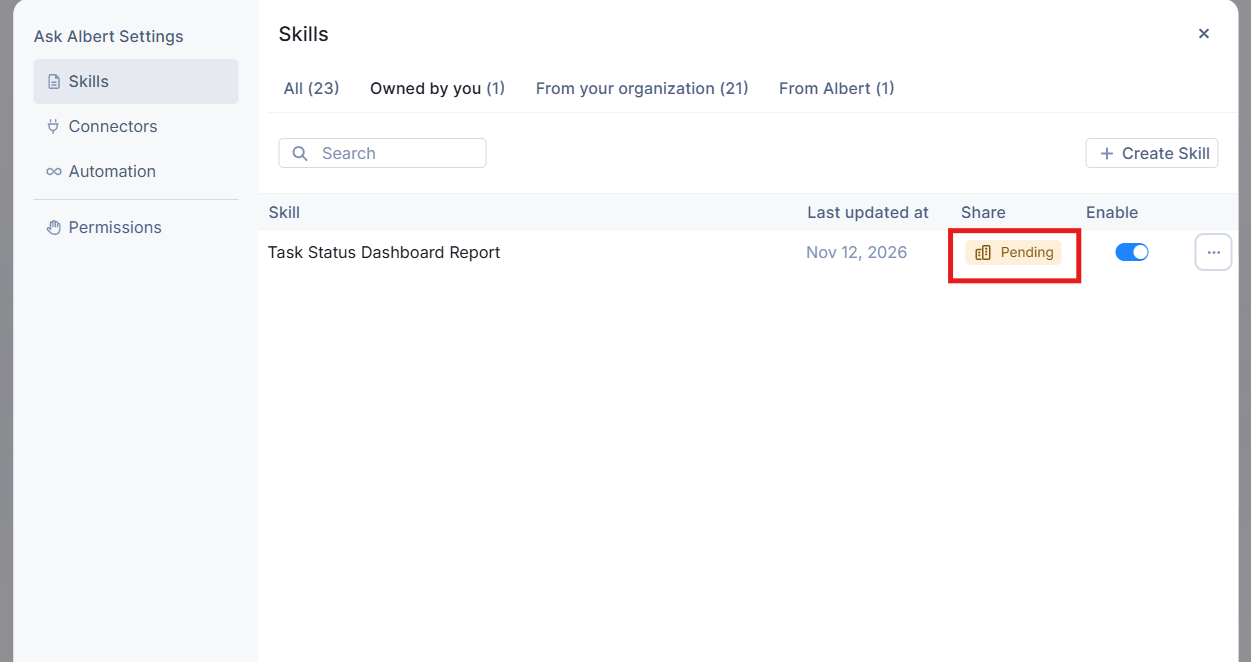
A personal skill is yours. A skill you want to share with your organization shows Pending in the Share column until it is reviewed. After it is approved, it appears under From your organization for everyone in your workspace.
To create a skill, share one, or edit one, see Create, share and manage skills.
[!NOTE] If you have a personal skill and an organization skill for the same task, select the one you want from the Skills menu before you ask. That way you know which instructions Ask Albert follows.