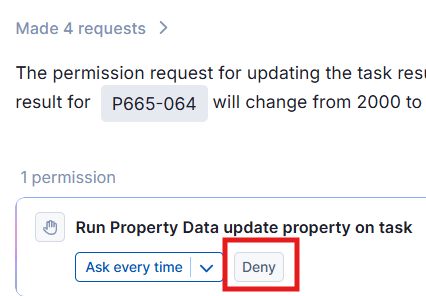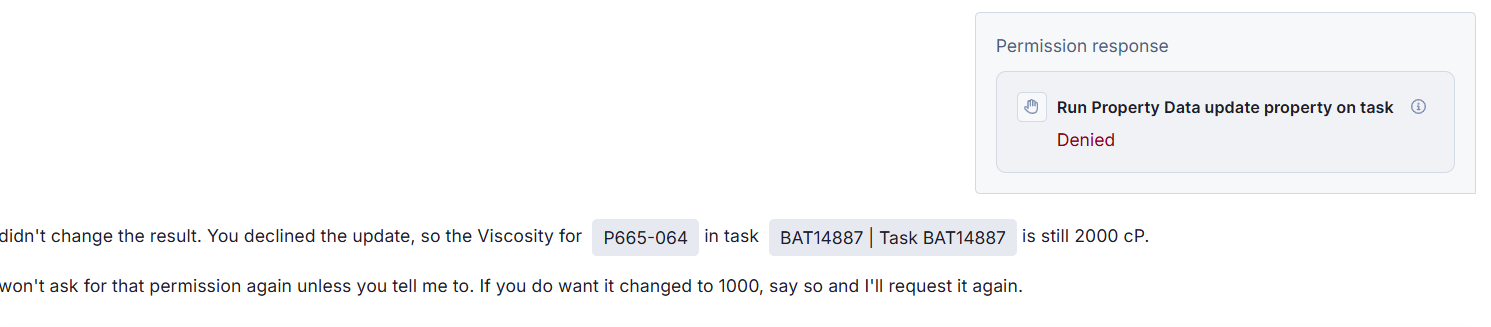
Actions, approvals and permissions in Ask Albert
Before you let an assistant near your R&D records, you want to know two things: what it can see, and whether it can change anything. This page explains what Ask Albert can see, what the Permissions settings contain, and which optional capabilities you can switch on or off.
What Ask Albert can see and change
Ask Albert works within your account's access. The Permissions settings state that Ask Albert can only take actions that you have permission to take in Albert. If you cannot open a project, Ask Albert should not show you its contents. To learn how access is set, see How access control works in Albert. If you cannot see something you expect, see Troubleshoot why you cannot see, open or edit something.
Ask Albert can find records and explain them, and it can also make changes for you after you approve them. For example, it can create a follow-up task, update a field on a raw material, create or transfer a lot, enter results on a task, or write a notebook entry.
Approve or reject an action
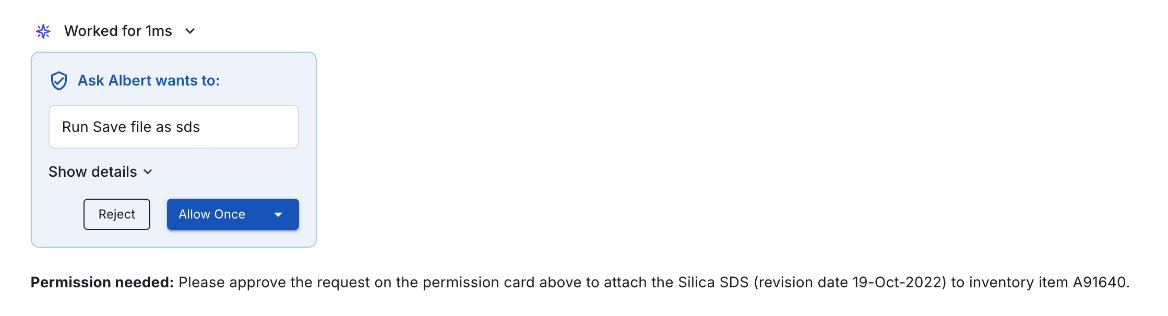
Before Ask Albert changes anything, it asks for your permission. A card appears in the chat that says what Ask Albert wants to do.
Read the card. Select Show details to see more.
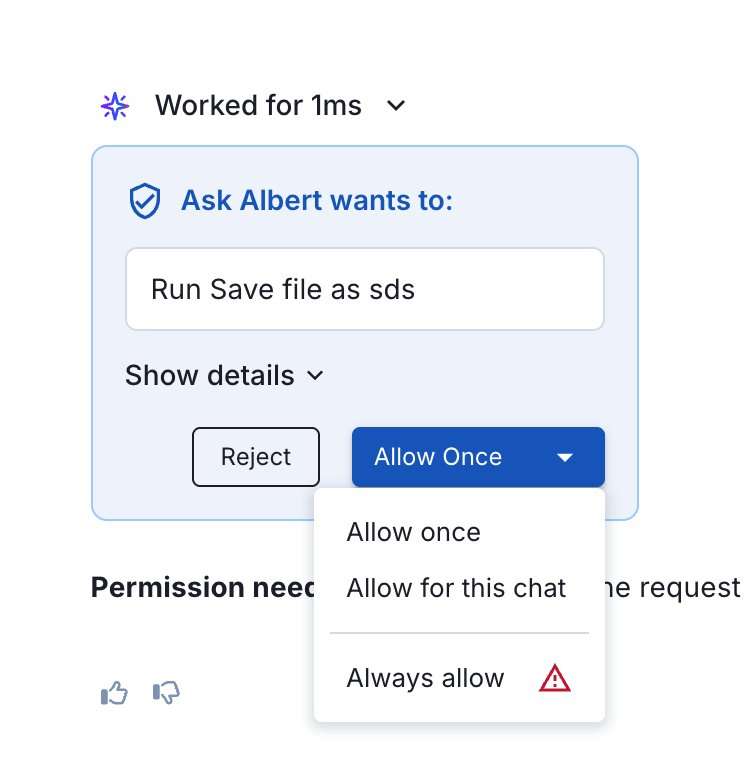
Choose how to respond:
Allow once approves this action only.
Allow for this chat approves similar actions for the rest of this chat.
Always allow approves them without asking again.
Reject cancels the action.
Check the confirmation in the chat. Ask Albert to report what it changed
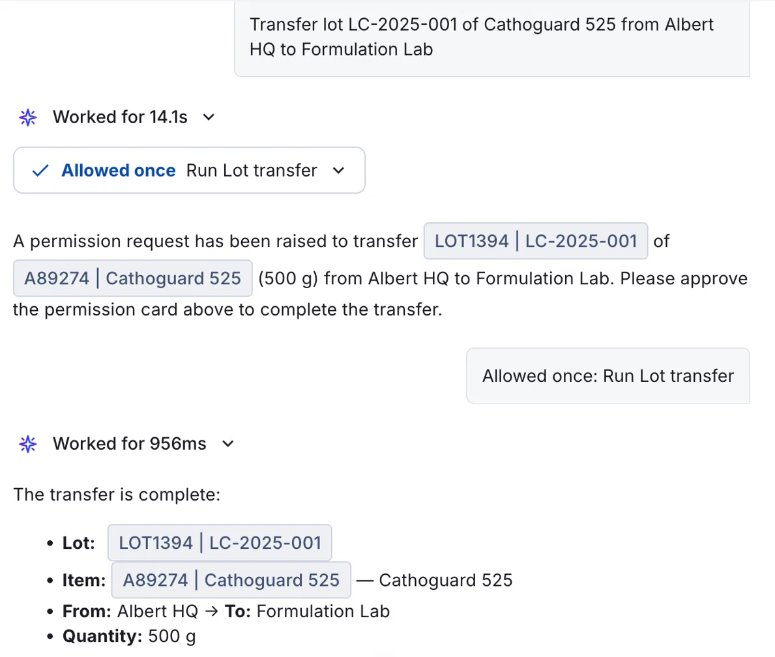
[!NOTE] When you are starting out, use Allow once. Use Always allow only for tasks you trust and repeat. Reject a request you made in error, or one your question didn’t need.]
Where the Permissions settings are
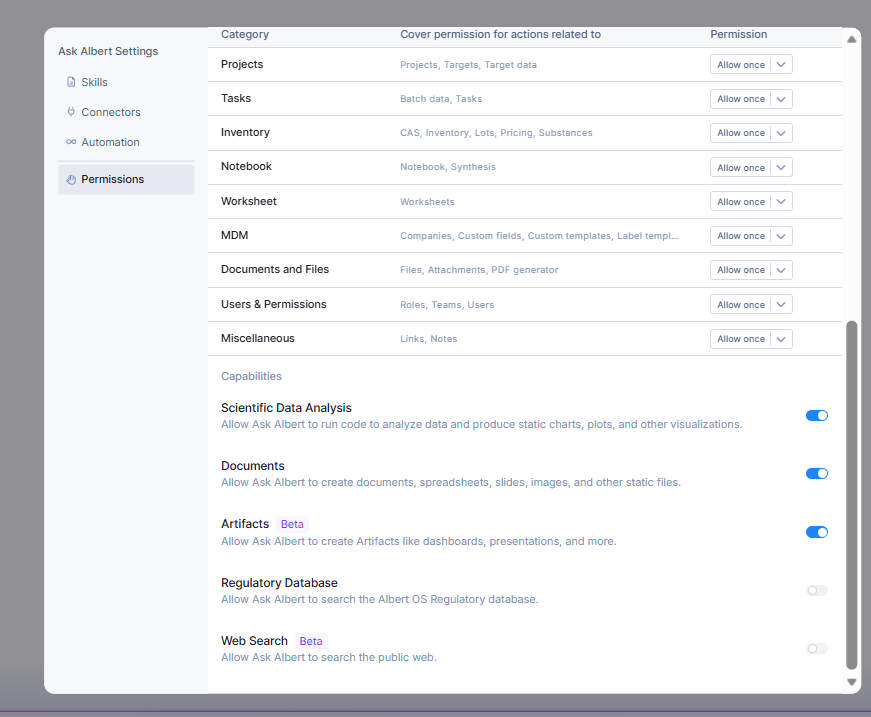
Select the settings icon beside the attach button in the Ask Albert box, then select Permissions. The page opens in Ask Albert Settings, next to Skills and Connectors.
Write and delete permissions
The Permissions page has a Write permissions section and a Delete permissions section. Each lists the same areas: Projects, Tasks, Inventory, Notebook, Worksheet, MDM, Artifacts and Files, Users & Permissions, and Miscellaneous. Each area has its own setting, which reads Allow once. Write and delete are set separately.
Capabilities you can switch on or off
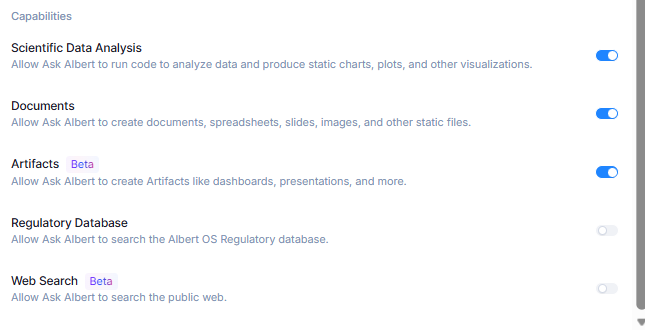
The Capabilities section has switches with a one-line description each.
Capability | What it lets Ask Albert do |
|---|---|
Scientific Data Analysis | Run code to analyze data and produce static charts, plots, and other visualizations |
Artifact | Create documents, spreadsheets, slides, images, and other static files |
Canvas | Use HTML and JSX to create and edit interactive interfaces for viewing and analyzing data |
Regulatory Database | Search the Albert OS Regulatory database |
Web Search (Beta) | Search the public web |
Ask Albert answers from your organization's data in Albert. For what the Artifact capability creates, see Create files, charts and documents with artifacts. For the Regulatory database, see How Albert Regulatory works. Regulatory Database and Web Search are separate switches, so check them if you need to know whether Ask Albert can look beyond your workspace.
[!NOTE] Switch Regulatory Database or Web Search on only when you want answers that go beyond the records in your Albert workspace.
Common questions
Why didn’t Ask Albert make the change I asked for?
You may have rejected the request, or the area’s permission may not allow the action. Ask Albert can only take actions that you have permission to take.