
Object access in Albert
Albert is committed to enabling collaboration and knowledge sharing while protecting intellectual property. Access controls make sure information is appropriately protected and that every user has exactly the access they need to do their work.
If you have questions about your access level or want to request access to certain objects, reach out to your organization's Albert Administrator.
Two questions, two answers
Access control in Albert works at two levels:
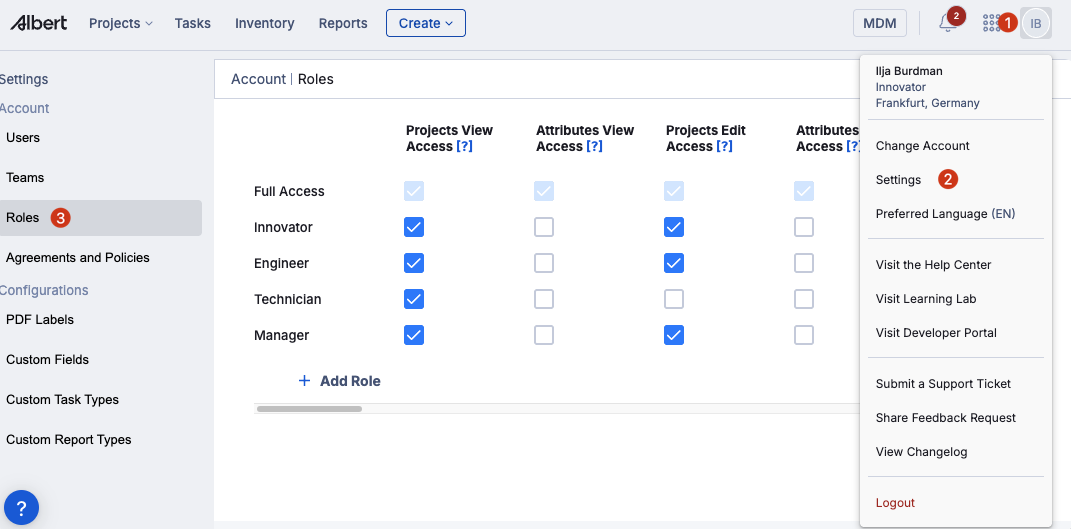
1. Can I perform this operation? This is answered by your Role. Roles control which actions you can take — creating inventory items, editing projects, running predictions, and so on. Albert comes preconfigured with default roles, and System Administrators can create custom ones. To view the roles available in your environment, click your initials → Settings → Roles.
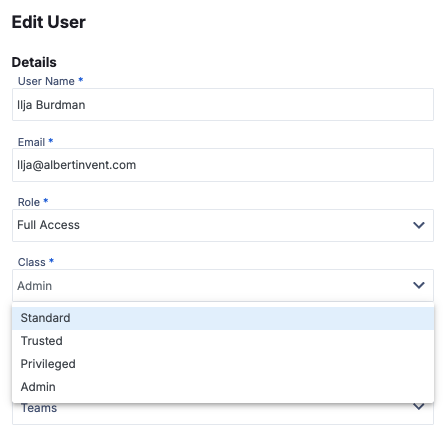
2. Can I perform this operation on this specific object? This is answered by your User Class and the object's class. Even if your role permits an action in general, you may not be able to perform it on a particular object unless your user class grants you implicit access or you've been given explicit named access.
These two questions work together. A user with full project access but a Standard user class can create projects — but can only edit the projects they've been explicitly granted access to. A user with view-only project access but an Admin user class can see all projects, including confidential ones, but cannot edit any of them because their role only permits viewing.
Object classes
Every object in Albert has a class that defines how broadly it is accessible.
Shared — All internal users with the appropriate role can read and write. Guest users need explicit named access.
Example: Inventory items such as Raw Materials or Equipment. These are shared by default, though individual items can be reclassified.
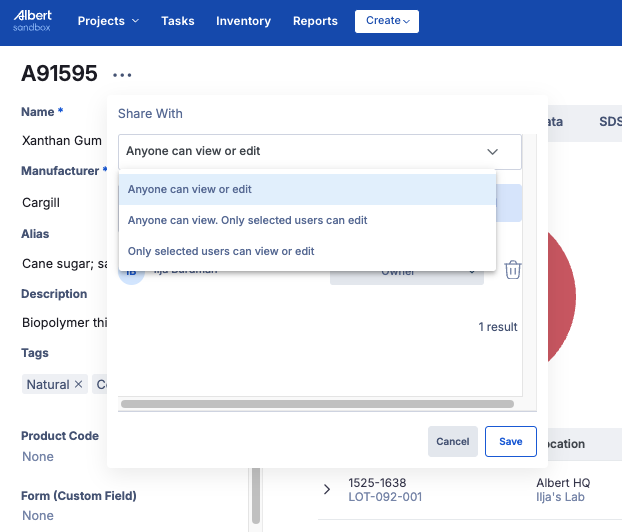
Restricted — Visible to everyone (except guests), but editing is limited to named individuals.
Example: Property tasks — anyone can see the details, but only the creator, owner, or explicitly named users can edit, unless the project is marked confidential.
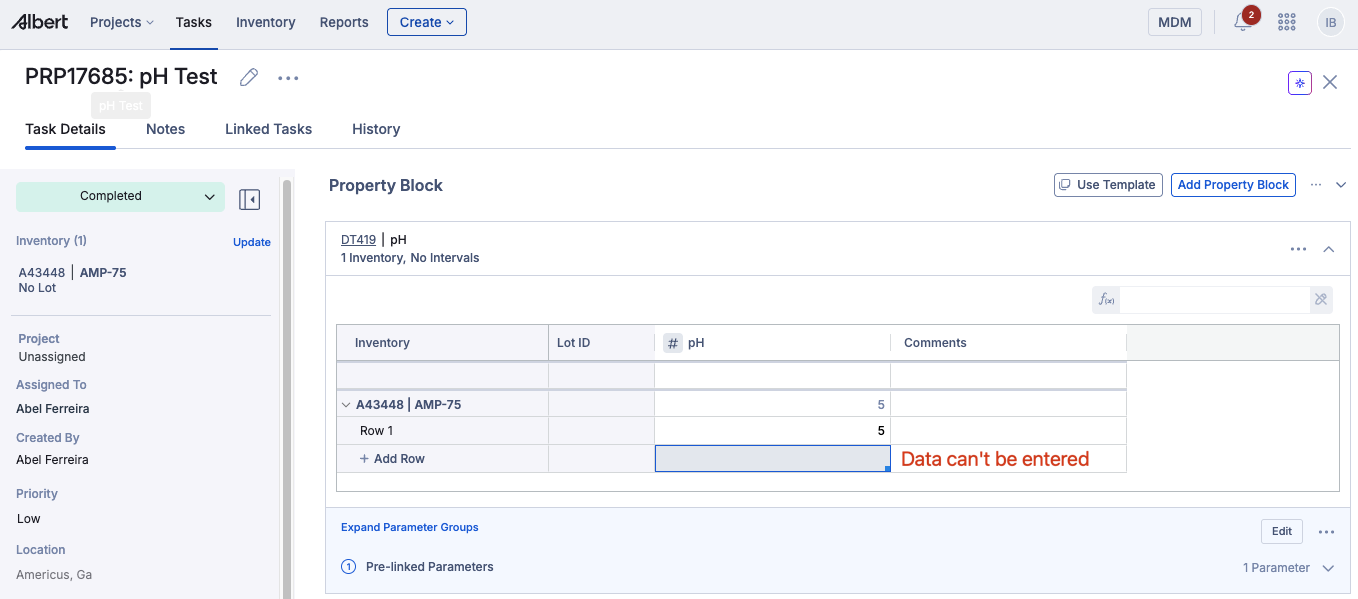
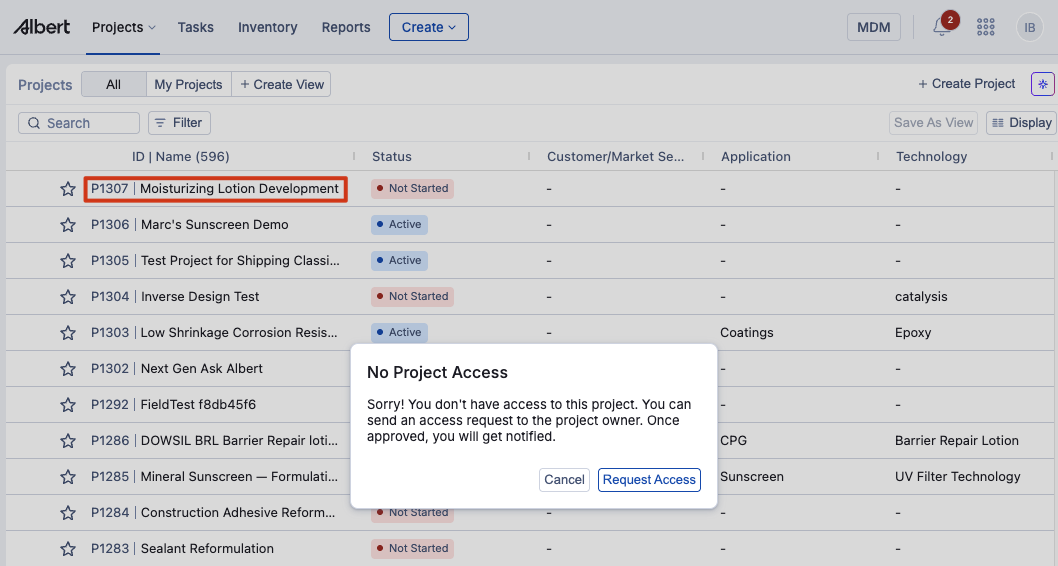
Private — Visible in lists, but details are restricted to named users.
Example: Projects — everyone can see a non-confidential project in the search page, but only users with named access can open the details or see formulations.
Confidential — Hidden from lists and details entirely, except to named users.
Example: Confidential projects — users without access cannot see them in search results at all.
Fixed vs. Inherited Classes
An object's class is either fixed or inherited.
Fixed means the object has its own assigned class. Your user class determines whether you can access it, and you may need explicit named access if the object's class is above yours.
Inherited means the object takes on the class of its parent. If you have access to the parent, you automatically have access to the child with no additional setup needed.
This distinction explains why access to similar-sounding objects can behave differently. Batch tasks inherit their class from the parent project, so project access automatically includes batch task access.
Property tasks have a fixed Restricted class, so project access alone is not enough — you need to be explicitly granted the Property Task Editor role or higher.
User classes
Your user class acts as a master key, granting you implicit access to all objects of the corresponding class and below. The majority of users are Standard users.
Standard — Full read/write on Shared objects. Can view all Restricted object details and lists, but needs named access to edit them.
Example: The majority of users in most organizations.
Trusted — Full default access to all Restricted objects. Can edit property tasks, general tasks, parameter groups, and data templates without needing named access (assuming their role permits it).
Example: Program Teams, Centers of Excellence.
Privileged — Full default access to all Shared, Restricted, and Private objects. Can view and edit all formulations by default.
Example: Regulatory Teams — Ability to manage all restricted inventory items or see formulations for SAP.
Admin — Full access to everything, including Confidential objects.
Example: System Administrators.
Guest — No implicit access to anything. Guests require explicit named access to every object they interact with, regardless of that object's class. Designed for staff who send work to an Albert lab but aren't primary Albert users —
Example: QC teams or technical marketing requesting analyses from a formulation lab. Rather than exchanging files or integrations, they get scoped access directly in Albert.
The Guest user class must be enabled per tenant and is not available by default. To enable it for your organization, contact your Albert success manager or support team.
The access matrix
The matrix below shows which operations each user class gets automatically (implicit) versus which require someone to grant them access (explicit).
I = Implicit (automatic), E = Explicit (named access required)
Object class | Guest | Standard | Trusted | Privileged | Admin |
|---|---|---|---|---|---|
Shared | E - All | I - All | I - All | I - All | I - All |
Restricted | E - All | I - Read, List / E - Edit | I - All | I - All | I - All |
Private | E - All | I - List / E - Read, Edit | I - List / E - Read, Edit | I - All | I - All |
Confidential | E - All | E - All | E - All | E - All | I - All |
Named access and project roles
When an object falls outside your default access, an owner or admin can grant you explicit named access. Inside projects, named access comes with a project role that controls what you can do at the module level.
→ See Fine-Grain Control in Albert for project roles and module-level permissions.
Confidentiality
When a parent object is marked confidential, all child objects inherit that status automatically — tasks, products, and any other children. The full project stays protected, not just the top-level record.
Default object classes
The table below lists the default class for every object type in Albert. Inherited objects take on the class of their parent.
Object | Default class | Parent |
|---|---|---|
Inventory | Shared | |
Lots | Shared | |
Templates (PDF/Label) | Shared | |
Company | Restricted | |
Location | Restricted | |
Storage location | Restricted | |
Tags | Restricted | |
CAS | Restricted | |
Notes | Restricted | |
Attachments | Shared (create, read, update) / Restricted (delete) | |
Pricing | Restricted | |
Lists | Restricted | |
Units | Restricted | |
Standards | Restricted | |
Parameters | Restricted | |
Parameter groups | Restricted | |
Data columns | Restricted | |
Data templates | Restricted | |
Reports | Restricted | |
Report types | Restricted | |
Workflows | Restricted | |
Custom templates | Restricted | |
Users | Restricted | |
Activities | Restricted | |
Teams | Restricted | |
Views | Restricted | |
Prediction models | Restricted | |
Projects | Private | |
General tasks | Shared | |
Property tasks | Restricted | |
Batch tasks | Inherited | Project |
Product design | Inherited | Project |
Advanced batch instructions | Inherited | Project |
Predictions | Inherited | Project |
Worksheets | Inherited | Project |
Notebooks | Inherited | |
Breakthrough insights | Inherited (when linked to a project) / Private (unlinked) | Project |
Property data | Inherited | Property task |
Batch data | Inherited | Batch task |
Worked Examples
Standard user with full project access Zack has Full Project Access and is a Standard user. He can navigate to the Project module and create new projects. Because he is a Standard user, he can only edit projects he has been explicitly granted access to, not all projects.
Privileged user with full project access Will has Full Project Access and is a Privileged user. He can navigate to the Project module and create new projects. Because he is a Privileged user, he can edit all Shared, Restricted, and Private projects by default. He cannot see or edit Confidential projects.
Admin user with view-only project access Nick has View Project Access and is an Admin user. He can navigate to the Project module but cannot create new projects, as his role only permits viewing. Because he is an Admin, he can view all projects including Confidential ones. But he cannot edit any project because his role does not include edit access.
Common questions
Why can I see a project in a list but can't open it? Projects have a default class of Private. They're visible in lists, but the details are restricted. To open a project, you need explicit named access from the project owner or an admin.
Why can I fully work tasks on a project I can only view? Batch tasks inherit their class from the parent project, and general tasks are Shared by default. In both cases, having any level of project access gives you full task access — your project role doesn't restrict it further.
Why can't I work property tasks even though I have project access? Property tasks have a fixed Restricted class — they don't inherit from the project. Project access alone is not enough. You need to be explicitly granted the Property tasks editor role.
Why can I view a restricted object but not edit it? Standard users get implicit read and list access to Restricted objects, but editing requires explicit named access. Ask the object's owner or your admin to grant you edit access.
I've been added to a project as Owner, but I still can't do something. Why? Project roles can never exceed what your underlying Albert role permits. If your role doesn't include a certain action, no project role will grant it. Contact your System Administrator to review your role.
Why did a project become confidential after I changed its class? When a parent object is marked confidential, all child objects inherit that status automatically. This ensures the full project is protected, not just the top-level record.
Who can grant named access to a confidential project? Only the project owner or an Admin.
How do I get a custom role created? System Administrators can create and customize roles directly in Settings → Roles.
Where can I see the roles available in my environment? Click your initials → Settings → Roles.
How do I check my own role and class? Click your initials → Settings → Users, then click your name. Your role and class are shown in the user detail panel.