
SDS Overview
Introduction
Albert One-Click SDS supports the automatic generation of GHS compliant Safety Data Sheets (SDS). SDS creation is formula-based, pulling information from the ingredients’ corresponding CAS numbers or unique external identifiers (RSN). Safety Data Sheets are generated in less than 15 seconds, delivering reliable regulatory documentation to both Albert users and their customers. Albert One-Click SDS supports Innovators and EH&S personnel during the product development process. Please be sure to seek technical guidance when referring to this document.
Disclaimer: SDS generation is available for multiple Jurisdictions & languages. Currently, Albert supports following regions: United States of America, Canada, Mexico, Germany, Brazil, Japan, Ireland, India, France, Spain, Italy, Switzerland, Austria, Great Britain (England), Netherlands, Belgium, Greece, Poland, Romania, China, Taiwan.
How to Generate an SDS from a Formula
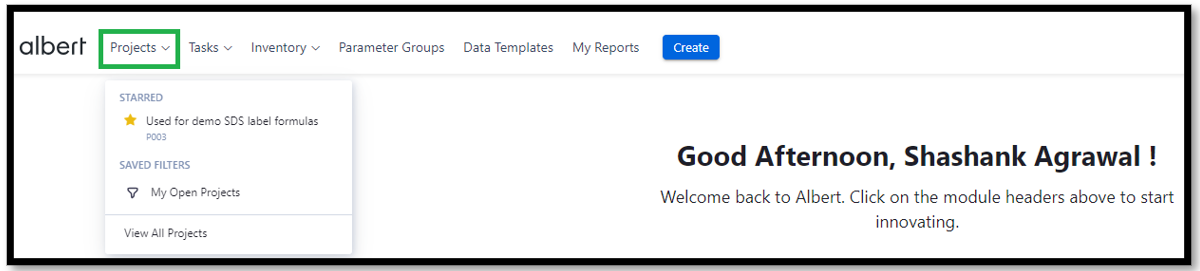
Login to Albert and navigate to your project.
Then, click on Albert Worksheet to navigate to the formulas in your project.
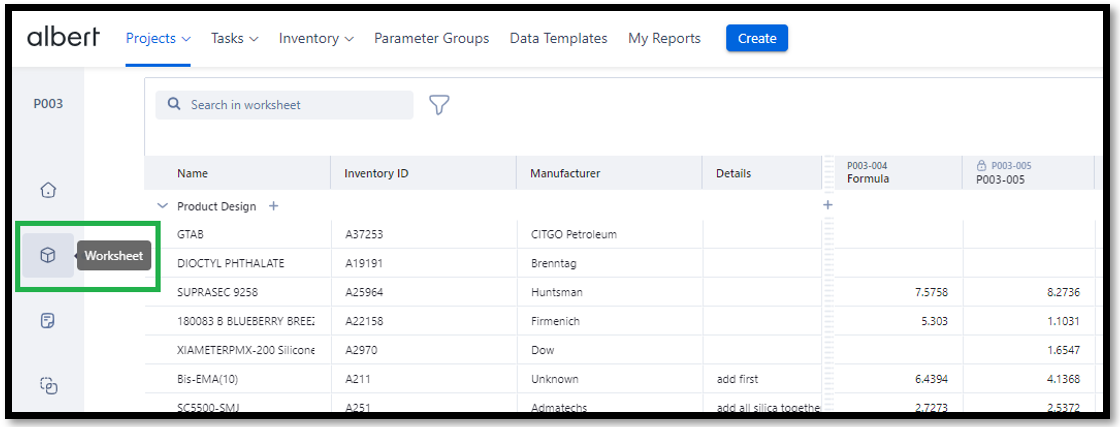
Identify the formula for which you want to generate an SDS.

In the column header, click on the details icon and select Auto-Generate SDS in the dropdown menu.
Note: You can only generate an SDS for one formula at a time.
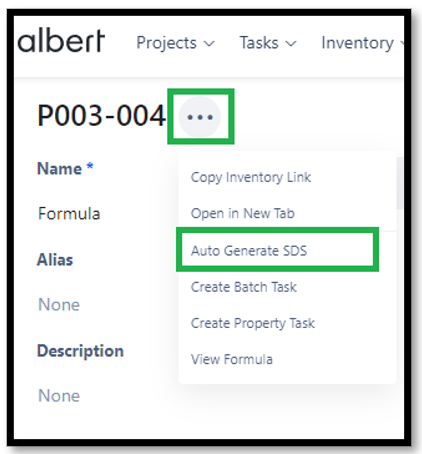
Alternatively, access Albert One-Click SDS by navigating to your formula through the inventory module. Navigate to Inventory → Formulas or, filter your Inventory items by Formulas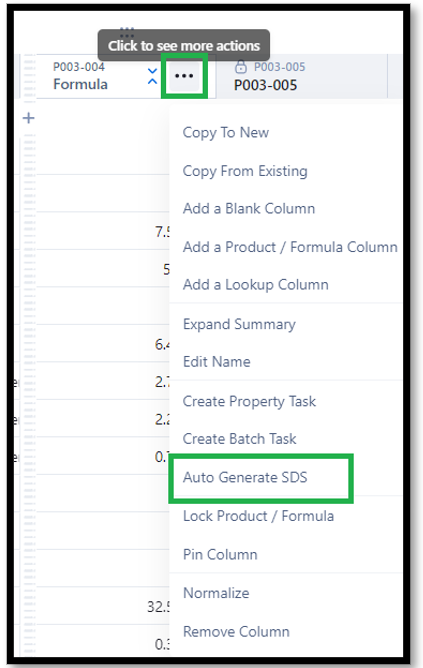
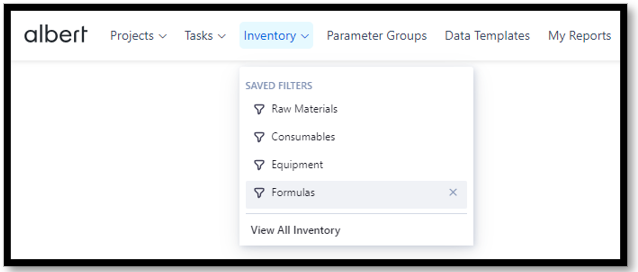
Select your desired formula and navigate to the details icon. Then click Auto-Generate SDS
A dialogue will appear for SDS Generation. Fill the required fields. For additional guidance or support for this section, please work with your internal support team. All fields with an asterisk* are mandatory.
Name
Description
Albert ID*
Default selected Formulation ID
Product Type*
Dropdown list (Select appropriate product type)
Physical State*
Dropdown list
Jurisdiction*
Dropdown list (Select option from supported regions)
Language*
Dropdown list (Select option from supported languages)
Legal Entity*
Dropdown list (Default selection to corporation name of the selected region; in case of multiple legal entities for a selected region, please choose the correct legal entity based your SBU/project information)
Flash Point*
Dropdown list (Select option from predefined ranges)
Initial Boiling Point
Dropdown list only if Flash point: < 23°C (73.4°F)
Dynamic Viscosity*
Enter appropriate numeric value, defaults to 1000. Please note, Kinematic viscosity is calculated based on the Dynamic viscosity and Density user input values.
Viscosity Unit*
Dropdown list (Select appropriate unit)
Specific Gravity*
Enter appropriate numeric value, defaults to 1.
Color
Free text: appearance (can be left blank if not determined)
Odor
Free text: smell (can be left blank if not determined)
VOC Content
Value (Free text; enter appropriate value, can be left blank if not determined)
VOC Unit
Dropdown list (Select appropriate unit)
pH Range*
Dropdown list (Select option from ranges)
Heat of Reaction*
Dropdown list (Select option from ranges)
Section 15 Disclosure
Selected Jurisdiction
Click Generate SDS
Note: You must complete all required fields before clicking Generate SDS
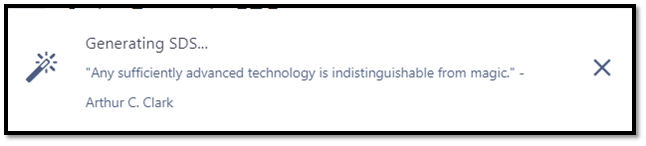
In the top right corner of your browser, you will find a message indicating your SDS is being auto-generated.
Success! Your auto-generated SDS is ready and will automatically begin downloading. .
You can also access the SDS metadata input file by clicking Click Here in the popup notification shown above. The Metadata Excel sheet contains information for all individual substances included in the formula or mixture, including the concentration and physical, chemical, regulatory, and toxicological properties contributing to the auto-generated SDS. This provides visibility into the rule sets that are deployed and classifications that were determined during the process of generating the SDS.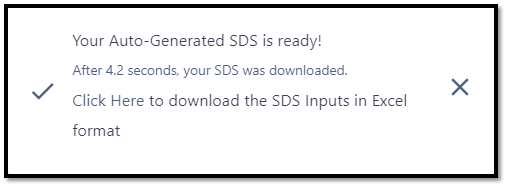
Warnings
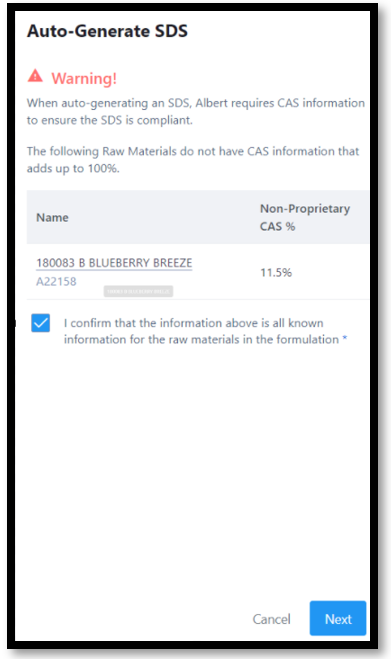
When accessing Albert One-Click SDS for a formula or mixture, you may get a Warning! dialogue. Make sure that the raw materials and consumables used in the formula have CAS numbers and/or Unique External Identifiers associated with it.
Albert will also warn you if the composition does not add up to 100%. The percentage of the known composition of a raw material will be reflected in the warning message. If you still wish to generate the SDS, provide your consent to bypass the warning and continue.
Disclaimer: Bypassing the warning means that you take on the liability to confirm the information is correct.
Auto-Fill for SDS Pop-Up:
This is our new auto-fill feature for the Auto-generate SDS pop-up! This enhancement automatically populates the inputs in SDS pop-up with the most recent information entered by user for the formula. This pre-fill helps save time and effort by providing a quick reference to the details submitted during the last SDS generation. Users can still easily update any information in the auto-filled pop-up, ensuring accuracy and convenience in managing their data.
Albert generates the SDS document according to these rules:
The composition & substance properties associated with each raw material, including the substance Hazard classification, will be pulled from the database in real-time.
Hazard Classification, substance disclosure, and Dangerous Goods classification are generated based on the jurisdiction rulesets
Failed to generate SDS error message: Albert does not allow to generate SDS when one of the below properties is associated with substance present in the mixture:
Jurisdiction | Regulatory Properties |
|
All | Missing hazard$ | Hazards not identified |
USA | SNUR* | Present/Listed and >10 ppm (0.001%) |
Europe | ROHS | Listed and above threshold |
Taiwan | TCSI list | Not listed |
Taiwan | TCCSCA | Listed and above threshold |
China | IECSC list | Not listed |
China | New pollutant | Listed and above threshold |
Canada | CEPA MC | Listed and >10ppm |
Canada | CEPA SNAc | Listed and >10ppm |
Canada | CEPA PTS | Listed and >10ppm |
Canada | CEPA ECL | Listed and >10ppm |
Brazil | Army controlled | Listed and >1% |
Brazil | Civil Police controlled | Listed and >1% |
Brazil | Federal Police controlled | Listed and >1% |
Note: Hard stop can be removed upon customer request. If CAS number is available but has missing hazards, Albert will not be able to generate the SDS and show an error. Please submit a support ticket to add the relevant hazards to the missing Hazards CAS number as per the supplier SDS.
SDS Section 14 Transportation Classification Limitations:
Due to severity and safety implications, by default, Section 14 dangerous goods classification will be listed as 'Unavailable' for all modes of transport:
If mixture is classified as Fatally Toxic (Acute toxic, Cat 1, 2, 3; Class 1, Explosives; Class 6.2, Infectious; Class 7, Radioactive), has a Heat of Reaction >300 J/g (highly exothermic materials) or Class 5.2 (Organic Peroxide), Albert will output "Unavailable" for section 14 Dangerous Good Classification. An Internal Regulatory Team consultation is needed for those types of assessments. and a regulatory expert will be needed for classification, or the customer will need to contact Albert to potentially allow for these scenarios.
Only formulas in liquid or solid state
The current version of the automated SDS generator only supports formulas that are liquids or solids. Your formula will not be supported if it is a gas.
Reaction Formulas
When the starting components do not equal the final chemical composition. Examples: Polymers, Salts, Acid – Base Neutralization, Evaporations, Etc.
For more details, see here: Reaction Products in Albert
Hazardous experimental material with missing CAS information
For hazardous experimental materials with missing CAS information, please contact the PSRA team.
Name and email on the SDS
The name and email of the person who generated the SDS will be available in section 16. Please note that the user is responsible to ensure that the formulation information and RSN are correct when creating the SDS.
The Albert SDS generator saves time compared to the traditional PSRA process,but puts the responsibility of checking these values on the users in trade.
Glossary & Nomenclature
Term | Definition |
CAS number | Numerical identifier assigned by the Chemical Abstracts Service |
RSN number | Unique external substance/composition identifier |
SDS | Safety Data Sheet |
SNUR | Significant New Use Rule |
ROHS | Restriction of Hazardous Substances in Electrical and Electronic Equipment (RoHS) |
TSCA | Toxic Substances Control Act |
TCSI | Taiwan Chemical Substance Inventory |
TCCSCA | Taiwan Toxic Chemicals and Concerned Substances Control Act |
IECSC | Inventory of Existing Chemical Substances in China |
CEPA MC | Canada. Ministerial Conditions for the Manufacture and Import of Substances New to Canada and Suspected of being Toxic (CEPA 1999, Section 84) |
CEPA SNAc | Canada. Substances Subject to Significant New Activity (SNAc) Reporting Requirements |
CEPA PTS | Canada. Prohibition of Certain Toxic Substances Regulations |
CEPA ECL | Canada. Export Control List (CEPA Schedule 3) |
Was this article helpful?
Have more questions? Submit a request