
Inventory Overview
Albert Inventory serves as a digital manifestation of your physical inventory, enabling you to sort, filter, trace, and manage all types of inventory. Albert Inventory ensures harmonization within a single location or throughout hundreds of global sites.
Types of Inventory
Formulas are Inventory items that represent entire formulas composed of various raw materials. When you create a batch through a Batch Task, the resulting inventory is stored as a Formula in the inventory module. You cannot manually add items to this category.
Raw Materials are Inventory items used in formulations
Consumables can be used to track all types of laboratory consumables (substrates, filters, etc.) that are not used as raw materials
Equipment category can be used to track all types of equipment, devices, machines, or other assets. These items can be linked to the tasks, and you can attach all associated documentation (calibration, manuals, etc.).
Best Practices for Inventory Management
Accurate classification of inventory types is essential for traceability, cost tracking, and operational efficiency.
Raw Materials feed directly into formulation workflows and impact material consumption, costing, and reporting.
Consumables help monitor one-time-use items and maintain visibility into lab resource usage.
Formulas represent finished or in-process products, ensuring consistent tracking from development through production.
Equipment tracking supports compliance, calibration, and audit readiness.
Properly categorizing materials allows teams to maintain clear inventory organization, prevent duplication, and generate precise reports across projects and tasks.
Some materials, such as reagents can be classified as either Raw Materials or Consumables depending on how they are used in experiments.
If the reagent is measured by weight or volume and added into a formulation, classify it as a Raw Material.
If it is used once for testing, setup, or analytical purposes, classify it as a Consumable.
🚫 Deleting inventory items and formulas
Formulas and other inventory items cannot be deleted through the Albert UI. Formulas can only be hidden in the Worksheet. Permanent deletion of any inventory item or formula is only possible via the API. To proceed, please reach out to your internal company support team or contact Albert Support for assistance.
Searching and Filtering the Inventory
Opening up the Inventory module will open a list of all Inventory. From there, you can easily search, filter on, and sort by a variety of criteria.
For more information on searching and filtering the Inventory, navigate to this help article.
Creating Inventory Items
It is best practice to filter and search for Inventory items to see if they exist before creating new Inventory items in order to reduce the number of duplicates in the platform and allow for better tracking of Inventory items.
To create a new Inventory item, click the Create button at the top of your screen and select Inventory.
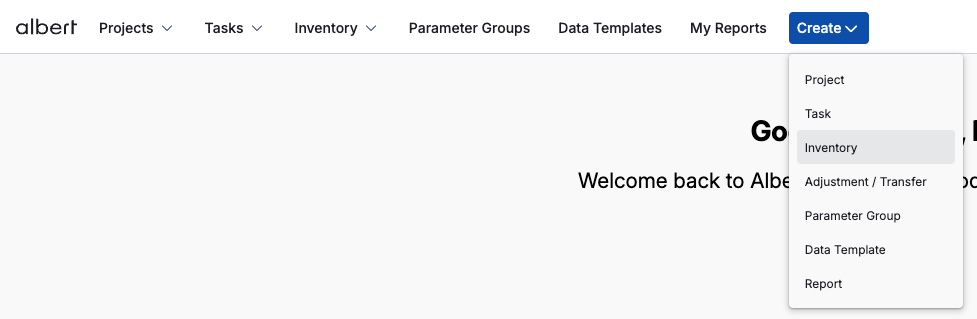
From there, the Create New Inventory Item modal will pop up and you will be prompted to fill out details about your Inventory item.
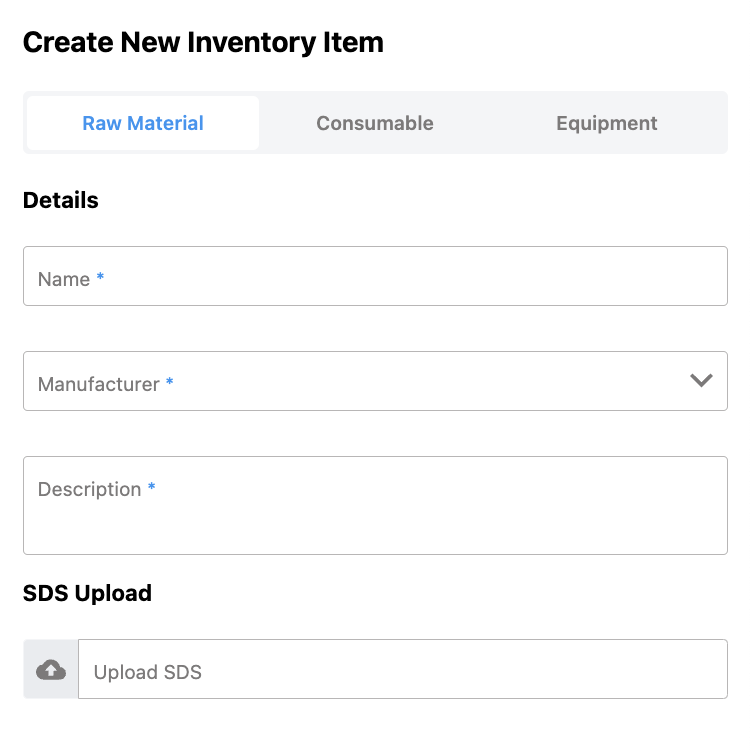
Selecting Create after you've filled out all relevant information about your Inventory item will create the new item within Albert.
Editing Existing Inventory Items
Once you've created a new Inventory item, you can edit its details. To edit the item's details, navigate to the Inventory item and open it. On the left side of the screen, you can edit the Inventory item's details as desired.

If you attempt to change the name of the Inventory item, Albert will ask you to confirm, as changing the name of the item may cause inconsistencies with any labels that have already been printed and reference the Inventory item. Click "Yes" to confirm.
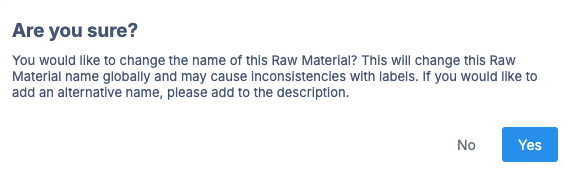
Tip: If you would like to add an alternative name to an Inventory item, it is best practice to add the alternative name in the description.
Making Inventory Items Confidential
Users with appropriate permissions can mark certain Inventory items as confidential, controlling exactly who can view or edit the Inventory item.
To mark an Inventory item as confidential, navigate to the page of the Inventory item, select the three dots next to the Inventory ID, and then select Share Inventory Item.
A new popup will appear, allowing you to change who can access the Inventory item.
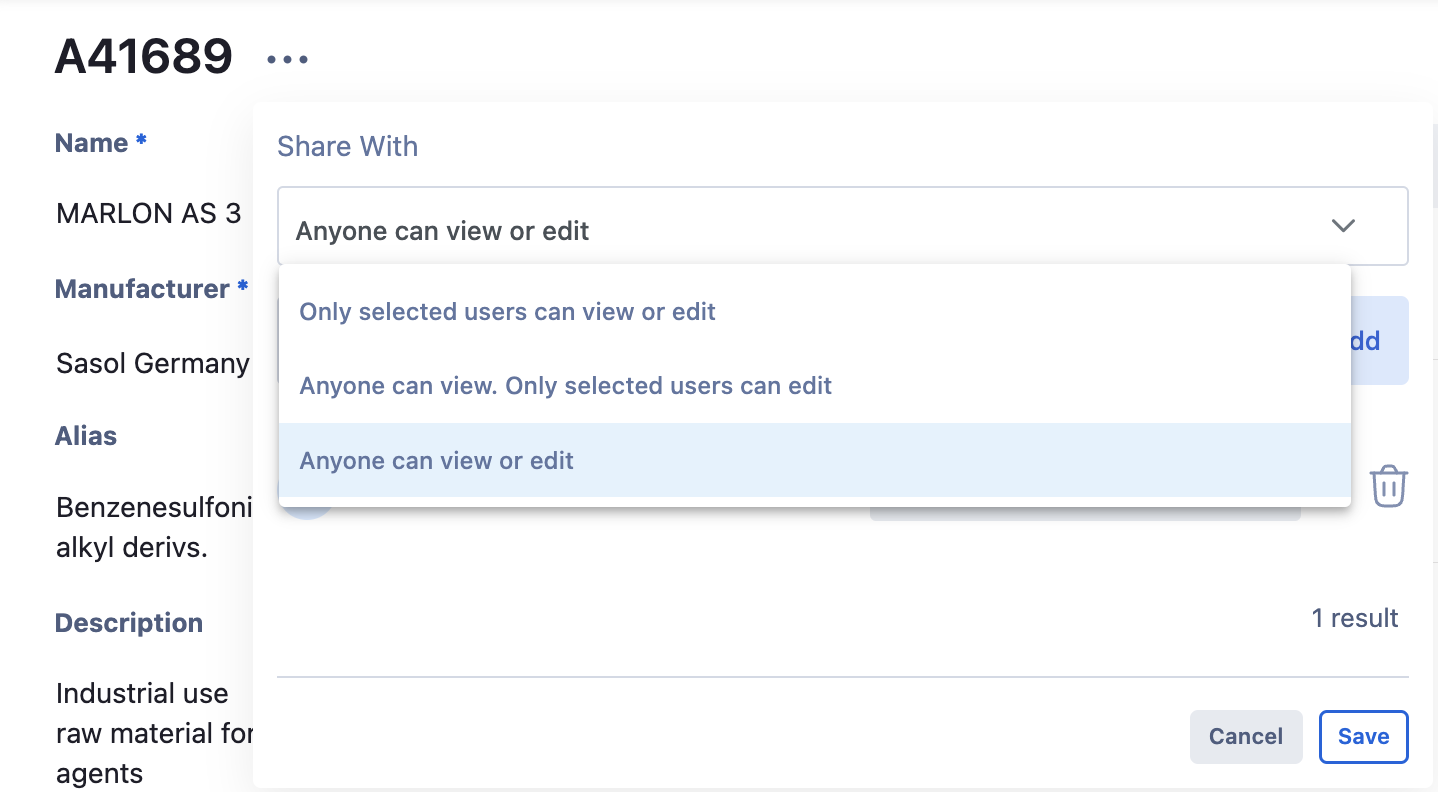
Note: Only users with appropriate permissions will be able to update the Inventory's access. If you'd like to update an Inventory item but are unable to, please reach out to your organization's Albert administrator.
Inventory Lots
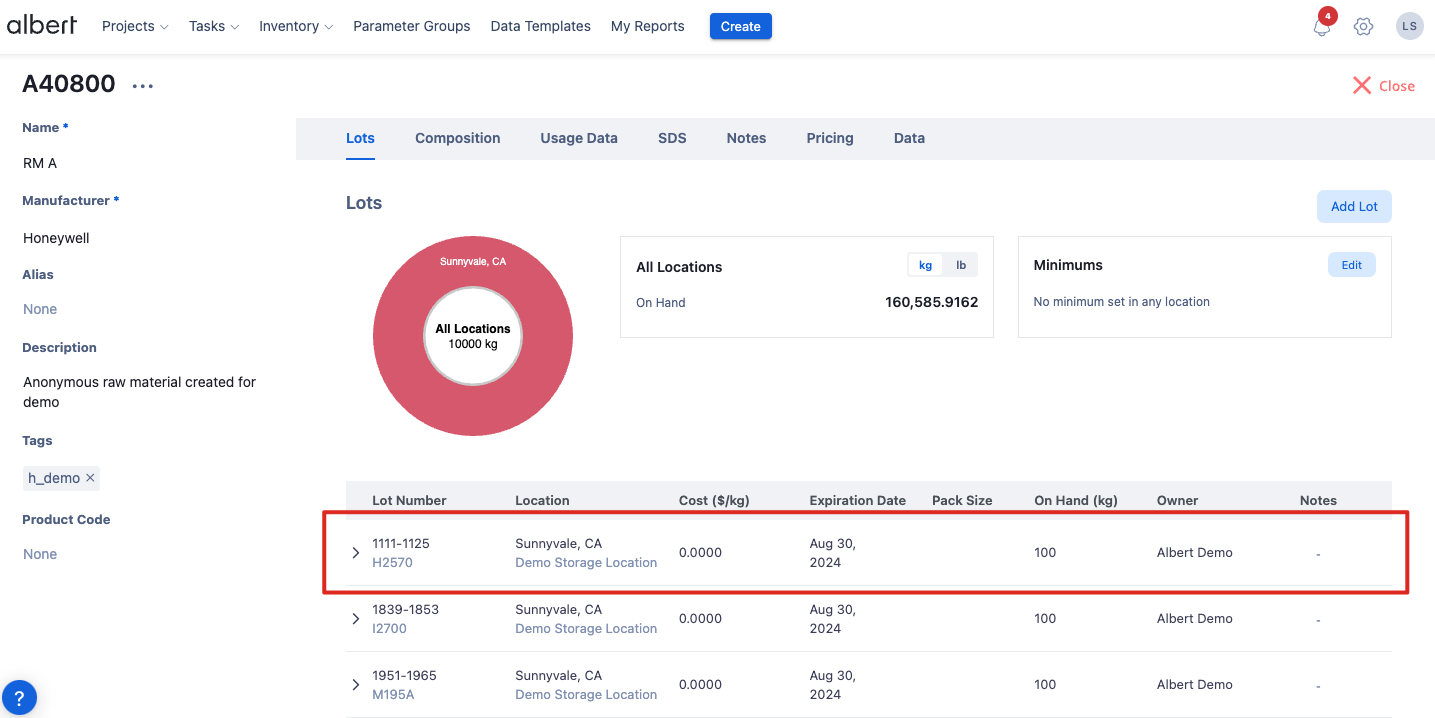
Lots of Inventory items are the physical representation of Raw Materials, Formulas, Consumables, and Equipment in your laboratory. On the Inventory item's page, each Lot is represented by a row like shown below:
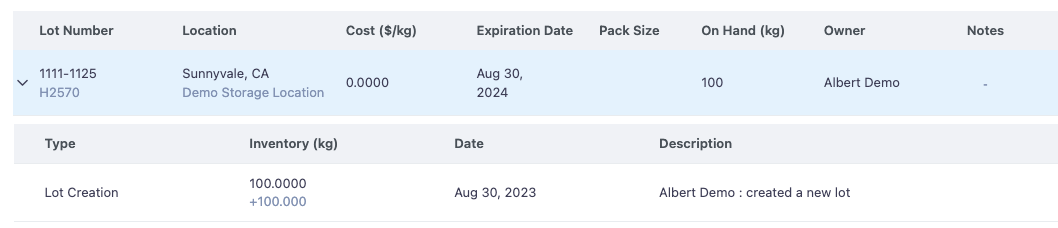
The lot by lot traceability can be shown by expanding the carrot to the left of the Lot Number:
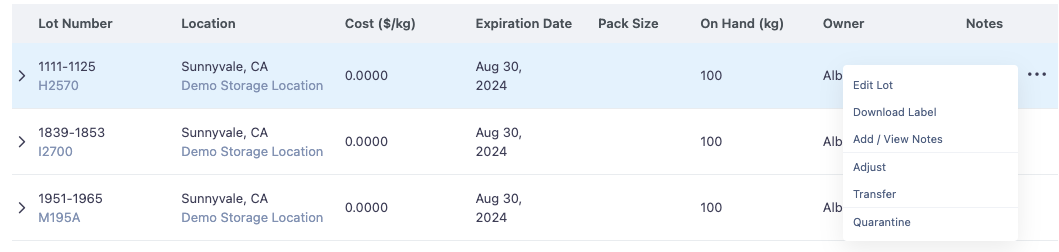
And a number of actions can be taken against the Lot from this view, including downloading the label, transferring the lot to a new storage location, changing the quantity, and editing the Lot:
Bulk Lot Addition
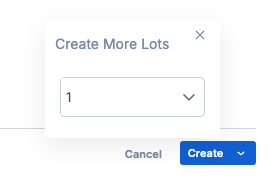
You can create multiple lots of the same material at once during the lot creation process. Each lot will have its own unique lot identifier, however will all be linked to the same parent (identical first four digits!). To do this, click on the down arrow when creating a lot and simply select the number of identical lots you want to create (note that a maximum of 25 identical lots can be created at time).
Tip: This functionality is great when receiving multiple containers of the same material in the same quantity to create all of the lots in one action!
After lot creation, the labels for each lot will automatically download in the user's default label size at once, allowing for easy label printing after creation.
Lot Owners
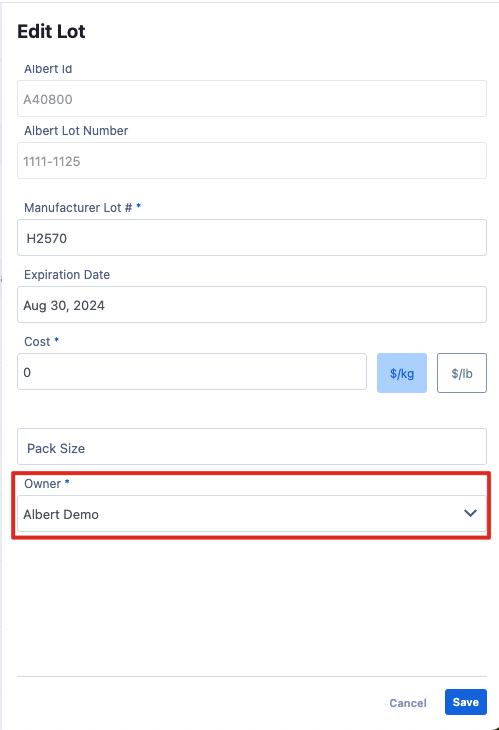
Each Lot must be assigned an Owner (see image below). This is a required field and must be filled out upon Lot creation, and it can be edited later as needed.
Inventory Tags
Tags are an easy way to quickly track, search, and filter your Inventory items. By using tags, you can group Inventory items according to specific features such as color, applications, etc. Inventory Tags can be found on the left side of your screen after opening the Inventory item.
Adjust Quantities and Transfer Inventory Items
If you would like to adjust the inventory quantity (outside of using a Task), you can perform an Inventory Adjustment to add, subtract, or zero the inventory for a specific lot number. An inventory adjustment is typically done to subtract inventory for a spill, zero inventory when a bottle is empty, etc.
When you perform an Inventory Adjustment, you must already have Inventory Lots from which you can subtract or add a quantity. All historical adjustments can be found in the Inventory Lot History.
You may scan the barcode of the inventory item to quickly access the corresponding Inventory Lot in Albert. To learn more about scanning barcodes, visit this help article.
Custom Fields
Custom Fields in the inventory module are meant to capture inventory-specific data that are not available in the regular module. We can add custom fields to the inventory for different fields that are relevant to your organization. These fields can be numeric, free text, drop-down, or even pre-defined! These fields are searchable, filterable, and reportable.
To learn more about custom fields, please visit this help article.
Result Data
Users can capture properties against raw materials, consumables, and equipment straight in the inventory details page in the Result Data sections without the need to create property task.
To learn more about result data in the inventory module, please visit this help article.
Linked Inventory
Users can link inventory items from the Linked Inventory section of an inventory details page. This allows for you to easily link similar or commonly used items together for easy access back and forth in the system.
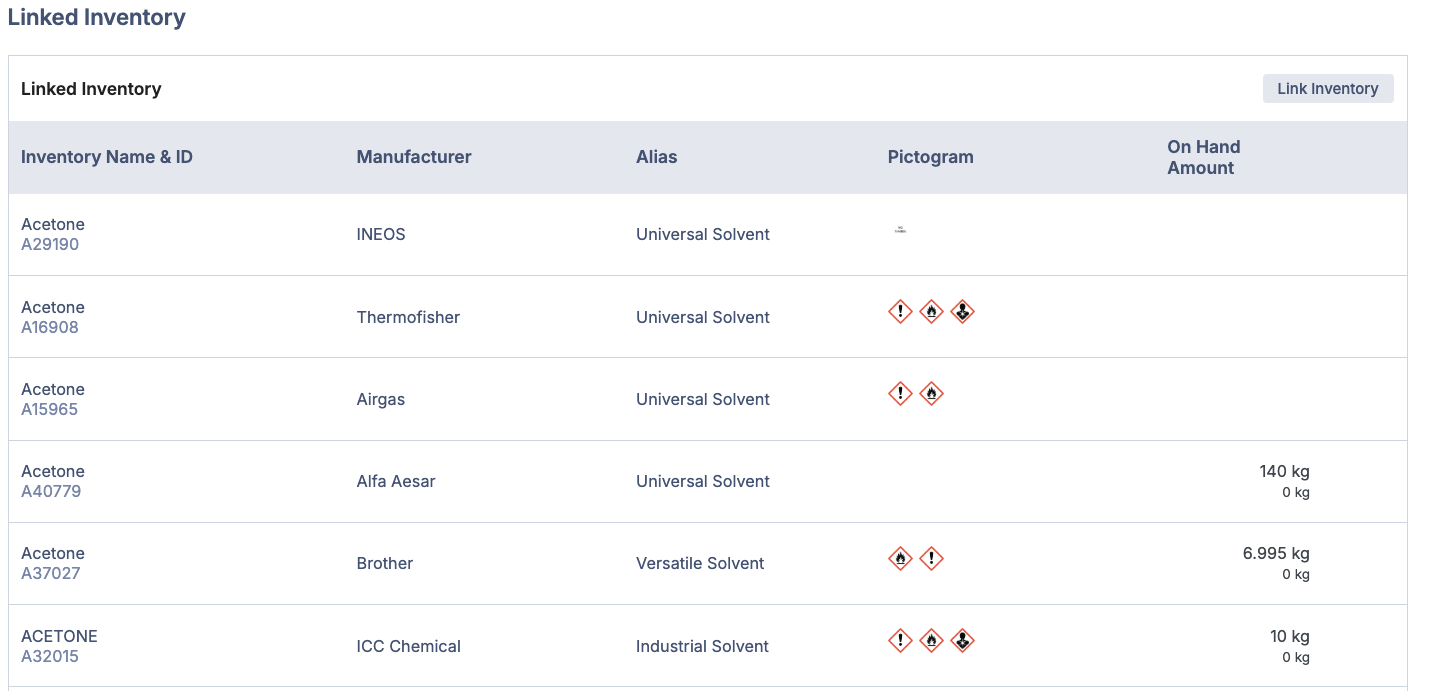
Tip: Inventory can be linked across all types - so you can link a raw material to a formula, consumable, or even equipment!i