
Master Data Management Overview
📚 Master Data Management (MDM) overview
Audience: Power Users, Administrators, and Albert Champions · Goal: Give a single place to manage how master data is defined and used in Albert.
The Master Data Management (MDM) menu gives Power Users, Administrators, and Albert Champions a unified place to view, create, and manage how core data is captured in Albert.
Use MDM to manage master data such as:
Data Templates – how experimental and results data is structured.
Parameter Groups – reusable sets of parameters shared across templates.
Templates – Task, Worksheet, and Notebook templates used by chemists day-to-day.
Centralizing these objects makes it easier to keep your workspace consistent, reduce duplicated configuration, and standardize how information is captured across projects and teams.
On this page
🧭 How to open the Master Data Management menu
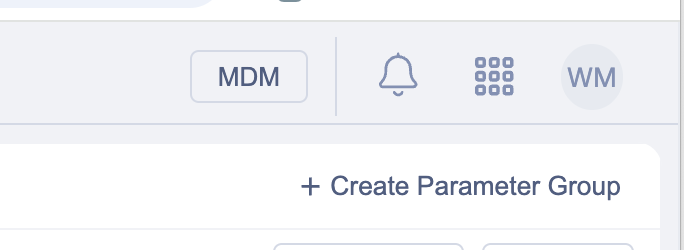
In Albert, look at the top header bar (next to Notifications, Apps, and the user dropdown).
Click the MDM button to open the Master Data Management menu.
🧱 What moved into MDM
After the initial MDM release, the following items move out of the main Albert ribbon and into the MDM menu:
Data Templates
Parameter Groups
In addition, the existing Templates page (previously under the Apps menu) is now also available from MDM.
This means master data objects live in one place, while the main ribbon stays focused on everyday work (Inventory, Projects, Tasks, etc.).

📊 Data Templates & Parameter Groups
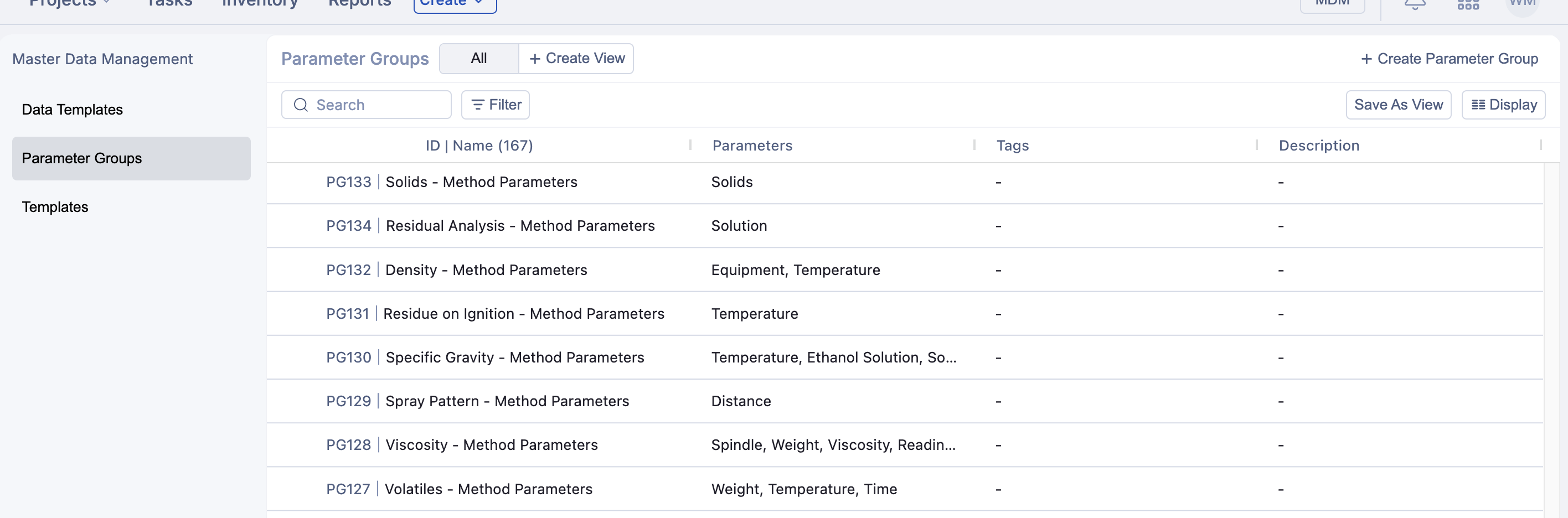
Previously found directly in the Albert ribbon, Data Templates and Parameter Groups are now accessible from the MDM menu.
From these pages, you have full Landing Grid functionality to configure how you view, search, and filter Data Templates (DTs) and Parameter Groups (PGs). This includes:
Showing or hiding columns that matter for your workflows.
Filtering and sorting to quickly find the right DT or PG.
Saving views that you and your team can reuse later.
You can also create new objects directly from these pages using the buttons in the top-right corner:
Create Data Template
Create Parameter Group
For more detail on how grids behave across Albert, see: 🧱 Landing Grids: Inventory, Projects & Tasks
📝 Templates
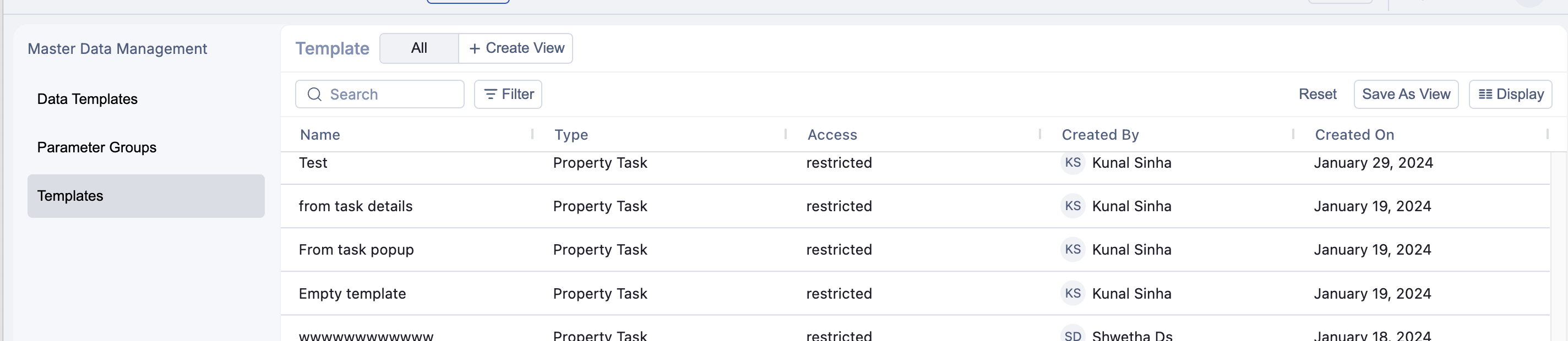
Previously, Templates lived under the Apps menu. They are now part of the Master Data Management menu, alongside Data Templates and Parameter Groups.
The Templates page lets you view, search, and filter all templates defined in your Albert workspace, including:
Task Templates for each task type (Batch, Property, General, or Custom).
Worksheet Templates.
Notebook Templates.
This page also uses the new Landing Grid experience, so you can:
Quickly find the right template by name, type, or owner.
Filter templates by task type or other properties.
Standardize views across teams to keep template usage consistent.
Centralizing templates alongside other master data makes it easier to govern how work is started and documented in Albert.
🚧 Additional features coming soon
The first MDM release focuses on Data Templates, Parameter Groups, and Templates. Over time, additional pages will appear in the MDM menu to manage more granular master data. The features below are planned but may not yet be visible in your workspace.
📊 Results
Results represent the individual data columns that belong to a Data Template (for example, “Viscosity”, “Color”, or “Solids %”).
The Results page will use the same Landing Grid experience as Data Templates & Parameter Groups, letting you:
Create and manage reusable result definitions used across Data Templates.
Filter, sort, and search to find specific result columns.
Save views so your team can quickly see the most important result fields.
This makes it easier to standardize how individual result columns are defined and reused, instead of re-creating them template by template.
📐 Parameters
Parameters are the individual inputs that belong to a Parameter Group (for example, “Temperature”, “Shear rate”, “Duration”).
The Parameters page will mirror the Results page, but focused on these reusable inputs:
Define individual parameters once and reuse them across Parameter Groups.
Use views, filters, and search to keep parameter libraries organized.
Ensure consistent naming and units across methods and templates.
🏷️ Attributes
Attributes will be a major upgrade of the current Result Data section within Inventory. Attributes let admins configure pre-set specifications that can be attached to raw materials.
A key use case is capturing manufacturer specifications from technical data sheets. You’ll be able to combine a Result (data column) with a Parameter to define a specific attribute, such as:
Viscosity at 25 °C
Color (APHA)
Solids % at 110 °C
When creating or editing inventory, users will be able to quickly add these pre-defined Attributes to raw materials, providing a standard set of reportable values across suppliers and SKUs.
These Attributes can then be used in Worksheets as lookup columns for calculations when formulating new products. For example, you could pull in “Viscosity at 25 °C” from a raw material’s Attributes directly into a formula worksheet, ensuring calculations always reference the same master data.
Together, Results, Parameters, and Attributes will make MDM a richer hub for defining the lowest-level building blocks that power experiments, inventory, and formulation work in Albert.