
🧱 Landing Grids: Inventory, Projects & Tasks
Learn how the new Landing Grids work across Inventory, Projects, and Tasks. This guide covers navigation, Views, columns (including Custom Fields), searching and filtering, and resizing—plus key differences from the old grid.
Overview
Landing Grids are the modern list views for Inventory, Projects, and Tasks. They add saved Views, richer column control (including Custom Fields), and precise filtering/sorting for faster, clearer work.
Personalized Views — save columns, order, filters, and sorts. The leftmost View opens by default.
Custom Fields in the grid — add via Display and use many as filters.
Fixed primary column — Inventory/Project/Task name always fixed.
Simplified filters — search-within values, sub-definitions, and checkboxes.
Resizing that helps readability — drag to resize columns as needed 🚧 Saving column widths: coming soon.
Faster scanning — keep high-signal columns left; widen key fields for readability.
Column visibility and order (including Custom Fields)
Active filters and sorts
Per-column widths 🚧 Coming soon
Inventory: primary column is Inventory Name; names are hyperlinked.
Projects: primary column is Project Name; click the Project Name to open.
Tasks: primary column is Task Name; related Inventory, Parameter Groups, and Data Templates open from linked cells or counts.
Inventory — Navigation
Switch Views to change layouts, combine Search with filters for precision, and configure columns from the Display menu.
Inventory specifics: Inventory Name is always fixed and is a hyperlink—click it to open the record. Use the (•••) to the left of Inventory Name to copy a shareable link. Typical columns: Category/Type, Owner, Location, Updated At, Tags — plus any Custom Fields.
Open Inventory from the top navigation.
Switch saved Views via tabs; use Create View / Views to create/duplicate/rename.
Search by name/ID/application/tags; refine with Filter (e.g., category, manufacturer, storage location).
Use Display to include key columns (Inventory Name, Category/Type, Created By, Location, Pictogram, Tags) and arrange their order.
Save View to persist the layout; remember the first tab opens by default.
Open a record by clicking the Inventory Name link in the first column.
Click the (•••) to the left of Inventory Name to copy and share the record link.

Here are the two split sections:
Download Labels from Inventory
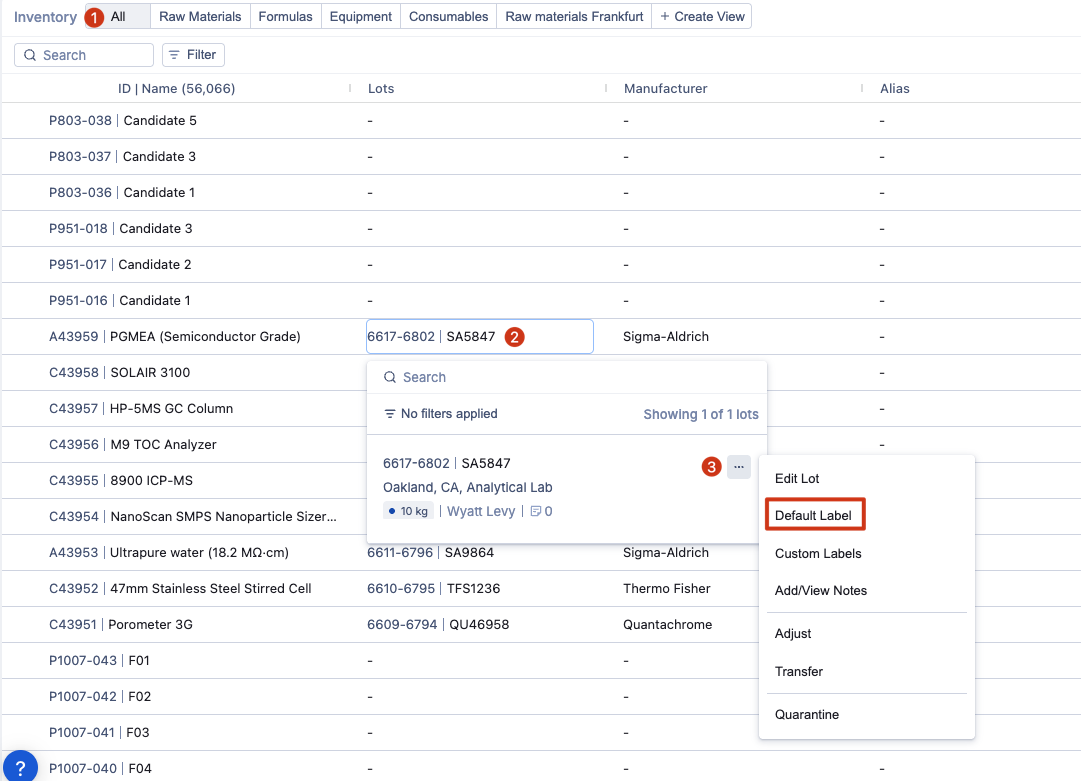
Download lot labels for inventory items directly from the Inventory grid.
Available downloads:
🏷️ Lot Labels — labels for a specific lot of an inventory item.
To download Lot Labels:
Open the Inventory grid.
In the Lot column, click on the lot.
Click the (•••) and select the label to download.
Projects — Navigation
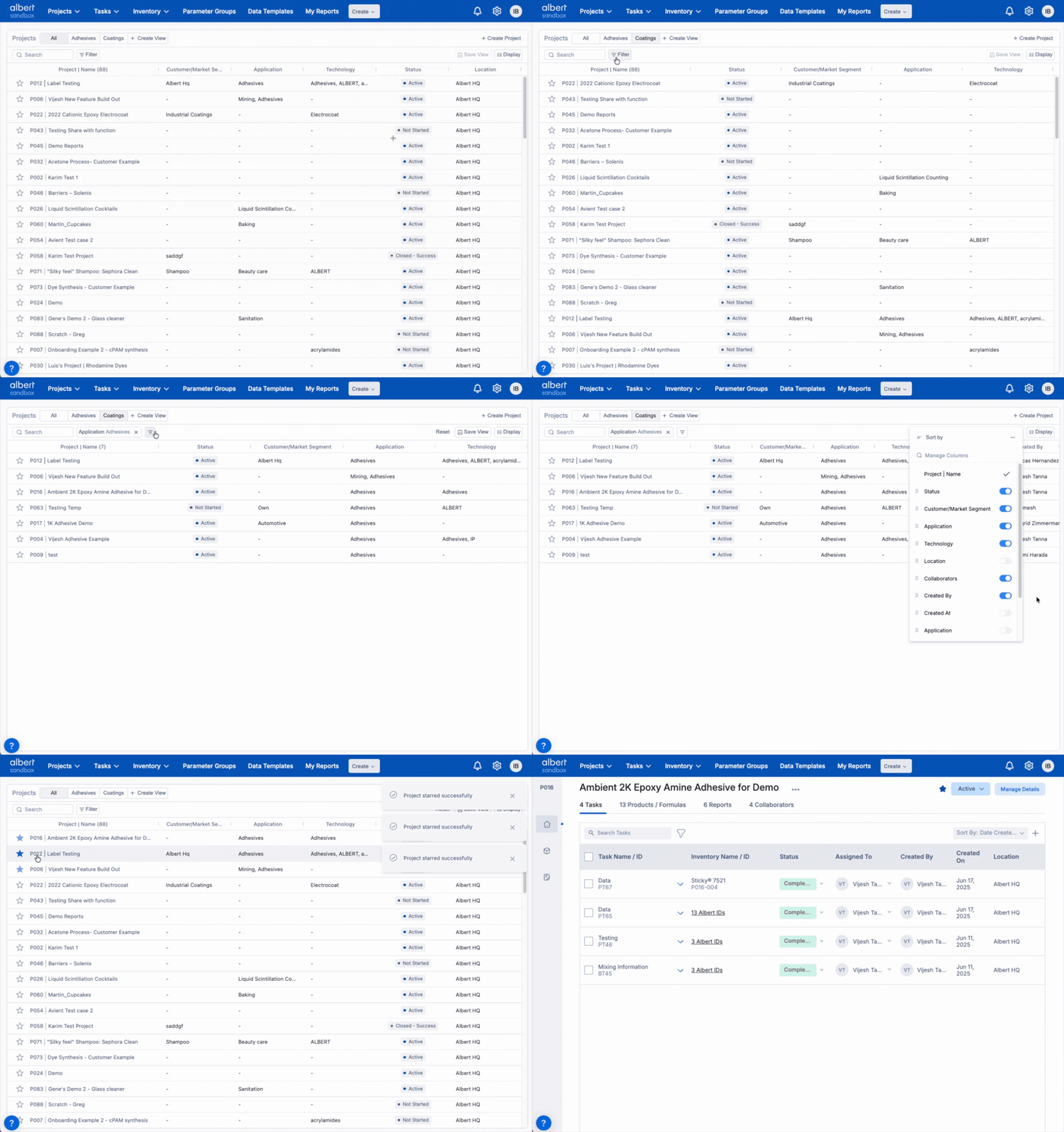
Switch Views to change layouts, combine Search with filters for precision, and configure columns from the Display menu.
Project specifics: Project Name is always fixed. Click the Project Name to open the project. Typical columns: Status, Location, Collaborators, Tags — plus any Custom Fields.
Open Projects from the top navigation.
Switch saved Views via tabs; use Create View / Views to create/duplicate/rename.
Search by name, ID, application, or tags; refine with Filter (e.g., Status, Location, Created By).
Use Display to include key columns (Project Name, Status, Location, Collaborators, Tags) and arrange their order.
Save View to persist the layout; remember the first tab opens by default.
Open a record by clicking the Project Name in the first column.
Click the ★ star next to a project to save it as a Favorite — it will appear at the top of the list.
Tasks — Navigation
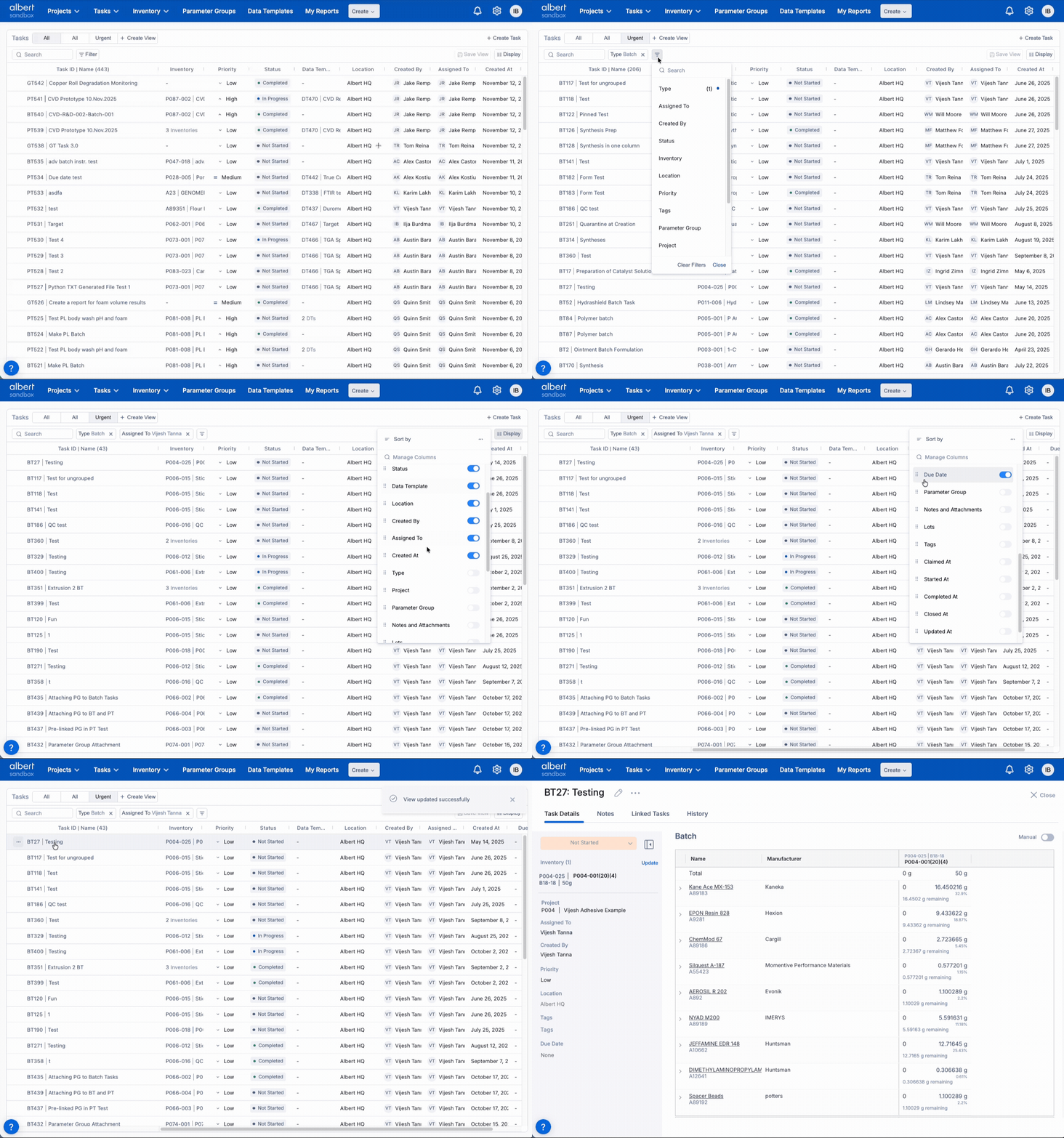
Use the tabs for Views, Search and Filter to target tasks, and Display to choose columns before saving your layout.
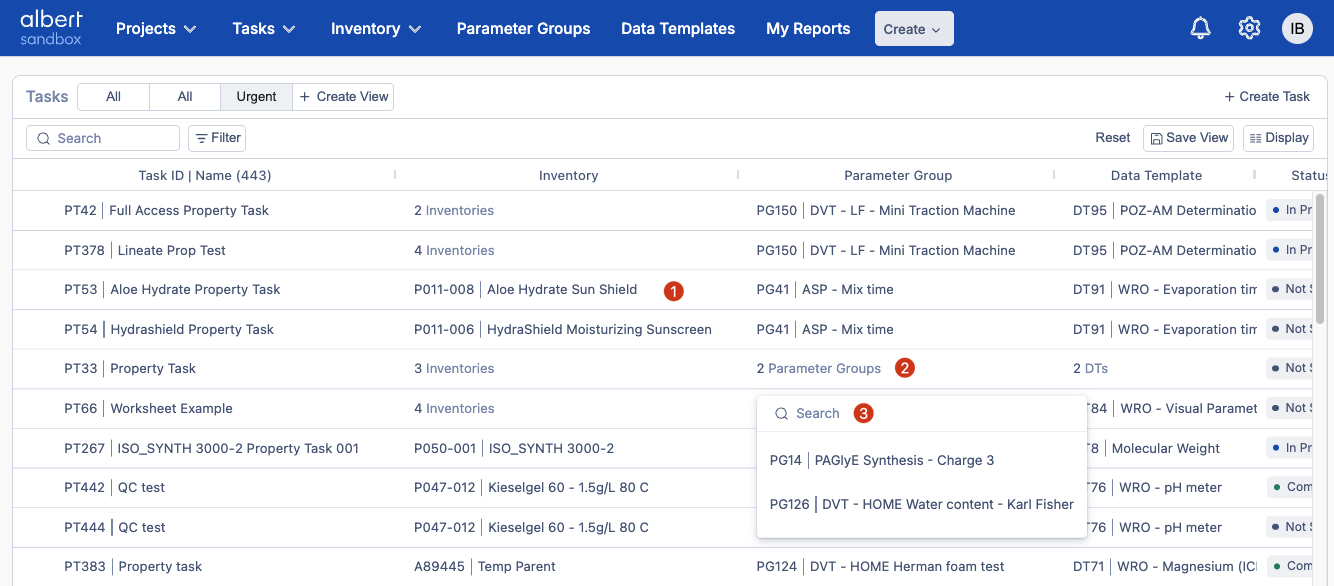
Task specifics: Task Name is always fixed. Click the Task Name to open the task. Related columns (Inventory, Data Templates, Parameter Groups) are clickable: a single link opens directly; a number opens a submenu where you can search within and select. Use the (•••) to the left of Task Name to copy a shareable link.
Open Tasks from the top navigation.
Switch Views from the tabs bar; manage via Create View / Views.
Search by task name/ID/assignee/tags; narrow with Filter (Status, Assignee, Due Date, etc.).
Use Display to control columns (Task Name, Status, Assignee, Due Date, Updated At, Tags).
Save View to persist column selection, order, filters, and sorts.
Open a task by clicking the Task Name in the first column. Click + Create Task to add new.
Click the (•••) to the left of Task Name to copy and share the task link.
Download Labels from Tasks
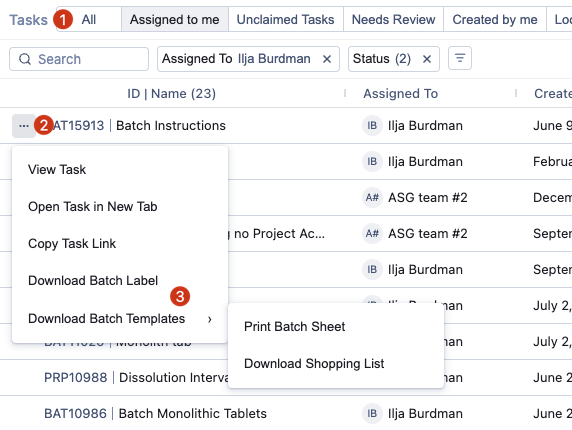
Download inventory item labels and related documents directly from the Tasks grid.
Available downloads:
🏷️ Property Labels — labels for the inventory item's properties.
📄 Batch Sheets — batch documentation for the inventory item.
🛒 Shopping List — shopping list for the inventory item.
To download:
Open the Tasks grid.
Click the (•••) next to the task ID.
Select the label type you want to download.
Custom Views & Adjustments
Views save your layout: columns, order, filters, and sorts. The leftmost tab opens by default.
Create / Save a View: Adjust columns via Display, apply filters/sorts, then click Save View 💾 in the toolbar and name it. Changes aren’t saved until you press Save View.
Duplicate a View: Use Views → Duplicate to branch from an existing layout.
Set default behavior: You can’t drag tabs; the first (leftmost) View opens by default. Adjust that View to your needs and click Save View.
Manage: Create View / Views lets you create, rename, or delete saved Views.
Reset changes: Click Reset to discard unsaved changes and revert to the last saved layout.
💾 Don’t forget to Save: Layout changes (columns, order, filters, sorts) are not applied to the View until you click Save View.

Display
Use Display to control which columns appear in the grid and in what order. You can also access sort options and quickly include Custom Fields.
Open Display: Click Display above the table.
Show / hide columns: Toggle fields on or off — including Custom Fields where available.
Reorder columns: Drag fields to change their order.
Sort by: Choose a field (e.g., Name, Status, Created By) and set ascending/descending.
Save View: When your layout looks right, click Save View to persist the changes.
Keep high-signal columns on the left for faster scanning. Use the dedicated section on Adjust Column Widths for width tips. 🚧 Saving column widths: coming soon

Searching & Filtering
Use quick Search for names/IDs, then refine with field filters. Filters use search-within, sub-definitions, and checkboxes.
Open controls: Use the Search field above the table and the Filter button to start narrowing.
Quick Search: Type a name/ID/application (where supported). Pair with filters for precision.
Add field filters: Choose fields like Category, Lot Owner, or Pictograms. Each condition narrows rows.
Combine filters: Add multiple conditions; remove any to broaden results.
Clear all: Open Filter → Clear Filters to reset.

Adjust Column Widths
Size columns for readability while you work. You can resize columns in the grid; saving column widths per View is 🚧 Coming soon.
Resize Columns
Hover a header edge until the resize cursor appears.
Drag to resize and release when the content fits cleanly.
Widen key fields (e.g., Name, Status, Owner) for quick scanning.
Saving widths per View is 🚧 Coming soon.

Open Related Records (from Tasks)
From Tasks, open related Inventory, Data Templates, and Parameter Groups directly from the grid.
Single item: If the cell shows a single linked name, click to open the record.
Multiple items: If a number appears (e.g., 3), click it to open a submenu listing all related records.
Search within submenu: Use the search field to quickly filter and open the right record.
Export a View
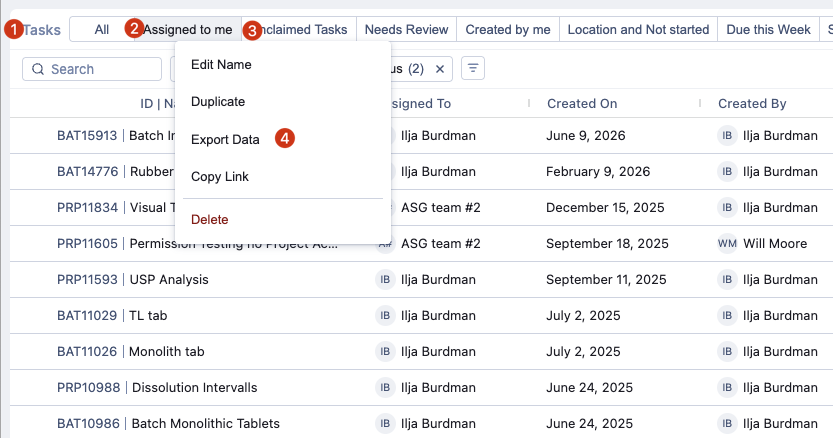
Export the current grid view to CSV for use in Excel, Google Sheets, or other tools. Available across Inventory, Projects, Tasks, Reports, and MDM (Data Templates, Parameter Groups, and more).
Open any grid (e.g., Inventory, Projects, Tasks).
Switch to the View you want to export.
Click the (•••) menu next to the view name.
Click Export — a CSV file will be generated and downloaded automatically.
💡 Tip: Apply filters and sorts before exporting to get exactly the rows and columns you need.
Share a View
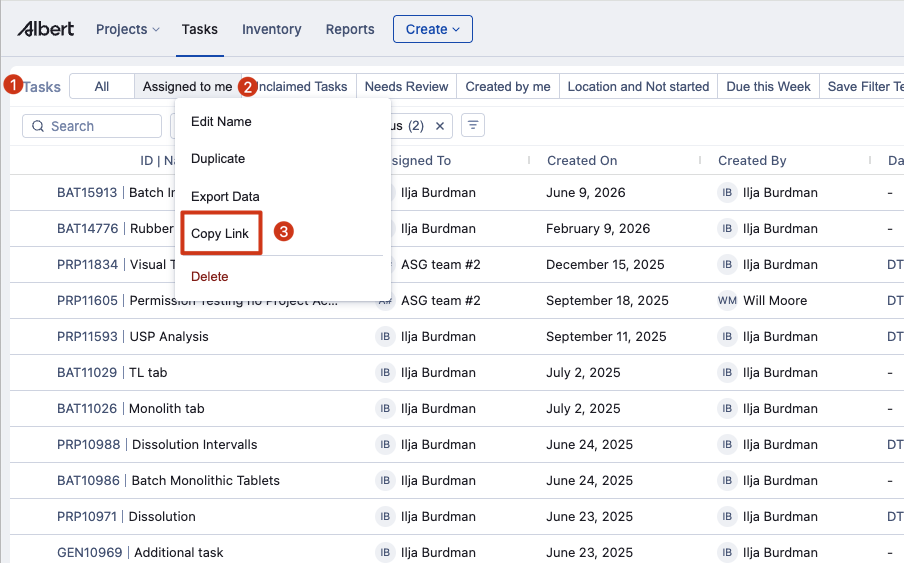
Share a direct link to any saved View with your teammates.
Open the grid (e.g., Tasks, Inventory, Projects).
Right-click the View tab you want to share, or click the (•••) menu on the tab.
Click Copy Link — the link is copied to your clipboard.
Paste and share the link directly with your teammates.
💡 The link opens the grid with that View's columns, filters, and sorts already applied.
FAQ
Quick answers to common questions about defaults, Custom Fields, and fixed columns.
How do I make a View my default?
Albert opens the first (leftmost) tab by default. You can’t drag to reorder tabs; instead, switch to the first tab, adjust it to your needs, then Save View.
Can I add Custom Fields to a grid?
Yes, where enabled for your org/module. Open Display and toggle the Custom Field(s) on.
Which columns are always fixed?
Inventory: Inventory Name · Projects: Project Name · Tasks: Task Name.
Need more help with Landing Grids? Contact support.