
Project Home
The Project Home is the landing page that displays important information pertaining to a particular Project. From this page, it becomes simple to tell how many Tasks, Products, Reports, and Collaborators are involved in the Project. Clicking on Tasks, Products, Reports, and Collaborators under the Project name shows a brief overview of information related to the Project. The Project Home allows for easy sorting, filtering, and searching of Tasks within a Project as well as providing an overview of all other relevant Project information.
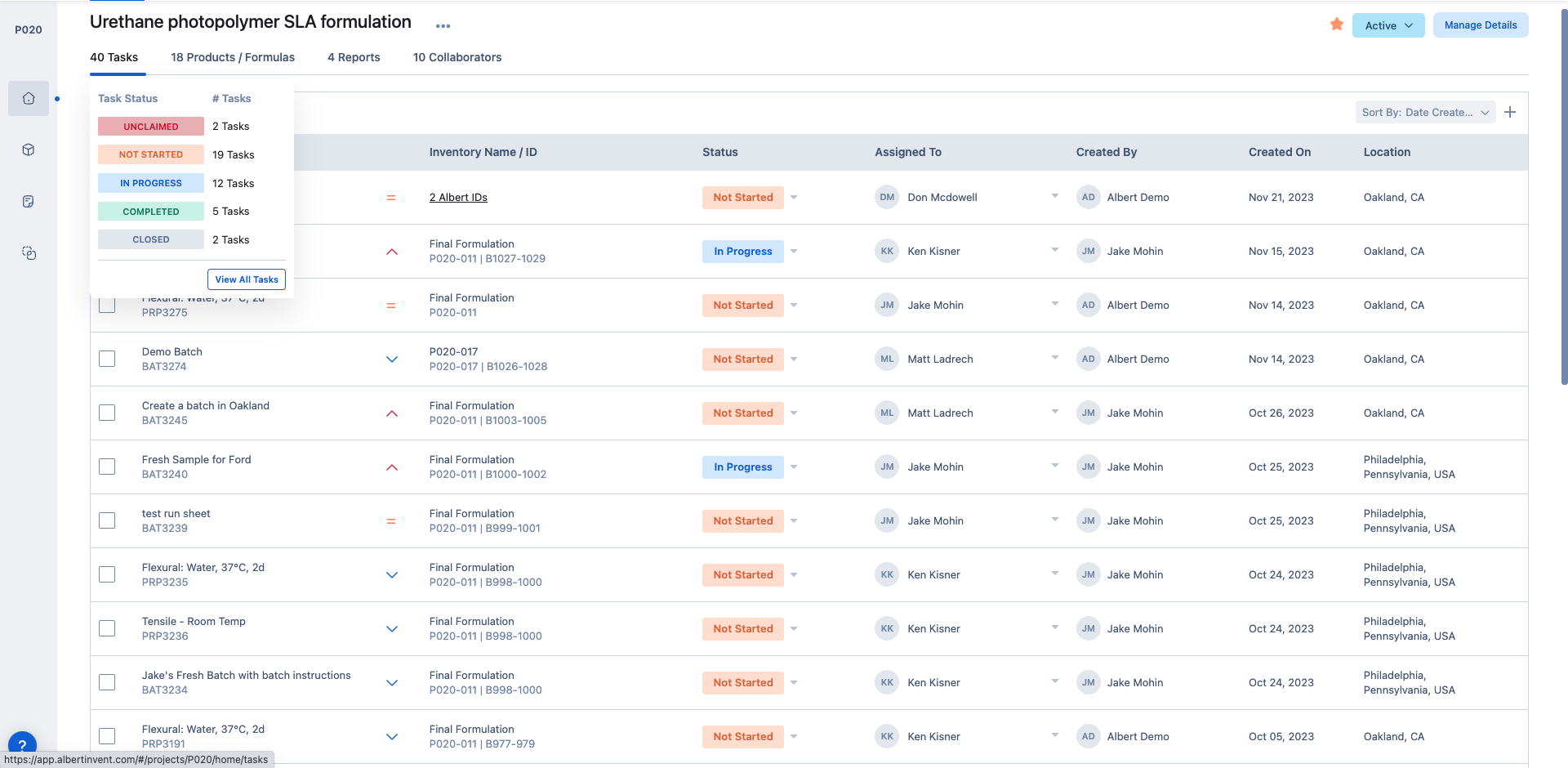
Bulk Task Updates
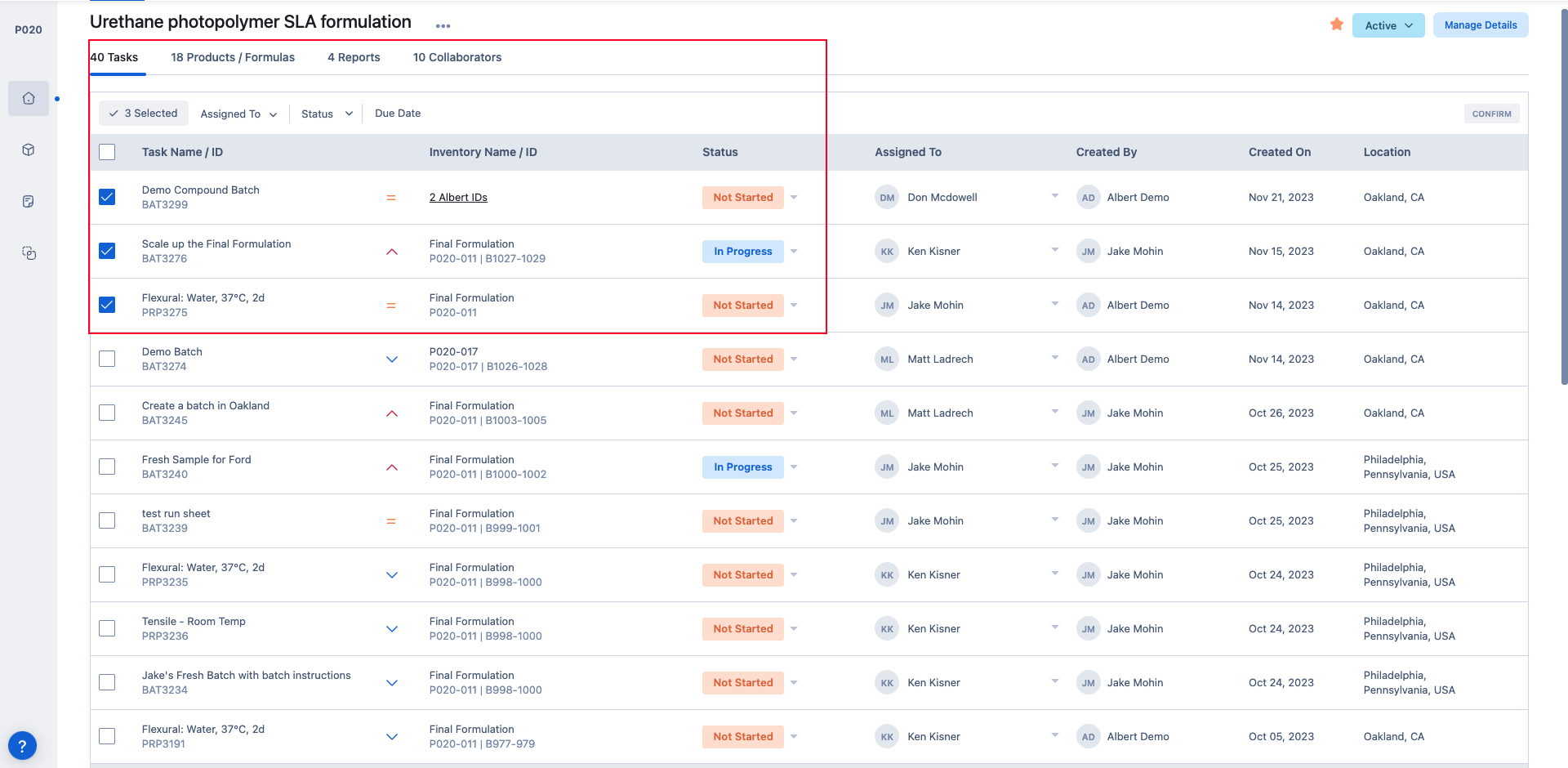
This task list view also allows for bulk task updates by utilizing the check box feature to update the status, assignee, or due date of multiple tasks at the same time.
Manage Project Details
Project details can be accessed through the “Manage Details” button in the upper right corner. This is the same information used to create the Project.

Task Filtering
The same filtering capabilities are present as in other search modules in Albert. Only tasks associated with the Project you are viewing are displayed. The option to save frequently used filters is also available as they are in other areas of Albert.


Start a new Task
Starting a new task is easy in Project Home by clicking the + button next to the Sort By feature. This one-click functionality automatically opens the side panel to create a new task.

Products / Formulas
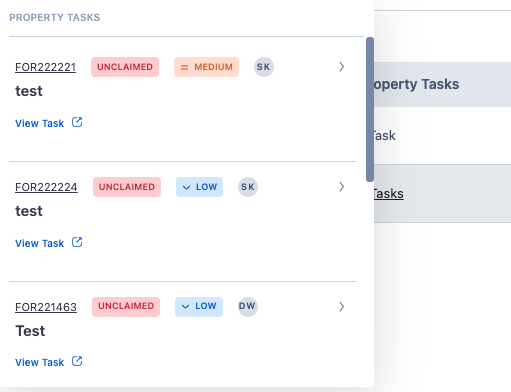
View all Products / Formulas related to this project in the Product / Formulas tab. This tab provides information on the ID, Locked Status, Created By, Created On Date, and the number of Property Tasks created for each.

In the Property Tasks section, each Task run on the Product / Formula can be opened from inside this view.
Reports
In the Reports tab, all reports linked to the Project will be visible with the ability to open inline straight from within the Project Home.
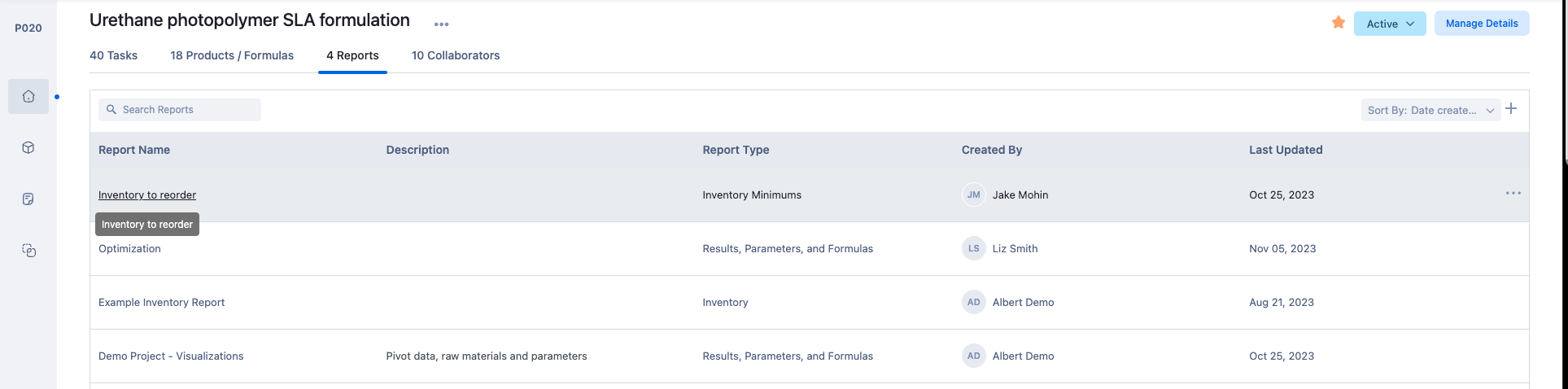
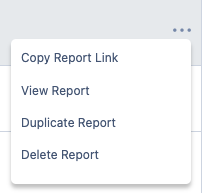
From this view, users can Copy Report Link, View Report, Duplicate Report, and Delete Report by clicking on the three dots inline to the appropriate Report, similar to the Reports module!
Collaborators
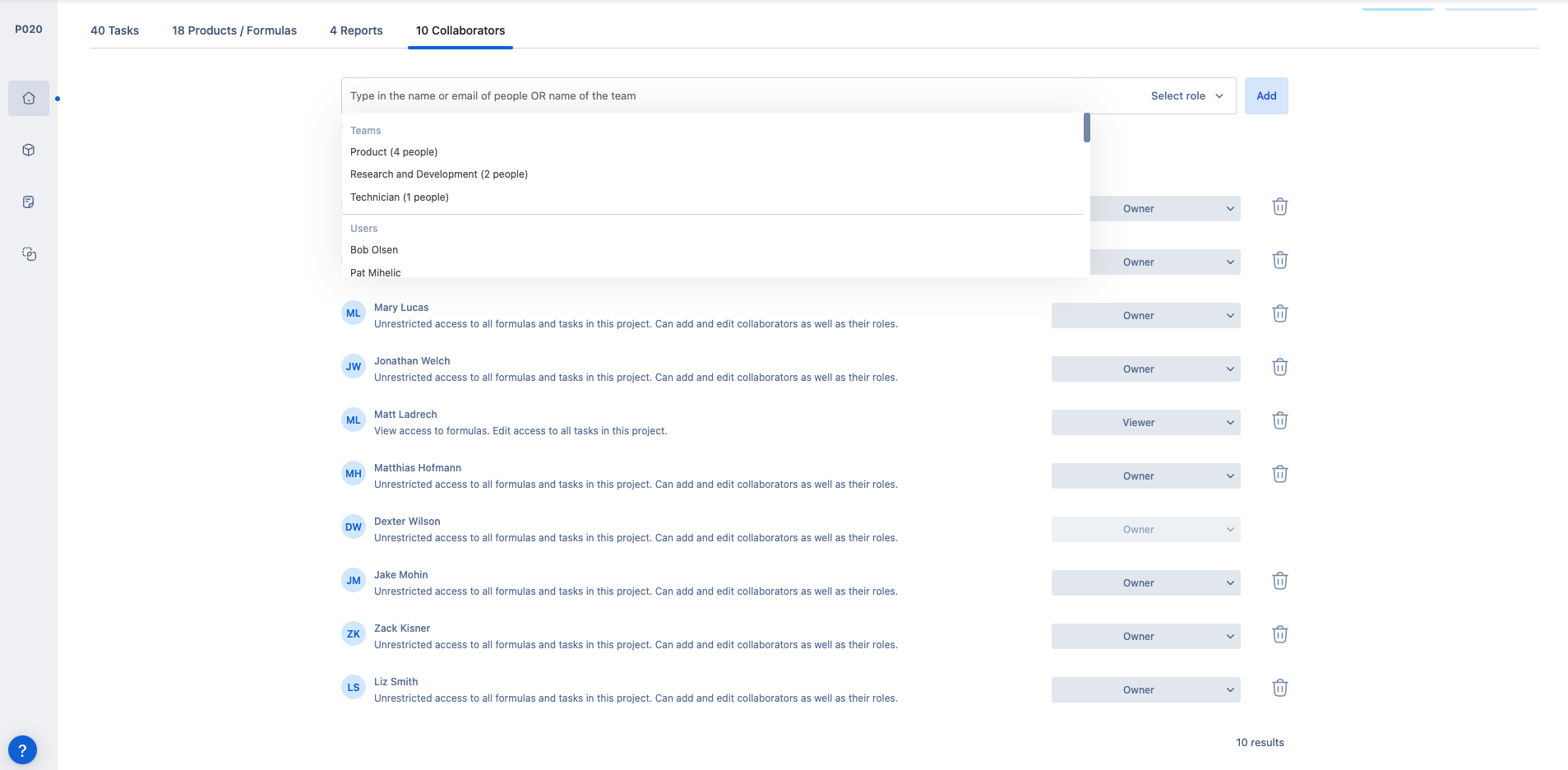
In the Collaborators tab, Users and Teams and the appropriate access roles can be defined and specified for the Project.
Additional Features
Albert allows you the ability to make Projects confidential, which hides the project and its data from being shown in the Projects module to anyone not listed on the Collaborators page.
To make a project confidential, navigate to the Project Home and click on the Collaborators tab, shown below:
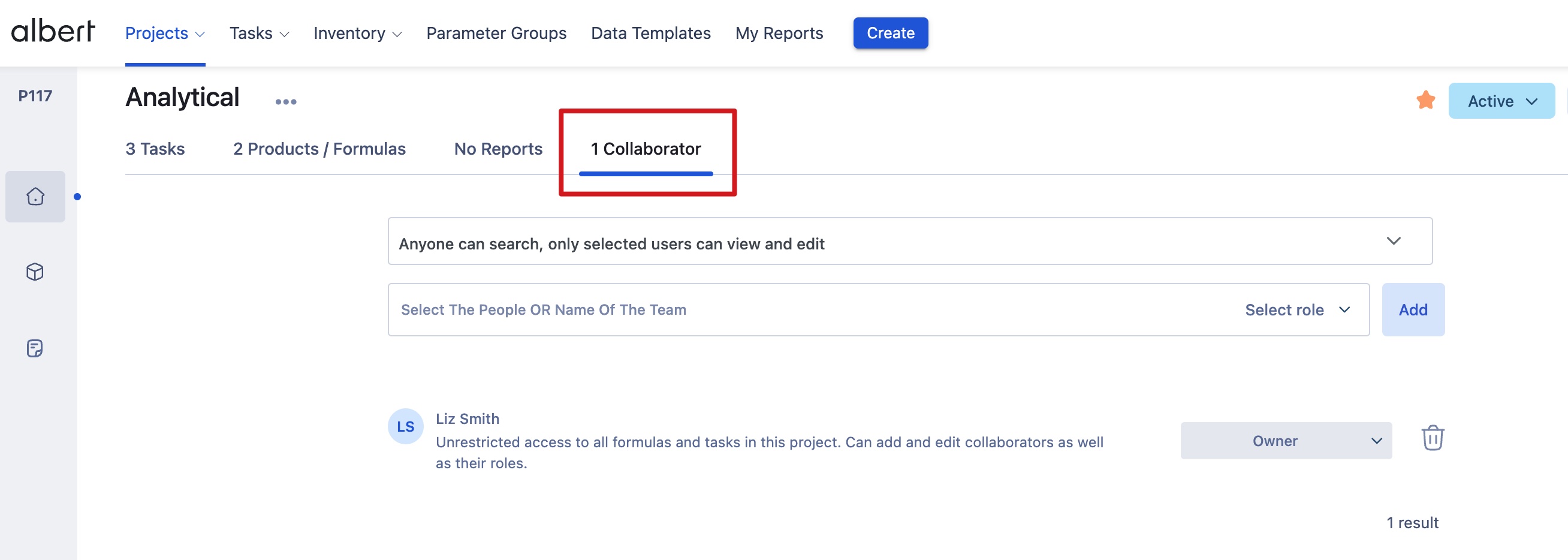
Once you're in the Collaborators tab, click on the dropdown that says "Anyone can search, only selected users can view and edit" and select the second option: "Only selected users can view or edit".

This will make your project confidential, meaning only users you add as Collaborators to the project can view the project in the Projects list, or make edits to the project.