
Manage Users in Teams
Teams will allow organizations to manage groups of Users that can then be assigned in bulk to Projects.
Account Settings and Teams
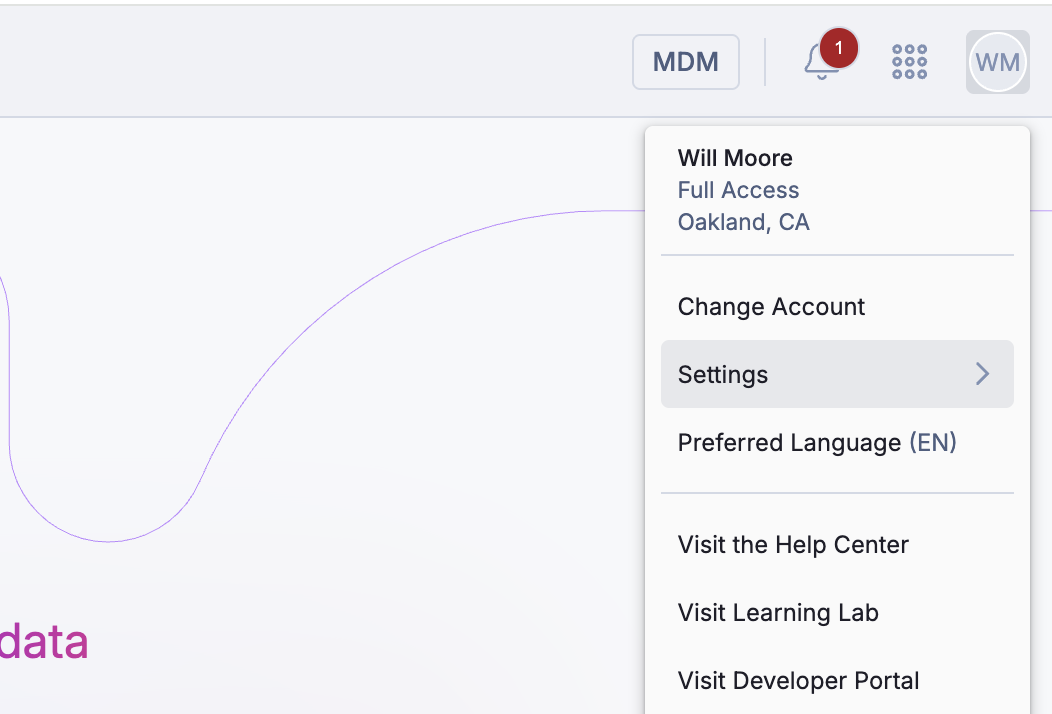
All User, Team, and Role settings can be found within the Settings module. This can be navigated to by clicking Settings from the user tab under your initials in the top right hand corner anywhere within Albert.
From there, on the left hand side, you can select which section to navigate to.
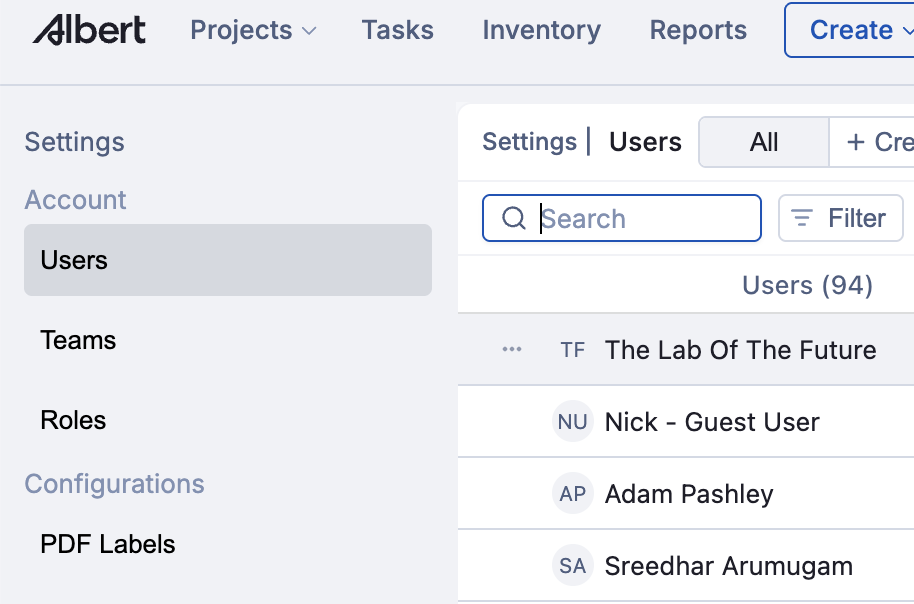
Users Tab - Clicking on the Users tab will take you to the Users page which will provide an overview of all Users with their associated Team(s), Access Role, Status, Default Location, and Created on date.
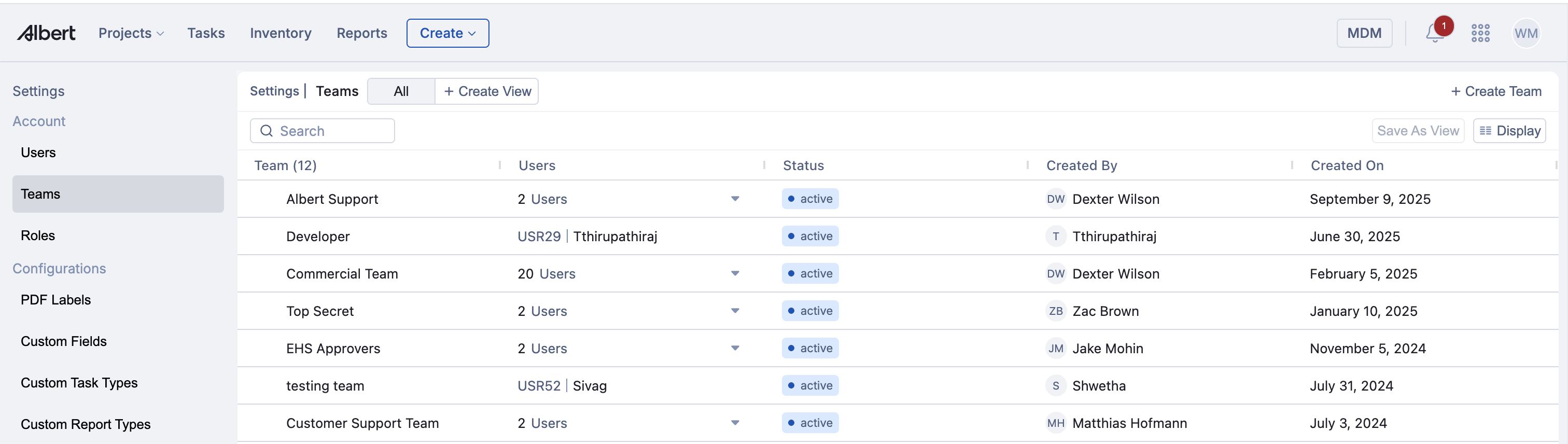
Teams Tab - Clicking on the Teams tab will take you to the Teams page which will provide an overview of Teams with their associated name, number of Users, Status, and the Created on date.
Roles Tab - Clicking on the Roles tab will take you to the Roles page which will provide the access controls for each Role and where Roles can be added or edited accordingly.

Adding Users to Teams
There are several ways to change a User's team in the Albert People module.
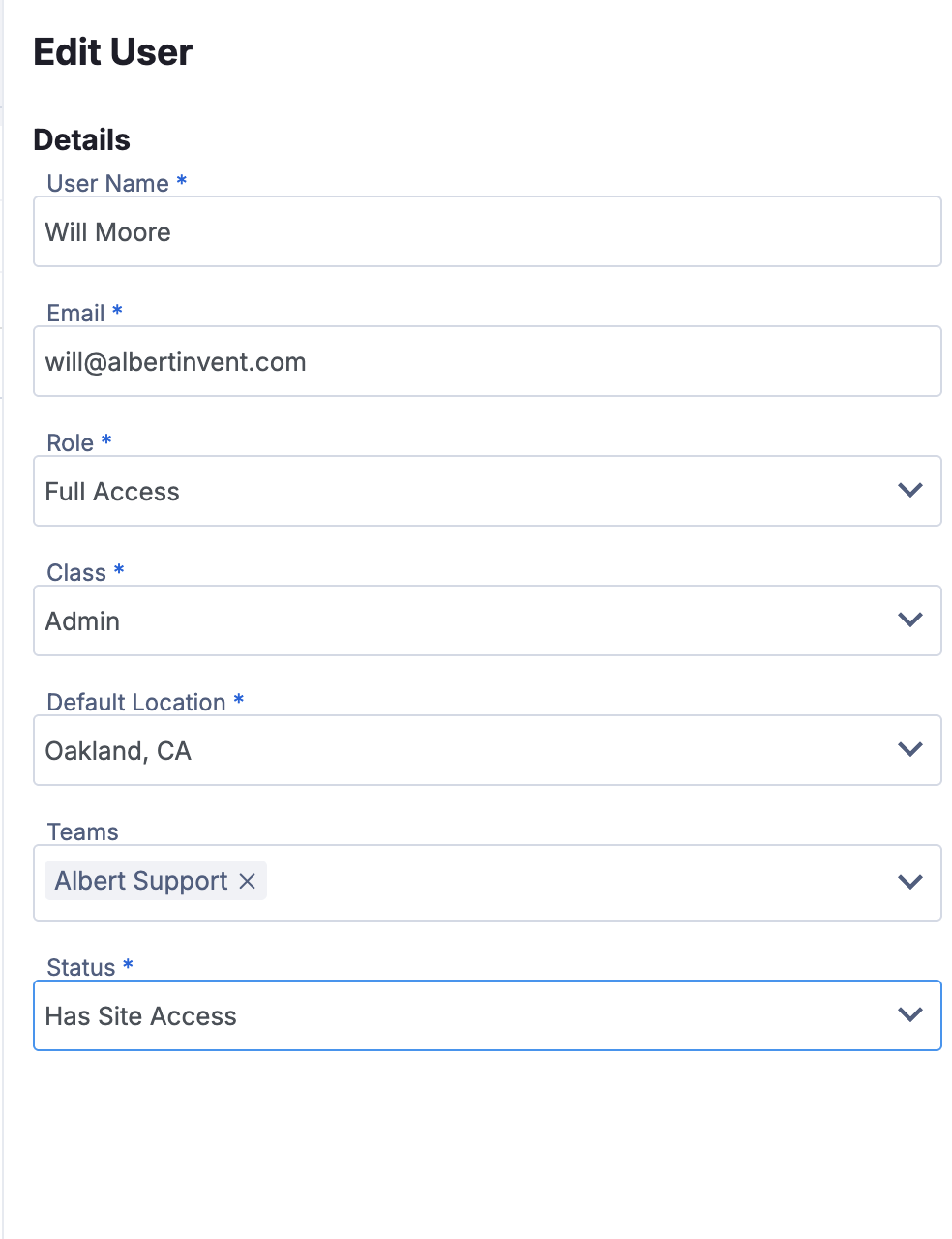
In-line add individual User to a Team by clicking on the User's name or by clicking the three dots (...) next to the User in the Users tab and selecting Edit User.
From there, the Edit User sidebar will pop-up and the User's Team(s) can be edited.
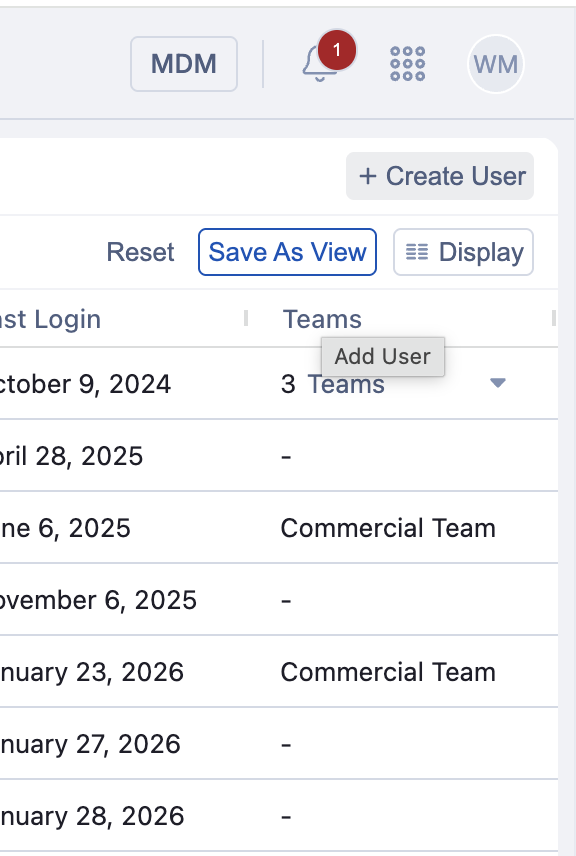
Creating a new User and add them to a Team from the Create User pane by clicking the + Create User button from the User settings page,
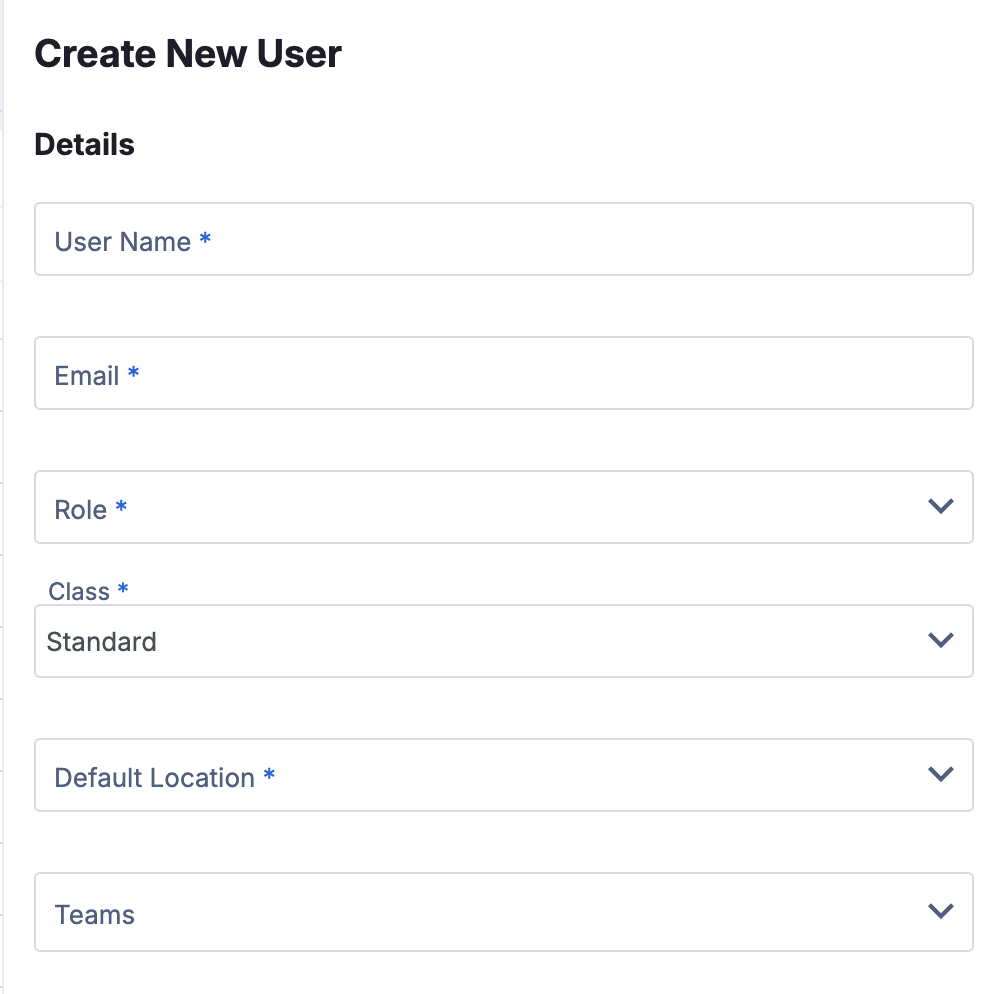
The Create New User sidebar will pop-up and the User's details, including Team(s), can be added.
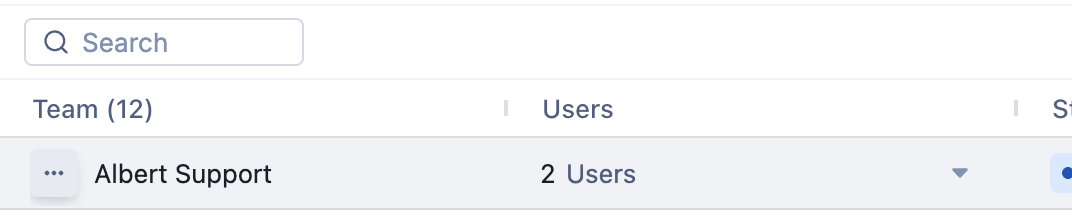
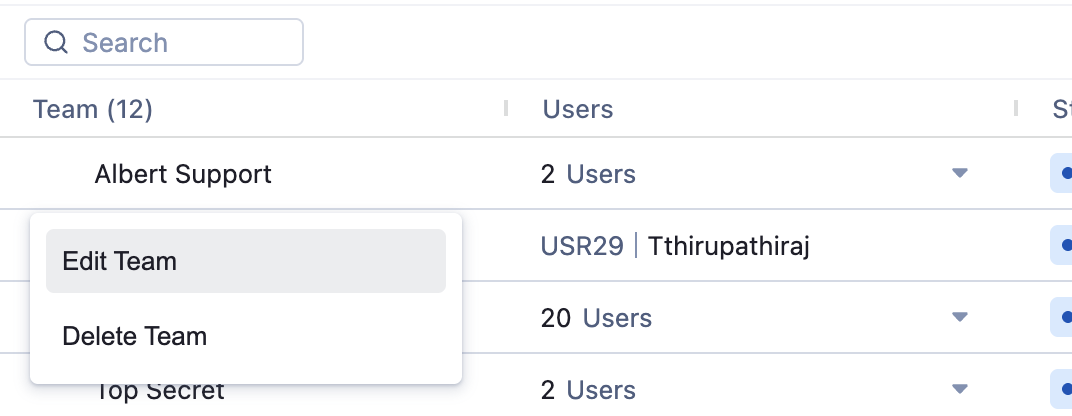
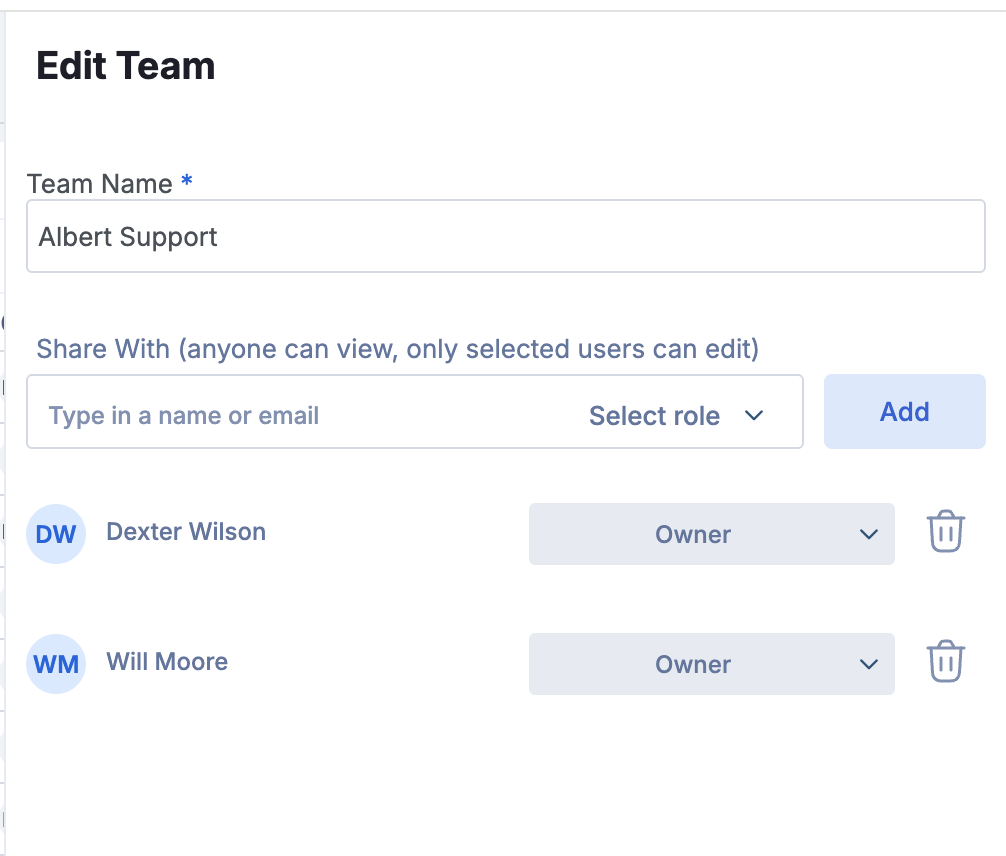
In-line add individual User to a Team by clicking on the three dots (...) next to the Team in the Teams tab and selecting Edit Team.The Edit Team sidebar will pop-up and the Users of the team can be added.
Creating, Editing, and Deleting Teams
Create a Team
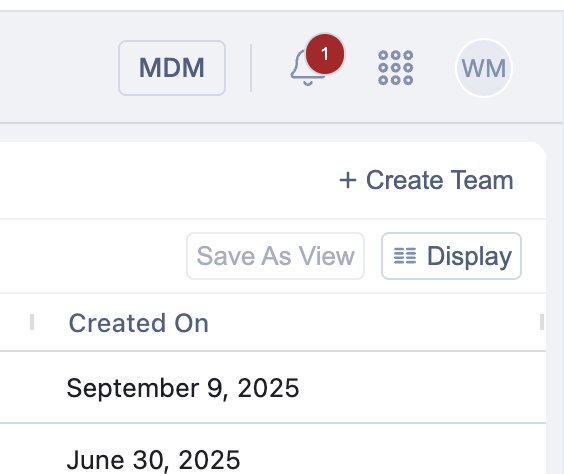
To create a Team, navigate to the Teams tab in the settings module and click on the + Create Team button at the top right of the Teams grid.
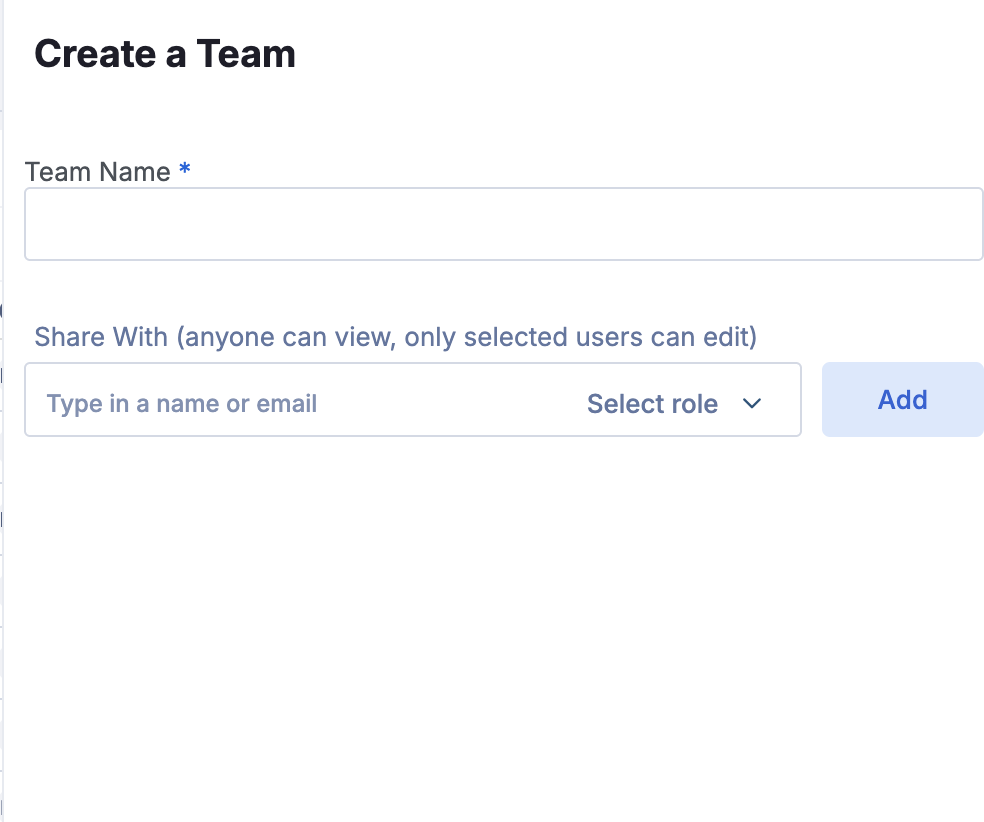
The Create Team sidebar will pop-up with fields for Team Name and Users to be on the Team.
Deleting a Team
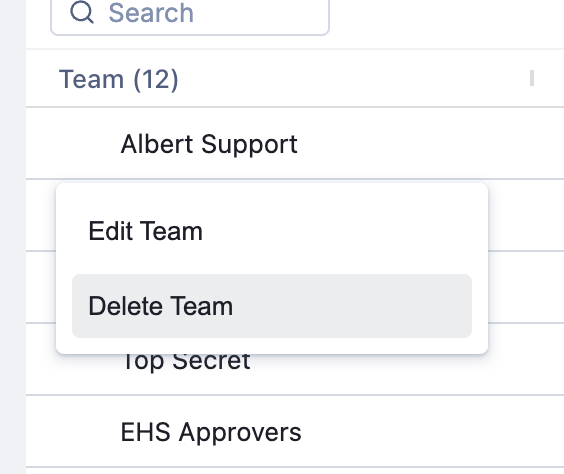
To delete a Team, click on the three dots (...) inline on the left side of the Team row and select Delete Team. The Team's status will change to Inactive and will no longer be an active Team. To change the Team back to active, click on Edit Team and change the status back to Has Site Access.
Key Considerations
Once a User has been added to a team, the User must log out and back in in order for the changes to take effect.
A User can only be added to a maximum of 20 teams.
In determining access in Projects, user level access always overrides team level access.
Example: User A is a member of Team 1 who gets assigned to Project X. Team 1 has viewer access on Project X, but User A already has editor access on Project X. User A will have editor access on Project X, while the remaining members of Team 1 will only have viewer access.