
Parameter Group Overview
In Albert, a Parameter Group represents a unique process or procedure run in the laboratory, such as a Standard Operating Procedure (SOP). Parameter Groups are associated with Tasks and can be combined, similar to building blocks, when creating Tasks to track a defined set of instructions for a process.
Parameter Groups are made up of individual parameters that represent the process variables of the group. Common examples include time, temperature, and speed.
Searching and Filtering Parameter Groups
To access Parameter Groups, navigate to MDM (Master Data Management) > Parameter Groups in the left-hand navigation panel.
This opens a list of all Parameter Groups, smart-sorted based on usage. The list displays each Parameter Group's ID, Name, Parameters, and Tags. From here you can search, filter, and sort by a variety of criteria.
For more information on searching and filtering, see the dedicated help article.
Creating New Parameter Groups
Note: Only certain individuals have permission to create new Parameter Groups. Contact your organization's Albert admin for questions about your permission structure.
Before creating a new Parameter Group, it is strongly recommended to search through existing Parameter Groups in Albert to confirm the one you need doesn't already exist.
To create a new Parameter Group:
Navigate to MDM > Parameter Groups in the left-hand navigation panel.
Click Create in the top navigation bar and select Parameter Group from the dropdown menu.
The Create New Parameter Group panel will open on the right side of the screen.
Fill in the required details:
Name (required)
Owners — defaults to your name
Tags — optional, for categorization
Description — optional, to describe the process
Under Parameters, search for and select the parameters you want to include in this group.
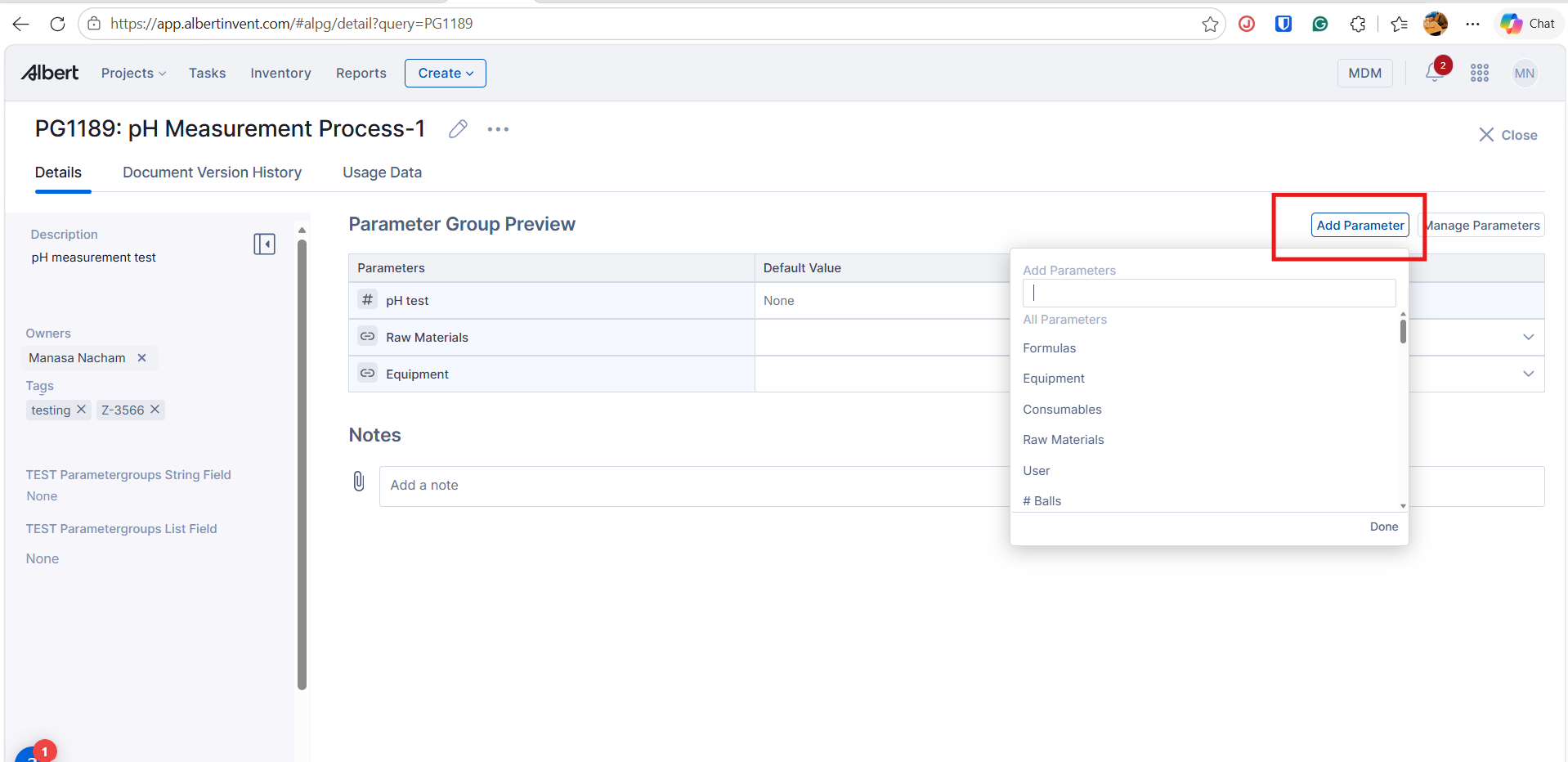
The dropdown organizes parameters by category, such as Formulas, Equipment, Consumables, Raw Materials, and User.
If the parameter you need doesn't exist yet, type the name and select Create Result for "[name]" to create it on the spot.
Click Create to save.
Viewing a Parameter Group
When you open a Parameter Group, you'll see three tabs: Details, Document Version History, and Usage Data.
Details Tab
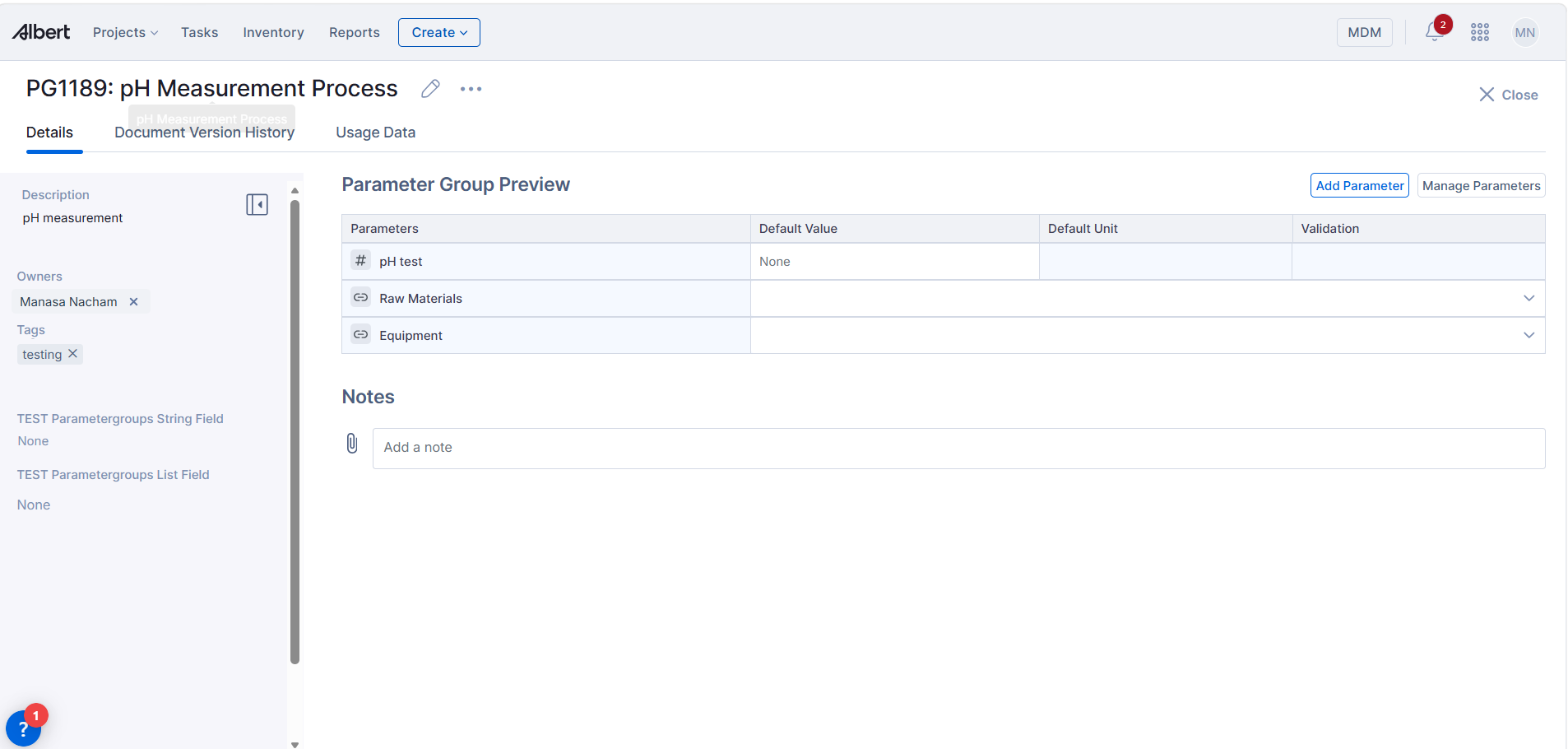
The Details tab is the main view of a Parameter Group. It includes:
Description, Owners, and Tags on the left panel — click any field to edit.
Parameter Group Preview — a table on the right listing all parameters in the group, along with their Default Value, Default Unit, and Validation settings.
Add Parameter and Manage Parameters buttons to modify the parameter list directly from this view.
Notes — a free-text area at the bottom where you can add notes or attach files relevant to the Parameter Group.
Document Version History Tab
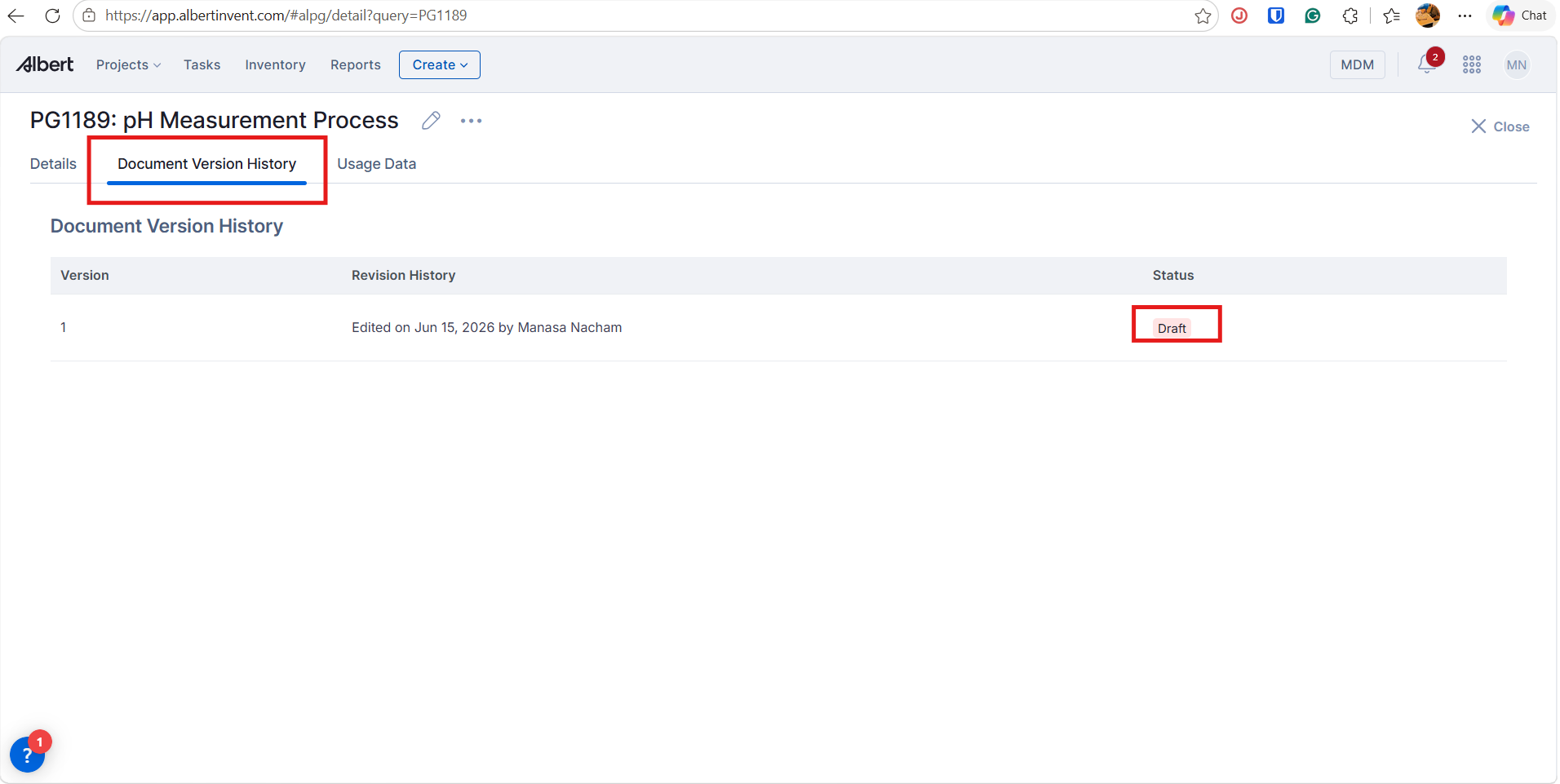
The Document Version History tab tracks all changes made to the Parameter Group over time. Each entry in the table shows:
Version — the version number of the document.
Revision History — who made the edit and when.
Status — the current state of that version, such as Draft.
Usage Data Tab
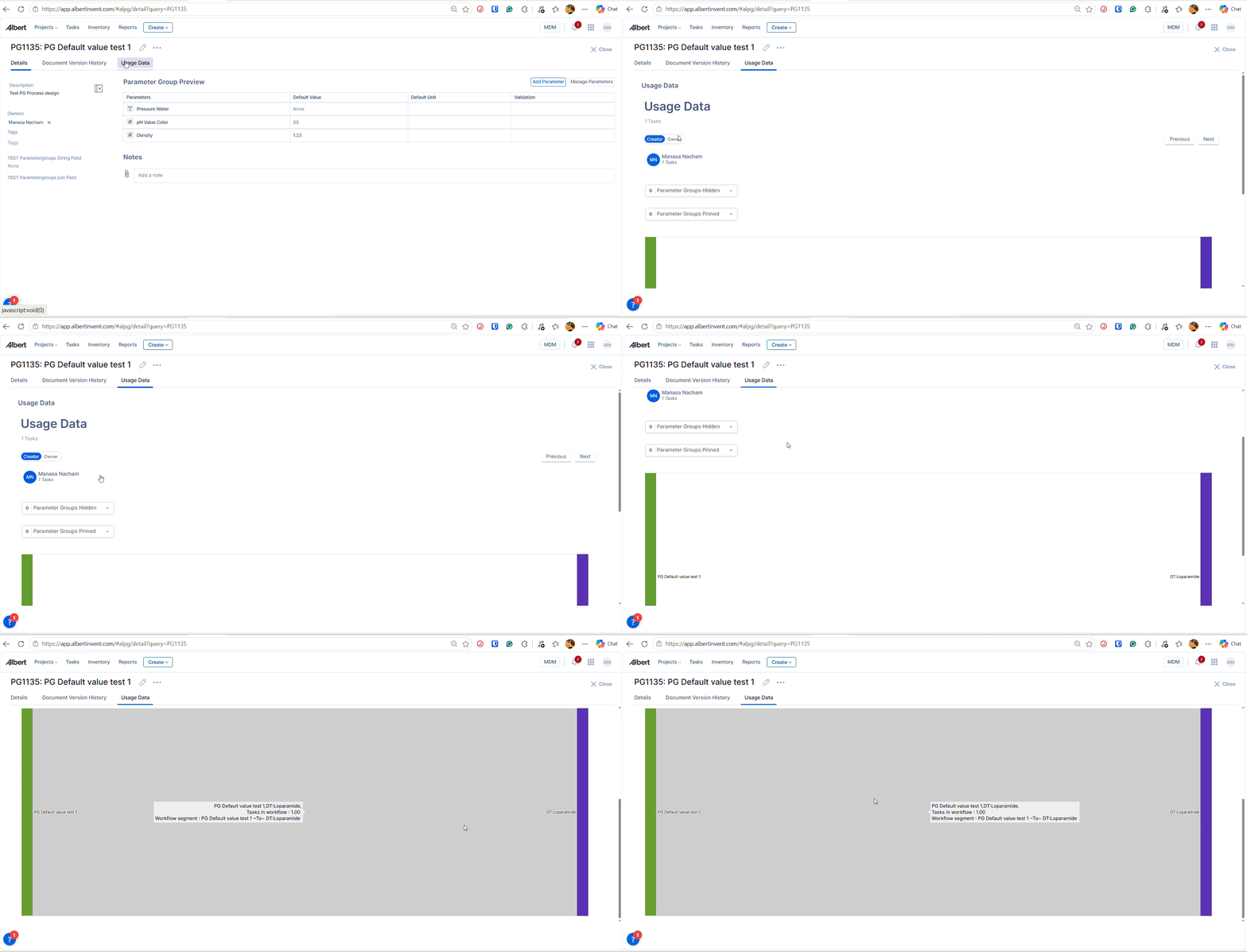
The Usage Data tab shows where and how the Parameter Group is being used across Albert. It displays:
The total number of Tasks the Parameter Group is associated with.
A breakdown by Creator and Owner, showing how many Tasks each person has linked to this Parameter Group.
Parameter Groups Hidden — the count of instances where this Parameter Group has been hidden within a Task.
Parameter Groups Pinned — the count of instances where this Parameter Group has been pinned within a Task.
Use the Previous and Next buttons to navigate through usage records.
Editing Parameter Groups
Edit Parameter Group Details
To edit an existing Parameter Group, navigate to it from the MDM > Parameter Groups list. The Parameter Group's details (Name, Description, Owners, Tags) appear on the left side of the Details tab. Click into any field to make edits.
Add Additional Parameters
To add more parameters to a Parameter Group, click Add Parameter above the Parameter Group Preview table.
Edit a Parameter
To edit an existing parameter within a Parameter Group, click on the parameter in the Parameter Group Preview table to open the Edit Parameter panel. From here you can configure:
Parameter name and Default Unit — update the name or select a default unit of measurement.
Default Value — set a pre-filled value that will appear when the Parameter Group is used in a Task.
Data Type — choose how the parameter value will be captured:
Number — for numeric values. When selected, you can also set a Validation rule to control acceptable input ranges. Validation options include: Between, Greater than, Less than, Greater than or Equal to, and Less than or Equal to.
Text — for free-text input.
Dropdown — for a predefined list of options. When selected, a Dropdown Values section appears where you can add as many values as needed using + Add Value. Each value can be reordered or deleted.
Date & Timestamp — Capture time-based data as structured results. Set a result's data type to Date for point-in-time events (e.g. cure start date, sample collection date) or Timestamp for events with time precision (e.g. dwell duration, reaction start time). These types enforce structured capture at the point of entry.
Mark as required — toggle this on to make the parameter mandatory when completing a Task.
Click Save to apply your changes, or Delete Parameter to remove the parameter from the system entirely.
Rearrange Parameters
Parameters can be reordered by dragging and dropping them into the desired sequence.
Parameters Module
The Parameters section in the MDM left-hand navigation is a standalone module that lets you browse and manage all individual parameters across your organization.
Each parameter in this list shows its Name, Created On, Created By, Data Template, and associated Parameter Group(s).
Localized Parameter Names
One of the key uses of the Parameters module is localized terminology. Labs working across multiple countries often use different terminology for the same process variable. To avoid confusion, each parameter supports translations in multiple languages — for example, Deutsch (de), 日本語 (ja), 简体中文 (zh-hans), and Español (es).
To view or add a translation:
Navigate to MDM > Parameters.
Click on a parameter to open the Edit Parameter panel on the right.
Under Languages, enter the translated name for each applicable language.
Click Save.
This allows teams in different regions to cross-check the exact terminology being used and confirm they're working with the correct parameter before adding it to a Parameter Group.
Sharing Parameter Groups
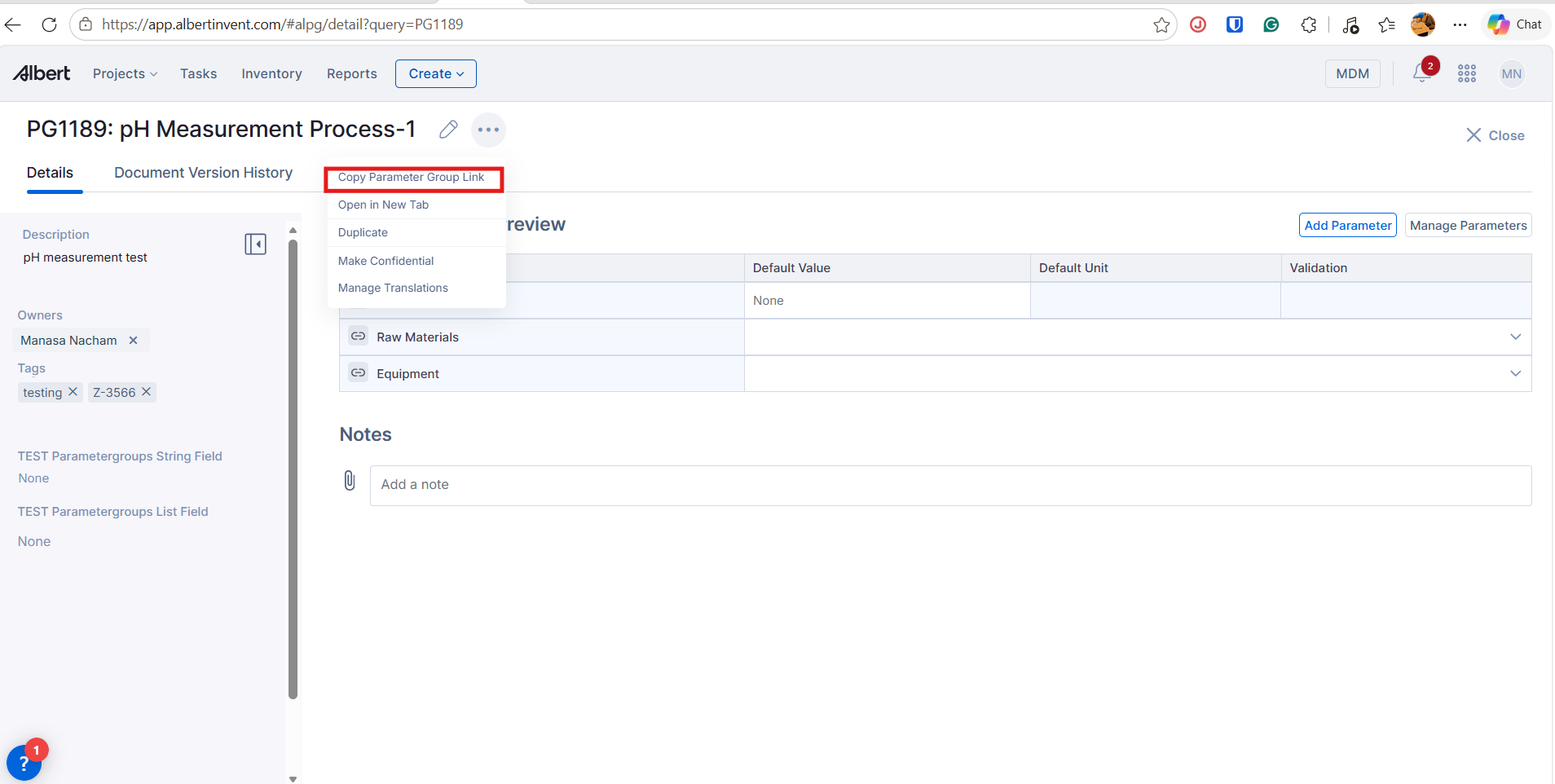
Each Parameter Group has a unique URL. To share one with a colleague, copy the URL from your browser and send it directly. You can also access the Copy Parameter Group Link option from the three-dot (⋯) menu on the Parameter Group detail page.
Deleting Parameter Groups
Parameter Groups cannot be deleted directly in Albert. If you come across duplicate Parameter Groups that need to be merged or removed, please reach out to your organization's Albert admin.
Making a Parameter Group Confidential
If you are working on a confidential project, you can mark a Parameter Group as confidential — as long as you are the Owner.
To make a Parameter Group confidential:
Navigate to the Parameter Group.
Click the three-dot (⋯) menu next to the Parameter Group's ID at the top of the detail page.
Select Make Confidential.
Note: To undo this, return to the same three-dot menu and select Make Restricted.
Access Note: If you don't have access to create or modify Parameter Groups, contact your Albert Administrator. Only users with appropriate permissions can create or manage these objects in the system.
Need more help with Parameter Groups? Contact support.