
Mobile App - Add Lots
In the Mobile App, it is now possible to add lots straight to an inventory item. This is a great functionality for adding inventory as it is received without needing a computer handy.
To learn how to add lots to an inventory in the Web Application, see Inventory Overview.
Tap on Inventory at the bottom of your screen.

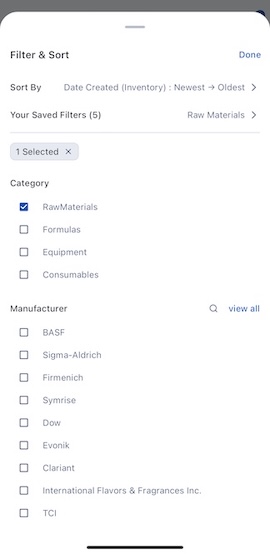
Search and filter for the inventory item.
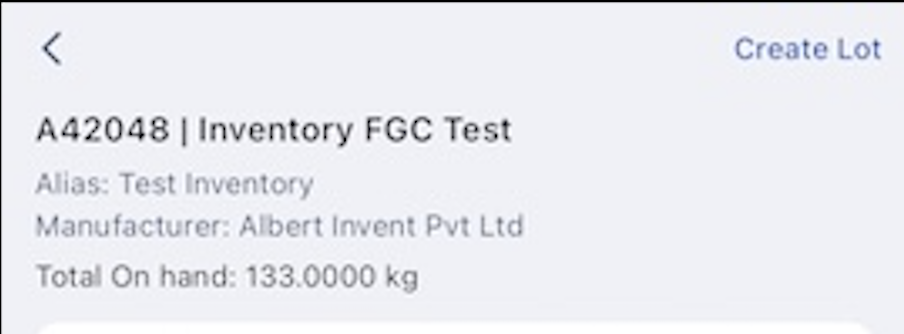
Select the item. In the inventory's page, click Create Lot.
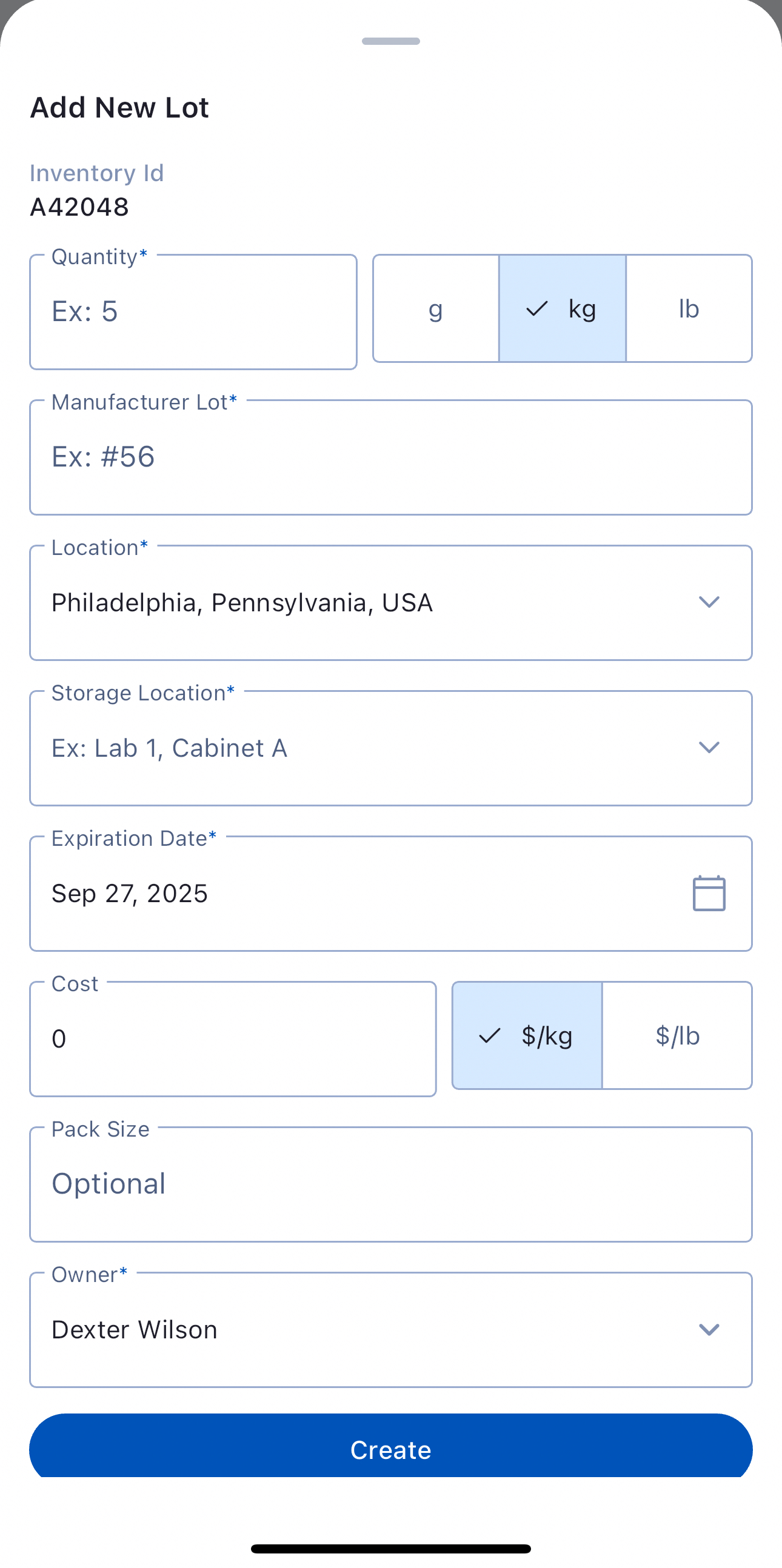
Fill in the lot details:
Quantity (g, kg, lb)
Manufacturer Lot (# from manufacturer)
Location (the physical location where the lot will be stored - defaults to your current location)
Storage Location (the storage location where the lot will be stored)
Expiration Date (default is one year out)
Cost (if applicable)
Pack Size (if more than one container at the same quantity)
Owner (defaults to you)
Click Create.
This lot is now able to be used in Albert!