
Mobile App – Inventory Adjustment
If you would like to adjust the inventory quantity (outside of using a Task), you can perform an Inventory Adjustment to add, subtract, or zero the inventory for a specific lot number. An inventory adjustment is typically done to subtract inventory for a spill, zero inventory when a bottle is empty, etc.
When you perform an Inventory Adjustment, you must already have Inventory Lots, from which you can subtract or add a quantity. All historical adjustments can be found in the Inventory Lot History.
To learn how to adjust inventory in the Web Application, see Inventory – Transfers and Adjustments.
Scanning a barcode (fastest way)
Scanning a barcode of your lot will pre-fill all the lot details, allowing you to quickly make an adjustment to any inventory item.
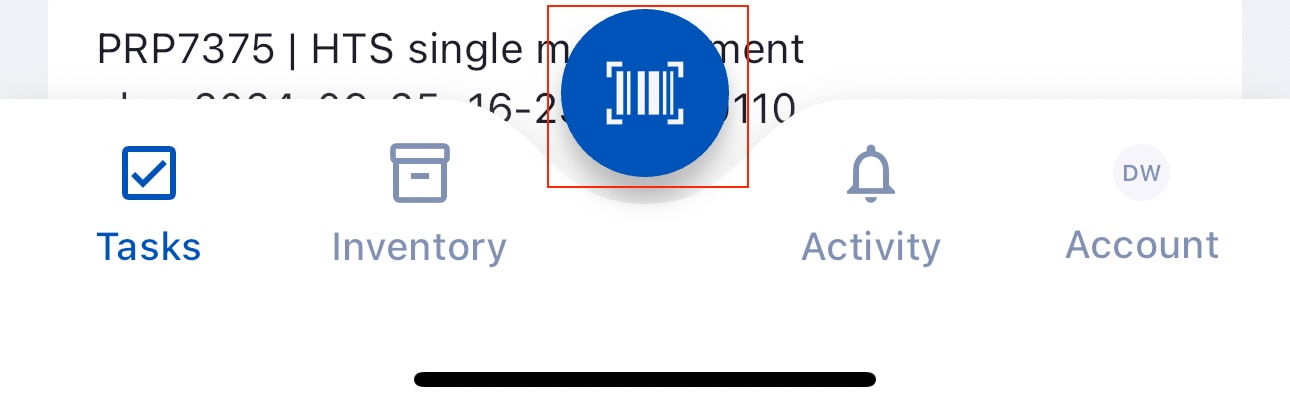
Tap Barcode at the bottom of your screen.
Scan the barcode of your lot. You might have to allow the app to access your device's camera.
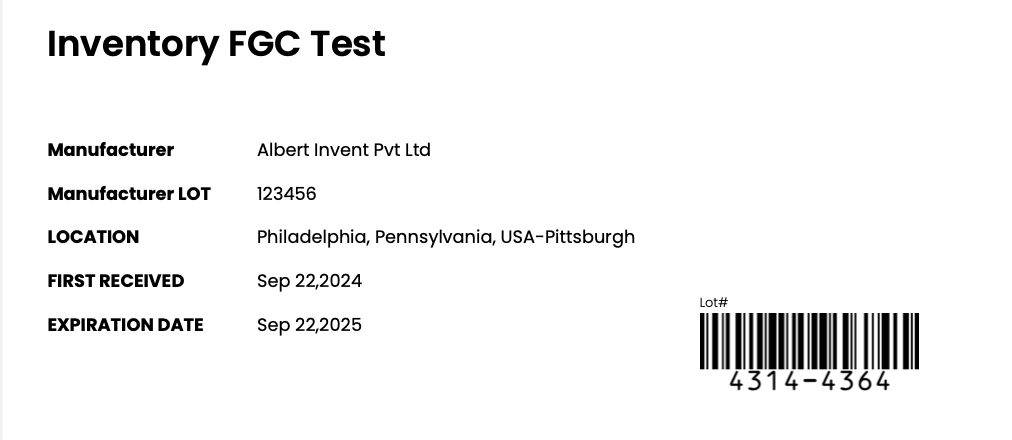
TIP: You can scan multiple lots using the barcode scanner to mass-adjust lots in the lab at the same time. Simply continue scanning each subsequent barcode until all have been selected.You will directly be brought to the lots details. Tap on Adjust.
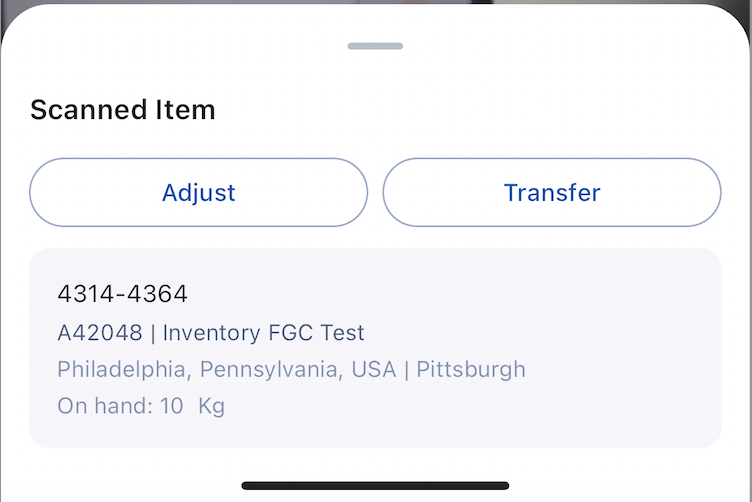
In the popup, the lot details are automatically filled in.

Tap on 'Add', 'Subtract' , 'Zero', or 'Set to' and select the units, then enter the quantity, or description. Optionally you can include an Invoice Number.
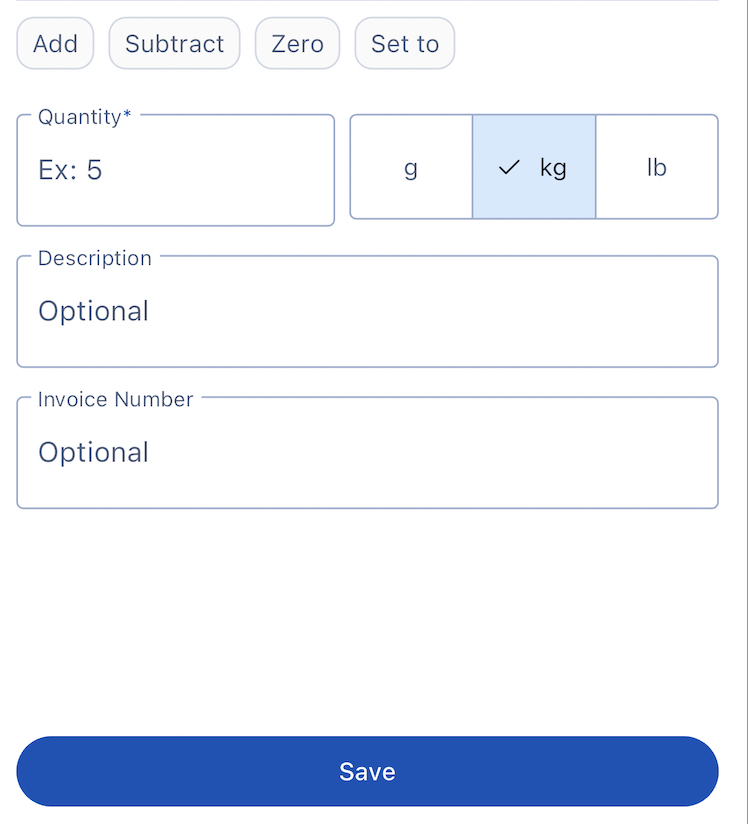
Press Save.
In the Inventory Module
Tap on Inventory at the bottom of your screen.

Search and filter for the inventory item.
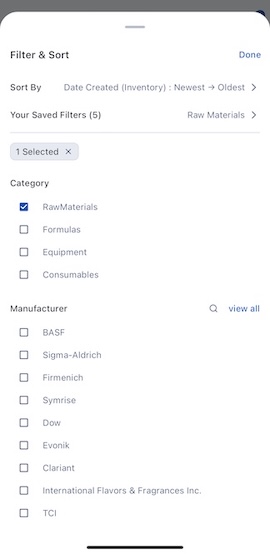
Select the item. In the inventory's page, go to the lots section.
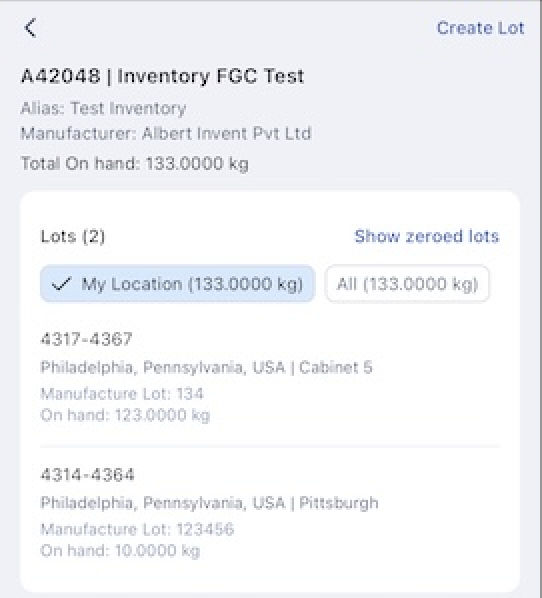
Scroll to find the exact lot you want to transfer, tap on it and select Adjust.
Follow steps 4 to 6 in section Scanning a barcode (fastest way)
Note: You might be interested in Mobile App – Inventory Transfer.