Mobile – Barcode Scanner
You can use the barcode scanner in the Albert Mobile App to access information on your inventory items, as well as your Batch and Property Tasks.
Scanning an Inventory Item Label
Tap the blue barcode on the bottom of your screen. The camera application of your device will start.

Point your device's camera at the barcode.

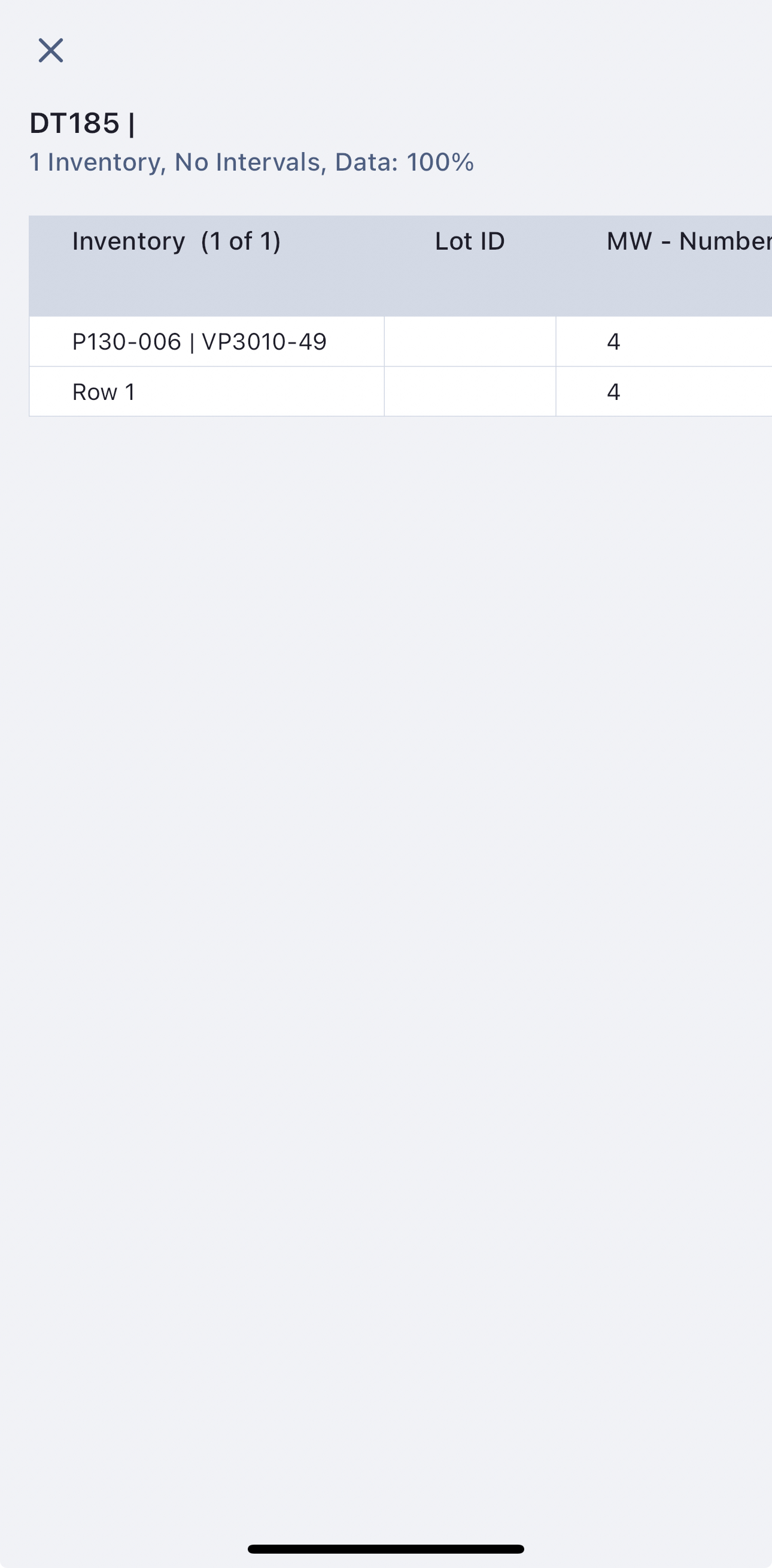
Once scanned, you will be brought directly to the lot details, where you can perform actions such as inventory transfer or adjustment.

Scanning a Task Label
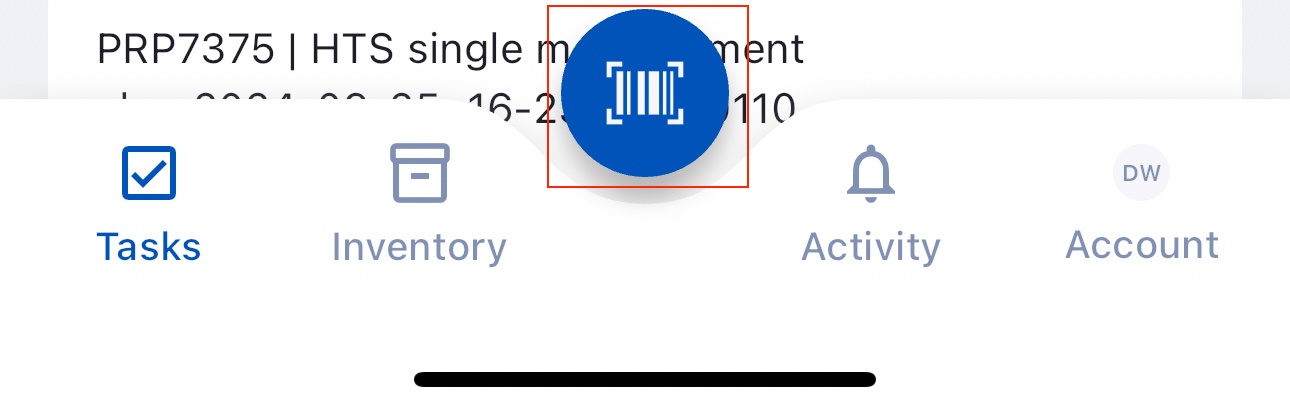
Tap Barcode on the bottom of your screen. The camera application of your device will start.
Point your device's camera at the barcode.

Once scanned, you will be brought directly to the block details (if a property task), or to the task main page (batch task). If property task, you can then view parameter values and results in the blocks. In both a batch and property task, you can claim the task and view details. You can see full task history for the task at the bottom of the task page.