
Enhanced Batch Tasks
Audience: Lab users (chemists, technicians) & lab managers · Goal: Make a batch and test its properties in one connected workflow with clean traceability.
New Enhanced Batch Tasks let you manufacture a batch and record its test results in a single task. This keeps the “make” and “test” steps together, matches how work happens in the lab, and makes it easier to understand the complete story of an experiment.
Overview: What Enhanced Batch Tasks Are
An Enhanced Batch Task is a Batch Task that includes at least one Property Block. In the same task, you define how the batch will be made and how it will be tested.
What the connected task covers
Batch Block
Choose the inventory item (Albert ID), set the quantity, and (optionally) link Batch Parameter Groups that describe how to manufacture the batch.Property Block
Add a Property Block with Data Templates and Parameter Groups that define the tests you’ll run on the batch and how results are captured.Task details
Set a Task Name, assignee, project, location, priority, and due date once, for the combined “make + test” experiment.
How it fits into lab workflows
Mirrors how most experiments are run: a batch is made and then tested by the same person or team.
Supports advanced experiments with multiple test methods (via multiple Property Blocks or blocks inside the Property Block) and repeated measurements (via intervals).
Produces a single, reviewable “story” from formulation, through manufacturing, to final properties.
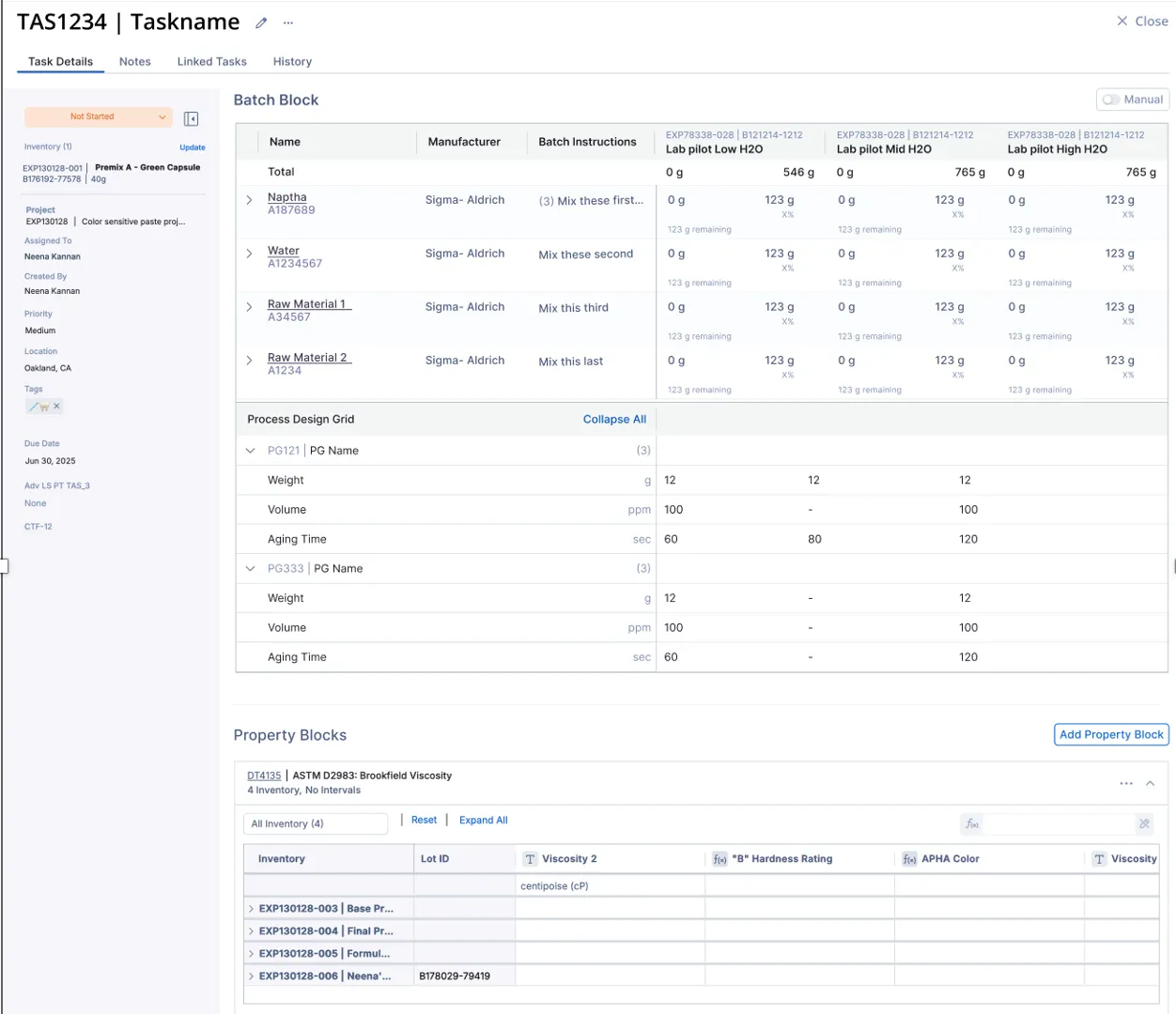
You can still use standalone Batch Tasks or Property Tasks when that better fits your process (for example, testing an existing stock batch). Connected tasks are ideal when “make + test” clearly belong to the same experiment.
Why & When to Use Connected Tasks
Enhanced Batch Tasks reduce context-switching and protect the link between batch information and test results.
Why this task type is useful
Single source of truth
Batch details, procedures, and results live in one place, tied to one Albert ID.Less duplication
No need to create separate tasks just to keep make and test steps linked.Cleaner review
Managers and reviewers can see exactly which batch produced which results without cross-checking.
Good scenarios for connected tasks
1 You make a batch specifically for a set of property tests you will run right away.
2 You are running screening or optimization experiments where each batch is tested as part of one loop.
3 You want end-to-end traceability for critical experiments, from formulation to final data.
When to keep tasks separate
Testing existing material
You are running property tests on batches that were manufactured earlier or in another facility and only need a Property Task.Make-to-stock production
You are producing batches for stock without a defined test plan yet, or they may be tested later (or not at all).Separate ownership
Different teams own the “make” and “test” steps and prefer to plan, track, and complete their work in separate Batch Tasks and Property Tasks.
Creating an Enhanced Batch Task
You create an Enhanced Batch Task by choosing the Batch task type and configuring both the Batch Block and a Property Block in the same Create Task modal.
Batch Block (make)
Select inventory – choose the formulation or other inventory item (Albert ID) you’re batching. For classic batch-only workflows, see Batch Tasks.
Enter quantity – specify how much to make, in g, kg, or lb.
Link Batch Parameter Groups – optionally add process instructions for how the batch should be made.
Property Block (test)
Click Add Property Block to add a Property Block to the same task. For classic test-only workflows, see Property Tasks.
Select a Data Template – choose how results should be structured for the methods you plan to follow.
Optionally link Parameter Groups in the Property Block to describe additional test or pre-processing procedures.
Step-by-step: Create the task
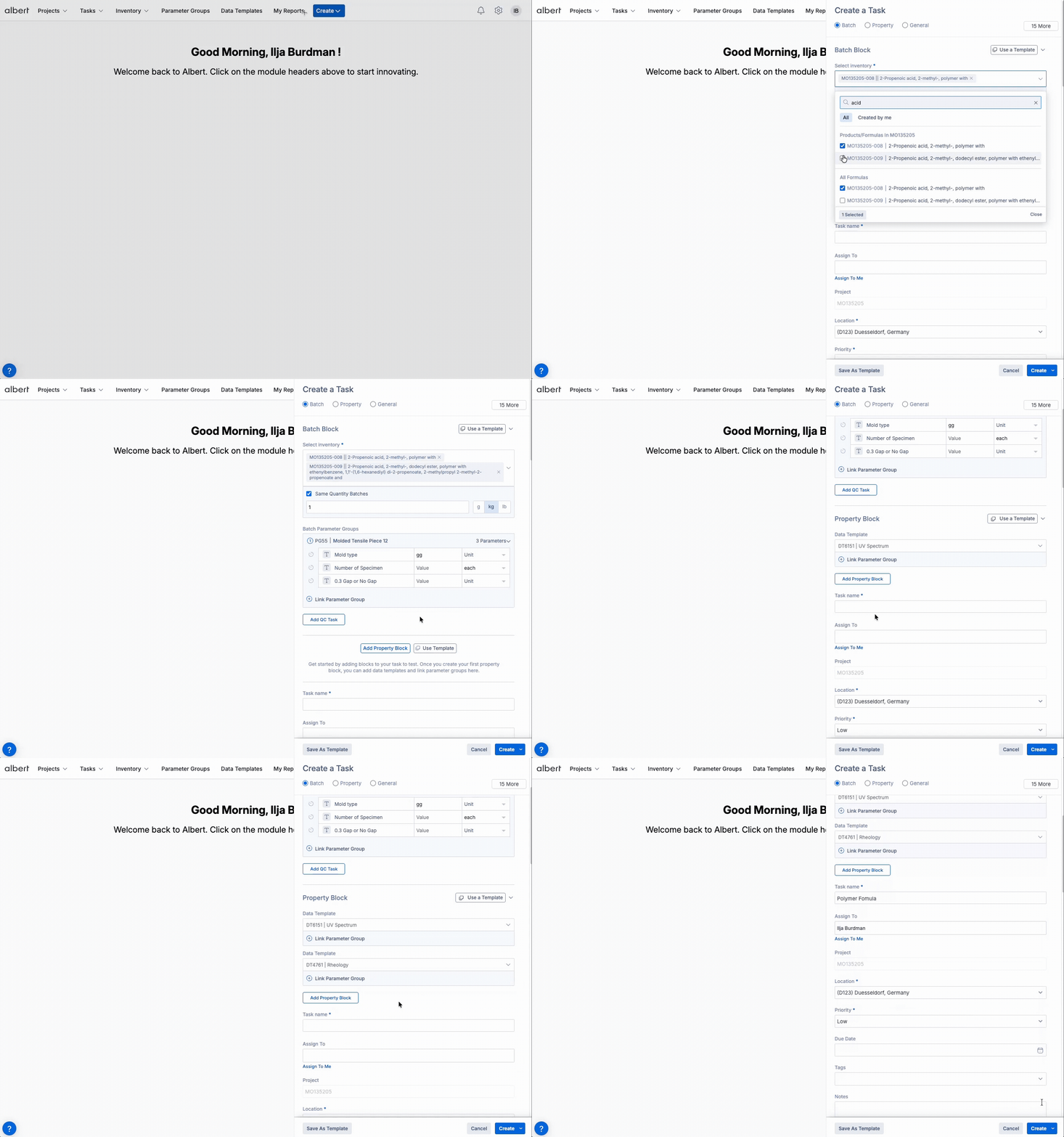
Click the Create button in the top navigation and select Task.
In the Create a Task modal, choose the Batch task type at the top (Batch / Property / General).
In the Batch Block, select the inventory (Albert ID), enter the quantity, and optionally link Batch Parameter Groups.
Click Add Property Block to add a Property Block in the same modal, then select a Data Template and optionally link Parameter Groups for testing.
Fill in the shared task details: Task name, Assign To, Project (if used), Location, Priority, and any due date.
Click Create.
The connected task is saved automatically — you now have a single object that holds both the batch and property configuration.
Running the Connected Workflow (Make + Test)
In day-to-day work, a Connected Batch & Property Task guides you through two phases: making the batch and testing the batch. Both phases are tracked in the same task.
Phase 1 – Make the batch
Claim & start the task.
Ensure the task has an Assignee and move it into the appropriate “in progress” status.Use the Batch Block as your guide.
Follow the selected inventory, quantity, and any Batch Parameter Groups that describe how to prepare the batch.Download the Shopping List.
Use the task menu (three dots) to download the Batch Task Shopping List. This shows required raw materials, lots, and amounts for your location.Apply alternative materials if needed.
If a planned raw material lot is unavailable, select an alternative inventory item: scan its barcode or search by lot number, and record the substitution within the task.Capture deviations and notes.
If you deviate from the procedure (e.g. different temperature, alternate lot), document it in the task notes.
Phase 2 – Test the batch
Open the Property Block in the same task.
Once the batch is ready, scroll to the Property Block of that task and start the testing work.Run each configured workflow.
For every block associated with the Data Template and Parameter Groups, follow the procedure and enter results in the grid.Use intervals for repeated measurements.
Where intervals are configured, enter repeated readings for the same parameter (for example, different times or set points) without creating separate tasks.Add more trials.
Enter data in the row above “Add Row +”. Albert automatically creates a new trial row.Work efficiently with copy & paste.
Use Ctrl/Command + C / V to reuse values across rows and columns.
Albert saves values automatically as you type. EU-formatted numbers such as 1,123 are supported and converted into periods in the grid so calculations and reporting remain consistent.
Completing the Batch task
Before you close the task, use this quick checklist:
Review the tests. Confirm that all planned tests and intervals in the Property Block have been completed (or clearly marked as not run where appropriate).
Check the story. Make sure substitutions, deviations from the procedure, and any issues are captured in task notes.
Set the final status. Move the task to the appropriate “completed” status so it drops out of active queues and appears correctly in reports.
Once these steps are done, the Batch task serves as a single, complete record of the experiment — from the batch that was made to every property measured on that batch.
Tips for Lab Users & Managers
A few practical patterns that make Enhanced Batch Tasks easy to adopt across teams.
For lab users
Configure up front.
Add Data Templates, Parameter Groups, and intervals before you start work so the task matches the real experiment.One connected task per experiment.
If “make + test” belong together, keep them in a single connected task instead of splitting into two.Capture changes where they happen.
Record alternative materials, parameter changes, and unexpected events directly in the task.
🧑🏫For lab managers
Standardize blocks and templates.
Reuse common Parameter Groups and Data Templates in connected tasks so results are comparable across teams.Use enhanced tasks for key work.
For critical formulations and validation runs, enhanced batch tasks make review and audits easier.Monitor both phases in queues.
Use task status to see whether work is waiting on batch preparation or on property testing and rebalance resources.Create reusable templates.
Define standard configurations for complete tasks (Batch + Property Blocks), or create reusable “building block” templates for Batch-only and Property-only work. This makes it faster for teams to spin up consistent tasks and keeps experiments comparable across projects and sites.
FAQ
Quick answers to common questions about Enhanced Batch Tasks:
Relation to other task types
Do enhanced tasks replace Batch or Property Tasks?
Yes and no. For cases where you may want to only have batch information, then you can choose to not add any property blocks. Traditional Property Tasks continue to exist in their current state. Batch Tasks or Property Tasks when you only need one part.Can I still test existing batches?
Yes. Use a standalone Property Task when testing existing stock batches or material made in the past.
Data & configuration
Can I use multiple Property Blocks?
Yes. Use multiple Property Blocks or blocks within a Property Block when you run several test methods or conditions on the same batch and want to keep all results in one task.How many parameters can I intervalize?
You can intervalize up to two parameters per task. For additional variations, use more blocks.Does Albert validate alternative materials?
No. Albert allows you to select alternative inventory items, but it does not evaluate whether they are chemically equivalent. Always confirm suitability before using a substitute.
Need more help with tasks or configuration? Contact your Albert administrator or support@albertinvent.com.