
Property Tasks
Property Tasks
A Property Task in Albert is how you create a task to test and document the properties of a formulation created in batch tasks or of raw materials. A Property Task is comprised of Parameter Groups and Data Templates.
Parameter Groups detail the process that is to be followed in the laboratory, similar to a Standard Operating Procedure (SOP). You can think of Parameter Groups like a set of instructions made up of individual variables, or parameters (e.g. Time, Temperature, and Speed).
Data Templates allow you to capture clean, structured data about your experiments. Data Templates represent the output of data (or results) collected in an experiment (e.g. Flexural testing results, Tensile testing results, etc.).
A picture of a Property Task with one Data Template and one Parameter Group (one block) is included below:
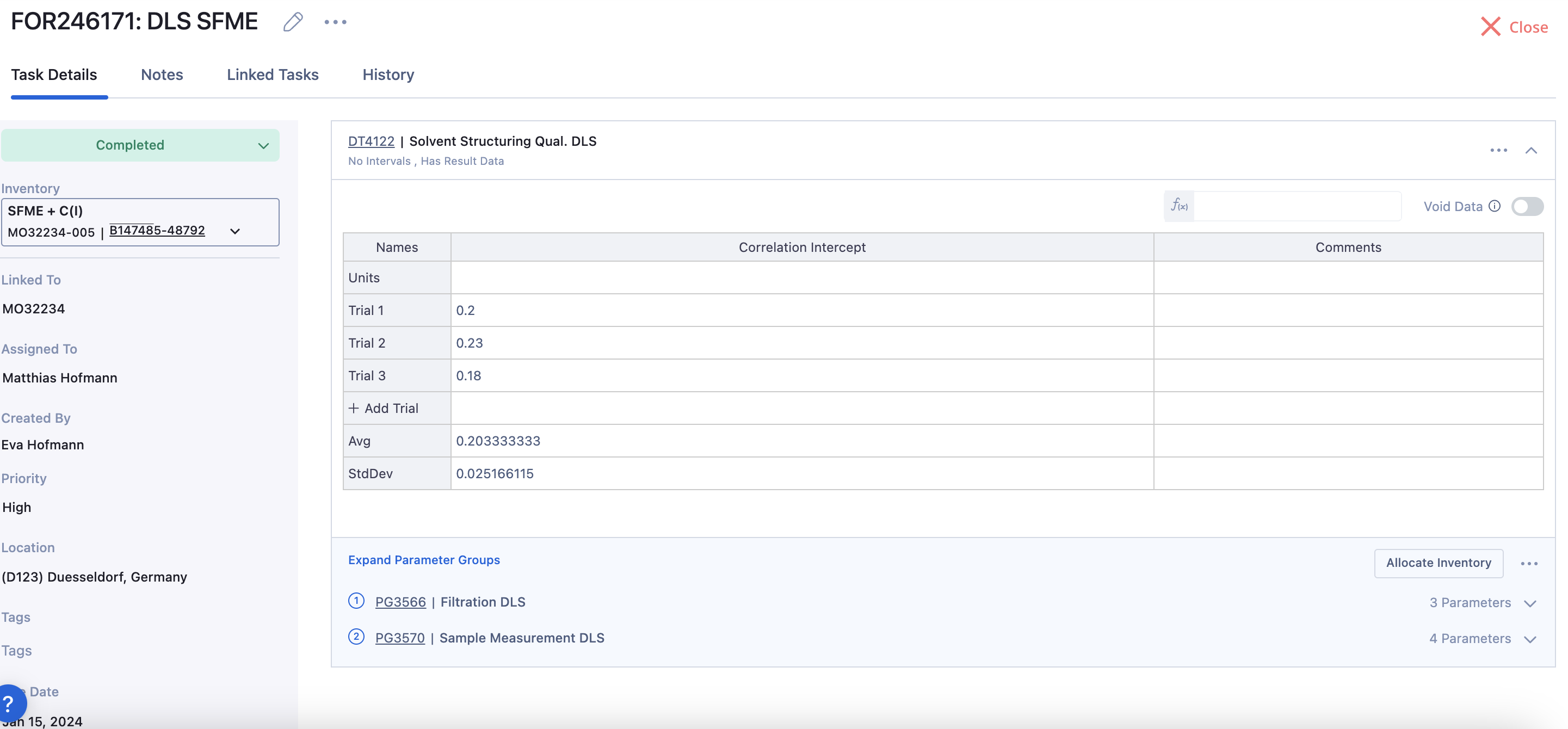
Note: The above Property Task has one Parameter Group and one Data Template (one block). Property Tasks can have multiple blocks with associated Data Template and Parameter Groups. Adding multiple Data Templates and multiple Parameter Groups (multiple blocks) to a single Task allows you to create more advanced experiments and collect all your data in a single Task.
Property Tasks Support Multiple Workflows via Blocks
Blocks in Property Tasks in Albert allow you to link your Data Templates with specific Parameter Groups, allowing you to capture multiple testing workflows in a single Task.
An example of a block (a Data Template + associated Parameter Group(s)) is shown below:
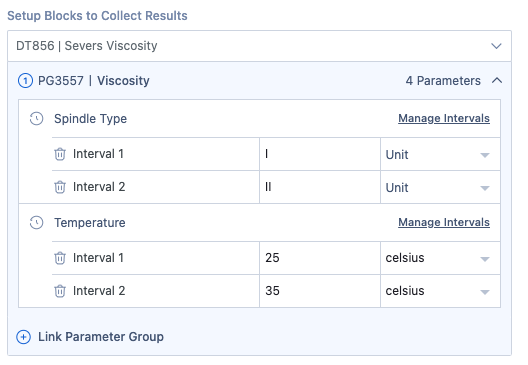
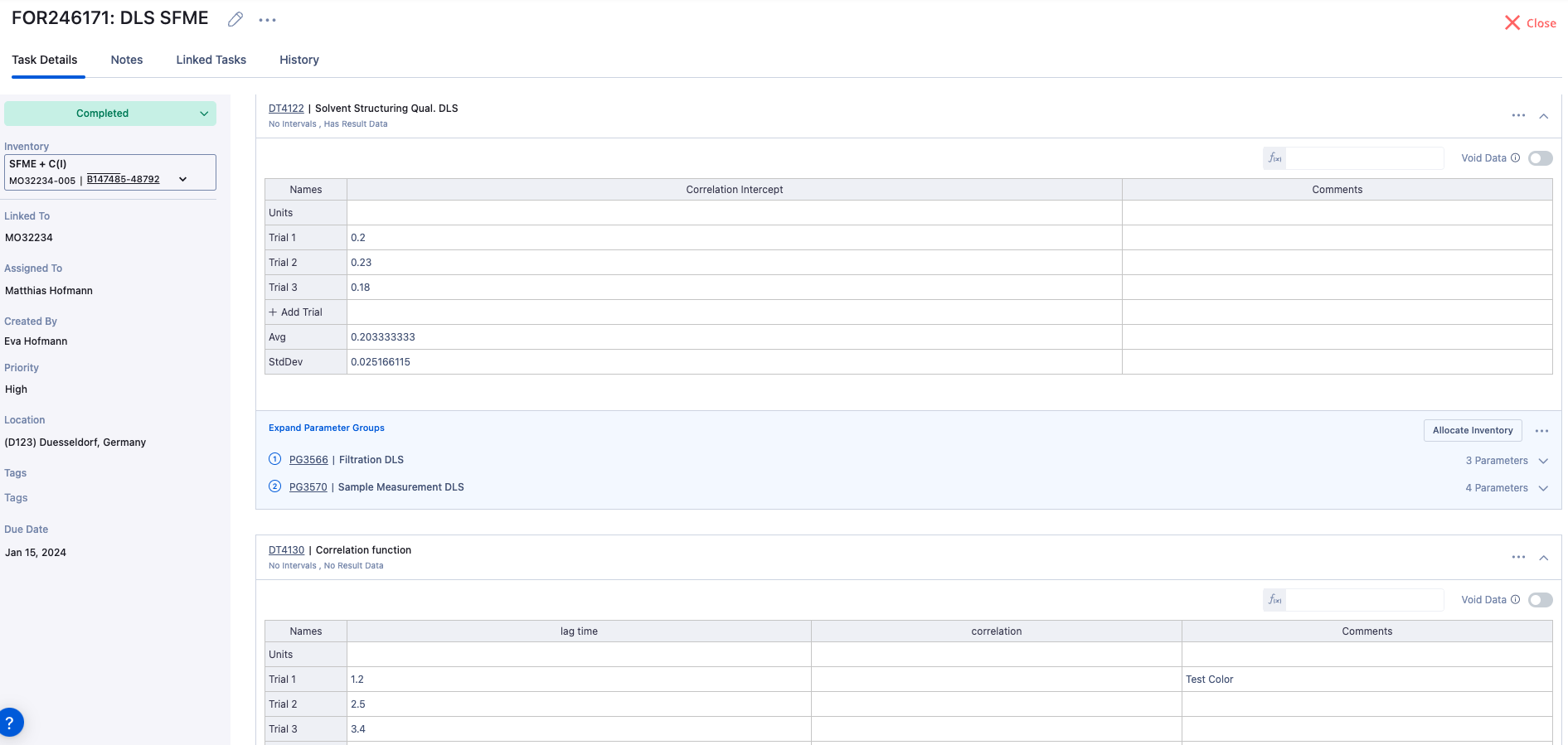
Each block includes the Data Template (Results) output and its associated Parameter Group(s) below it in the Property Task, easily allowing for differentiation between the separate tests being run.
Below is a picture of a Property Task with multiple blocks:
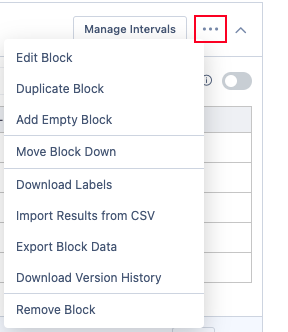
Block actions can also be performed inline to the block by clicking on the three dots in the block, allowing for differentiation of the respective workflows.
When should I create a Property Task with multiple blocks?
You should create a Property Task with multiple Blocks if you'd like to capture all of the testing results across multiple Data Templates for Inventory items in a single Task.
For more information, visit Albert Learning Lab here!
Property Tasks Support Multiple Inventory Items
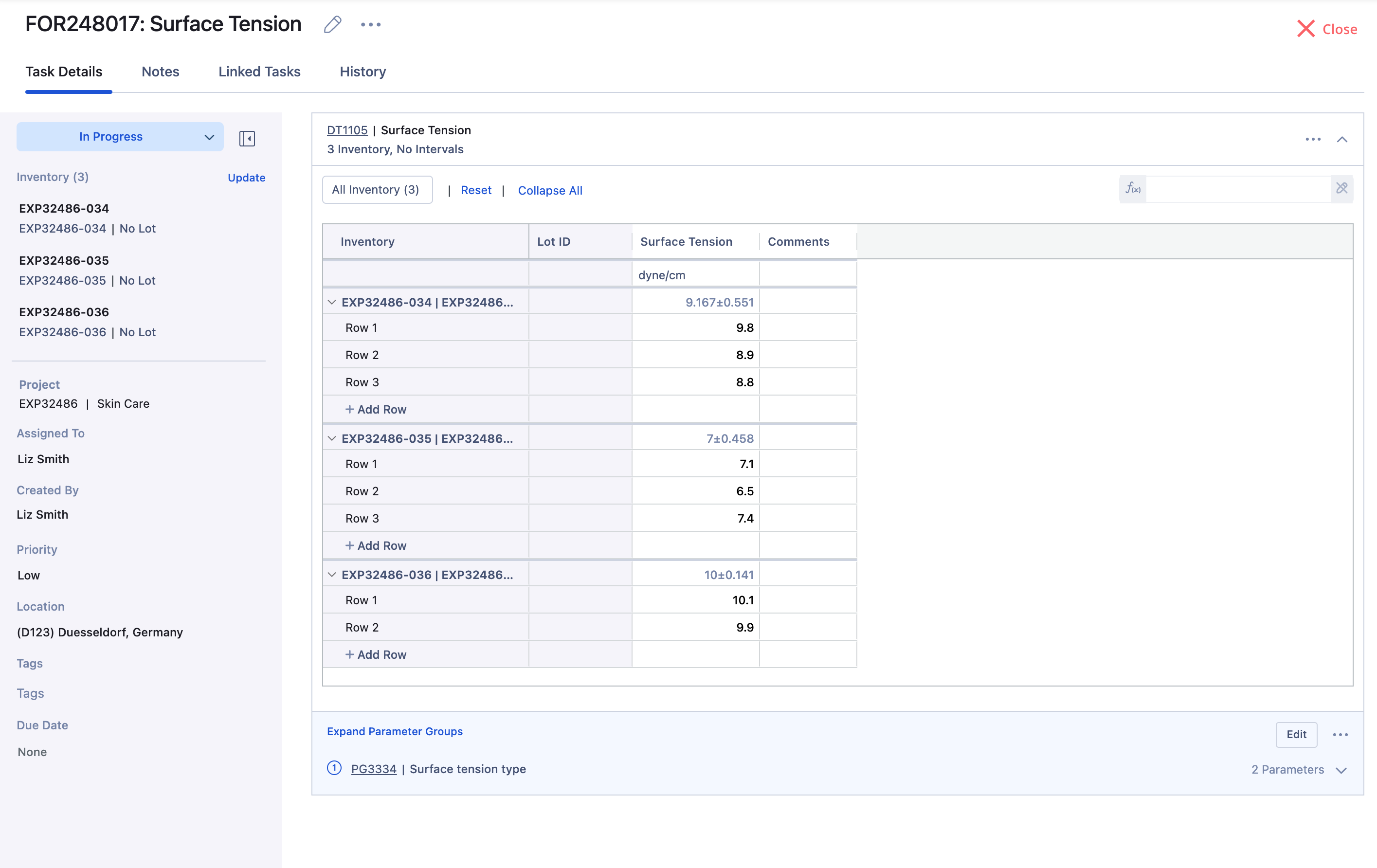
Property Tasks in Albert allow you to perform tests and record results against multiple Inventory items in the same experiment. This means that you can now create and complete much of your work across separate samples within a single Property Task interface.
Below is a picture of a Property Task with multiple Inventory items:
Creating Property Tasks
To create a new Property Task, click on "Create" in the Albert navigation panel at the top of the screen and select "Task". This will open the Create New Task modal. Select on the "Property" task type option at the top.
When creating a Property Task, you will be prompted to create a Task Name and associate an Albert ID, Location, and Priority with the Task.
Note: The Albert ID you associate with the Task is the ID of the Inventory item (formula, raw material, consumable, equipment) that you are performing the Task on.
You will also be given the option to select an Assignee for the Task, fill out any Tags, and add any notes. You will be required to select the Data Templates that will make up the configuration of the Results (data columns) within your Task, and will be given the option to add Parameter Groups to your Task. The Data Templates and Parameter Groups will be linked together as blocks, and up to ten blocks can be added for any one Task.

Tasks can also be created directly from the Worksheet by clicking on the desired formula and selecting "Create Property Task".

For more information on creating and editing Tasks, navigate to this help article.
Adding Intervals to a Property Task
Purpose of Intervals
Intervals help automate structured data collection and ensure that repeated readings are:
Consistent: Each interval is stored under the same parameter for direct comparison.
Efficient: Reduces the need to create separate data blocks for each condition.
Accurate: Keeps all data aligned to a single experiment or result entry.
While performing a Property Task, Albert allows you to collect data for different intervals of one or two parameters in a Parameter Group. This function allows you to create a lot of data without making a different task for each interval.
You can add intervals when you are creating the Property Task or before starting a Property Task after it's been created.
To add an interval to a parameter within a Parameter Group for a task you're in the process of creating, add the desired Parameter group and click on the clock icon next to the desired parameter.

From there, you are able to add, edit, and delete intervals as desired (as shown below).

Note: You can only intervalize on two parameters on any given Task. If you have additional parameters you'd like to intervalize on, please reach out to Albert Support by submitting a support ticket or reaching out via email (support@albertinvent.com) or to your Success representative at Albert.
Adding Data to a Property Task
Adding Data
To add data to a Property Task, open the Task and start it. For more information on changing the status of a task, visit this help article.
Click on the cell where you wish to enter your data and type in the values.
Note: Albert has improved the support for EU formatted numbers (1,123). Now, commas will automatically be converted into periods in the property task grid to ensure that all calculations and reporting work as intended (future updates will allow users to view custom number formats).
Albert will automatically save your values.
Adding New Rows
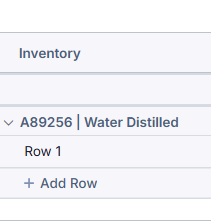
You can add values directly in the next row (where the 'Add Row +' button is) and Albert will add the values in a new trial automatically.
Copy and Paste
You can copy the values within rows and columns using standard keyboard shortcuts for Copy and Paste (Ctrl+C and Ctrl+V, respectively for PC and Command+C and Command+V for Mac).