
Tasks Overview
Albert allows for seamless delegation and management of work through Tasks. Tasks allow you to manage and track your daily work and collaborate with colleagues. When a Task is created, it is always assigned to an Albert location and can be found in the Tasks module.
Types of Tasks
There are three types of tasks within Albert: 1) Batch Tasks, 2) Property Tasks, and 3) General Tasks.
A Batch Task is how you manufacture a batch within Albert after creating a new formulation.
A Property Task in Albert is how you create a task to test and document the properties of products/formulas or of raw materials.
A General Task is anything and everything else happening in the lab that is not a Batch or Property Task (i.e. equipment calibration).
Batch Tasks and Property Tasks allow you to capture structured information about a sample's composition, the process conditions you took to make or test a sample, or the results captured when testing a sample, while General Tasks allow you to capture free-text, unstructured information or requests in a Notebook-like format.
You are able to add up to 50 Inventory items in a task, meaning you can capture most of your workflow in a single task if desired.
Task Statuses
Albert allows you to track the status of a Task in five stages:
Unclaimed
Not Started
In Progress
Completed
Closed
For information on changing the status of a Task, navigate to this help article.
Searching and filtering Tasks
Opening up the Task module will open a list of all Tasks. From there, you can easily search, filter on, and sort by a variety of criteria.
For more information on searching and filtering Tasks, navigate to this help article.
Creating and Editing Tasks
All task types can be created by selecting the global "Create" button in the Albert navigation panel at the top of the screen and select "Task". Click on the desired Task type and fill out the required information.
You can also create Tasks directly from the Worksheet by clicking on the 3 dots next to the product/formula name and selecting Create Task:
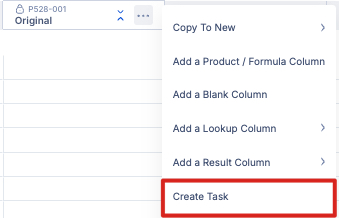
When creating a task from the Worksheet against a product/formula, that product/formula will automatically pop up in the select Inventory modal, streamlining your task creation process.

Task details can be edited after creation of the Task by navigating to the Task's page. For more information on creating and editing Tasks, navigate to this help article.
Assigning Tasks
Tasks can be assigned to individual users or to entire teams in Albert, streamlining delegation and collaboration in lab environments.
When a task is assigned to an individual:
That individual is notified that they have been assigned a task and is able to edit the task and change the status.
When a task is assigned to a team:
All team members are notified. The task will appear under each member's "Assigned to Me" filter.
Once a team member begins work, the task is claimed and automatically re-assigned to that individual—ensuring clear ownership while maintaining visibility at the team level.

Sharing Tasks
Albert allows you to share Tasks with colleagues. Colleagues will be able to see all Property and General Tasks, and will be able to see Batch Tasks with appropriate access. (Only Task owners, creators, or users will access to a given Formula will be able to open the Batch Tasks associated with that Formula.)
Each Task has a unique URL. To share a Task, copy the unique URL and share it with colleagues.
Task Templates
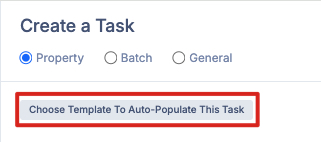
Creating and using Task templates allows you to streamline your task creation process and standardize workflows and test methods amongst your team members. When you go to create a Task, you can select a Task template that will automatically populate the appropriate Parameter Groups and Data Templates to your Task. Check out this article for more information on Task Templates.
Duplicating Tasks
Duplicating Tasks allows you to streamline your task creation process for repeat experiments that you're running. To duplicate a Task, navigate to the desired Task and click on the three dots next to the Task ID. From there, select "Duplicate" from the dropdown menu.
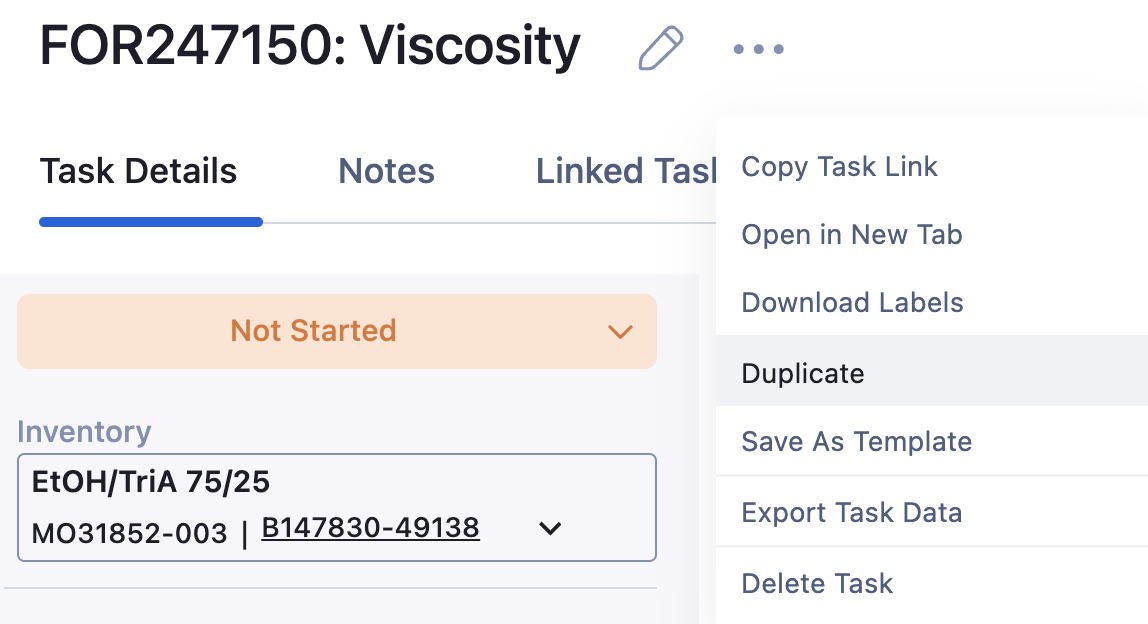
A Create New Task modal will pop up on the righthand side of your screen prompting you to fill out information about your Task. All the details from the Task you're duplicating will populate in this popup and can be changed as desired. Select "Create" to create the duplicate Task.
Deleting Tasks
Albert allows you to delete Tasks that you are the creator of. To delete a Task, navigate to the Task and click on the three dots next to the Task ID. From there, select "Delete Task" from the dropdown menu.

Albert will then ask you to confirm that you'd like to delete the Task.
