
Inventory – Set Minimum / Reorder Levels
Albert allows you to set a minimum stock quantity level to easily view when inventory falls below a defined value to ensure you never run low on critical inventory items. This applies for Raw Material, Consumables, and Equipment.
Set or Change a Minimum / Re-Order Levels
Click on the Inventory Module in the top header.
Search for the desired Inventory item and click on it
In the Lots Section, you will see a summary of the different lots of the inventory item.
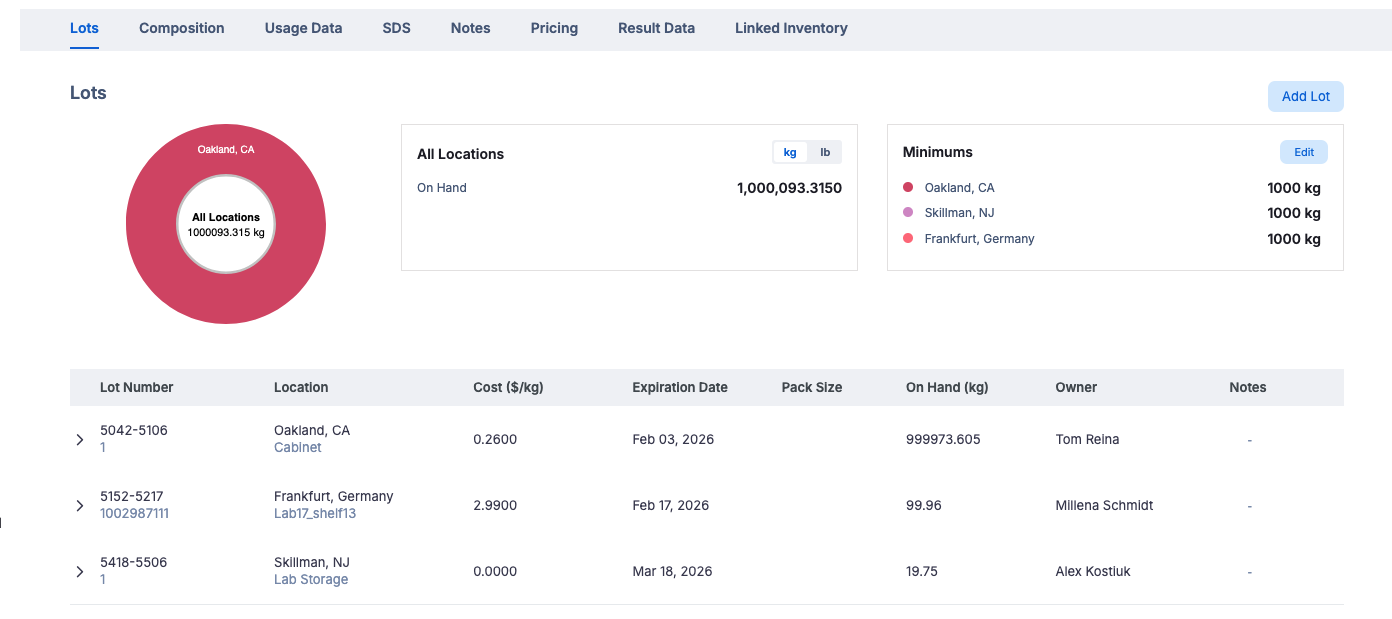
Click on the "Edit" icon in the Minimums section to change the minimum or set it for the first time.

4. A side popup will appear. You can scroll through the available locations and enter the minimum inventory level for that location. Enter the value and click on the Close button.
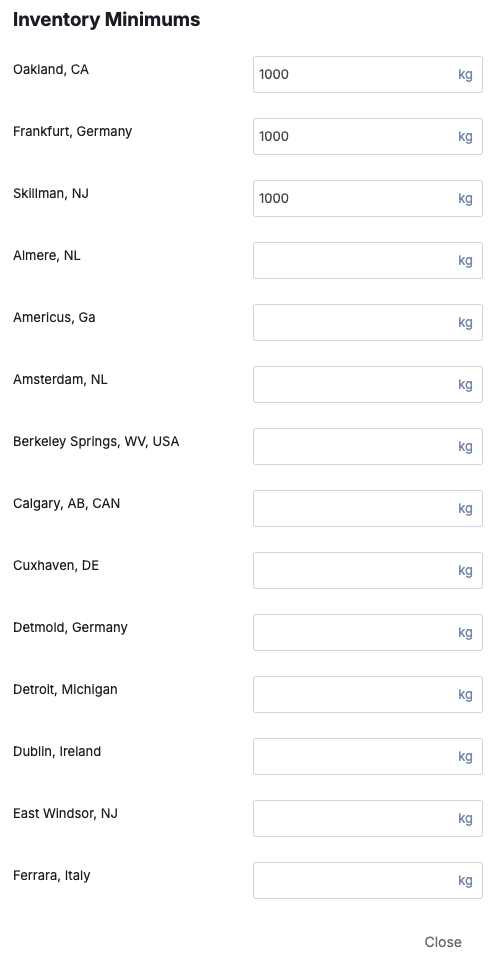
Once your minimum inventory level has been set, you will be able to report on this to ensure stock levels never fall below the set minimum/re-order point.
For questions on how to generate a Report like this, please reach out to support@albertinvent.com.