
Inventory – Quarantined Lots
Albert allows you to quarantine a lot in the case that you have a inventory item that is no longer suitable for use but you want to keep it in the inventory. By quarantining the lot, you will still be able to reference the material but will no longer be able to use that specific lot in a batch.
Quarantining an Inventory Item
There are two ways to quarantine an inventory item.
For the first way, follow the procedure described below:
Click on the Inventory module in the top header.

Click on the name of the inventory item (Raw Material, Consumable, or Equipment) to see its details page.
Raw Materials
Consumables
Equipment

Click on Result Data which will bring you to the Result Data section for this inventory item.

Select the biohazard symbol next to the lot number you would like to quarantine.

A warning will pop up alerting you that you will need to manually remove the quarantine in the future if you would like to use the lot. Select "Yes" to confirm.
The icon will turn red, indicating that the lot has now been quarantined. To remove the lot from quarantine, click the corresponding biohazard icon again.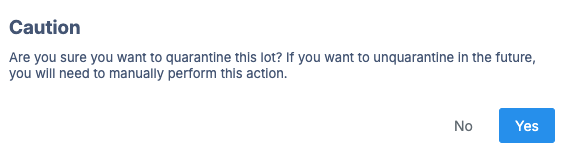

For the second way:
You can quarantine a lot by clicking on the three dots "..." that appear when hovering over the desired lot.
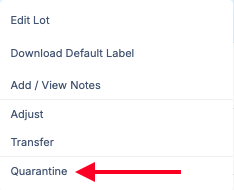
Click on Quarantine in the pop-up and then confirm with Yes.
Tip: To un-quarantine an item, simply follow the same process from above!
Note: You may be also interested in Tasks – Using Inventory in a Batch Task.