
Volume Based Ingredients
You can now track inventory in volume and ensure that volume is the default basis when using those ingredients in worksheets and batch tasks.
That conversion step is error-prone, time-consuming, and easy to get wrong.
Beyond eliminating the conversion step, volume tracking also keeps your records more accurate over time. On-hand quantities reflect actual dispensed volumes, lot records capture every usage event in volume, and low-stock thresholds can be set in the unit that actually matters to your team. For labs that work extensively with liquids, this is the difference between inventory data that has to be interpreted and inventory data that just makes sense.
To learn how to create an inventory item in Albert, refer to Creating Inventory Items.
What's new in this release?
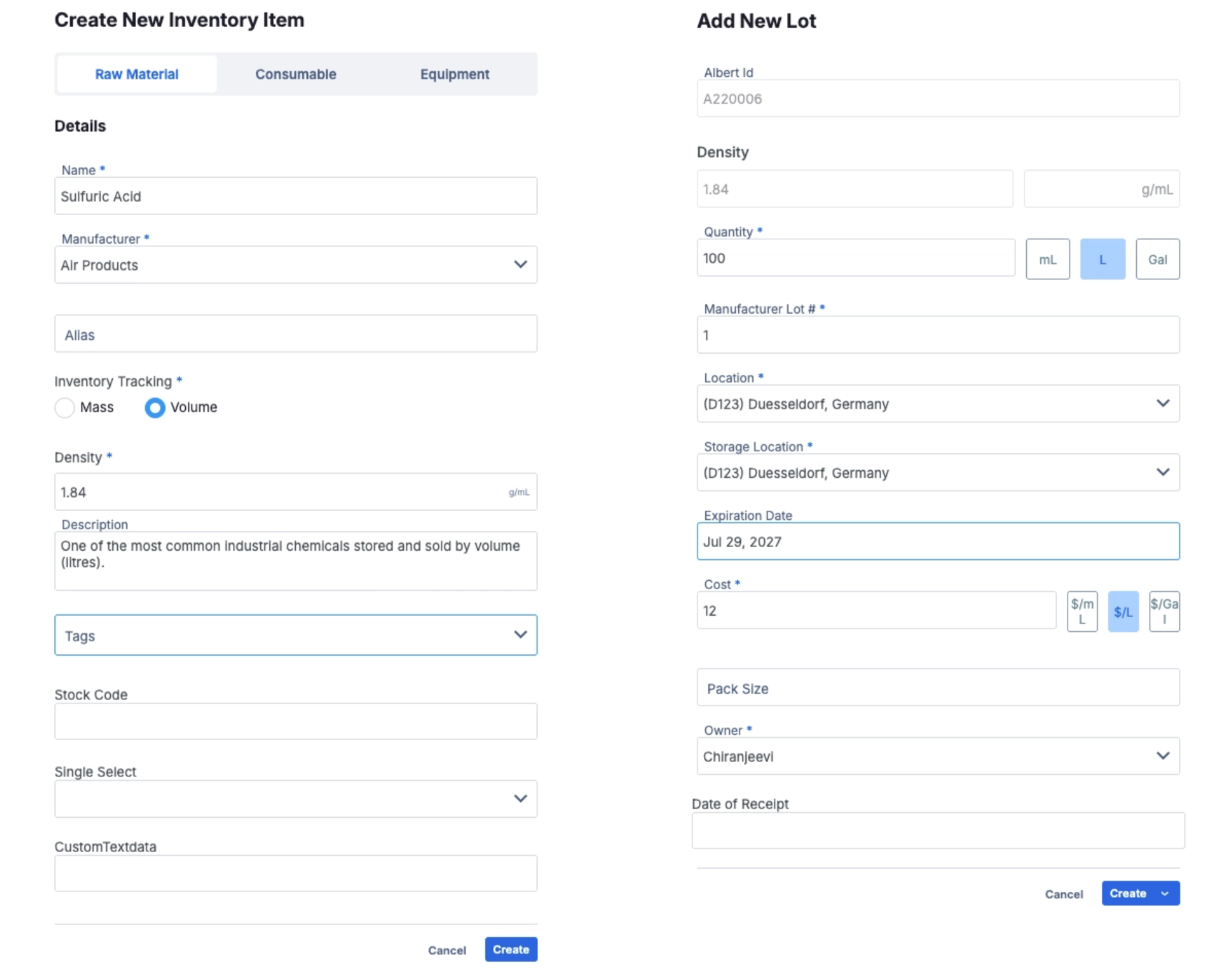
Volume-based inventory creation: When creating a new inventory item, you can now specify a density value upfront.
Consistent density across lots: The density you set at item creation is locked as read-only and applies to every lot under that item. It can’t be adjusted on individual lots.
Consistent volume display across inventory: Anywhere you view inventory in Albert (inventory pages, lot listings, search results), quantities now surface in volume for items configured this way.
Prerequisites
Before you begin, make sure you have:
Inventory Full Access permissions in Albert
The material's density in g/mL — required at item creation and locked at the item level permanently after saving. Density is used to convert volume quantities to mass (g/Kg) when ingredients are used in batch tasks.
The manufacturer name — required for all new inventory items
Note: Volume tracking is available for Raw Materials and Consumables only. Equipment items are tracked by units and do not support volume tracking.
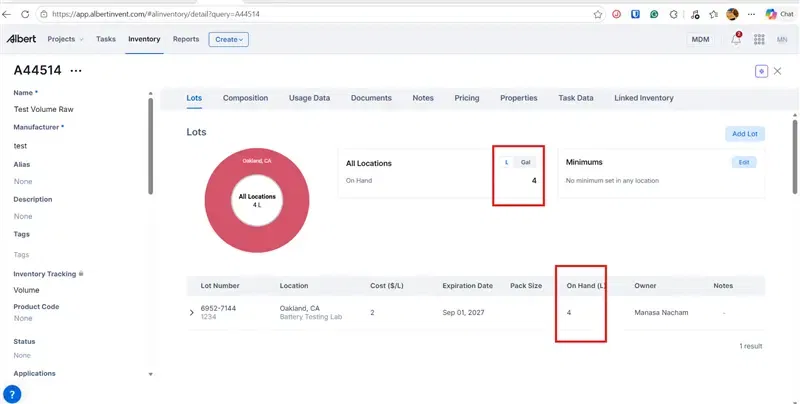
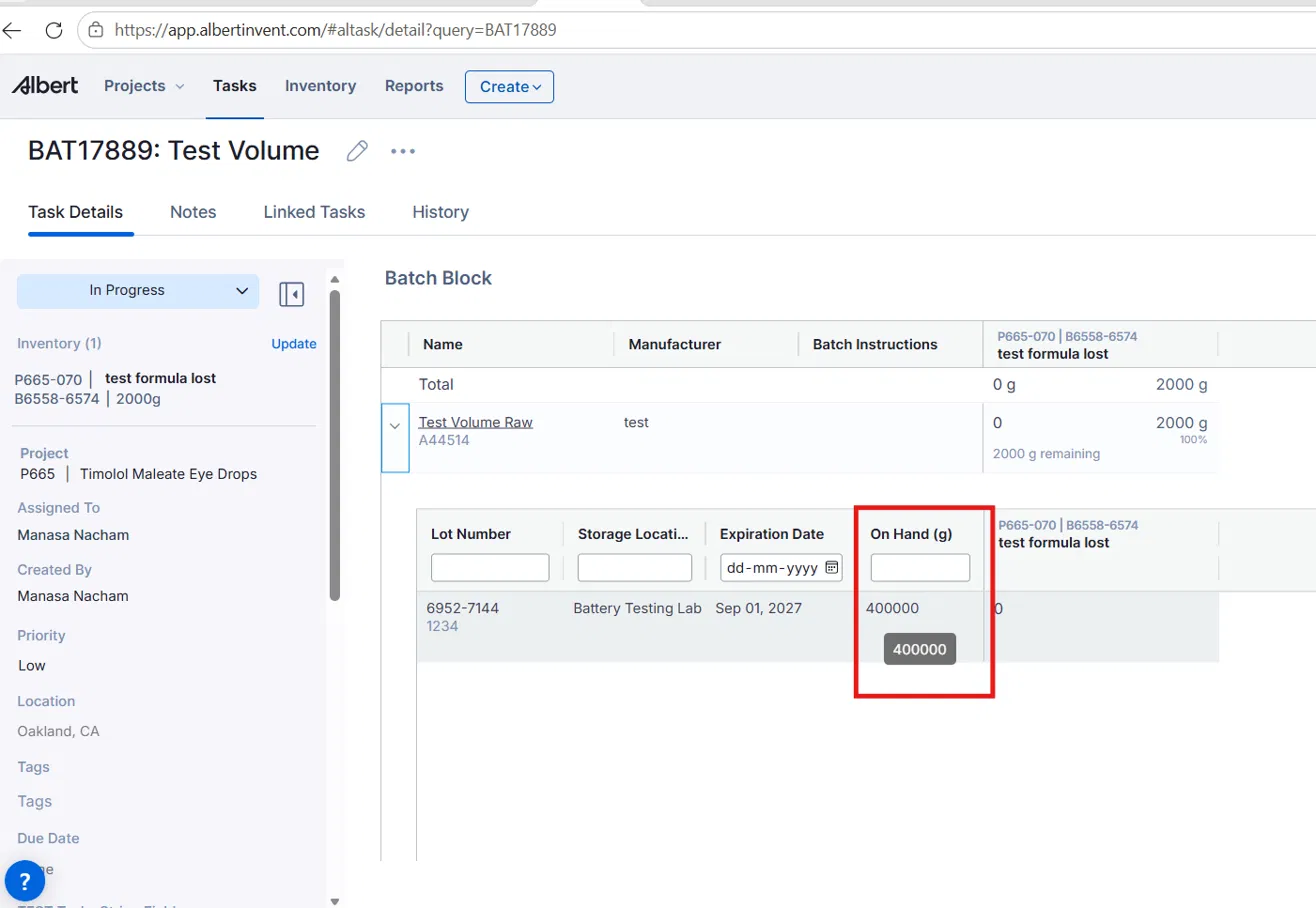
Worksheets currently operate in % mass. In Batch Tasks, on-hand quantities are displayed in grams (g) and quantities can be entered in g, kg, or lb — Albert automatically converts from volume using the item's density value. For example, an item with 4 L on hand and a density of 100 g/mL will show as 400,000 g in a batch block.
Create a volume-tracked inventory item
Click Create in the top navigation bar and select Raw Material or Consumable.
In the Create New Inventory Item form, enter the item Name and select a Manufacturer from the dropdown.
Under Inventory Tracking, select Volume. Mass is selected by default.
Enter the material's Density in g/mL. This field is required when Volume is selected and cannot be changed after you create the item.
Optionally fill in Description, Alias, Tags, and any custom fields shown on the form.
Click Create.
Important: The Inventory Tracking type (Mass or Volume) and the item-level Density are both permanently locked after creation — there is no way to change them, regardless of user role or how many lots exist.
If you need to change either setting, you will need to create a new inventory item.
Add a lot to a volume-tracked item
Once the item is created, you will land on the inventory detail page. From here:
Click Add Lot in the top right of the Lots tab.
In the Add New Lot panel, the Density field is pre-filled from the item level and is read-only. This value applies to all lots under this item.
Enter the Quantity and select the unit: mL, L, or Gal.
Enter the Manufacturer Lot #.
Select a Location and Storage Location from the dropdowns.
Set the Cost and select the matching unit: $/mL, $/L, or $/Gal.
Select an Owner from the dropdown.
Optionally enter Expiration Date, Pack Size, and Date of Receipt.
Click Create. To add multiple lots at once, click the arrow next to Create and select Create more.
View and manage volume-tracked inventory
Inventory detail page
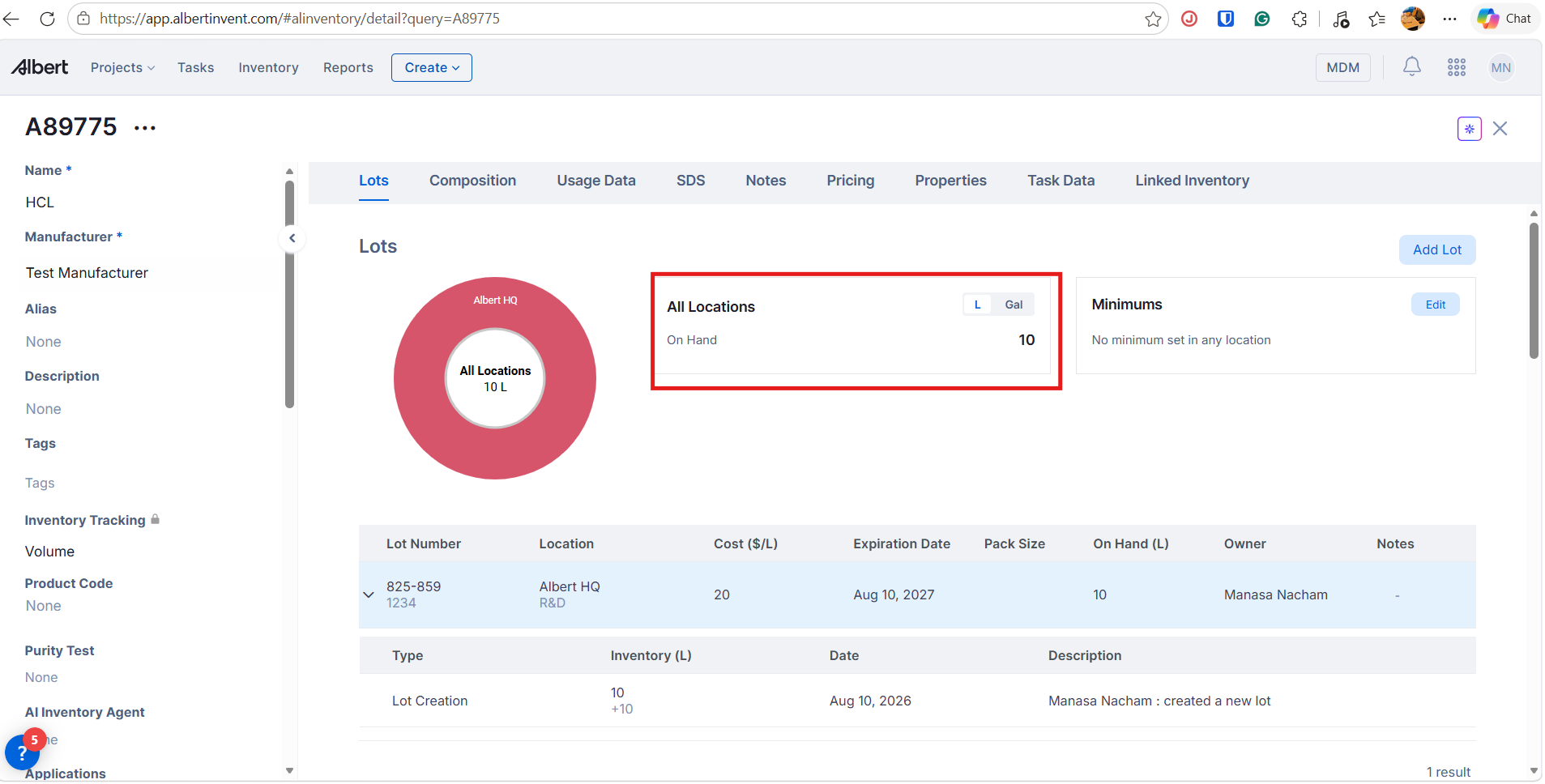
After adding lots, the Lots tab shows:
A donut chart displaying the combined All Locations on-hand total in your selected volume unit
An L / Gal toggle to switch the display unit — this is display-only and does not change any stored values
A lot grid with an On Hand (L) column showing each lot's current quantity in volume
Each lot's Cost ($/L), Expiration Date, Pack Size, Location, and Owner
Lot records
Expanding a lot in the grid reveals its full history — every inventory event (creation, usage, transfer, adjustment) is recorded in volume.
Where volume appears across Albert
Once an item is configured as volume-tracked, quantities appear in volume consistently across every surface where that item is shown. Other items in the same location are unaffected.
Where | What you'll see |
|---|---|
Inventory detail page | On-hand total in L or Gal with an L/Gal display toggle |
Lot listings | On-hand (L) column; each lot's quantity shown in volume |
Inventory list | On-hand quantity shown per row in L for volume-tracked items |
Search results | Volume-tracked items display quantities in volume |
Linked Inventory tab | On-hand shown in volume for linked volume-tracked items |
Minimums | Low-stock threshold set and displayed in volume units |
Pricing tab | Cost displayed as $/L; $/mL and $/Gal also available |
Errors and edge cases
Density field missing or blank after item creation
The Density field should appear in the Properties section of the inventory detail page immediately after a volume-tracked item is created. If it appears blank or is missing, contact your Albert administrator — the density attribute may not be configured for your organization.
Item creation blocked when density is empty
If you select Volume under Inventory Tracking and try to save without entering a density value, the form will block submission. Enter a density in g/mL before clicking Create.
Quantity showing unexpected decimal precision after lot creation
If a round number (e.g., 500 L) displays with additional decimal places in the lot grid, refresh the page. If the issue persists, contact Albert support.
Example use cases
Solvents and liquid reagents measured by volume
Your lab purchases and dispenses ethanol, sulfuric acid, or acetone by the litre. Create these as volume-tracked items so quantities are always recorded in the unit your team uses on the bench — no conversion needed, and no mismatch between the physical label and what Albert shows.Running a batch task with volume-tracked ingredients
When a volume-tracked ingredient is added to a batch block, Albert automatically converts the on-hand quantity from volume to mass using the item's density. The quantity displays in grams (g) and can be entered in g, kg, or lb. For example, a lot with 4 L on hand and a density of 100 g/mL displays as 400,000 g in the batch block — so chemists always see the right unit for dispensing, with no manual conversion needed.Tracking liquids across multiple storage locations
If your facility stores the same solvent across multiple storage locations, the inventory detail page shows the combined on-hand total in L or Gal with a location-by-location breakdown — the unit your team already thinks in, not a mass equivalent.Setting a low-stock alert in volume
For high-consumption solvents, set a minimum quantity threshold directly in L or Gal using the Minimums section on the detail page. Albert will surface an alert when on-hand stock falls below that threshold.
Questions or feedback? Contact support.