
Special Parameters
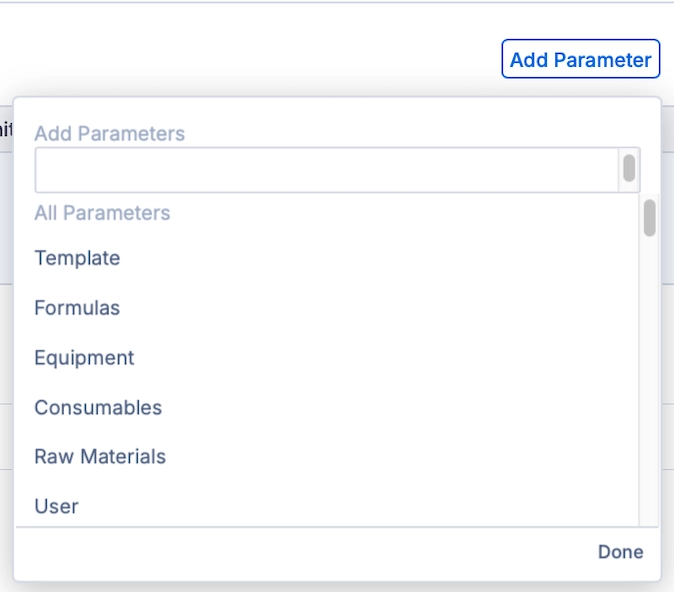
Special parameters are linked fields you can add to a parameter group and data template. Instead of free-text input, they connect directly to an Albert record, keeping your data structured, traceable, and searchable.
Special parameter types:
Template
Formulas
Equipment
Consumables
Raw Materials
User
Using Special Parameters
Setting Up
Special parameters can be added in two places: a Parameter Group or a Data Template's Pre-linked Parameters. Both follow the same flow.
In a Parameter Group or Data Template, click Add Parameter, and select the type from the dropdown. You can set a default value here, or define it directly when creating a task. Any special parameters added here will appear automatically whenever that parameter group or data template is used in a task.
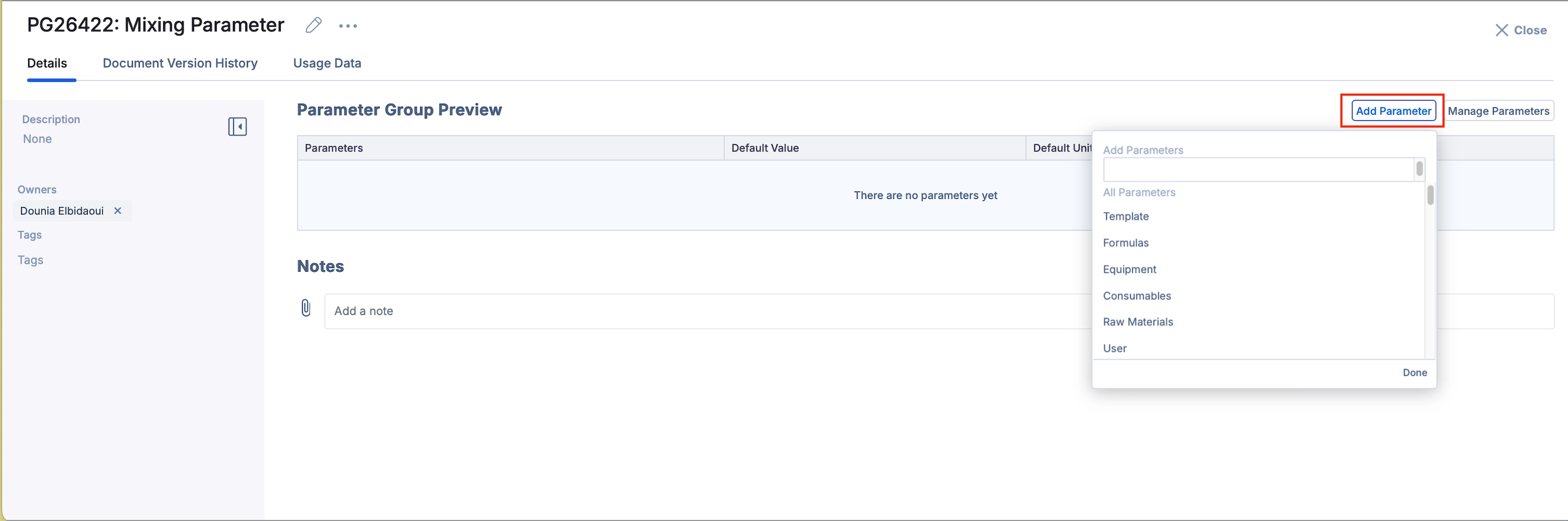
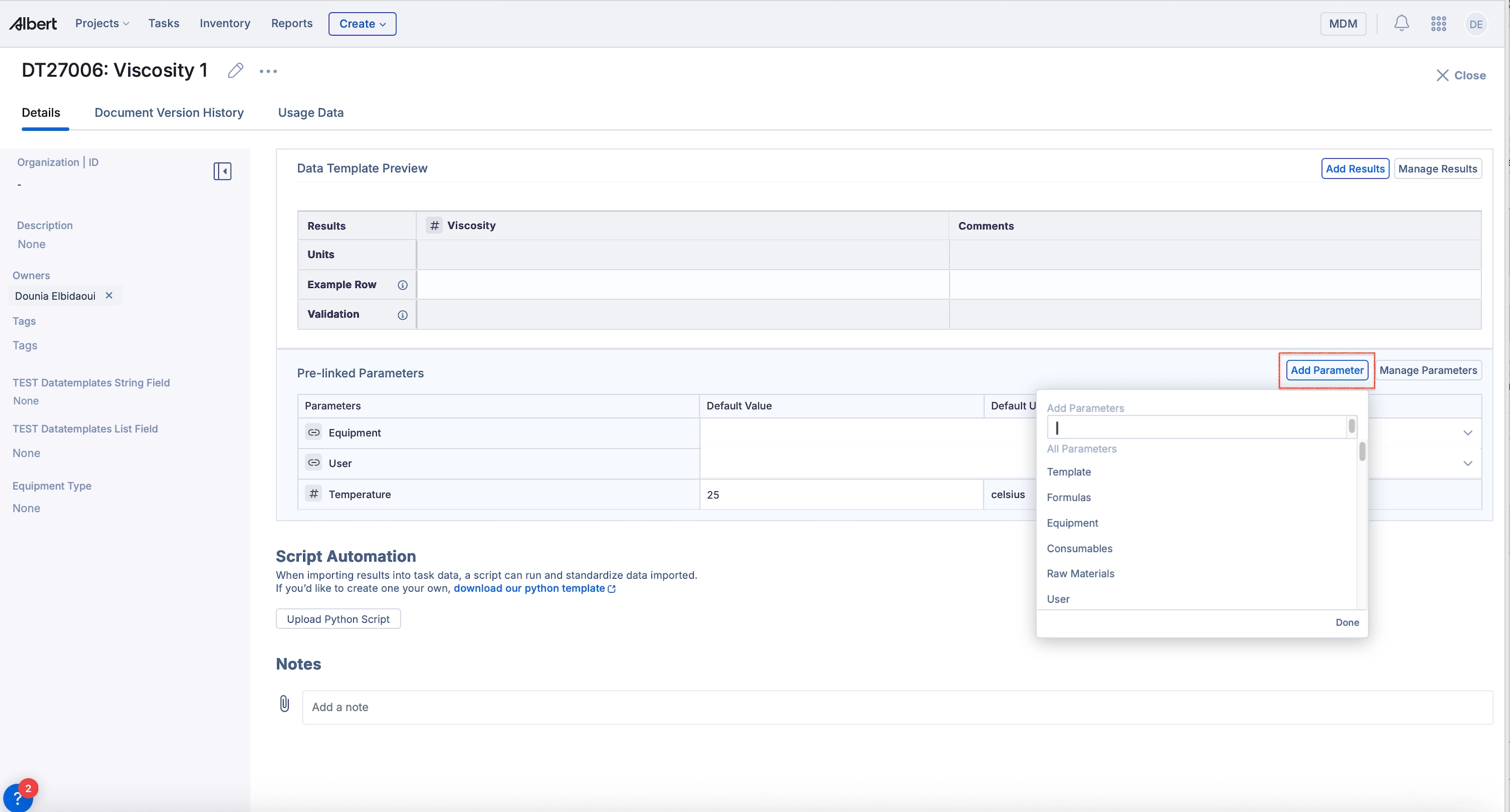
Once set up, special parameters appear in your task under their parameter group or in the pre-linked parameters under the data template in the property block section.
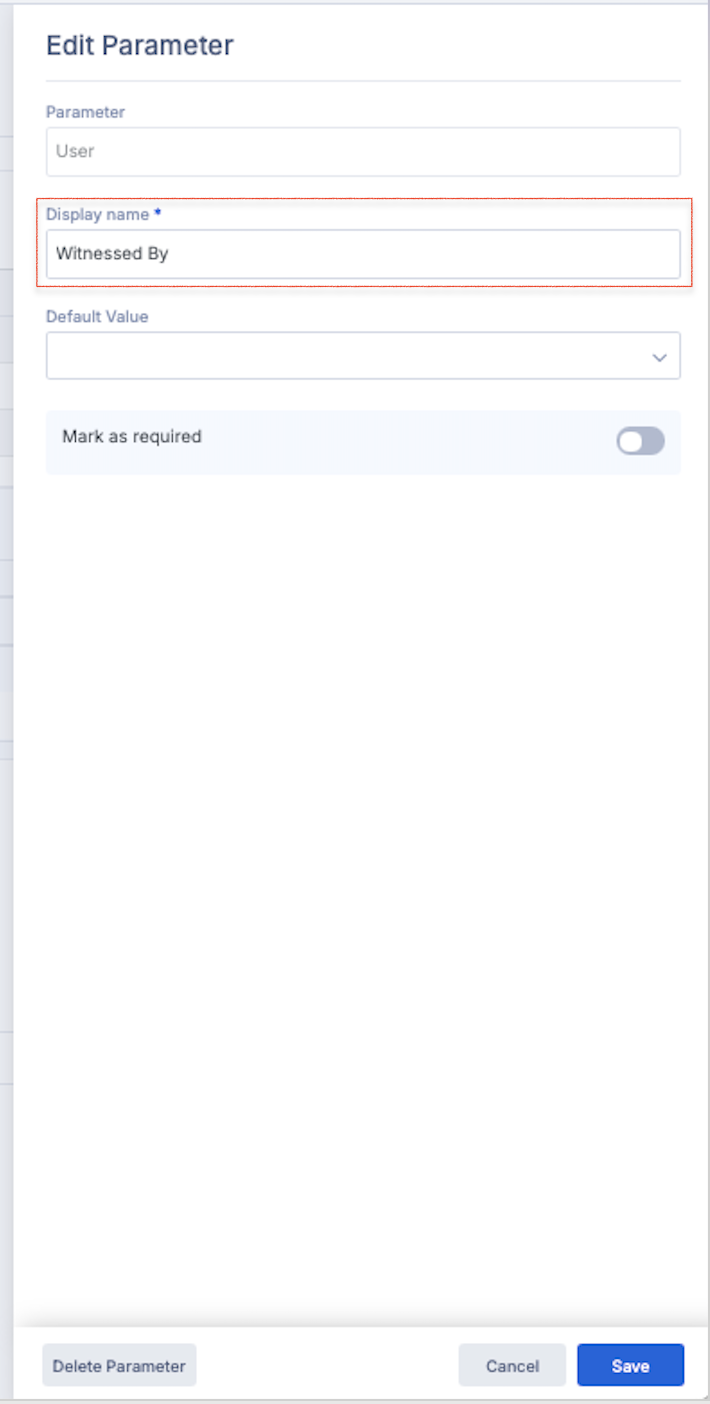
Once a special parameter is added, you can edit it to customize the display name. This applies to all parameter types and is useful for giving parameters more descriptive, context-specific titles. For example, a User parameter might be renamed "Performed By" or "Witnessed By," and an Equipment parameter might be renamed "Viscometer Used" or "Instrument ID.
Inventory Parameters in Tasks
Equipment parameters let you track which instrument was used for a given task, useful for usage tracking and traceability, for example a viscometer used during viscosity testing. Consumable parameters capture substrates, disposables, and other materials used during the process as structured references rather than typed notes, for example a filter used during filtration.
To assign, select the linked record from the dropdown for each parameter and start typing to search your Inventory.
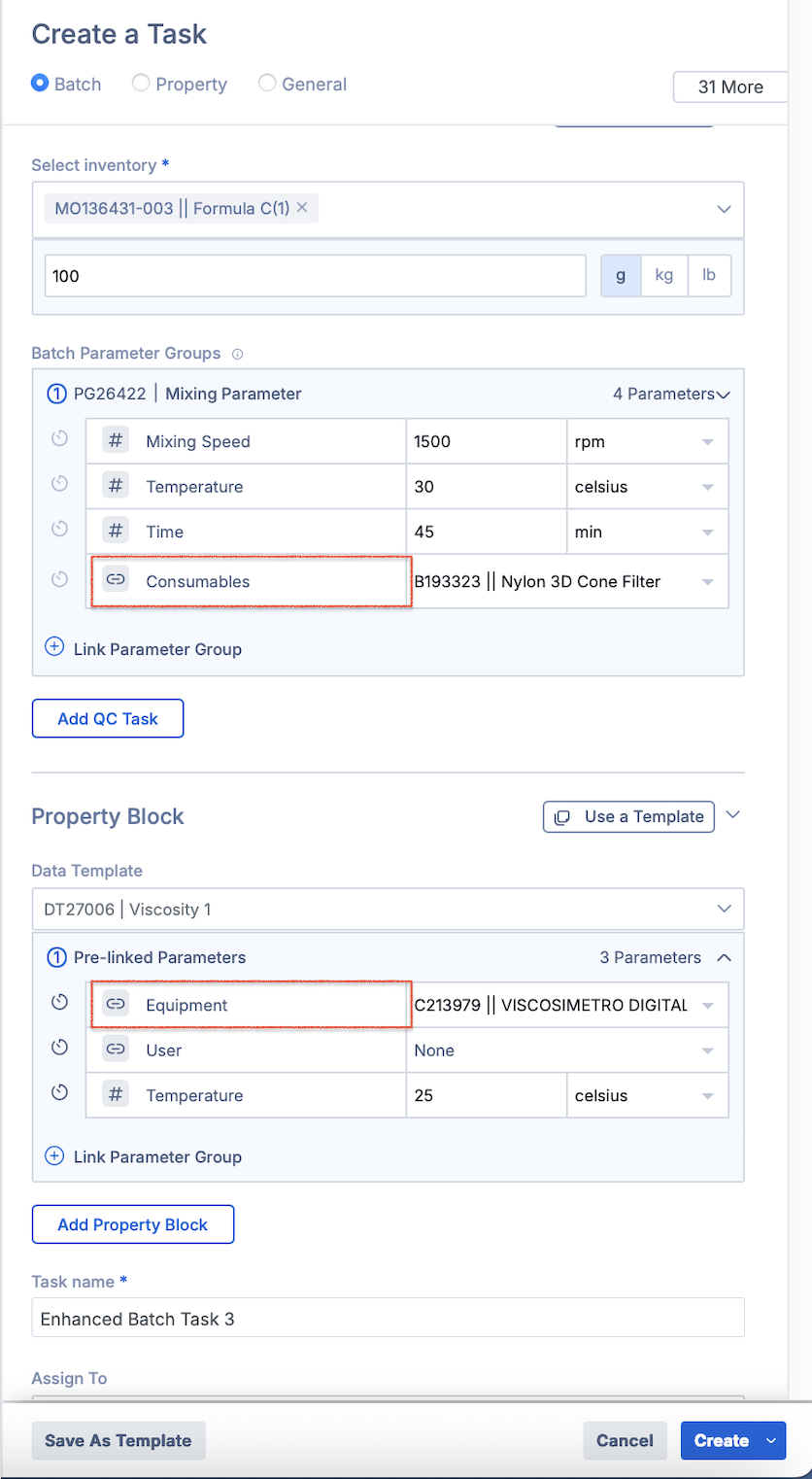
When completing a task, use Allocate Inventory to assign the specific lot to any inventory-linked parameters. This is where lot-level traceability is established.
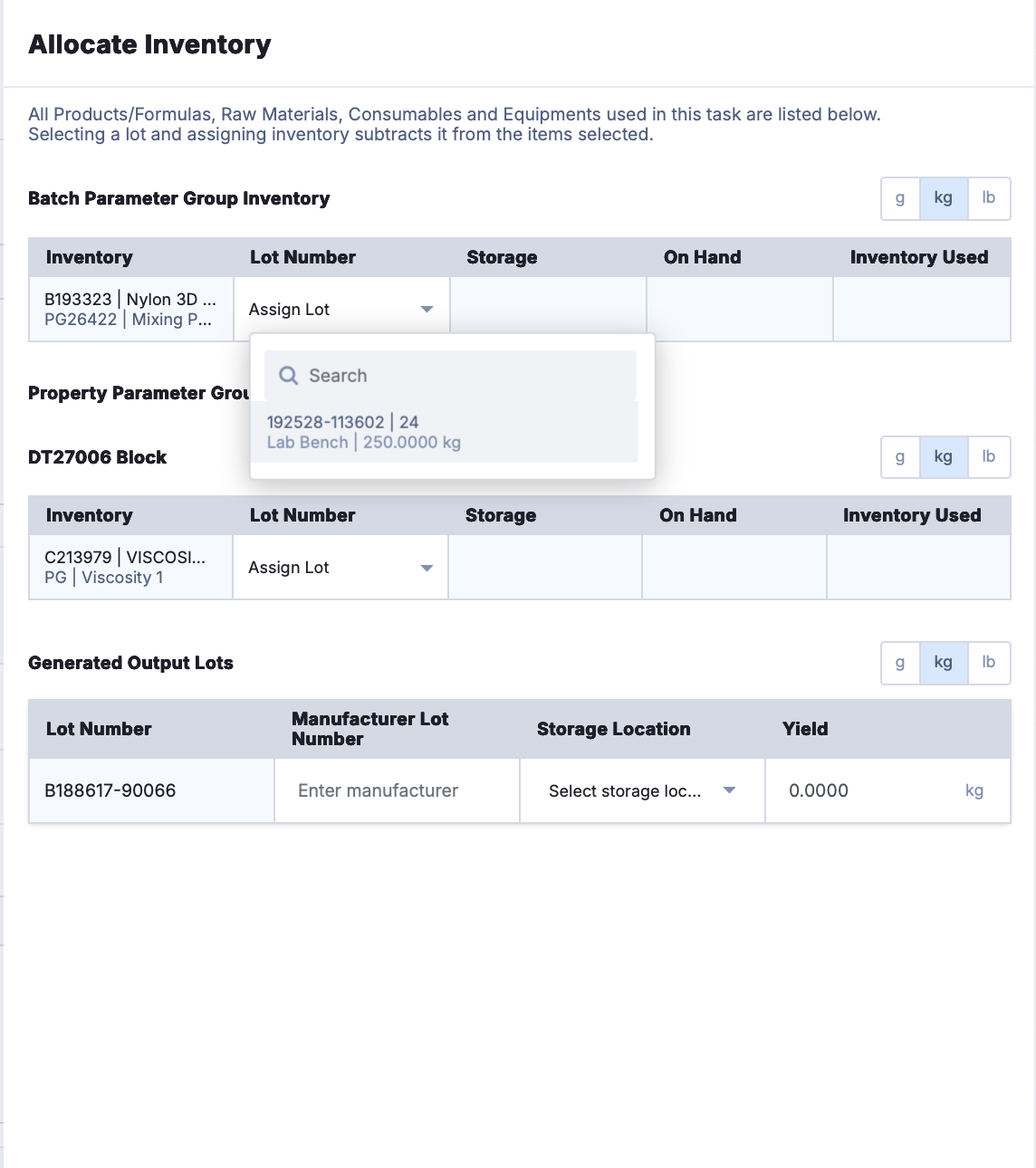
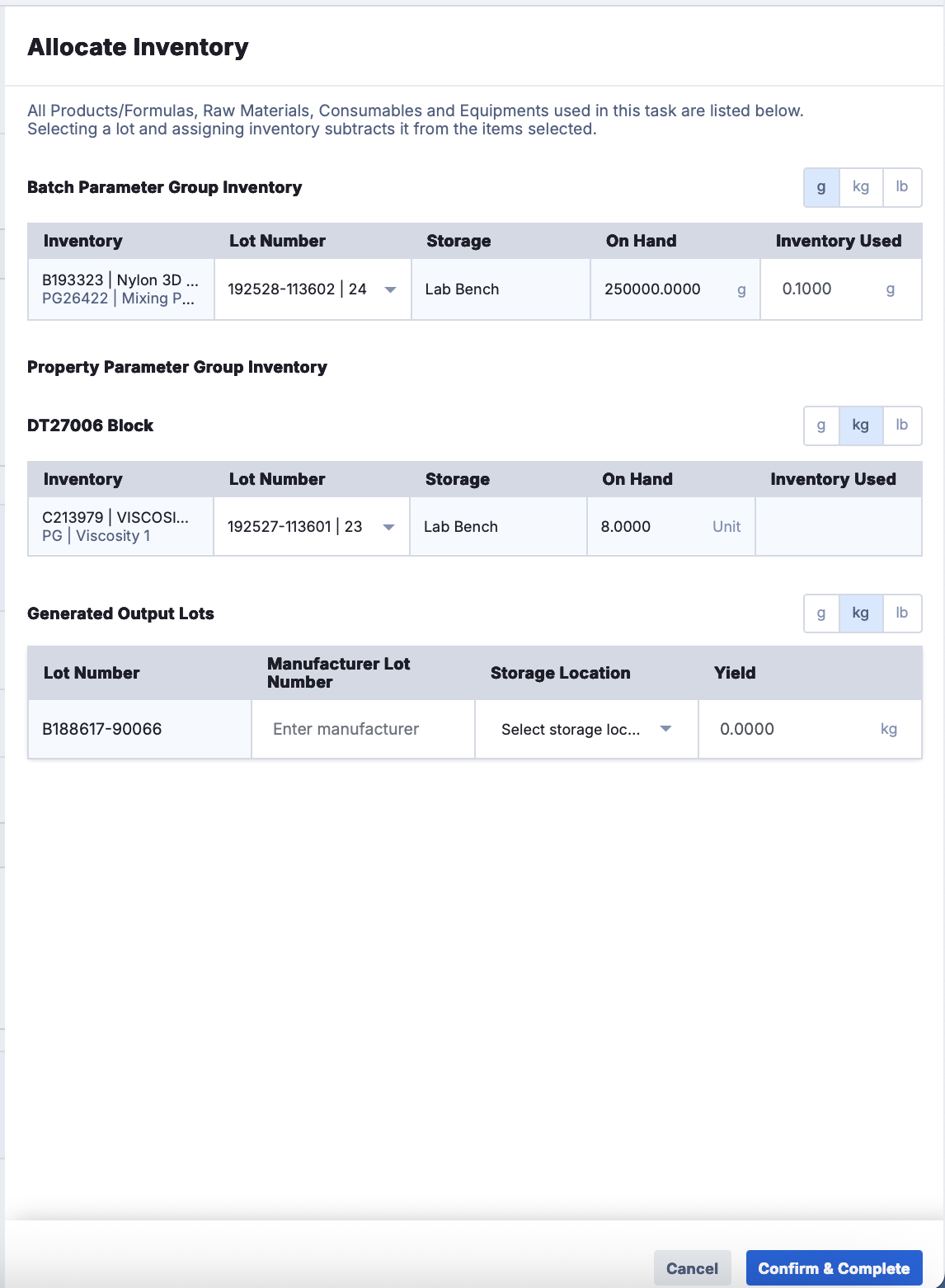
User Parameters in Tasks
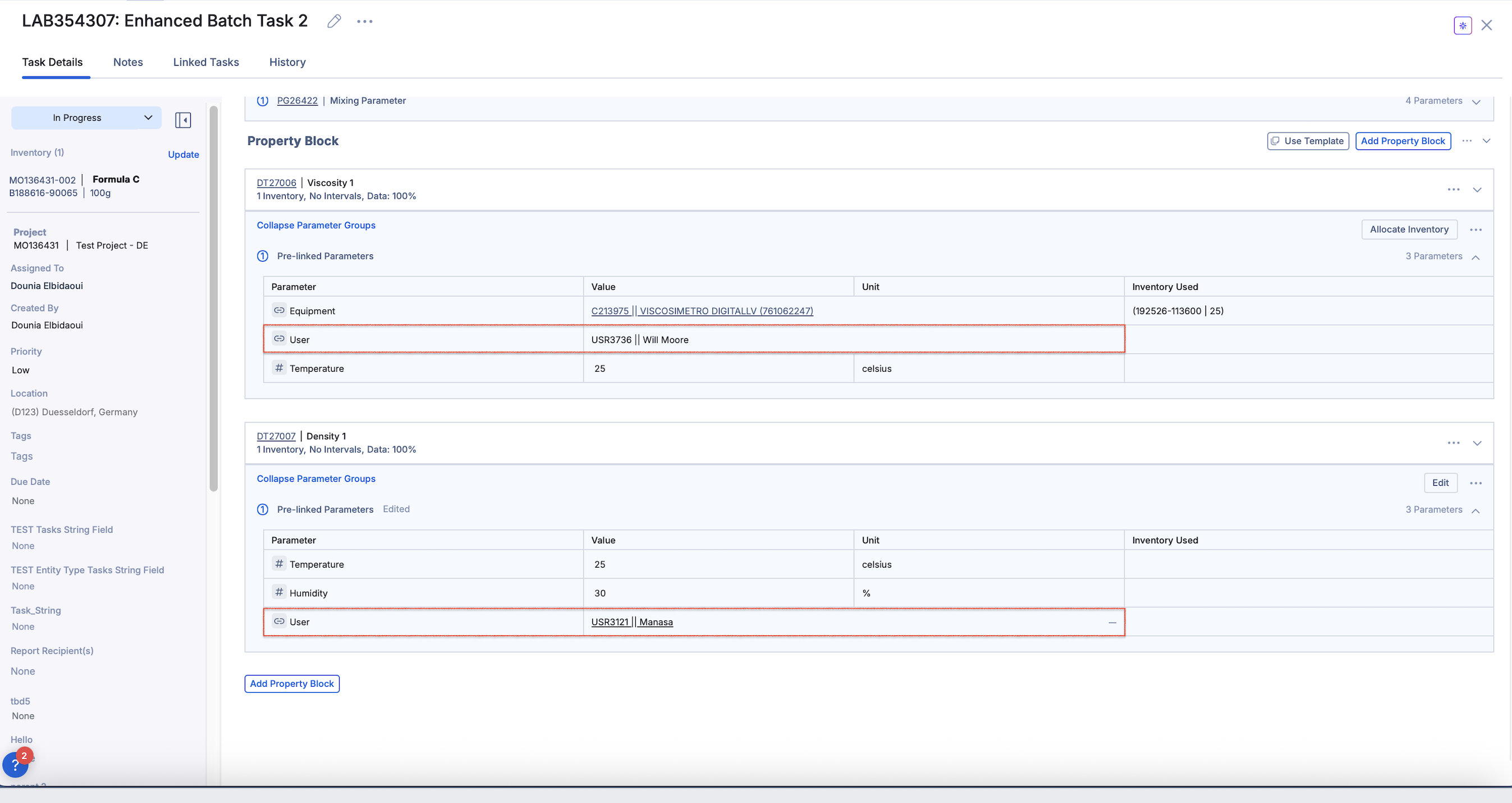
User parameters let you capture who performed or reviewed a step directly in the task. In multi-block tasks, this is especially useful for identifying who was responsible for each individual block, giving you a clear and structured record of who did what across the full task. To assign a user, select the linked record from the dropdown and start typing to search your Albert user list.
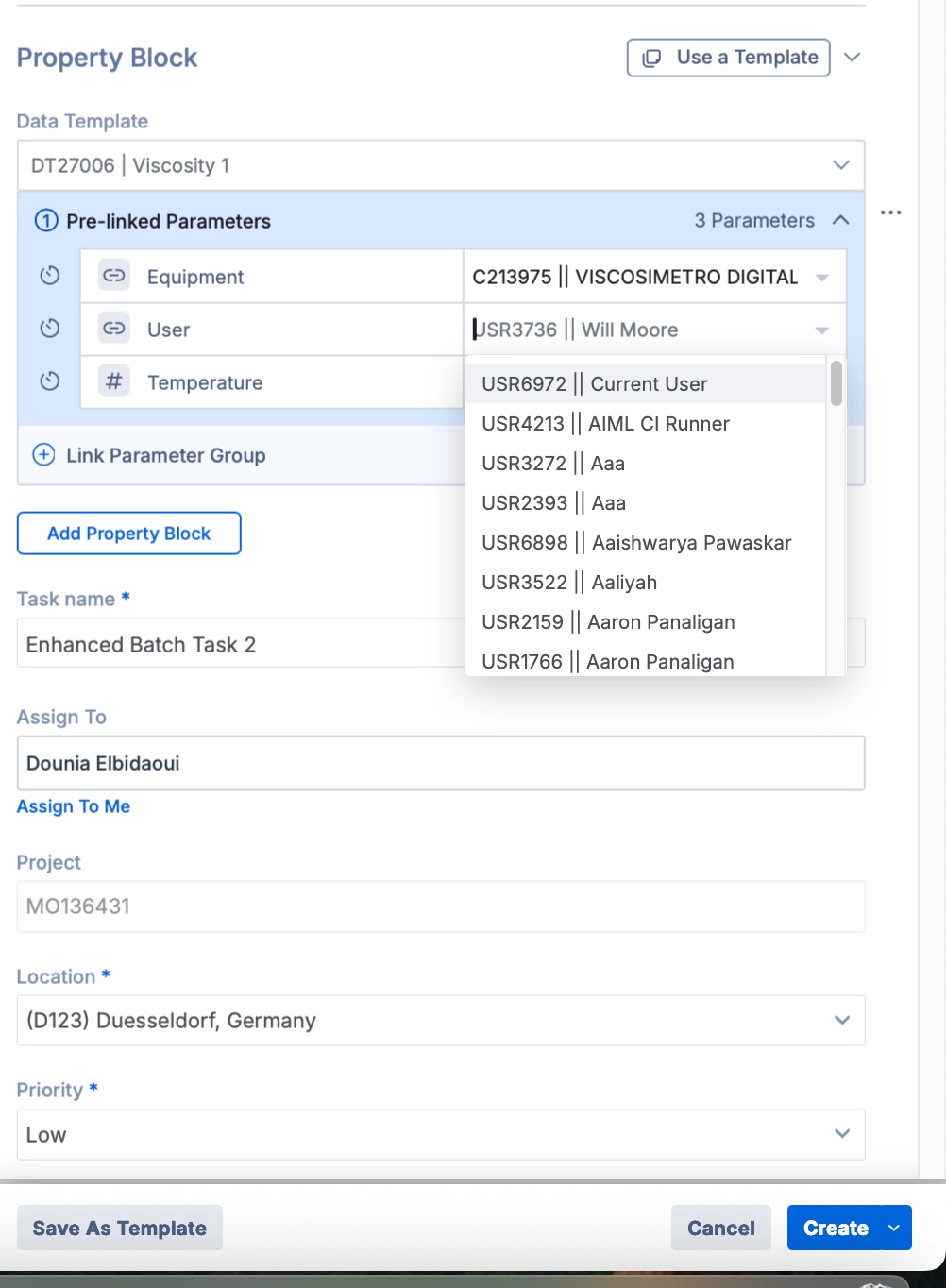
Each property block displays the assigned user, giving you a clear view of who was responsible for each step across the task.
Why it’s useful
Free-text fields break traceability and lack the structure or consistency that a dedicated parameter type provides. Special parameters enforce a real link, so every reference points to the same source record.
Equipment: Track which instrument was used for each task, with full usage history and traceability back to the source record.
Consumables: Capture substrates, disposables, and other materials as structured references rather than typed notes.
User attribution: Who performed or reviewed a task is critical lab metadata. The User parameter works the same way as Equipment and Consumable parameters, bringing structured linking to people directly inside your Data Template and Parameter Group workflows. What this means for your lab:
Add "Performed By," "Reviewed By," and similar fields as structured, consistent parameters
Connect task results to real Albert user records for cleaner audit trails and searchability
Give lab managers and QA teams a filterable view of who did what and when