
Property Attributes and Reference Values
Property Attributes and Reference Values give you a centralized, reusable way to capture key property data — like Viscosity @ 25°C or pH — directly on inventory items, and pull that data into your formulation worksheets.
What are Property Attributes?
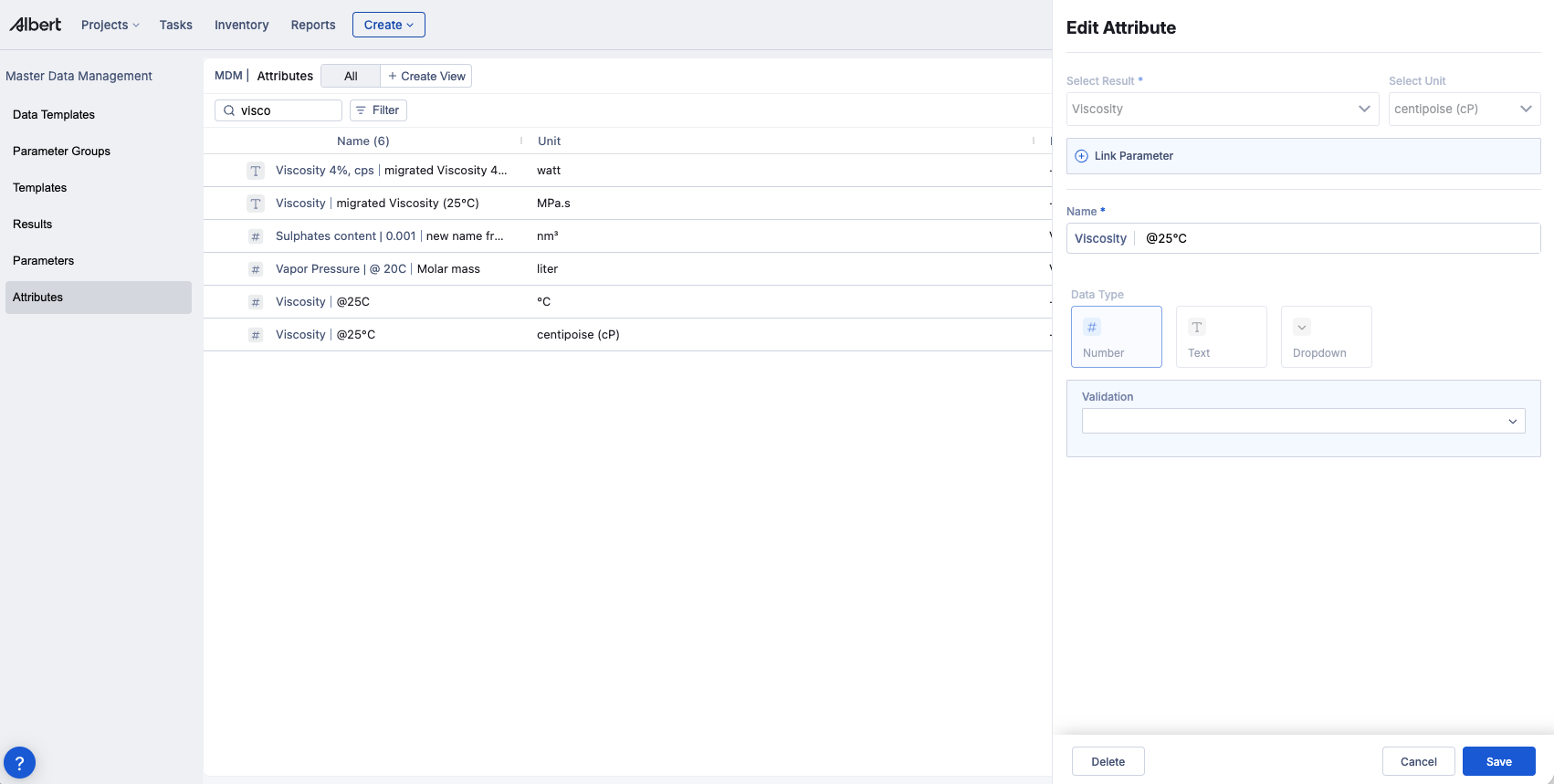
A Property Attribute is a globally defined data field managed in the MDM (Master Data Management) section. Each attribute has a consistent definition that includes:
Name — the display name shown throughout Albert (e.g. "Viscosity | @25°C")
Result — the result type the attribute belongs to (e.g. Viscosity)
Unit — the measurement unit (e.g. centipoise (cP))
Data Type — Number, Text, or Dropdown
Validation — optional rules to keep values consistent
Linked Parameter — optional parameter setpoint tied to the attribute
Because attributes are defined once and shared across the organization, your team always works from the same source of truth — no duplicate or inconsistent entries.
Access to Property Attributes is governed by dedicated ACL policies — see the section below.
Access control and Attribute Policies
This release introduces five new ACL policies that control what users can do with Property Attributes. Administrators can assign these policies to users or groups to match the level of access each role needs.
Policy | What it allows |
|---|---|
Attributes View Access | View attribute definitions in MDM |
Attributes Edit Access | Edit existing attribute definitions in MDM |
Attributes Full Access | Full control over attribute definitions — create, edit, and delete attributes in MDM |
What this means in practice:
To add or capture Reference Values on an inventory item, you only need edit or named access to that inventory item — no special Attribute policy required.
To edit an existing attribute definition (e.g. rename it or change its unit), you need at minimum Attributes Edit Access.
To create new attributes or delete existing ones, you need Attributes Full Access.
If you're unsure which policy applies to a user's role, contact your Albert administrator.
Managing Property Attributes in MDM
To view and manage attributes, go to MDM → Attributes in the left sidebar.
You can search by name (e.g. type "visco" to filter viscosity-related attributes) and use the Filter button to narrow results further. The table shows each attribute's name, unit, and linked parameter at a glance.
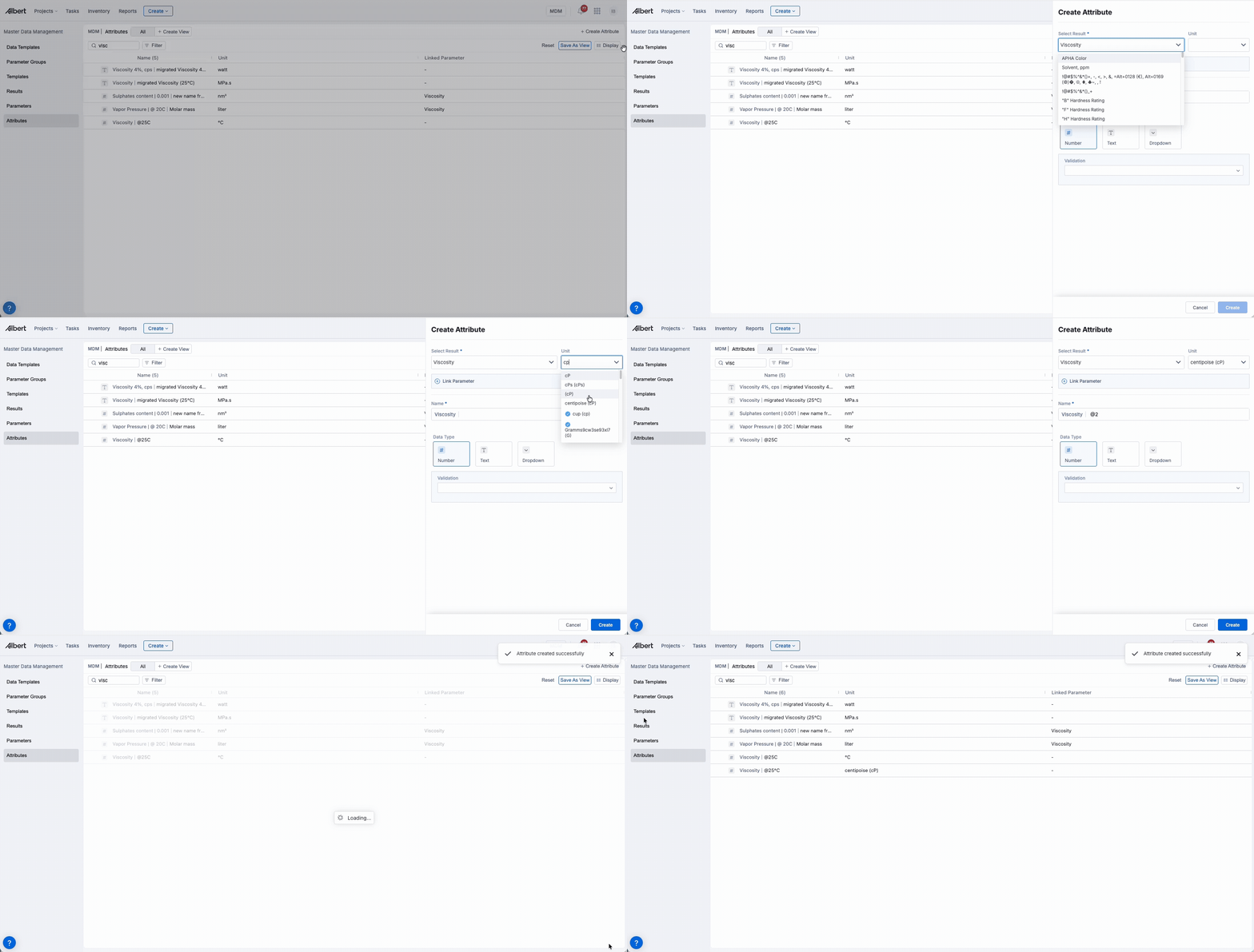
To create a new attribute:
Click + Create Attribute in the top-right corner.
Select a Result and optionally a Unit.
Enter a Name — this becomes the full display name in the format "Result | Qualifier" (e.g. "Viscosity | @25°C").
Choose a Data Type: Number, Text, or Dropdown.
Optionally set a Validation rule.
Click Create.
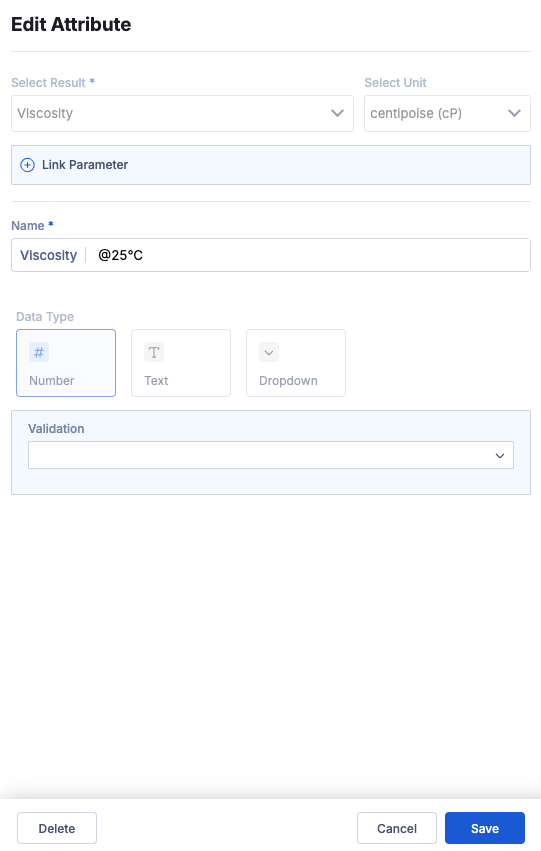
To edit an existing attribute, click on it in the list. You can update the name, unit, data type, and validation. Click Save to apply your changes, or Delete to remove the attribute entirely.
Adding Reference Values to inventory items
Once a Property Attribute exists, users with edit access to an inventory item can attach a Reference Value directly on the item's detail page.
Open the inventory item.
Scroll to the Properties section.
Click Add Property and select the relevant attribute from the list.
Enter the value in the field that appears. Values are validated against the attribute's data type to keep data clean.
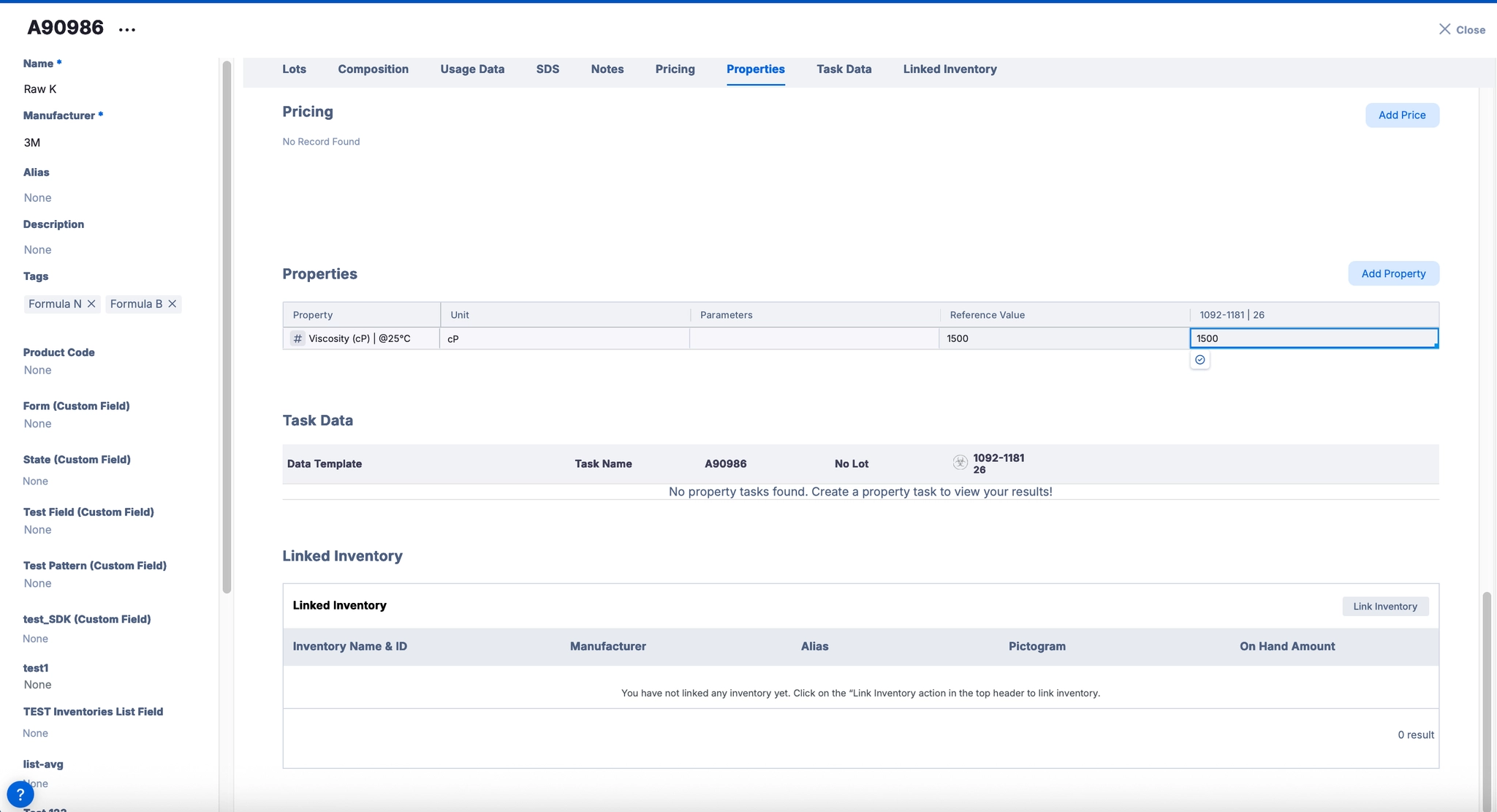
Each property row displays its name, unit, any linked parameters, a Reference Value column, and a per lot value.
Using Reference Values in worksheets
Reference Values can be brought into your worksheets in two ways:
Reference Columns — Add an Property Column to your worksheet to display reference values alongside your formulation rows. To add one, click the + icon on a column header, select Add an Property Column, and search for the attribute by name.
Weighted Average App Rows — Reference Values can also feed into Weighted Mean calculations in the Apps section of your worksheet, making it easy to use trusted inventory data in property-weighted formulation math.
Important: values do not auto-refresh. You stay in control of when your worksheet updates. If the underlying Reference Value has changed since you last loaded it, a "new value available" indicator will appear on the relevant cell. You can then:
Refresh at the cell level to pull in the updated value, or
Override the value locally for what-if analysis — this does not affect the underlying inventory data.
Migration from Specs
If your organization was using the legacy Inventory Specs system, your existing Specs will be automatically migrated into Property Attributes and Reference Values. Worksheet lookup columns will be updated accordingly — no manual action is needed on your end.
Frequently asked questions
Who can create or edit Property Attributes? Creating and editing attribute definitions in MDM requires an Attribute ACL policy — Attributes Edit Access to modify existing attributes, or Attributes Full Access to also create and delete them. Adding Reference Values to inventory items does not require an Attribute policy — it only requires your regular inventory edit or named access.
Can I add a Reference Value without a linked parameter? Yes. The Linked Parameter field is optional. You can define a simple attribute (e.g. just a numeric value and unit) without tying it to a process parameter.
What happens if I override a Reference Value in a worksheet? The override applies only to that worksheet cell. The inventory item's Reference Value is not changed. A local override is useful for what-if scenarios without affecting shared data.
Will my existing Specs disappear? No. Existing Specs are migrated automatically. You should see them reflected as Property Attributes and Reference Values after migration completes.