
Project Documents
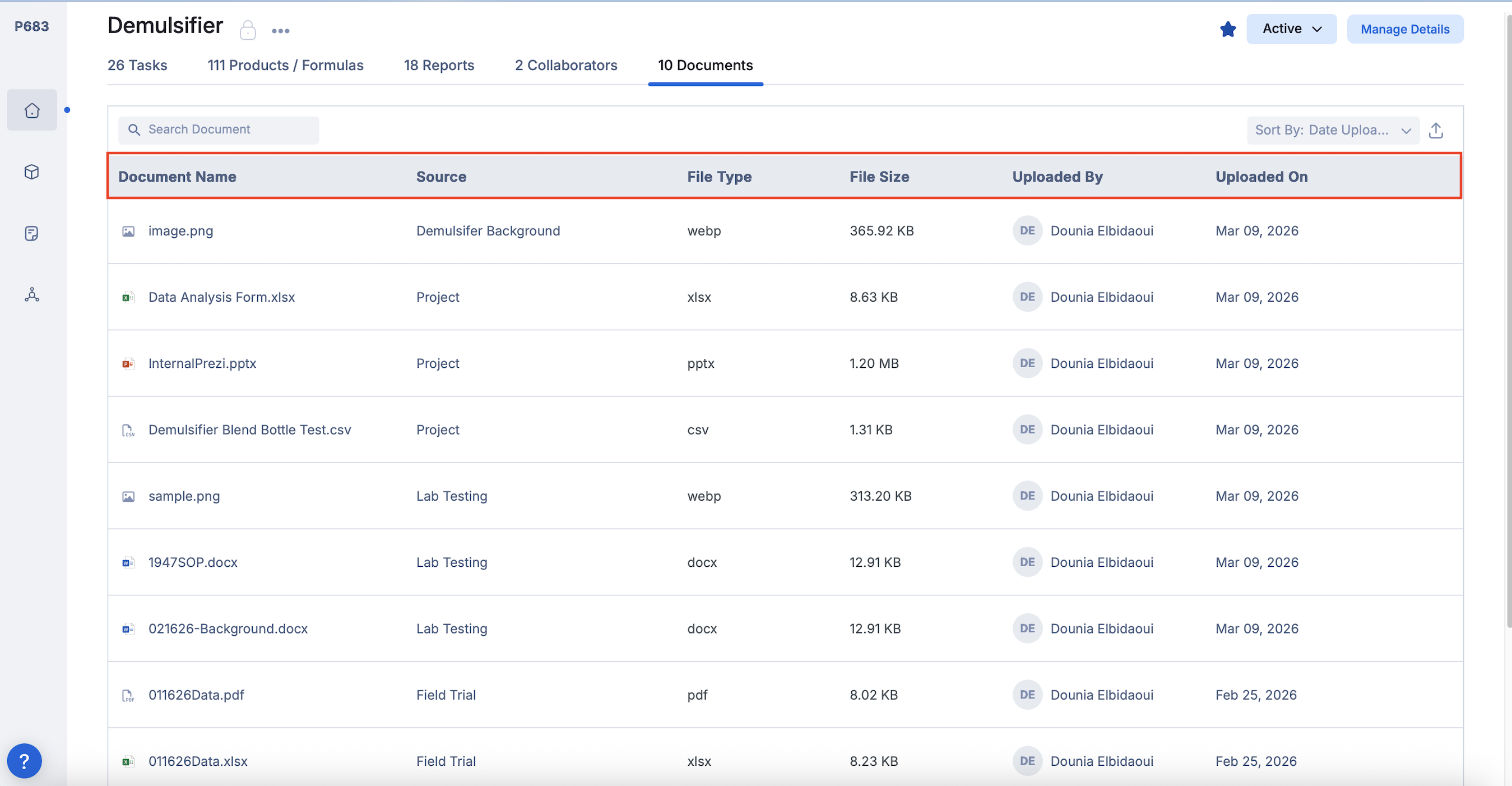
Within Project Home, the Documents tab contains all documents associated with that project. This tab provides a centralized location to view and manage project-related files.
The Project Documents tab gathers files uploaded directly to the project as well as documents added through Notebooks, allowing users to access all relevant files in one searchable and organized location.

Document List Overview
The Documents table displays the following information for each file:
Document Name – The name of the file
Source – Where the document originated (for example, a Notebook)
File Type – The file format (PDF, DOCX, XLSX, etc.)
File Size – Size of the file
Uploaded By – The user who uploaded the document
Uploaded On – The date the document was uploaded
Searching and Filtering
You can search and filter documents directly from the Documents tab to quickly find specific files within the project.

Uploading Document:
Documents uploaded in a Notebook will automatically appear in the Project Documents tab.The Source column will display the Notebook name if the document was uploaded through a Notebook.
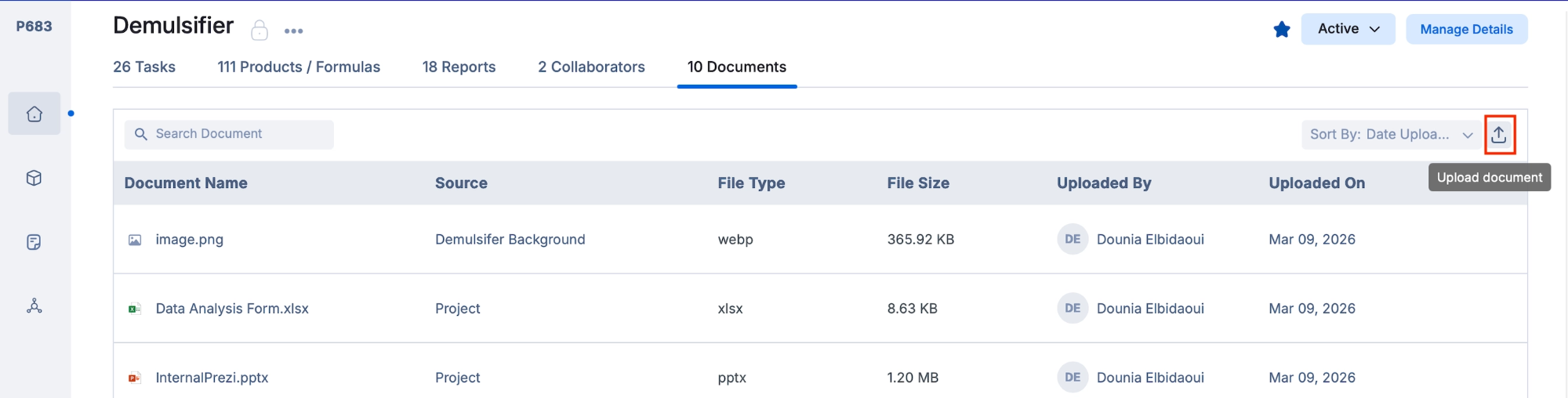
To upload a document directly from the project:
Click Upload in the Documents tab.
Select the file from your computer.
It is also possible to upload multiple files if needed, by clicking on multiple files.

Opening, Downloading, Deleting
Opening a Document
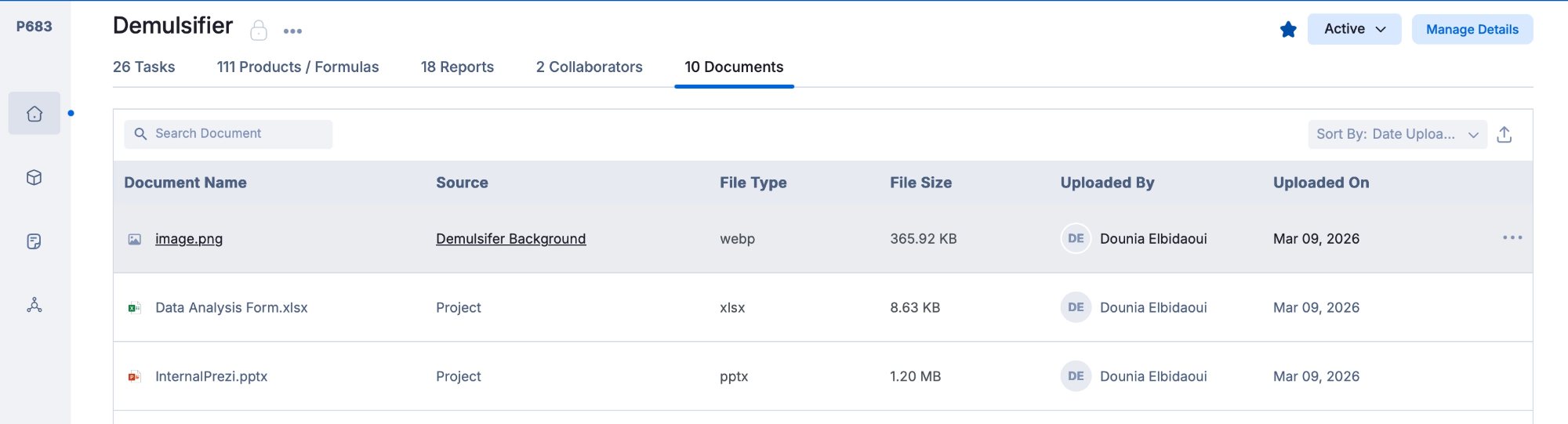
Click on the document name to open the file in a new browser tab:
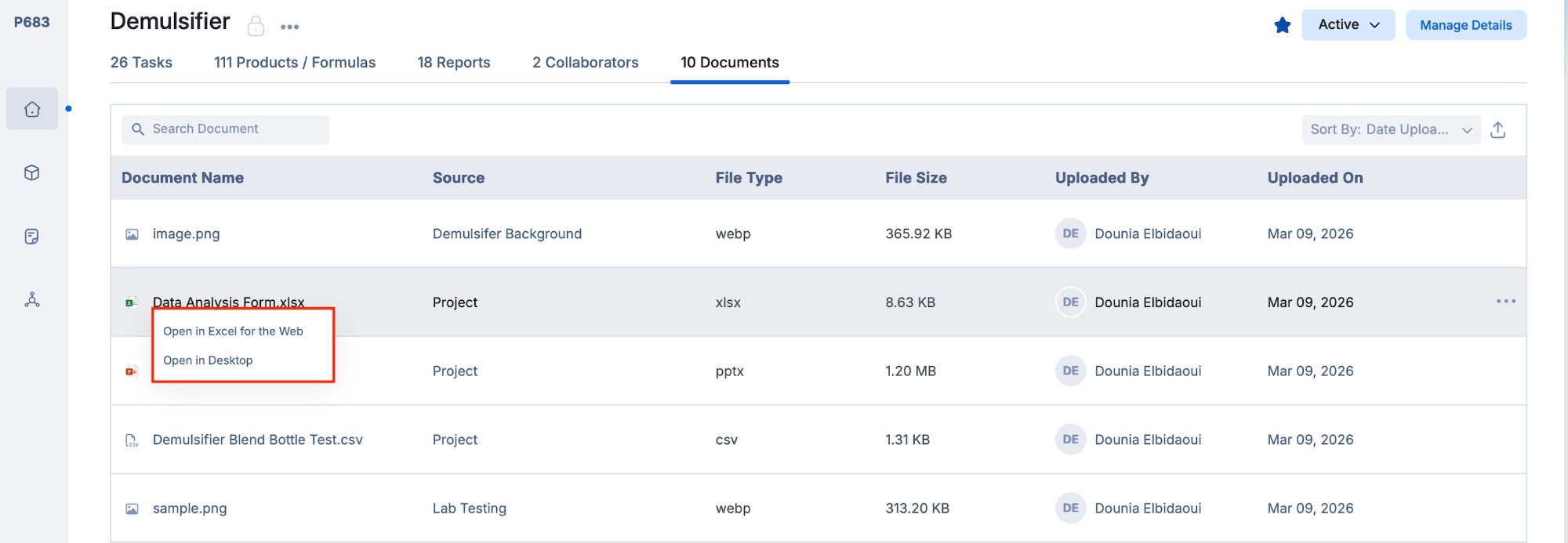
For Microsoft files (Word, Excel, PowerPoint), you will be given the option to:
Open in the web version, or
Open in the desktop application
Downloading or Deleting a Document
Click the three-dot menu to the right of a document to manage a file:
Download File
Delete File
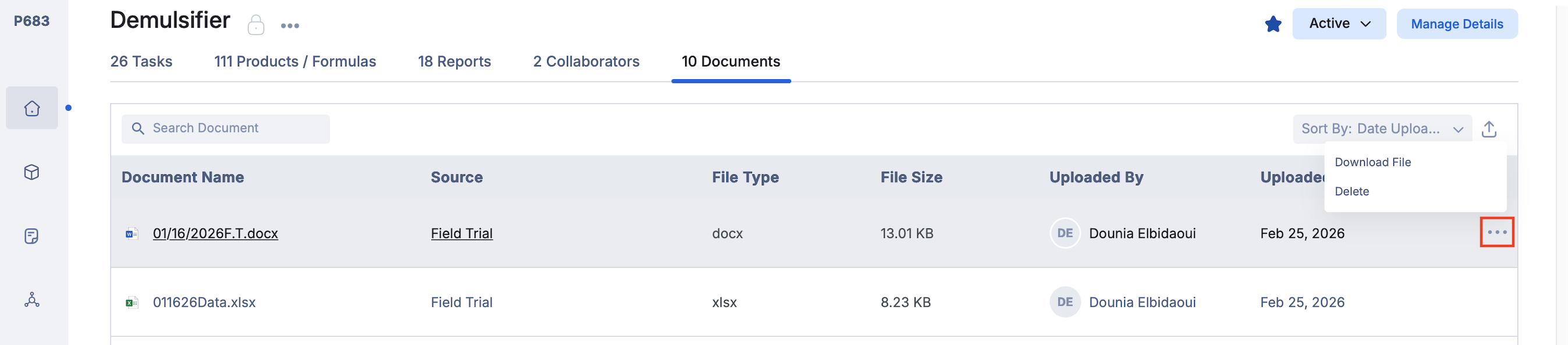
When deleting a file, the system will ask you to confirm the action.
If the file originated from a Notebook, deleting it from the Documents tab will permanently remove the file from the original Notebook as well.

User Access
Access to Project Documents is controlled by your project permissions. The permissions determine whether a user can view, upload, edit, or delete documents within the project.
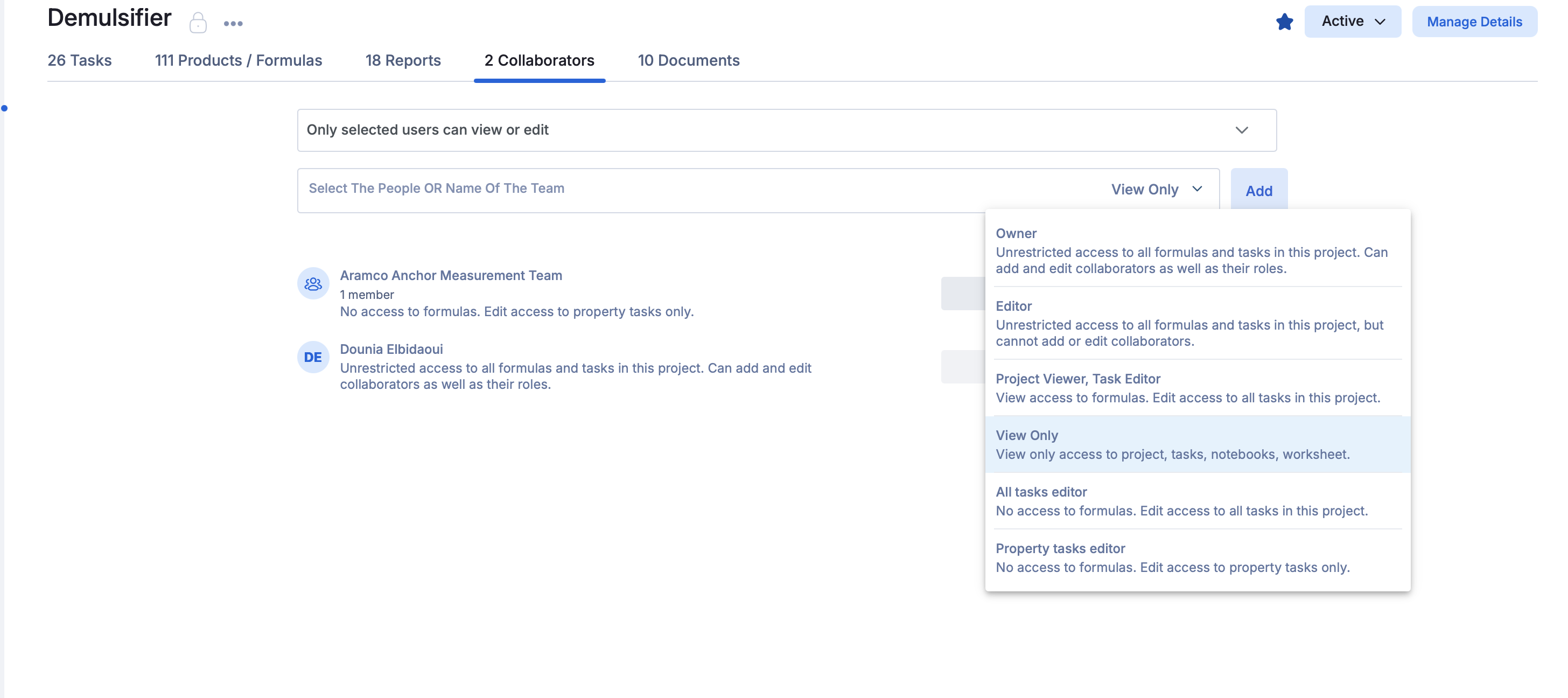
Permission Role | Access Level |
Owner | Can view, upload, download, and delete documents. |
Editor | Can view, upload, download, and delete documents. |
Project Viewer | Can view, upload, download, and delete documents. |
View Only | Can view and download documents but cannot upload or delete them. |
All Task Editor | Can view, upload, download, and delete documents. |
Property Task Editor | Can view, upload, download, and delete documents. |
If you do not have the required permissions, a message will appear indicating that access is restricted, as shown below.
