
Project Notifications & Access Requests
Audience: All project collaborators & owners · Goal: Let collaborators request access directly from the project grid and keep owners notified, so access is fast and auditable.
Project Notifications make it easy for anyone to request access to a project, and for project owners to see and act on those requests without leaving Albert.
🔔 What are Project Notifications?
With Project Notifications, anyone who can see a project in the grid but doesn’t yet have access can request it in one click. Project owners are notified when:
A collaborator requests access to a project.
An existing collaborator’s access role is updated.
This eliminates email back-and-forth and access bottlenecks, while keeping a clear record of who requested access and when.
📥 Request access from the project grid
If you can see a project listed but don’t yet have permission to open it, you can request access directly from the grid.
Go to the Projects grid.
Find the project you need to access.Click Request access.
On the project row, use the access/request icon or button to submit your request.Confirm your request.
Albert sends a notification to the project owner(s) with your request details.
You only need to request access once. If your role changes later (for example, from Viewer to Editor), that update will also appear in notifications.
⏳ Check the status of your access request
After you’ve requested access, Albert will show you that the request is still pending when you open the project.
Open the project from the grid.
Click the project you requested access to.Look for the status banner.
You’ll see a message indicating that you’ve already requested access and when the last request was made.
If your request is approved or your role changes, you’ll be notified via the Project Notifications panel and (optionally) by email.
⚙️ Turn Project Notifications on or off
You can control whether you get in-app and email notifications when project access changes.
Open Notification Settings.
In the top-right of Albert, click the notification bell, then the settings icon (or use the gear icon next to your profile, depending on your setup).Find Project Access Updated.
In the notification list, locate the row for Project Access Updated.Choose where you want to be notified.
Use the checkboxes to enable:In App – shows alerts in the notifications panel.
Email – sends an email when someone requests access or your own access changes.
Close the settings panel.
Your choices are saved automatically.
We recommend that project owners keep both In App and Email enabled for Project Access Updated, so they don’t miss any access requests.
👤 How project owners see and respond to requests
When someone asks to join your project, you’ll receive a notification with all the context you need, and you’ll be taken directly to the Project Collaborators page to approve or reject the request.
🔔 See new requests in the notifications panel
Click the notification bell.
A blue dot indicates you have unread notifications.Look for project access items.
You’ll see messages such as: “A collaborator requested access to your Project” or “John D. added Laura L. to your Project”.Click the notification.
Albert automatically redirects you to the Project Collaborators page for that project.Approve or reject the request.
On the Project Collaborators page, use the controls next to the requester’s name to Approve or Reject the access request.
🔄 Change access after approving
If a collaborator’s responsibilities change, you can update their access level at any time.
Open the project and go to the Project Collaborators page.
You can also get there by clicking a related notification again.Find the collaborator in the list.
Locate the person whose permissions you want to update.Change their role or remove access.
Use the role dropdown or action menu to adjust their access (for example, from Viewer to Editor), or remove them from the project.
✅ Good practices for project owners
Review access requests regularly from the notifications panel.
Grant the minimum role needed (Viewer vs Editor) for the collaborator’s work.
Revisit access periodically and downgrade or remove roles that are no longer needed.
Notifications you receive as a collaborator
Whenever your access to a project changes, Albert keeps you informed – whether you requested access or were added directly.
✅ When your access request is approved
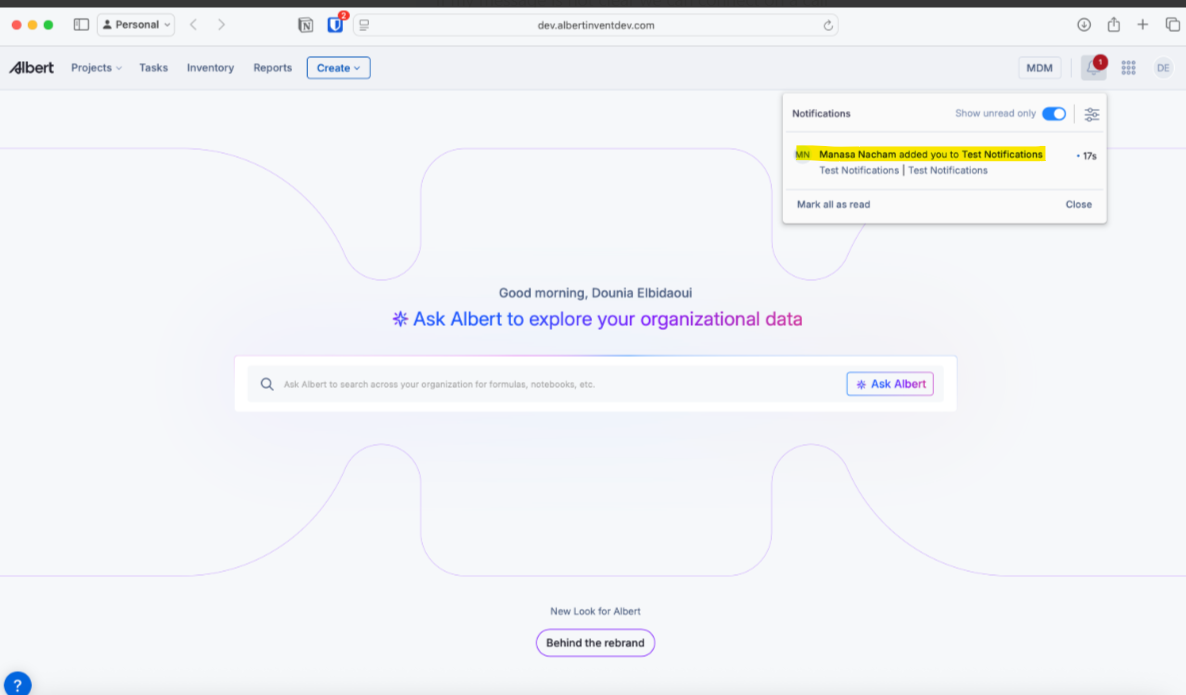
When a project owner approves your request, you’ll receive an in-app notification.
The message shows who added you and to which project (for example, “Manasa Nacham added you to Test Notifications”).
Click the notification to open the project and start working.
➕ When you’re added directly to a project
Even if you don’t request access, you’ll get the same type of notification when someone adds you to a project.
The notification appears in the bell menu and includes the project name, so you know exactly where you were added.
If email notifications are enabled for Project Access Updated, you’ll also receive an email letting you know you’ve been added.
To make sure you don’t miss these updates, keep Project Access Updated enabled in your Notification Settings for both In App and Email.
❓ FAQ & troubleshooting
❌ I don’t see a “Request access” option for a project
You may already have access, or your organization’s permissions may restrict requests for that project. If you believe you should see it, contact a project owner or your Albert admin.
📧 I’m not getting email notifications when people request access
Check your Notification Settings and ensure that Project Access Updated is enabled for Email. Also verify that the emails are not being filtered into spam.
🕒 My request is still pending
If your request shows as “already requested” and you haven’t heard back, contact the project owner directly or your team lead. They may need to approve the request or update your role.
🔎 Can I see a history of who got access and when?
Recent activity is visible via the notifications panel. For a full audit trail of project access, reach out to your Albert administrator, who can help with any compliance reporting.