
Witness a task in Albert
Witnessing is Albert's formal sign-off for tasks. After the work is done, a second person reviews it and signs it electronically, right inside Albert. Albert records who signed, when they signed, and any comment they added, then locks the task so the approved record can't change by accident. You can witness property, general and batch tasks.
If your lab works under quality or regulatory requirements, "done" often isn't enough. Someone other than the person who did the work has to confirm that it was performed or observed correctly. Witnessing keeps that confirmation with the task itself, so you don't need a paper signature or a separate system to prove it happened.
What witnessing gives your team
A clear record. Each sign-off shows the signer's name, the date and time, and their comment.
A locked task. After witnessing, the task's values, notes, and attachments can't be edited, and the task can't be deleted from the task page.
A secure sign-off. The witnesser enters a verification code, so the signature comes from the right person.
An audit trail. The History tab logs witness activity, and if a signed task needs to change, Albert keeps a record of the signed version when it is reopened.
Visibility in the Tasks grid. Anyone can see which tasks are signed and which are still pending.
How it works
Step | Who | What happens |
|---|---|---|
1. Set up the witnesser | Admin | Sets Witnesser to Yes and sends the setup email |
2. Get your verification code | Witnesser (one-time) | Adds Albert to an authenticator app by scanning a QR code |
3. Sign off | Witnesser | Opens the task, enters the code, and agrees |
4. Locked | Albert | Records who signed, when, and any comment, then locks the task |
5. Change (if needed) | Witnesser | Reopens the task with a code, and Albert keeps a record of the signed version |
Before you start
Check with your admin
Before you try to witness a task, ask your admin to confirm these four things:
Witnessing is turned on for your organization. If you don't see Witness Task in a task's menu, your admin can check this and contact Albert Support if needed.
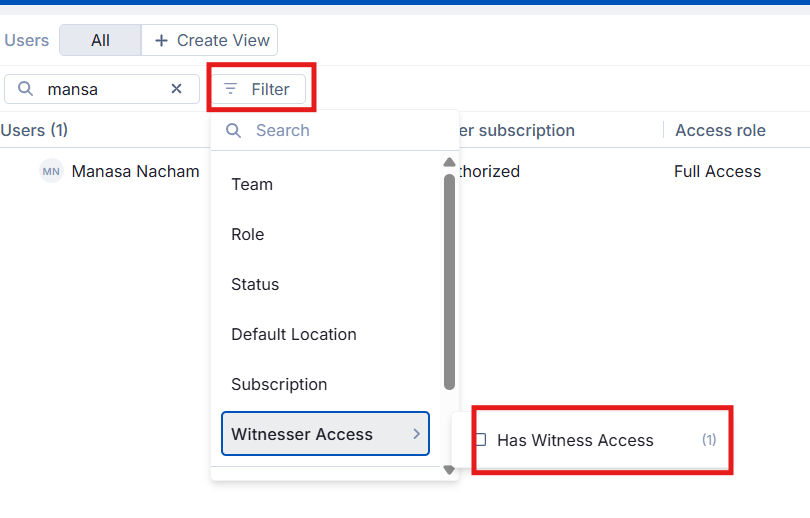
You're set up as a witnesser. Only users whose Witnesser setting is Yes can sign.
Which verification method you use. It's either an authenticator app or an email code, depending on your organization.
You have edit access to the tasks you need to sign.
What you need
A supported browser: Microsoft Edge, Safari or Chrome.
A phone with an authenticator app, if your organization uses one. Any authenticator app works, and we recommend Microsoft Authenticator.
Nothing extra for SSO. If your organization signs in with SSO, you still use a verification code to sign.
Part 1: Set up a witnesser (admins)
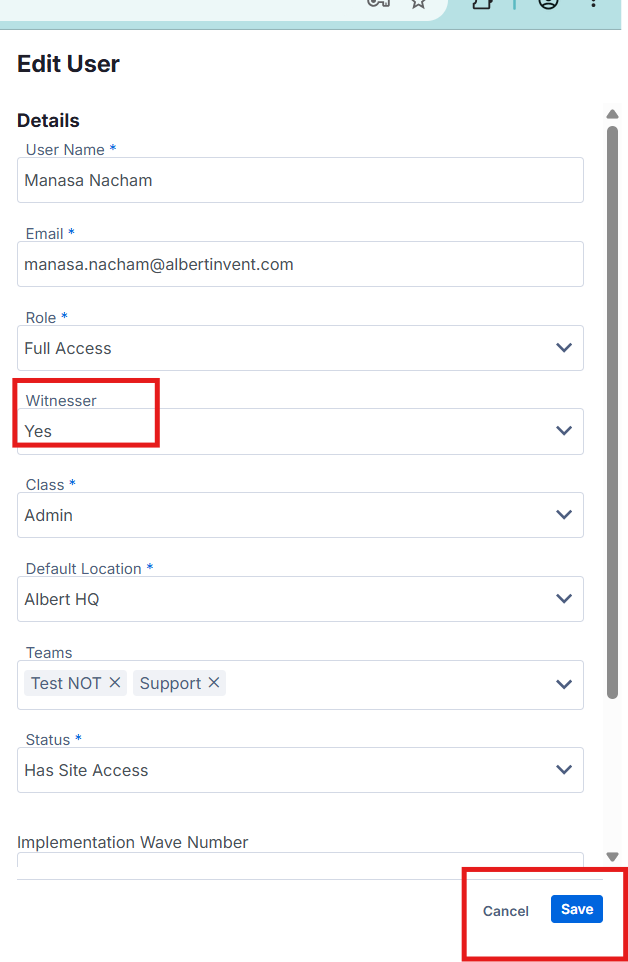
Open the user's profile in the user edit screen.
Set Witnesser to Yes. The default is No.
Select Save.
Part 2: Get your verification code (witnessers, one time)
You only do this once. Afterward, the Albert entry in your authenticator app shows a new six-digit code every few seconds. If your organization uses email codes, skip this part. Albert emails you a code each time you sign.
Step 1: Install an authenticator app
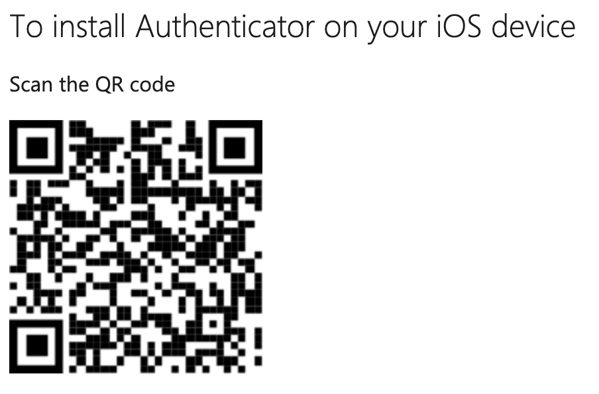
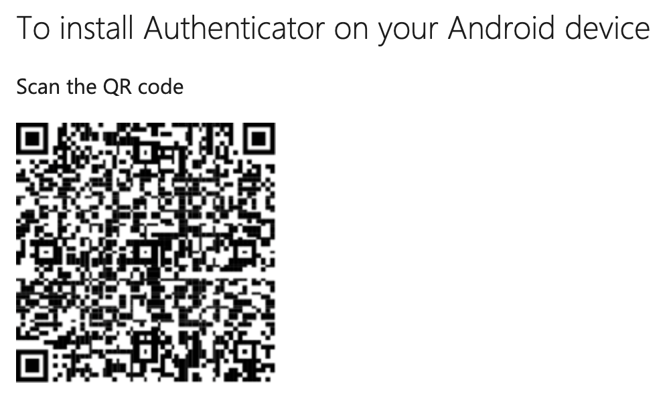
On your phone, install an authenticator app. We recommend Microsoft Authenticator, available for iOS and Android.
Open the app.
Step 2: Open your setup email
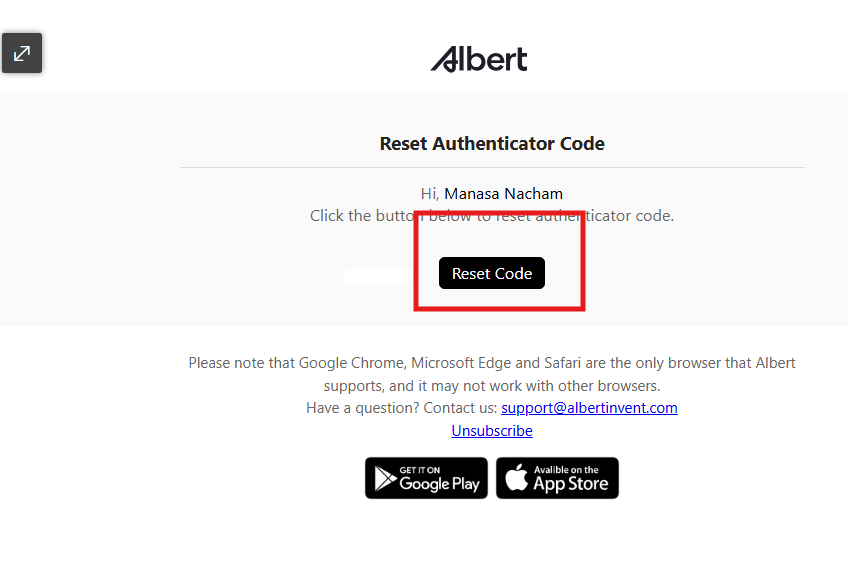
Find the email from support@albertinvent.com in your inbox.
Select the reset code button in the email. Albert opens and shows a QR code.
Step 3: Scan the QR code
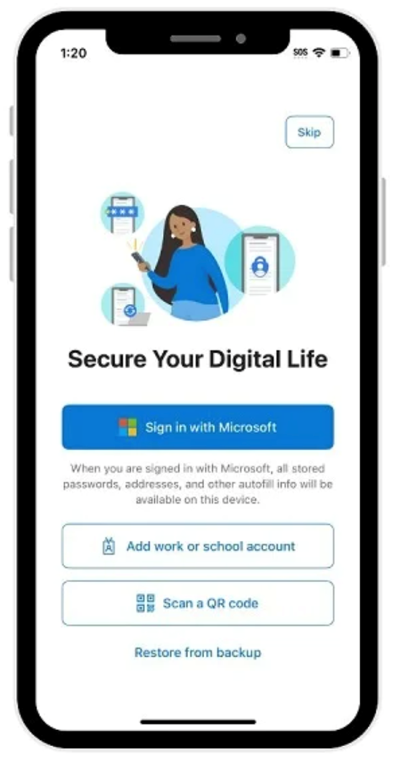
In your authenticator app, select Scan a QR code.
If you already use the app for other accounts, select the + symbol, choose Other, and then scan.
Point your phone at the QR code on your screen.
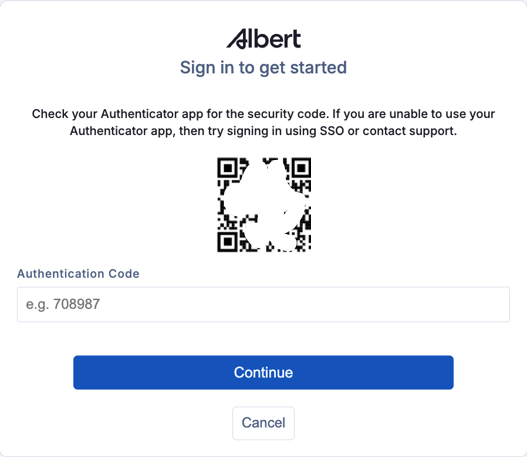
You'll see: Albert accepts the code, and you're ready to witness tasks.
If you didn't get the setup email
If your organization signs in with email and an authenticator app, you can request a new email yourself:
Go to the address your team uses to sign in, for example, sandbox.albertinvent.com for sandbox.
Select Add New Account, and enter your work email address.
If you're new to Albert, open the Welcome to Albert email from support@albertinvent.com and select Get started first.
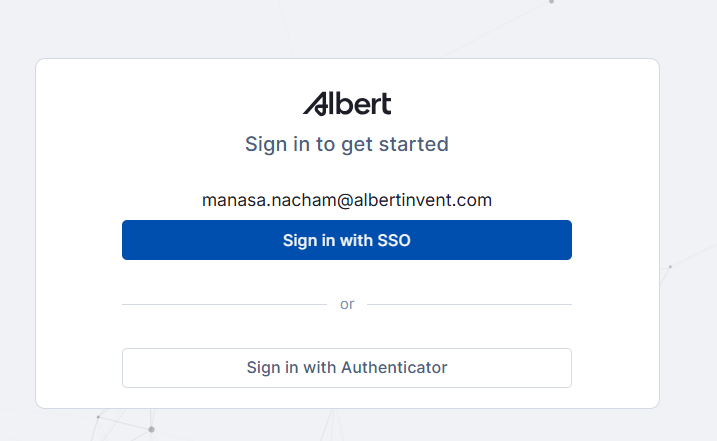
Select Sign in with Authenticator. A code field appears.
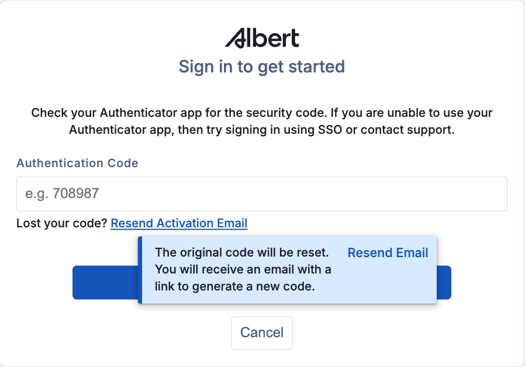
Select Resend Activation email, then select resend email to confirm.
Open the new email from support@albertinvent.com and continue from Step 2 above.
Part 3: Witness a task
Open the task you need to witness.
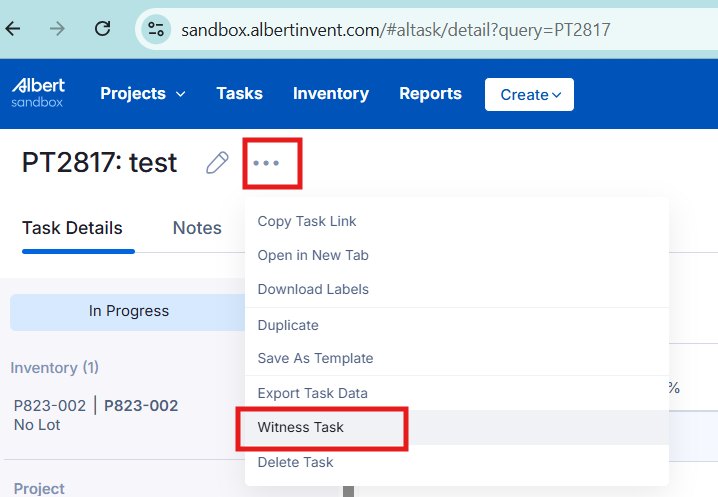
Select the three dots (...) next to the task title.
Select Witness Task. A pop-up opens.
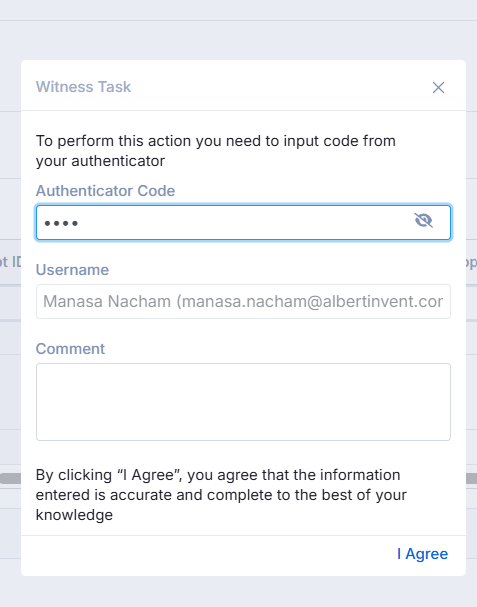
In Authenticator Code, enter your verification code:
Authenticator app: the six-digit code from the Albert entry in your app.
Email code: the code Albert sent to your email address.
Check that your name shows in the Username field.
Add a comment for the record.
Read the statement under the comment box. It says the information you entered is accurate and complete to the best of your knowledge.
Select I Agree.
You'll see: a banner at the bottom of the task that says it has been witnessed and signed, with your name, the date and the time. Each task has one sign-off, and the approval type is Witnessed. The History tab also logs the action.

Part 4: See which tasks are witnessed
Open Tasks.
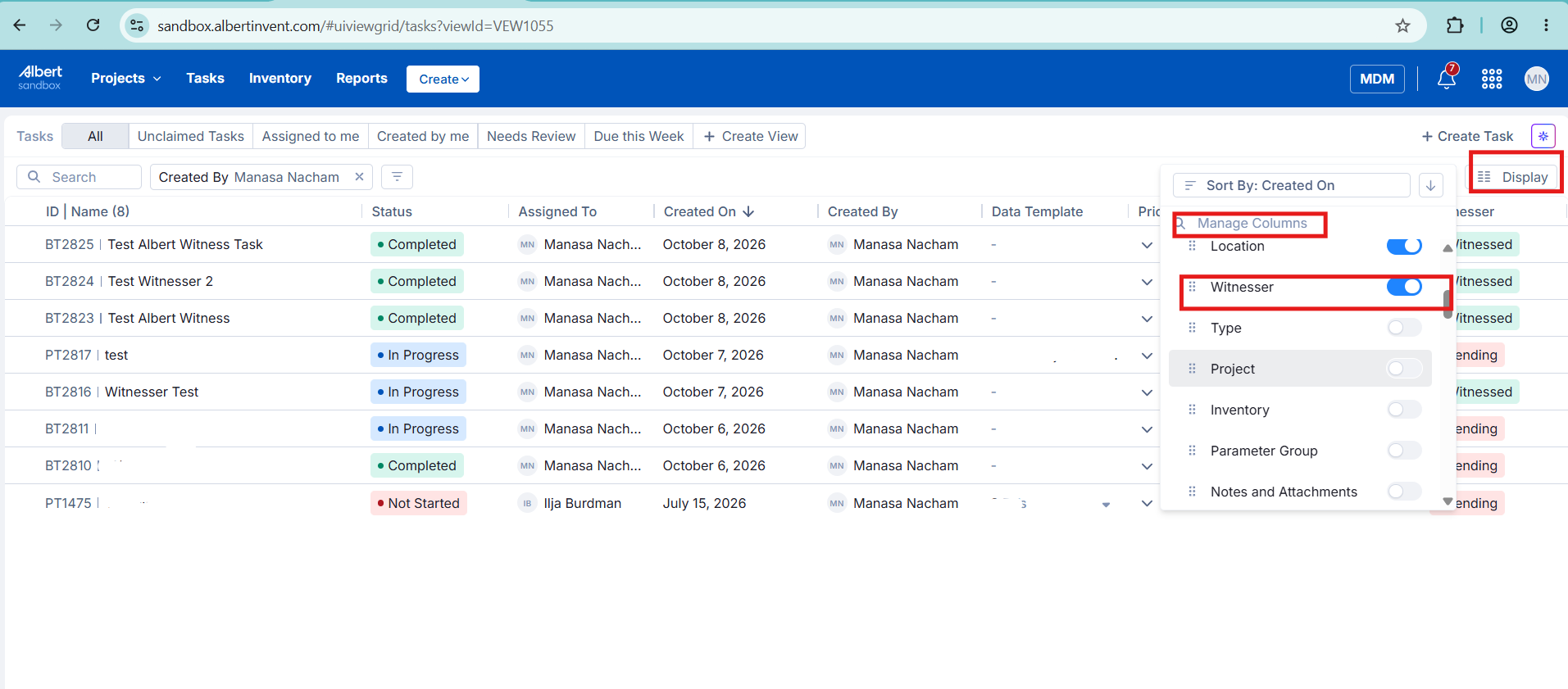
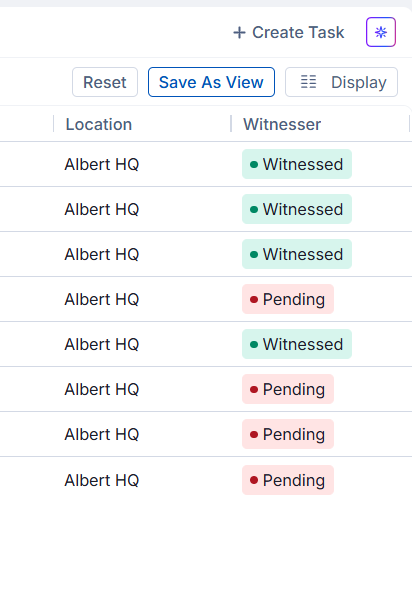
Select Display, then Manage Columns, and turn on Witnesser.
Check the Witnesser column on each row:
Witnessed (green): a witnesser has signed the task.
Pending (red): the task hasn't been witnessed yet.
To show only signed tasks, select Filter, choose Witness Status, and select witnessed.
These labels appear on tasks with any status, such as Not Started, In Progress or Completed. A completed task can still show Pending until someone witnesses it.
Part 5: Change a witnessed task
Albert locks a witnessed task. You can't edit its values, notes or attachments, and you can't delete it from the task page. Some linked information, such as inventory names and list names, can still update when it changes elsewhere. The links themselves stay fixed.
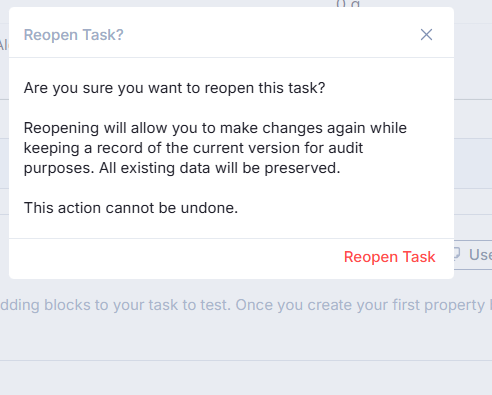
To make changes, reopen the task. Albert keeps a record of the signed version for audit and preserves all existing data.
Open the witnessed task.
In the banner at the bottom, select Reopen Task.
Read the message and select Reopen Task to continue.
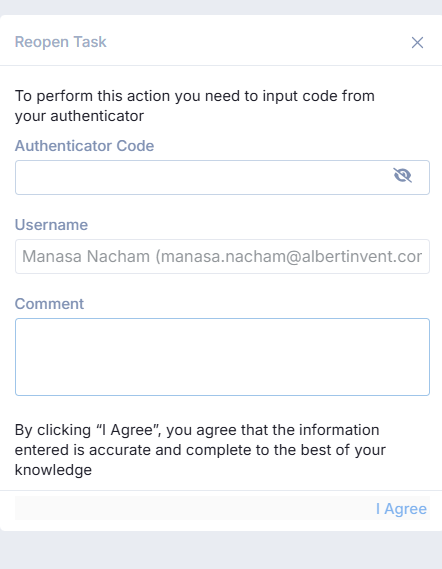
In the pop-up, enter your verification code, check your name, and add a comment, as you did when witnessing.
Select I Agree.
You'll see: the task is editable again.
Reopening can't be undone, and it changes an approved record, so follow your organization's process first. After you make your changes, check with your team whether the task needs to be witnessed again.

Good to know
Witnessing doesn't block completion. A task can still be marked complete without a signature, so your team's process decides when a sign-off is required.
One signature per task. Role-based approvals, such as separate QA or technical reviewer sign-offs, aren't available yet.
Edit access is the rule. Anyone with edit access to the task who is also a witnesser can sign.
Reopening is signed too. It needs a verification code, and Albert records who reopened the task.
Troubleshooting
"Invalid code, retry with another code"
This can appear when you witness or reopen a task. Try these in order:
Check which method you use. If you receive email codes, an authenticator code won't work, and the other way around.
Pick the Albert entry. If your app lists more than one account, use the one for Albert. Codes from other accounts, including work fobs, won't work.
Use a fresh code. Codes expire quickly. Wait for a new one and enter it right away.
Sync your phone's clock. A clock that's slightly off can make a correct code fail.
Google Authenticator: open the menu, select Time correction for codes, then Sync now.
Microsoft Authenticator: turn on Set automatically under Date & Time.
The QR code or reset link doesn't work
The link may have expired. Request a new setup email, as described in Part 2, and use the newest email.
You don't see Witness Task in the menu
Ask your admin to check that your Witnesser setting is Yes. If it is, contact Albert Support to confirm witnessing is on for your organization.
You can't witness a particular task
Check that you have edit access to the task and that your Witnesser setting is Yes.
Questions or feedback? Contact support.