
Notifications in Albert
Notifications in Albert keep you informed about key events that may interest you. You can choose to receive notifications through the application, via email, or both.
Notification Types
Albert currently supports notifications for the following activities:
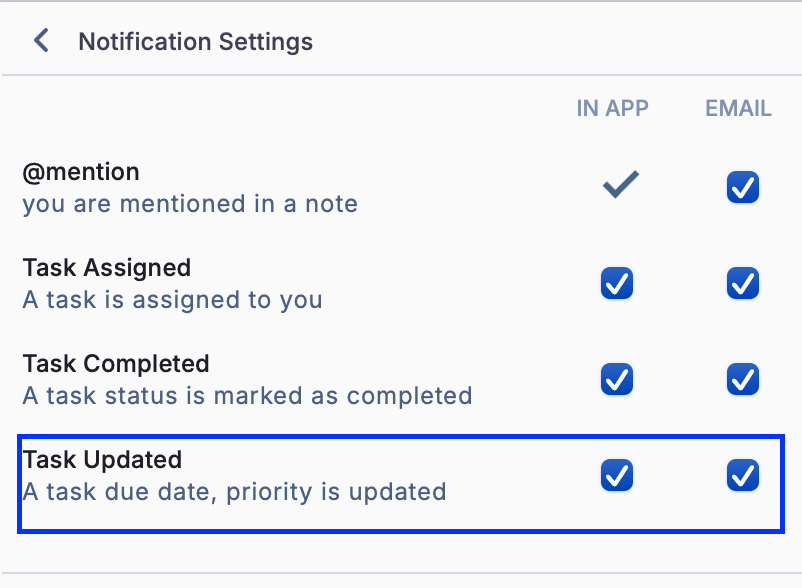
@ Mentions
Receive notifications when someone uses the @ symbol to mention you in a task, notebook, or note anywhere in Albert! A link will be included to direct you to the location.
Task Assigned (to you)
Receive a notification when someone assigns a task to you. If you create and assign a task to yourself, you will not receive a notification.
Task Completed
Receive a notification when a task you have created or are assigned to is completed. If you are the one completing the task, then a notification will not be sent.
Task Updated
Receive a notification when a task you have created or are assigned to has its due date or priority fields updated. If you are the one making the change, then you will not be notified.
In App Notifications
When you receive an in-app notification, a red dot with the number of unread notifications will appear above the bell icon. Clicking this icon will display a list of all your notifications.
Email Notifications
You can opt to receive notifications via email as well as in the app. To enable email notifications, select the email option in your Notification Settings. These emails will include a summary of the notification and a link that directs you to the relevant item in Albert.

Notification Options
Show Unread: This option hides notifications you've already viewed. To view previous notifications, simply uncheck this option, and all past notifications will be visible.
Mark All as Read: Selecting this option will mark all existing notifications as read and will hide them if you have "Show Unread" selected.
Notification Settings
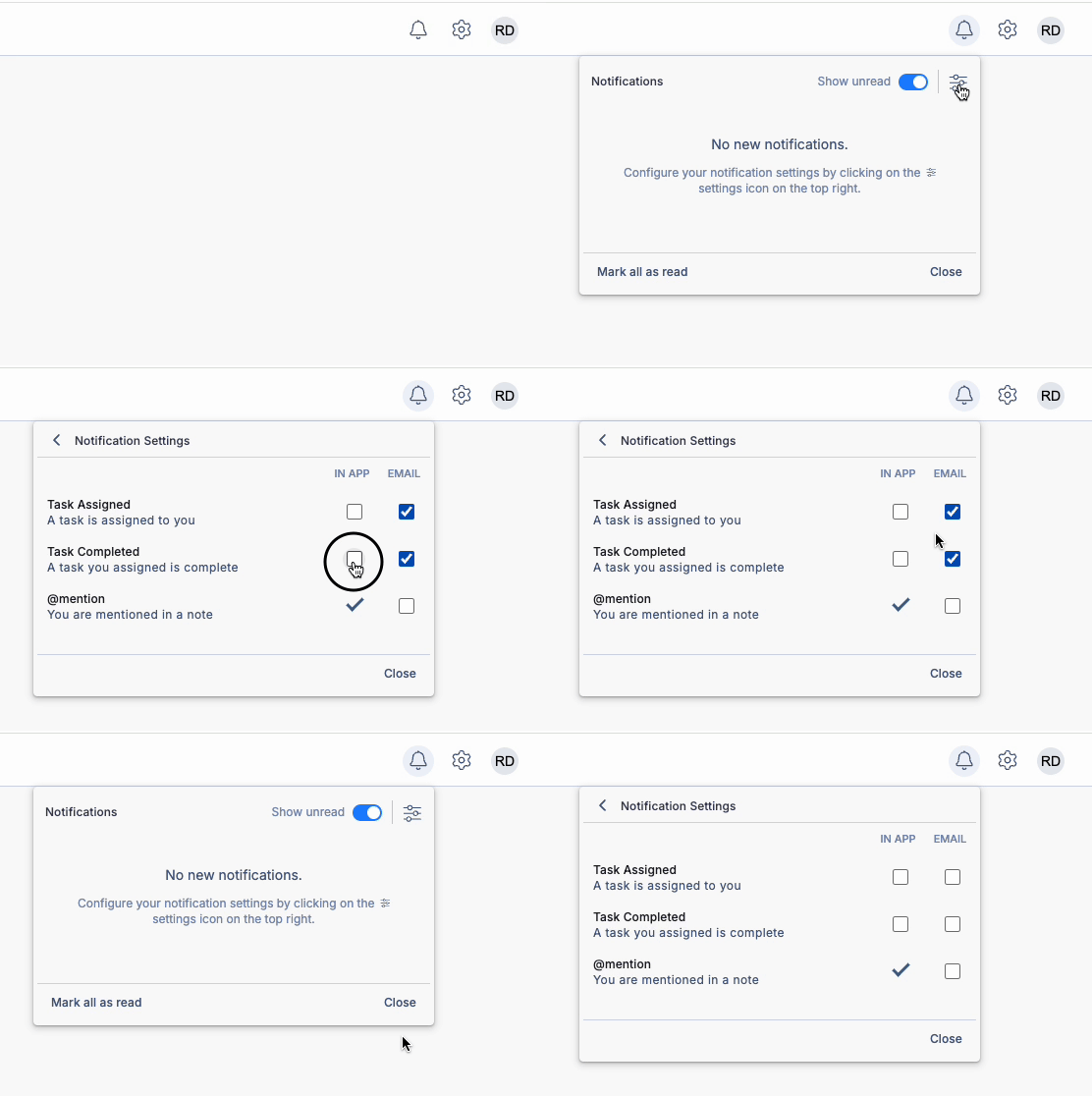
In the Notification Settings, you can choose whether to receive specific types of notifications via in-app alerts, email, or both. To adjust your preferences, check or uncheck the boxes next to each notification type.
Example: To receive email notifications when a task is assigned to you but not in-app notifications, check the Email box and uncheck the In-App box.
Unsubscribing from Email Notifications
To unsubscribe from email notifications, go to the Notification Settings and uncheck the Email option for the desired notification type. You will stop receiving emails for that notification. To resubscribe, simply check the Email option again.