
Changing and Adding a Physical Location
Changing Location
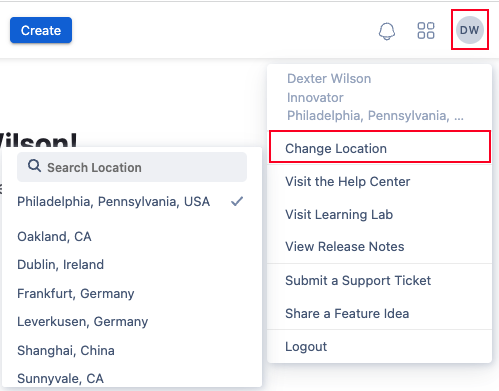
Inside of the Albert application, users can select and change their location which will automatically default the location when creating Projects, Inventory, Tasks, etc. To change or select the location, click on the initials in the top right corner, then select Change Location in the dropdown, and the new location to default.
Adding a Location
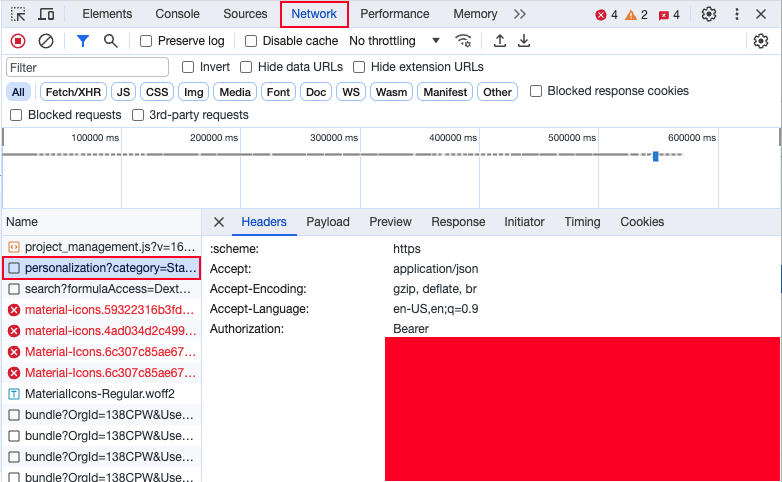
Adding a new location is done by either submitting a support ticket to our help desk or via an API endpoint. To do it via API endpoint, users will need the Bearer token from the Inspect --> Network tab by right-clicking on the webpage and finding it under personalization.
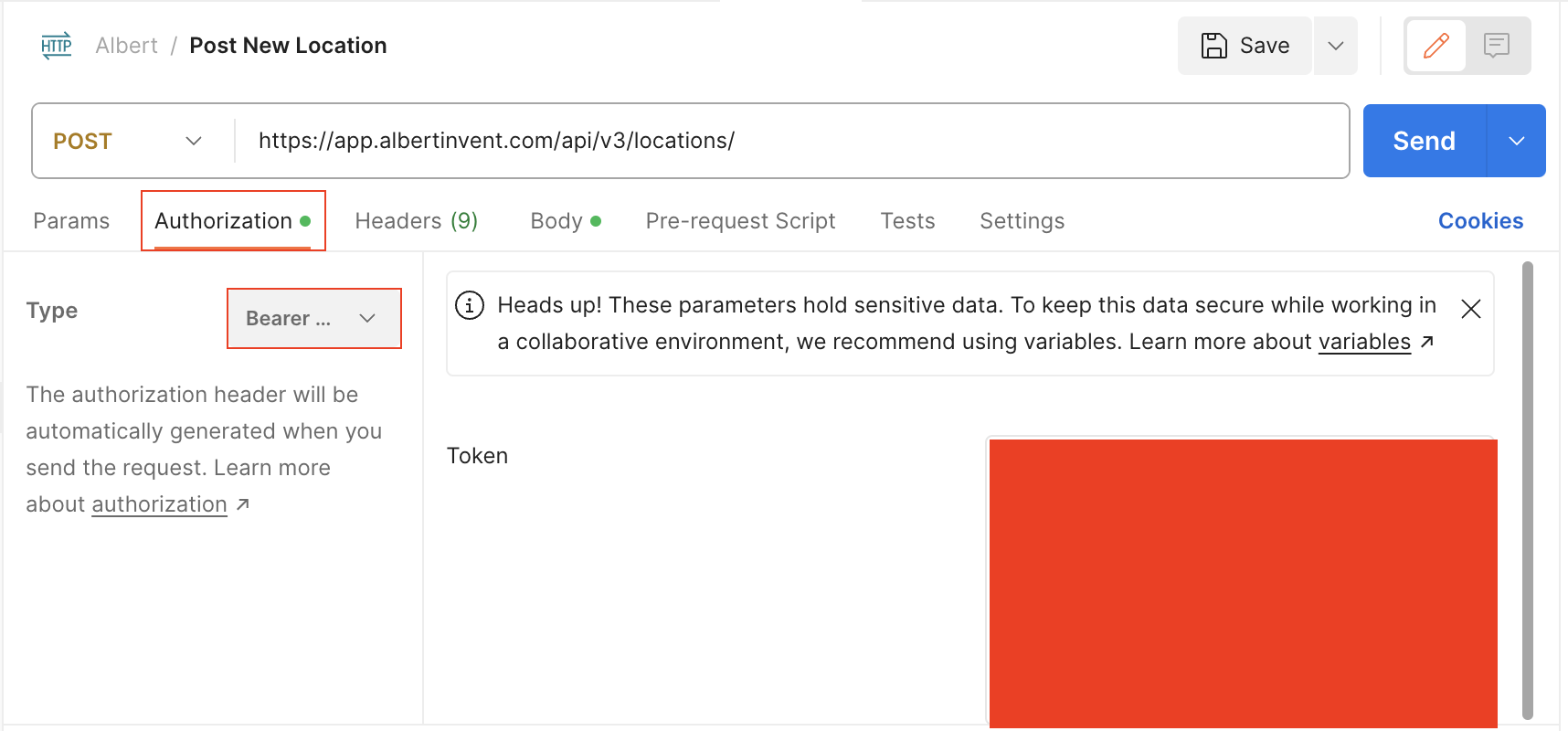
From there, open up the API platform of choice (in this example Postman is used). Copy the Authorization token into the authorization tab and select Bearer from the Type drop-down.
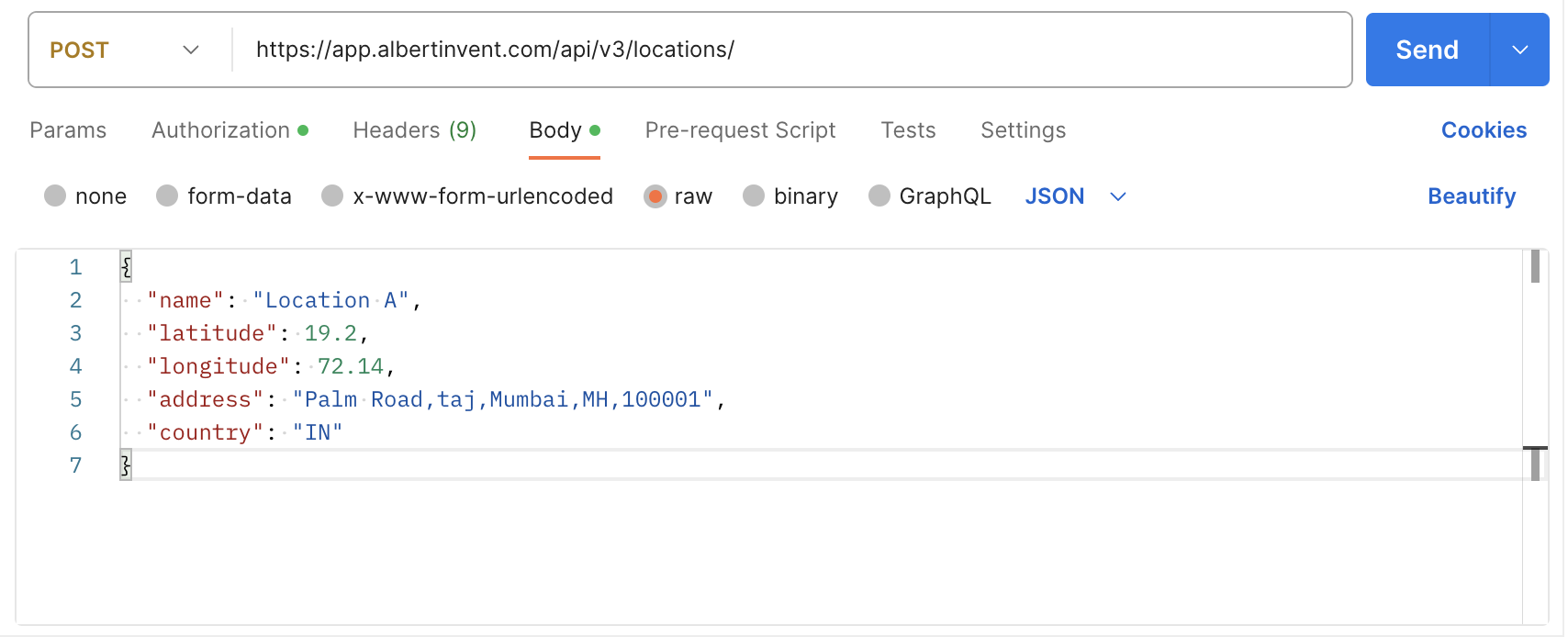
In the Body tab, select POST as the method type and type in the URL in which the location is being added with /api/v3/locations/ on the end of the URL (i.e https://app.albertinvent.com/api/v3/locations/).
{
"name": "Location A",
"latitude": 19.2,
"longitude": 72.14,
"address": "Palm Road,taj,Mumbai,MH,100001",
"country": "IN"
}
Click Send.
If successful, Code 201 will populate with the following response:

The new location is now in Albert and able to be selected.