
How to Generate a HAR File for Troubleshooting
Generate a HAR file for Albert Support
Audience: Albert users experiencing browser issues · Goal: Capture and send a HAR file so Support and Engineering can diagnose problems quickly.
A HAR file helps Albert Support understand what is happening in your browser when an issue occurs. It records network requests, errors, blocked calls, and timing information so our Engineering team can diagnose problems efficiently.
This guide shows how to generate a HAR file in:
Google Chrome
Microsoft Edge
Mozilla Firefox
Safari (macOS)
What is a HAR file and why is it needed?
Support may ask for a HAR file when browser requests are failing or behaving inconsistently.
We may ask for a HAR file when:
Downloads (labels, PDFs, templates) fail.
Albert pages load indefinitely.
Buttons do not respond.
Network or timeout errors appear.
Issues happen on some networks but not others (e.g., works at home but not at the office).
Support cannot reproduce the issue internally.
A HAR file includes only browser-level diagnostic information — it does not expose passwords or sensitive Albert data.
Important before you start
Follow these guidelines for the most accurate HAR file:
Do not close Developer Tools until you’ve saved the HAR file.
Start recording first, then reproduce the issue.
Save the HAR file and attach it to your support ticket.
Include Console logs as well, if Support has requested them.
Google Chrome
Open the page in Albert where the issue occurs.
Stay on the screen before the error happens.Open Developer Tools.
Choose one:Press F12
Right-click on the page → Inspect
Chrome menu → More tools → Developer tools
Enable “Preserve log”.
In DevTools, click the gear (⚙) or settings icon and enable Preserve log.
On the Network tab, check Preserve log as well.
Start recording on the Network tab.
On the Network tab:Click Clear (⟳) to reset any existing logs.
Make sure the recording icon ● is red (if it’s grey, click it to start recording).

Reproduce the issue.
Perform the exact steps that cause the problem. For example:Click the button that usually fails.
Try to download the label / PDF / template.
Navigate to the page that fails to load.
You should see entries appear in the Network panel while you do this.
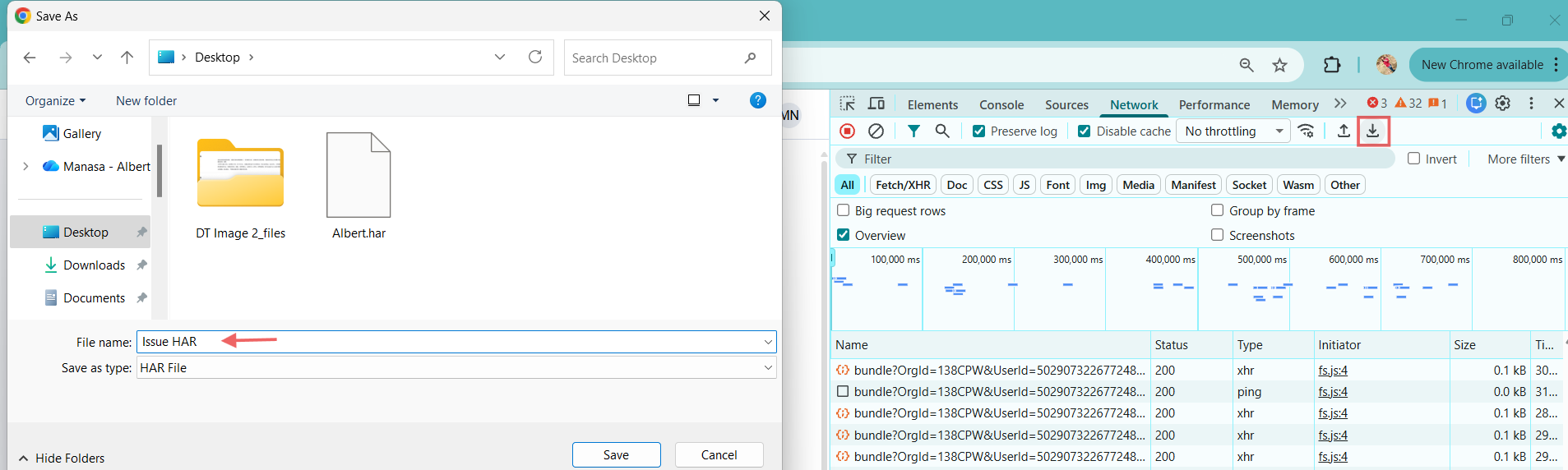
Download the HAR file.
Once the issue has been reproduced:Click the Download (↓) icon at the top of the Network tab.
Choose where to save the file.
Name it something clear like Issue HAR.
Chrome saves it with a
.harextension.
Attach the files to your support ticket.
Include:The HAR file.
Console logs (if captured).
Screenshot(s) of the issue.
The steps you followed to reproduce it.
Microsoft Edge
Steps in Microsoft Edge are nearly identical to Chrome.
Open Developer Tools.
Press F12, or
Menu → More tools → Developer tools
Enable “Preserve log”.
In DevTools:Console tab → enable Preserve log.
Network tab → enable Preserve log.
Clear the Network tab.
Network tab → Clear (⟳).Start recording.
Ensure the recording icon ● is red.Reproduce the issue.
Export the HAR file.
Network tab → Right-click → Save all as HAR.(Optional) Save Console logs.
Console tab → Right-click → Save as…Attach files to the support ticket.
Include the HAR file, Console logs (optional), and any screenshots.
Mozilla Firefox
Open Developer Tools.
Press F12, or go to Menu → More Tools → Web Developer Tools.Enable logging settings.
Console tab:Click Settings (⚙️).
Check Persist Logs.
Network tab:
Click Settings (⚙️).
Check Persist Logs.
Clear the Network tab.
On the Network tab, click Clear.Reproduce the issue.
Export HAR.
On the Network tab:Click HAR export, or
Right-click → Save All As HAR.
Save Console logs.
Console → Right-click → Save all messages to file.Attach results to your support ticket.
Include the HAR file and the Console log file.
Safari (macOS only)
Enable Developer Tools (first time only).
In Safari:Go to Settings → Advanced.
Check Show Develop menu in the menu bar.
Open Web Inspector.
Develop → Show Web Inspector.Enable logging settings.
Console:Click Preserve Log.
Network:
Check Preserve Log.
Clear the Network tab.
Click Clear (⟳).Reproduce the issue.
Export HAR.
Network tab → Export (↧ icon).Save Console output (optional).
Console tab → Select all.
Copy and paste into a text file.
Save as
console_logs.txt.
Attach HAR + Console logs to your Support ticket.
What to send to Support
Include these items in your ticket so we can identify the root cause faster:
The HAR file.
Console log (if requested).
Screenshot(s) of the issue.
A brief description of the steps you followed.
This information helps us diagnose network-related issues much more quickly and provide a precise fix or next step.