Mobile App - Tasks
The Albert mobile application is available on both iOS and Android devices. The Albert mobile application contains lightweight capabilities of our web application such as viewing tasks and inventory management. Some mobile app functionalities include: adding lots, inventory transfer, inventory adjustment, barcode scanning, managing notifications, and viewing property task data.
Tasks Module
The tasks module allows for you to get a high-level overview of the tasks for your work and allows for you to re-assign and view property task data. To see Tasks in the Mobile App, click on the Tasks module at the bottom of the screen. From there, users can view and filter tasks by clicking into the desired list. The choices are:
Unclaimed Tasks
Assigned to me
Created by me
Needs Review
View All Tasks
PLUS: any saved filters that you have created

To open a Task, click on any of the lists to view the Tasks associated, and then select the Task accordingly.

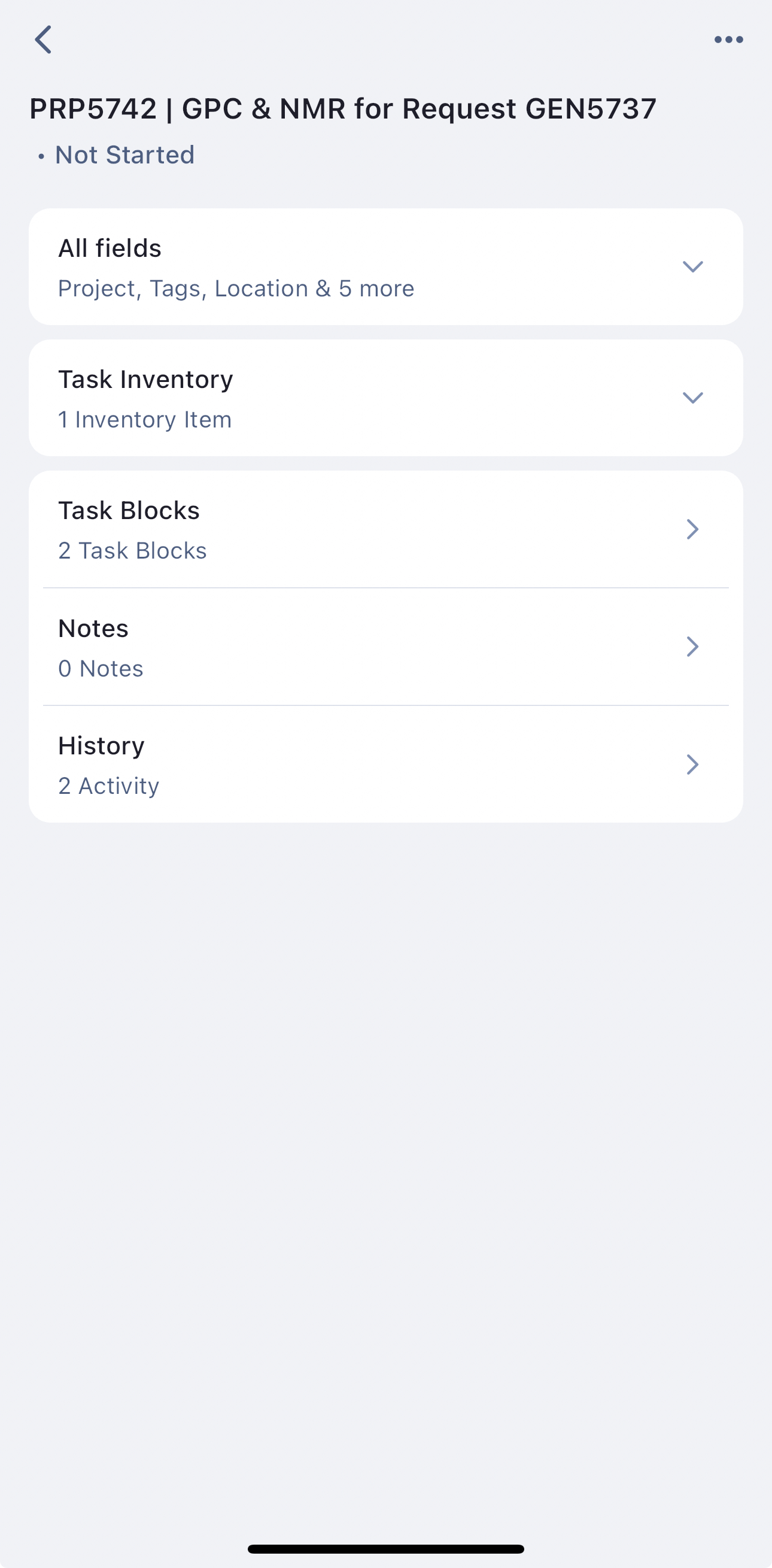
Once inside a specific task, users can view details, view parameter values and results associated with the task (if a property task), add and view notes, and view task history.
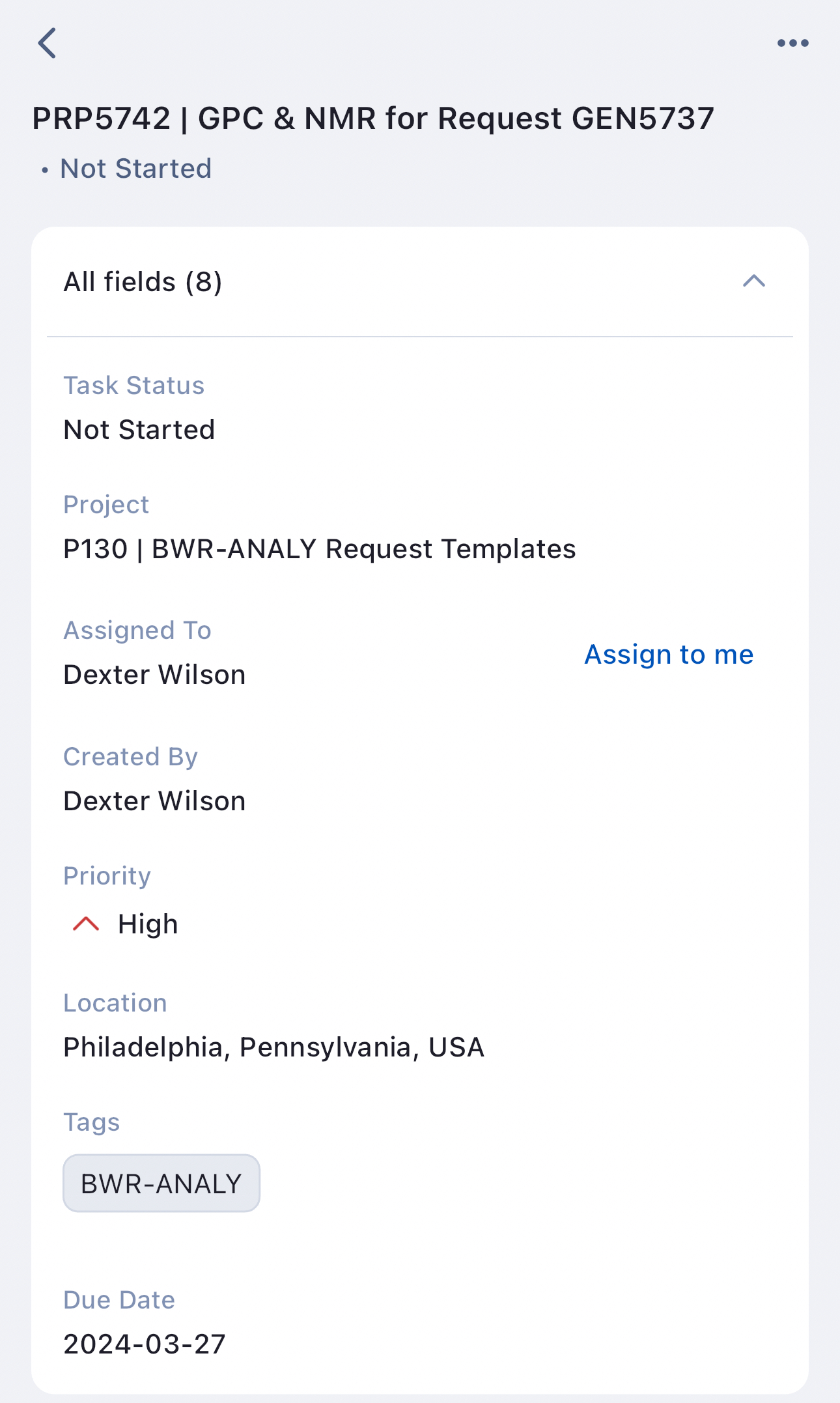
All Fields
The All Fields section allows the user to view Task information and reassign Tasks from within the Mobile App. Click the arrow to expand and collapse the section.
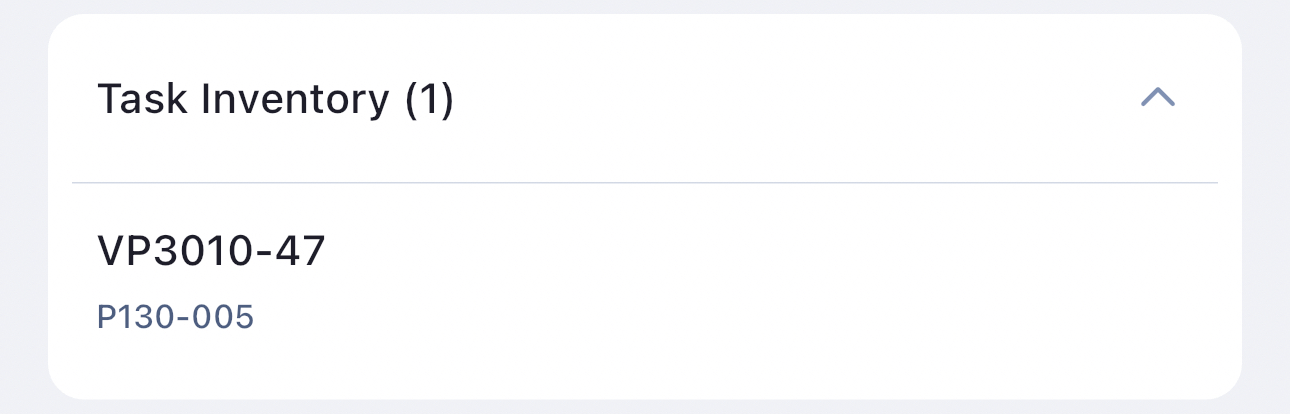
Task Inventory
The task inventory section is used to view all of the inventory items on the task. Click the arrow to expand and collapse the section.
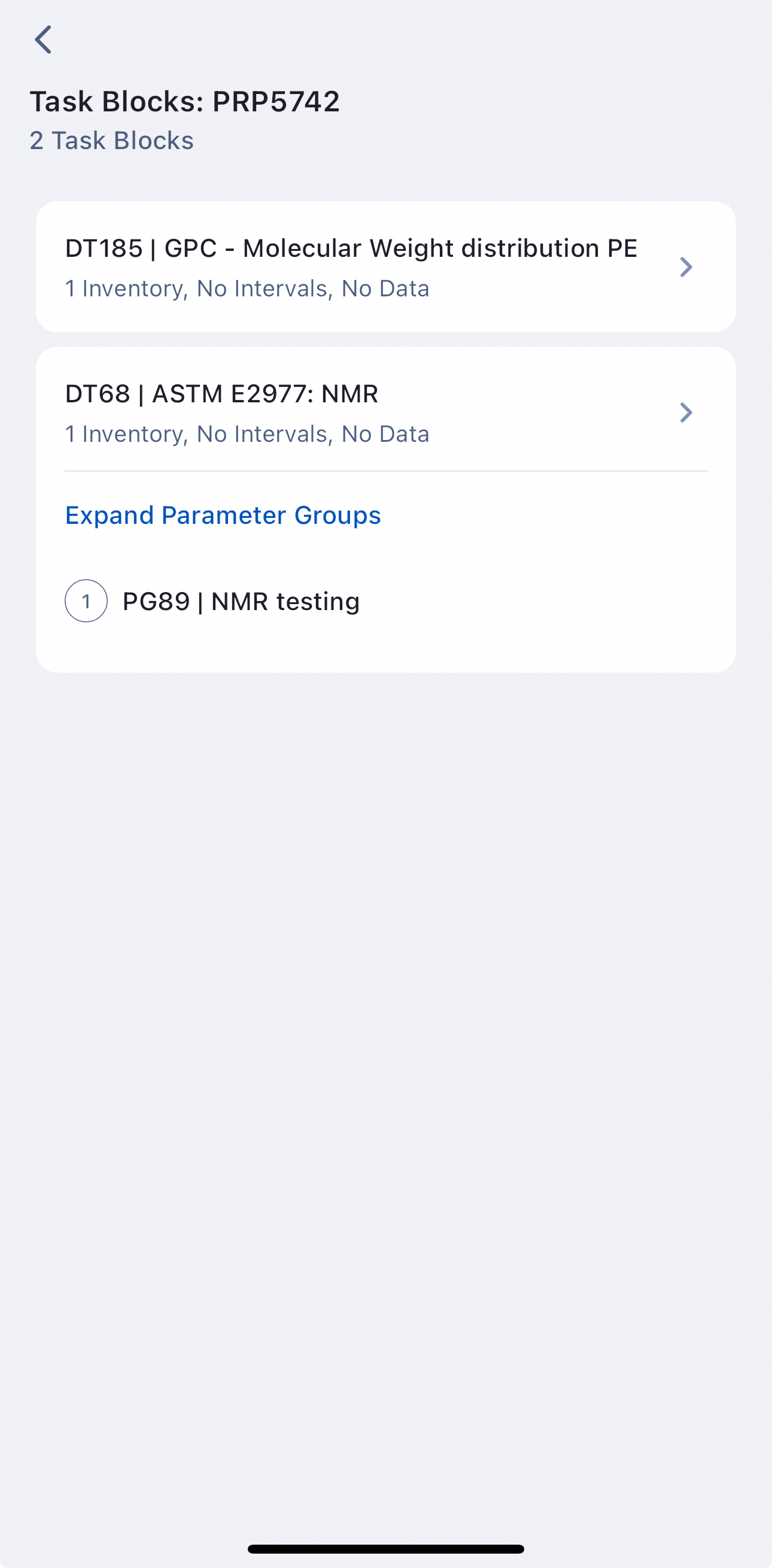
Task Blocks (Property Task only)
The task blocks section allows for you to go and view parameter values and results for each of the blocks in the property task. Click the arrow to expand and collapse the section.
Notes
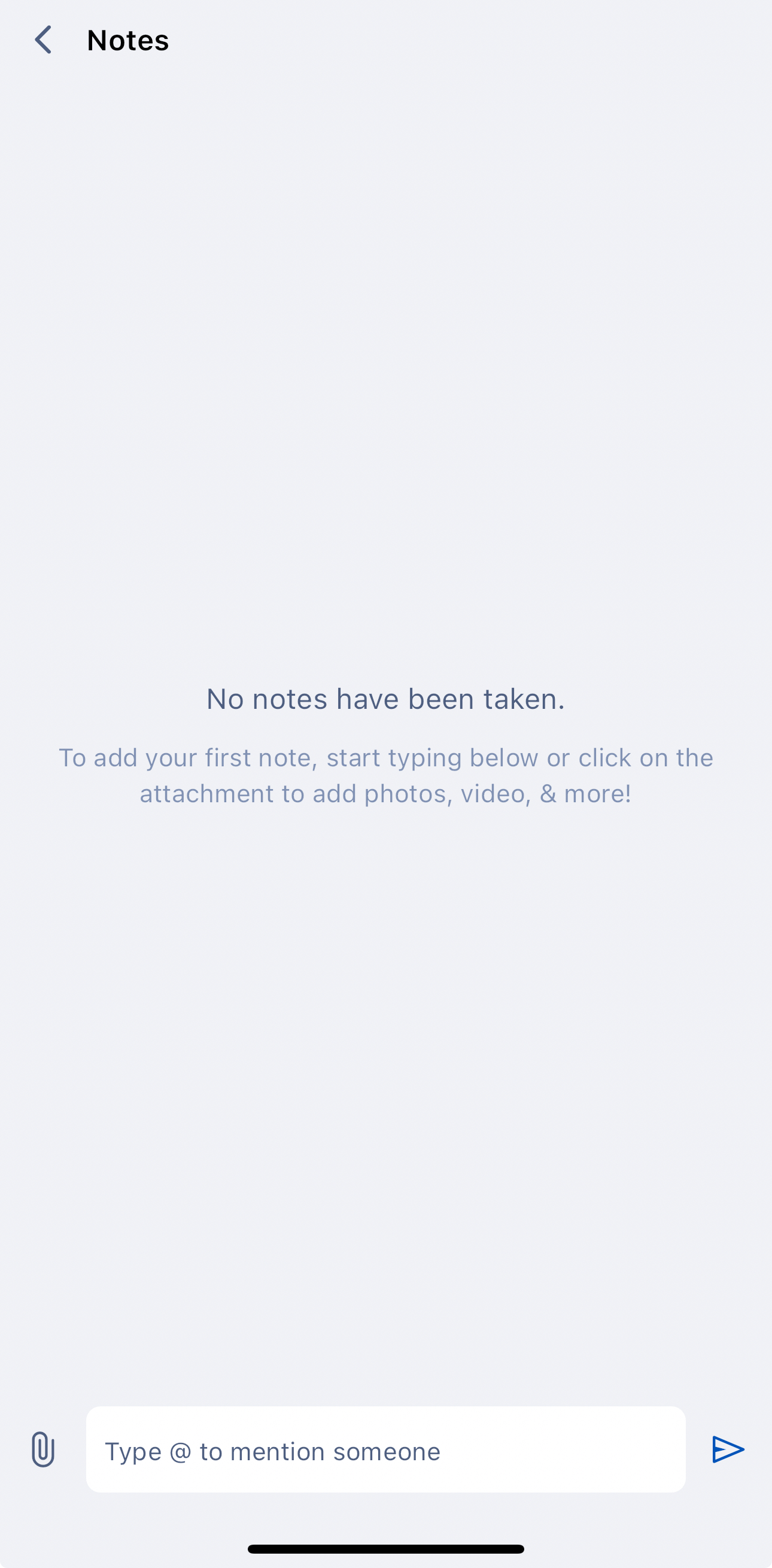
The task notes section is used to view and add notes to tasks. Adding pictures as attachments to a task from a mobile device is easy with the mobile app. Click the arrow to expand and collapse the section.
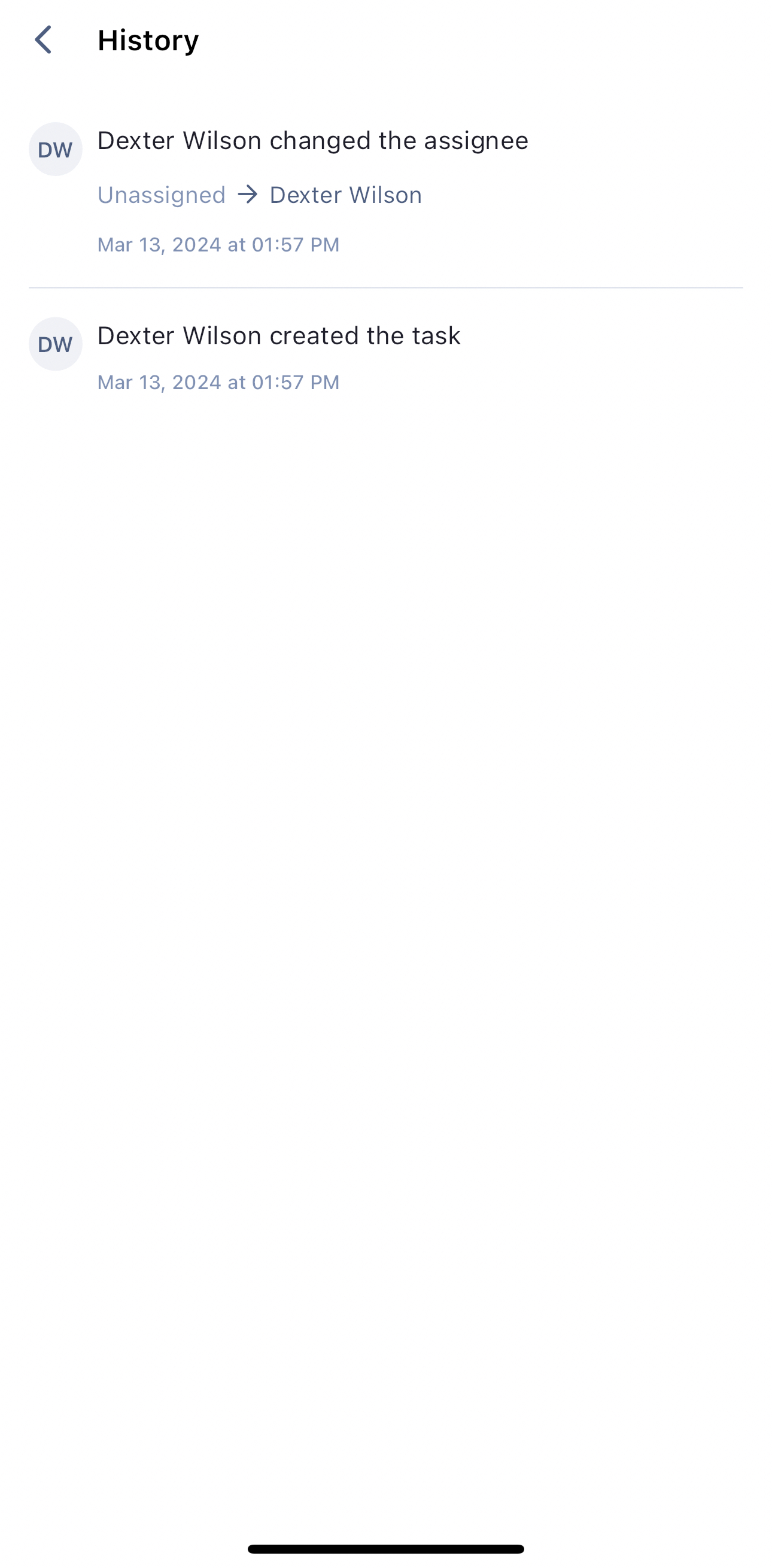
History
The history section allows for you to view the task history for auditing purposes. Click the arrow to expand and collapse the section.