
Regulatory App Rows on Worksheet
When creating formulations in the Albert Worksheet, there are additional rows of information that can be added to help with early product development. Currently, these rows house regulatory information for SNURs, TSCA Section 8 (b), and California Proposition 65. When creating new products, knowing the regulatory responsibility ahead of time can save time and money. No longer reformulating products that have passed all internal testing and were headed towards production can save valuable time to market and unnecessarily wasted money. This can reduce burden on Regulatory departments who will not have to check if each ingredient is disclosed for the supported regulations.
Note: If you don't see these App Rows available in your Worksheet for selection and would like them added, please reach out to your Customer Success Manager or other Albert representative.
Adding Regulatory App Rows to your Worksheet
In order to view these on your worksheet, the app rows must be added as shown below:
1. Select the '+' symbol next to apps.
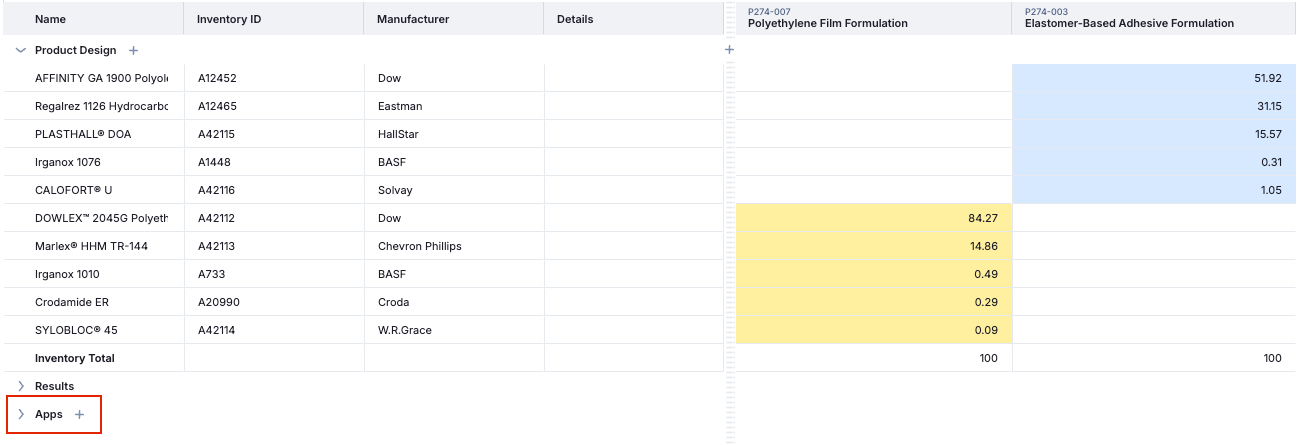
2. Hover over 'Add App Row'.
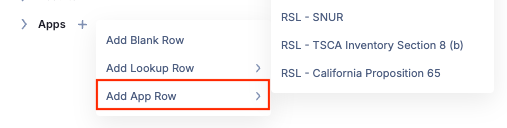
From there you can select the individual lists you wish to appear in your Worksheet.
Reviewing Regulatory App Rows in your Worksheet
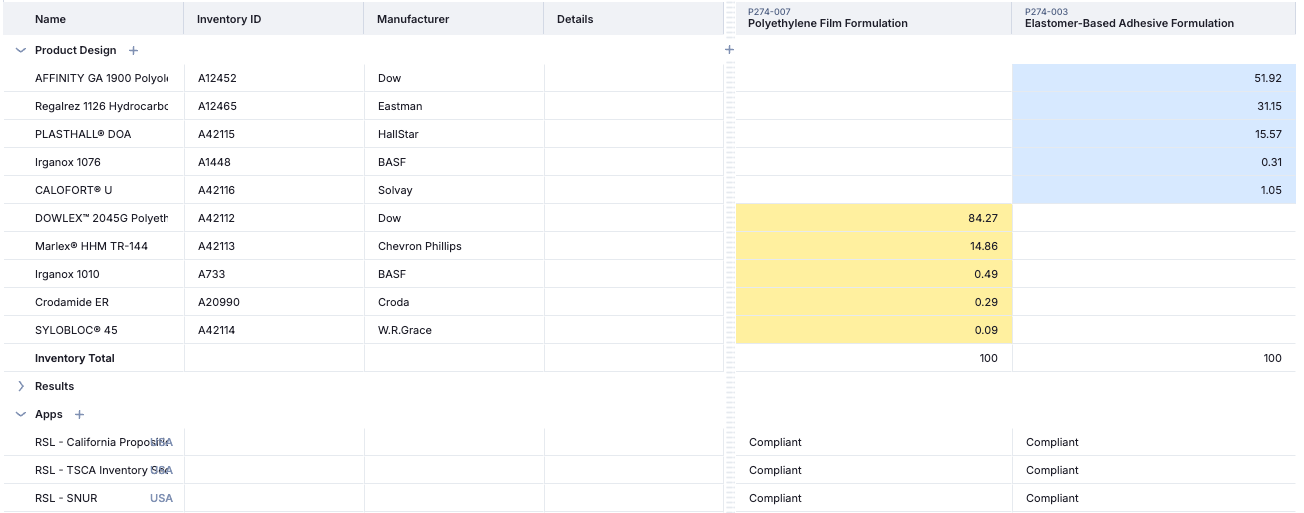
When reading the cells, 'Compliant' will appear signifying that no CAS present in this product is found on any of these lists.
If there are substances present in the mixture that violate these regulations, the CAS and reason (if applicable) will appear in the row.

After each change to the formulation , the App Rows will flash green, indicating a refresh of the calculation to ensure any new inventory changes will also be checked.

Note: For the TSCA 8(b) App Row, the functionality simply lists if your ingredients are listed on the TSCA 8(b) inventory. Please confirm your ingredients are ACTIVE on the inventory.