Formula Composition Overrides
Synthetic chemistry brings new molecules to life. Chemists experiment with different ingredients and processes to yield new products. These products are, by definition, not the sum of its ingredients. In Albert, we have a new feature that allows for SDS and Batch Label output would reflect a post-reaction product. This is designed for those cases where raw materials may react with one another, creating new molecules entirely.
Default Functionality:
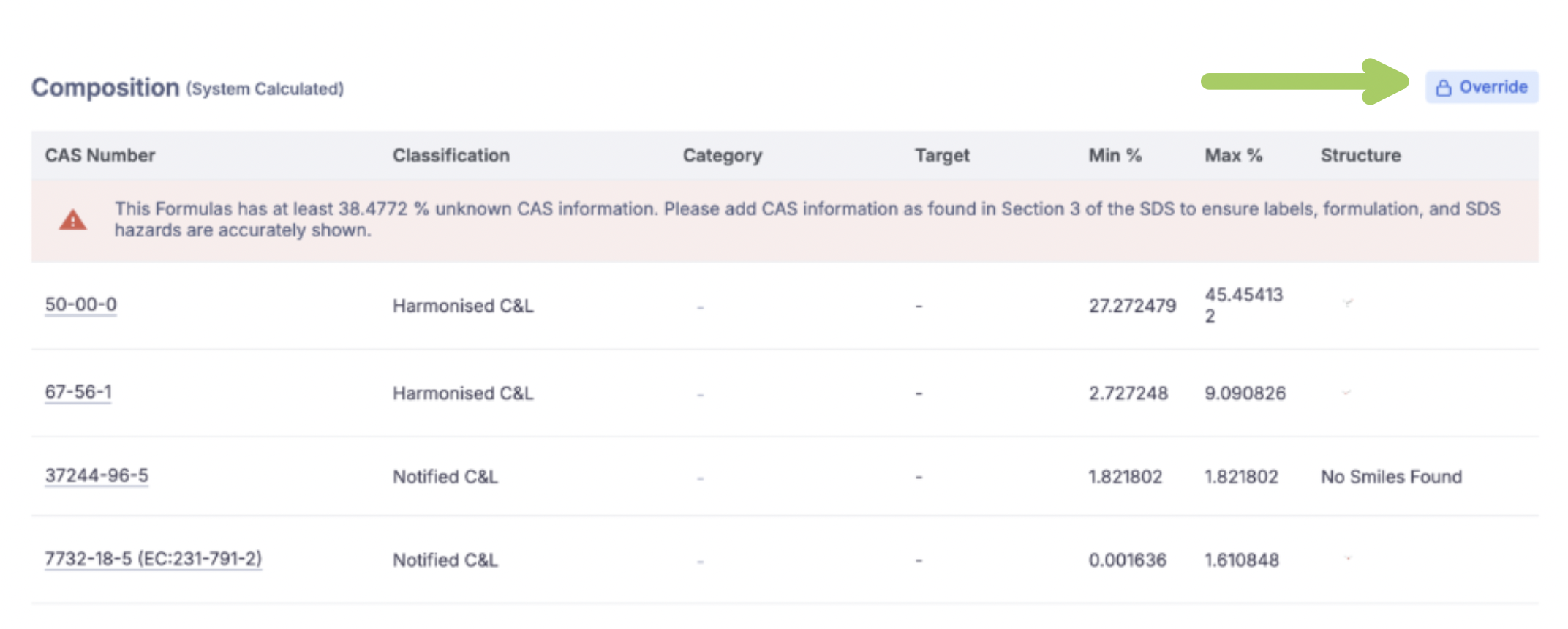
From the Product/Formulation's inventory page, you can see the Composition section. By default, this shows the breakdown of CAS composition, performing calculations based on raw material concentration within the formula to determine the concentration of each CAS number in the final product. These are the values that Albert uses to generate regulatory information such as Pictograms and Hazard Statements when creating Batch labels & SDS.
Enabling Manual Override:
You will notice the new Override button in the top right. That is where we can make changes. Clicking the override button will trigger the following pop-up:

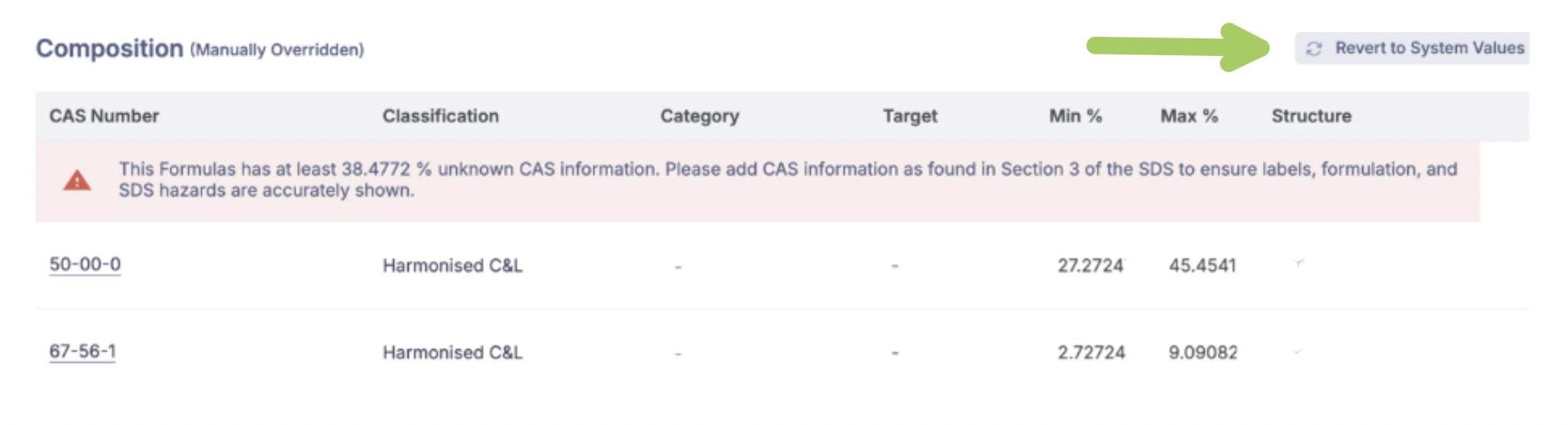
Clicking Confirm will enable the override, allowing new values to be entered. You can change concentration values, delete CAS entries, as well as add new ones. This will also easily be visible, as (Manually Overridden) will be added next the Composition header.

After these updates are made, any new Batch Label or SDS will use the CAS concentration as defined here. This allows for best regulatory practices, and ensures documentation properly reflects the reaction Chemistry performed.
Revert Changes:
At any time, a manual override can be reverted, returning to the default values based purely on formula composition. Once the override is enabled, the Override button will be replaced with Revert to System Settings.