
Image Data in Data Templates
Albert supports structured image data capture within Data Templates. This allows image-based results to be created, uploaded, viewed, and reported on throughout the platform, including Tasks, Property Tasks, Worksheets, and Reports.
Images often communicate details that text or numbers cannot. With Image Data Types, visual observations can finally be captured in a consistent, structured way.
What This Feature Enables
With Image Data Types, you can:
Add image-based result fields to any Data Template
Upload one image per result while entering task data
View images directly inside tasks and worksheets
Display images in Reports
Maintain structured record keeping for inspections, lab observations, quality checks, and more
Adding an Image Result to a Data Template
Open the Data Template where the image field should be added.
Click Add Result or edit an existing result.
In the Edit Result window, enter a Result Name.
Under Data Type, select Image:
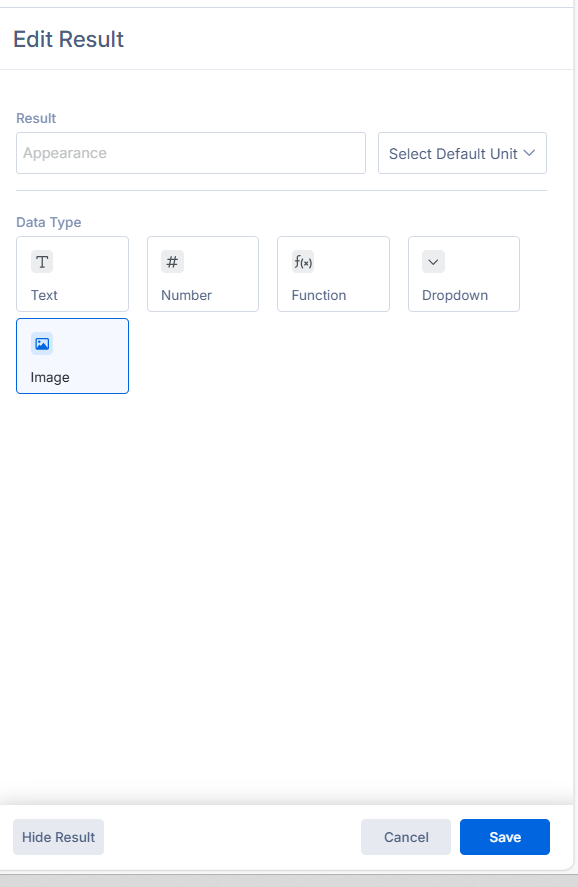
5. Click Save.
Once saved, the Data Template will now include an image upload field that appears anywhere this template is used.
Uploading Images During Task Execution
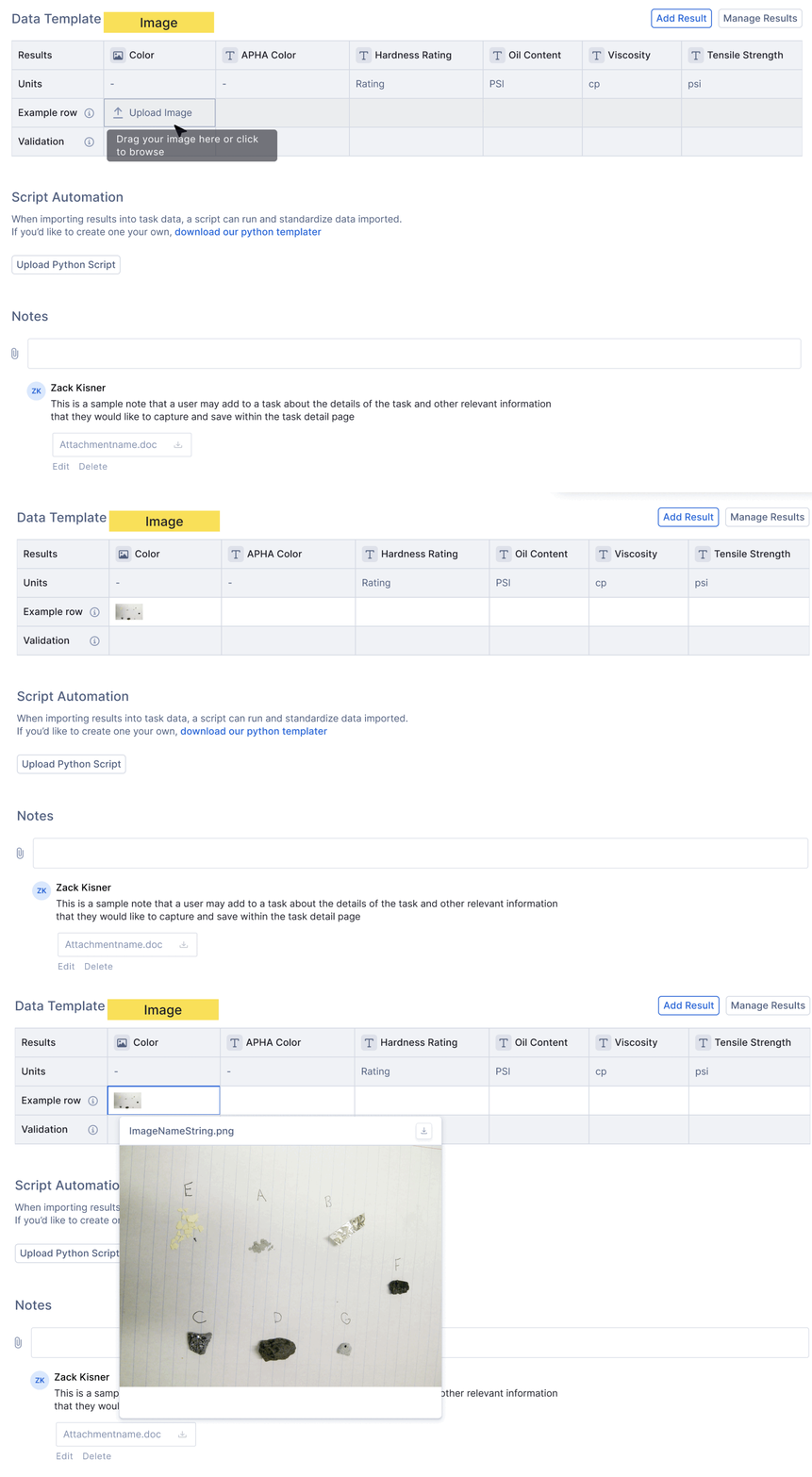
When the Data Template is used in a Property Task, you will see an upload box for each Image result.
How It Works:
Drag-and-drop an image into the upload box
Or click Upload Image to browse from your device
A thumbnail preview appears instantly
The image becomes part of the task's structured data record

The following image file types are supported: .png, .jpg, .jpeg, .jfif, .pjpeg, .pjp, .svg, .gif, .apng, .avif, .webp, .bmp, .ico, .cur, .tif, .tiff, and .heic
How Images Appear in Property Tasks
When a Property Task uses a Data Template containing images:
Each image result displays an Upload Image tile in the Results table
Clicking the thumbnail opens the full-resolution image
Images remain attached to that task permanently for audit and review
This is ideal for capturing visual inspections such as:
✔ Coating appearance
✔ Packaging damage
✔ Color comparison
✔ Physical changes in materials
How Images Behave in Worksheets
When reviewing results in a Worksheet:
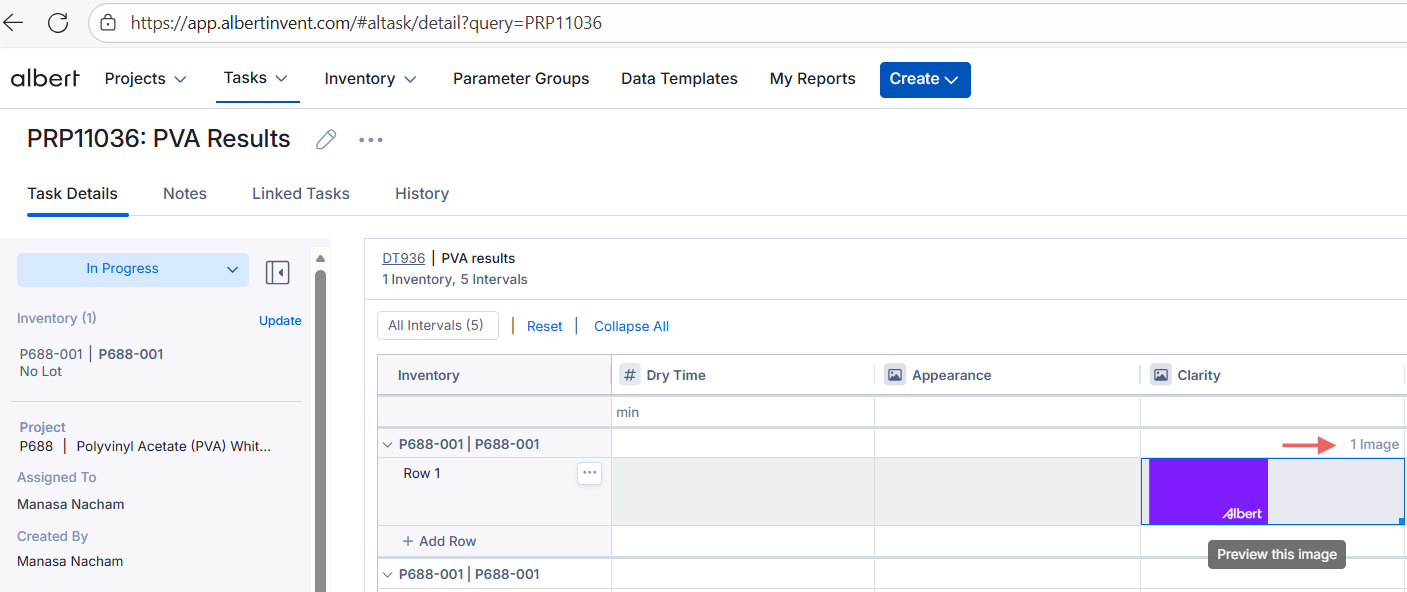
Image results appear as thumbnail icons within the results grid
Hovering shows an enlarged preview
Clicking opens the full image
Images export alongside the rest of the task data

This allows teams to evaluate visual and numeric results side-by-side.
Images in Reports
Reports support image data fields. When a Data Template includes image results:
Reports show a small image in the corresponding column
Clicking expands the image for detailed review
Filters can still be applied to other data fields
The report retains performance and clarity while supporting visual data
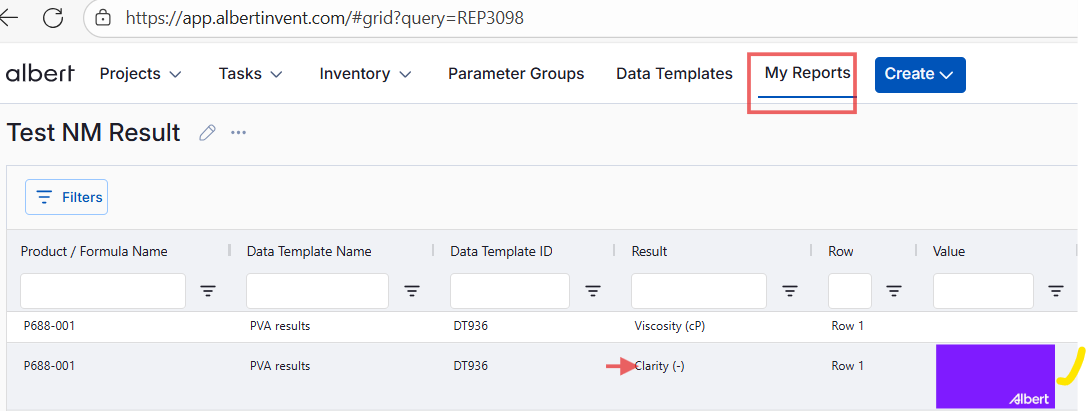

Image data will not break or slow reports; Albert optimizes file size for efficient loading.
Typical Use Cases
1. Appearance & Visual Quality Checks
Example: A chemist documents pigment appearance across sample batches.
Images help reviewers instantly understand differences without needing subjective descriptions.
2. Equipment & Maintenance Logs
Technicians can attach images of:
equipment conditions
damaged components
calibration visuals
Best Practices
Use clear, well-lit photos to maximize information quality
Keep result names specific, e.g., “Before Mixing Image” or “Final Appearance Image”
Avoid uploading very large files; Albert automatically optimizes, but high-resolution images take longer to load
Use images to document observations that may be subjective, so you can capture clearer and more reliable results.