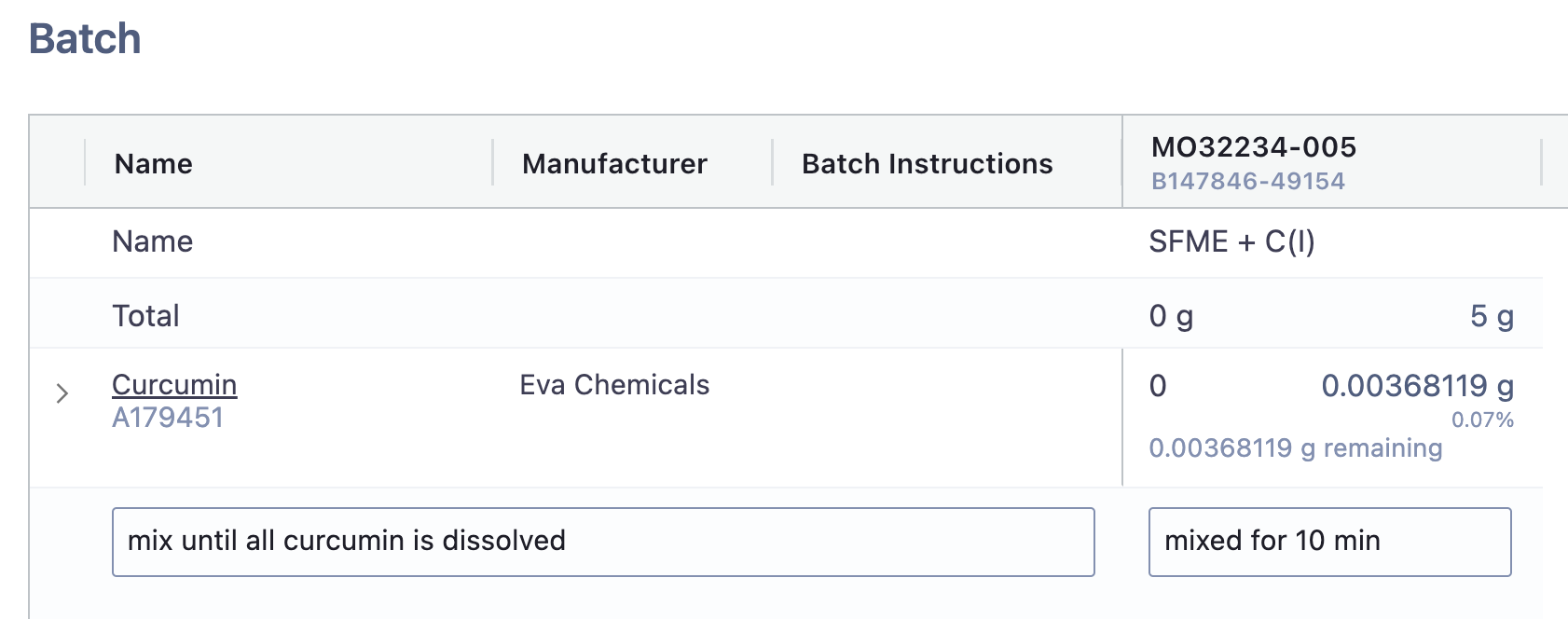
Advanced Batch Instructions: Capture Complex Batch Making and Manufacturing Processes
Advanced Batch Instructions are designed to allow you to better document and capture information for complex batch making and manufacturing processes.
Where Can I Find Advanced Batch Instructions?
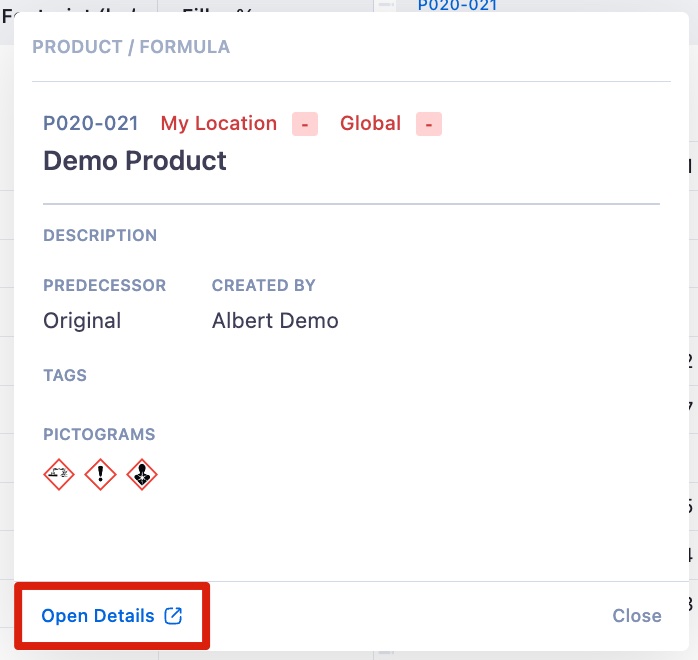
Advanced Batch instructions can be accessed in the Worksheet within your project. To find them, click on the Product/Formula ID and you will see a popup:

Once you click on the Product/Formula ID, you will have the option to select Open Details. Here you will be able to view and edit your advanced batch instructions!
Adding New Advanced Batch Instructions
Once you are in the Formula's page, you can easily add batch instructions. Navigate to the "Advanced Batch Instructions" section and you will see the blue buttons for adding advanced instructions on the right hand side:
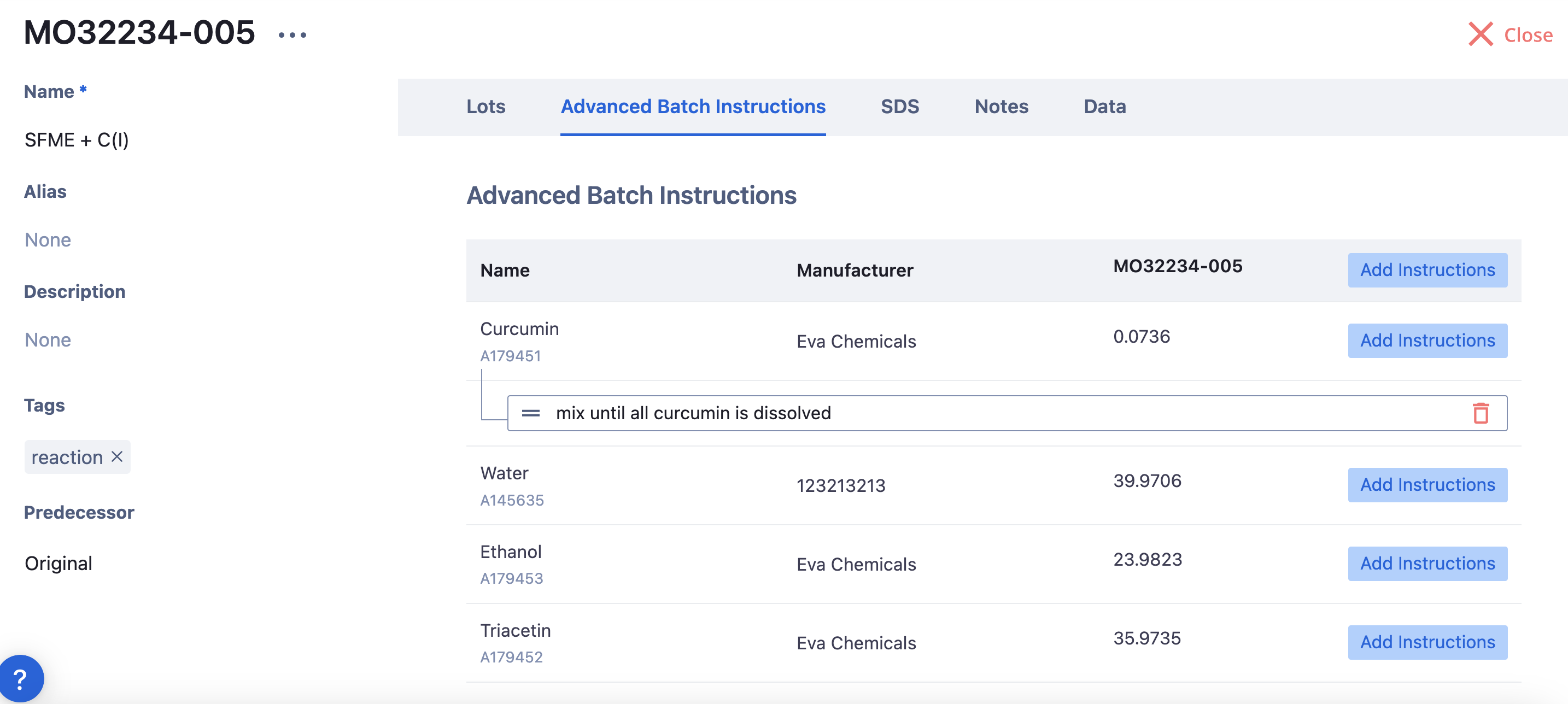
By clicking on these buttons, you can add more information on how the batch should be manufactured. This information will populate in sub-rows below the batch. Some examples of common instructions include:
Measure the pH
Mix thoroughly
Heat up to 60C before adding next raw materials
When you add advanced batch instructions, they will automatically save and will be visible in all future batch tasks.
Advanced Batch Instructions in Batch Tasks
Batch Tasks can be created directly from the page where you add Advanced Batch Instructions. From this page, click on the three dots next to the batch name and select Create Batch Task.

The Create New Task modal will then open. Once you've created and/or opened your Batch Task, the advanced instructions that were added will appear as shown below:
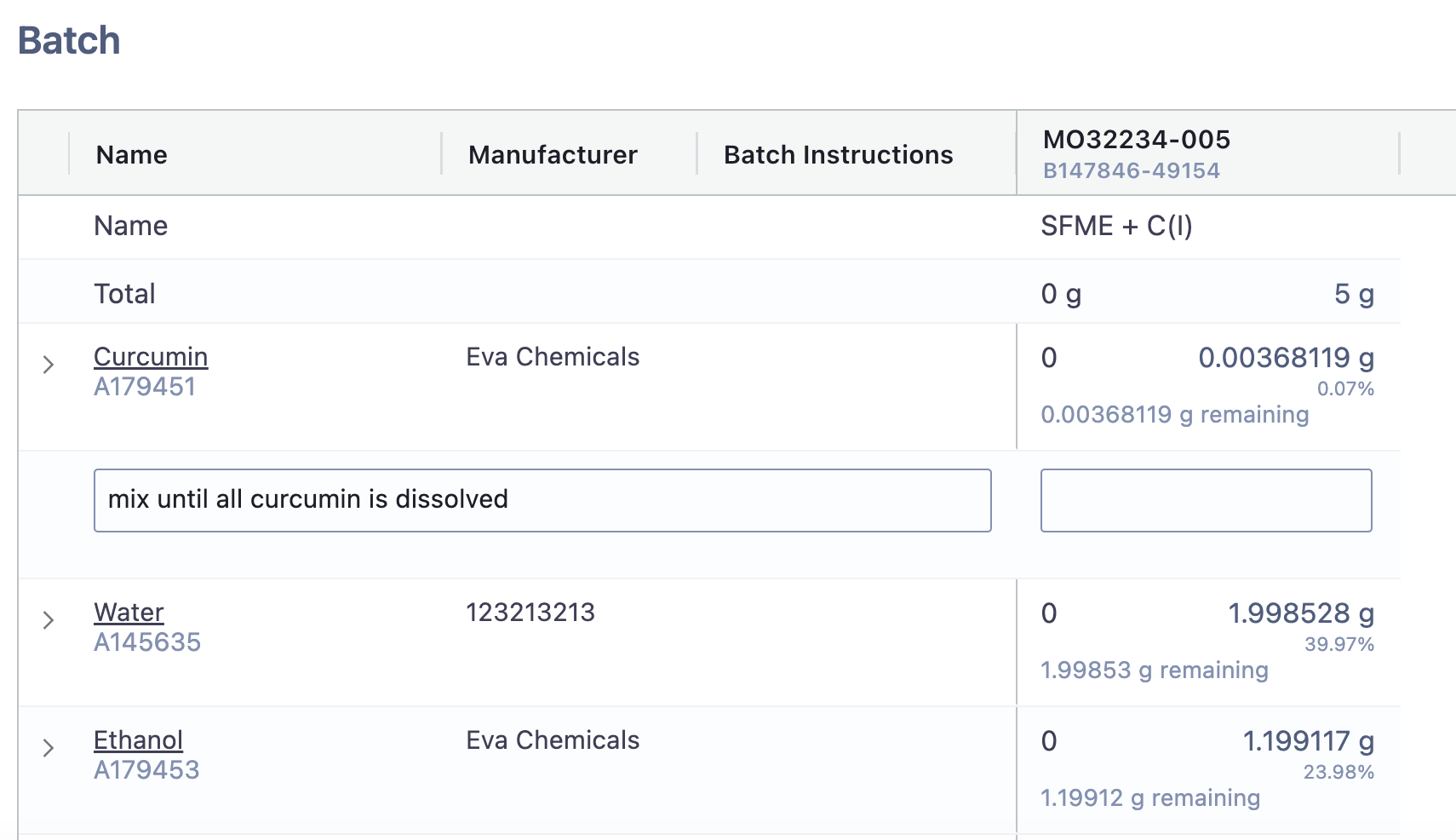
In the formula column, you will be able to add values associated with the instructions. To add data, you will have to click on the blank rectangle in the formula column:
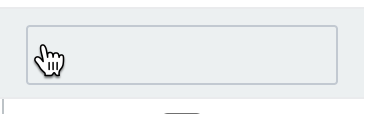
Once you click on this, a popup will open. In this popup, you will be able to add whatever information you would like to ensure you are capturing all needed information throughout the batch. Once you add all the notes you would like to, you batch grid will look like the following: