Quality Control (QC) Tasks
Quality Control (QC) Tasks Overview
Quality Control (QC) Tasks in Albert allow you to seamlessly link multiple Property Tasks with a Batch Task when creating a Batch Task. By using QC Tasks, you can create a Batch Task and multiple linked Property Tasks in a single motion.
QC Tasks are useful for when you already know what Property Tasks you'd like to create upon creation of a Batch Task.
Creating QC Tasks
To create a QC Task, you'll start by creating a Batch Task. Once you've created your Batch Task, fill out the required information in the Batch Task pop-up window.

Field Name | Description |
Inventory* | Select the formula (inventory) you would like to create the batch for. You can enter multiple formulations from the same project |
Quantity* | Select the units and indicate how much of this batch needs to be manufactured |
Parameter Group | You can link several parameter groups to define batch processing |
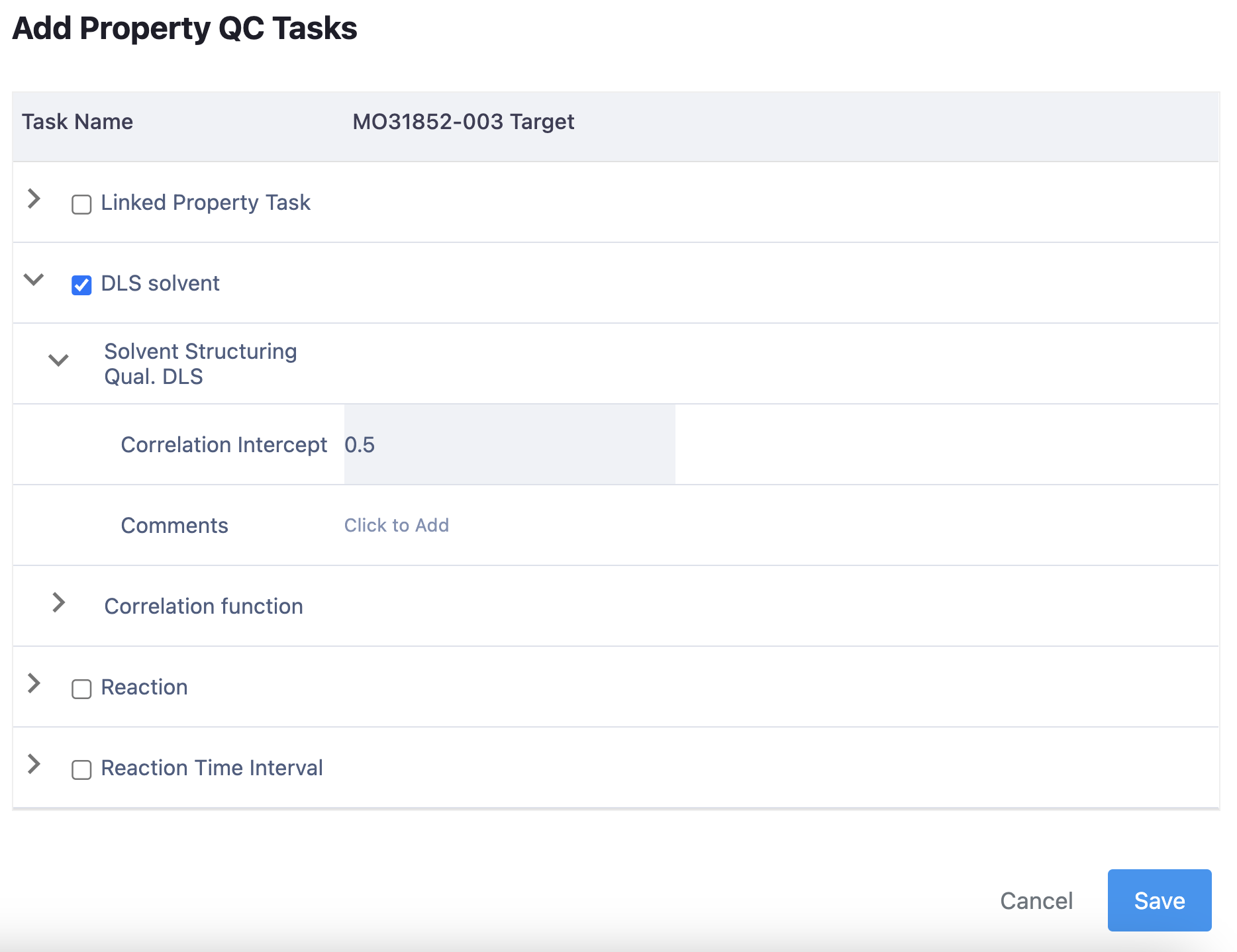
Add QC Task | Add prepopulated DT's with workflows as property tasks (only appears after selecting an inventory) |
Task name* | Specify the name of the task |
Assign To | You may assign a task directly to an Albert user to perform the task |
Linked To | You can link the task to a project |
Location* | Select the location that you would like this batch to be manufactured in |
Priority* | Define the priority level for the task: Low, Medium or High. Albert defines Low as default |
Due Date | Define a deadline for the task |
Tags | Add any Tag associated with the batch task |
Notes | Add any additional information for your task including attachments, links or notes |
*Mandatory fields
Once all the details are input, click on "Add QC Task". A pop-up window will open where you will see all the Data Templates associated to your project. Select the required data templates and add the target value for each output. After selecting the required data templates, press save.