
Worksheet- Viewing and Managing Hidden Columns
The Hide / Unhide Columns feature allows users to control which columns are visible in the Worksheet.
This helps focus only on the data that matters most while keeping the workspace clean and easy to navigate.
How to Hide Columns
Hover over the column header you want to hide.
Click on the three-dot (⋯) menu beside the column name.
Select “Hide Column.”
The column will be removed from view but not deleted, all data remains intact.
Hidden columns can still affect formulas and calculations in the background.
Tip: Hide columns you’re not actively using, such as rarely updated test parameters or metadata fields, to simplify your view.
How to Unhide Columns
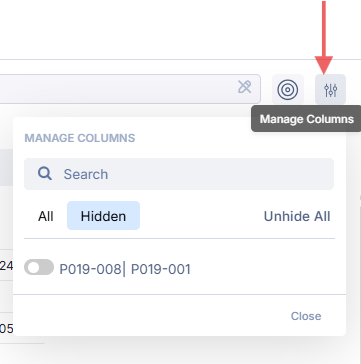
Click on the Manage Columns (top right corner) in the Worksheet toolbar.
You’ll see a list of all columns, including hidden ones.
turn on the toggle button next to the column name(s) you want to make visible again.
Your Worksheet view will update immediately with the selected columns restored.

Impact on Formulas
Hiding a column does not remove or break any formulas referencing it.
Calculations will continue to work even if the referenced column is hidden.
However, when a column used in formulas is hidden, those formulas may be harder to trace visually.
To avoid confusion, consider labeling formula cells clearly (e.g., “=Sum of Hidden Column X”).
Unhiding the column restores full visibility for easy verification.
Best Practices
Keep only the most relevant columns visible when performing specific analyses.
Use the state management feature to retain your preferred hidden/visible column configuration for each project.
Avoid hiding columns that are critical to shared team calculations.
Access Note:
The ability to hide or unhide columns depends on your Worksheet permissions.
If you can't modify column, contact your Albert Administrator to request the necessary access.