Pin and Unpin Columns
Pin Columns to the Worksheet
You can pin worksheet columns, including those with formulas, to the left side of the worksheet. These pinned columns will stay visible regardless of horizontal scrolling. Pin frequently referenced columns, such as important data points, calculations, lookup values, and more.
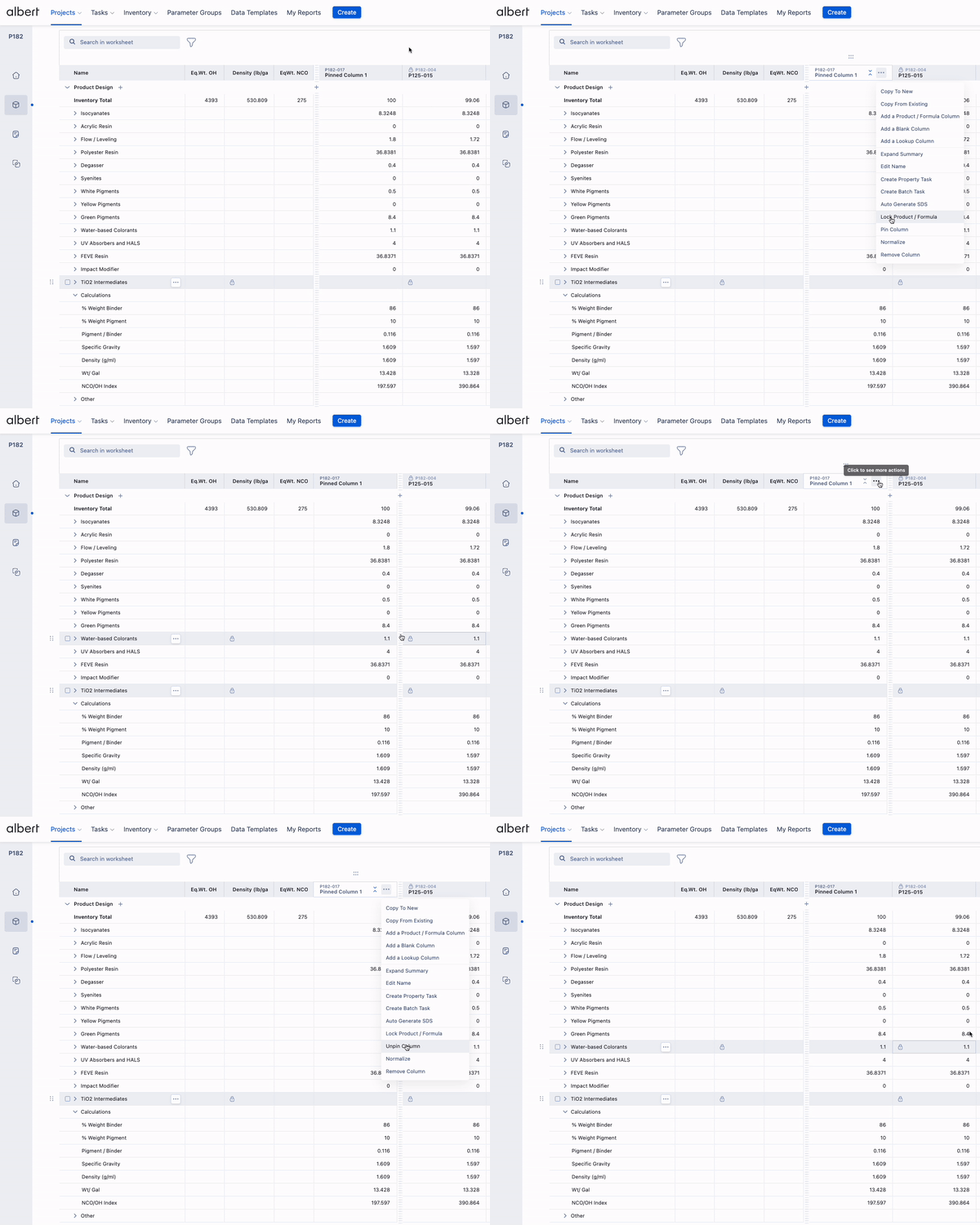
To pin a column, click the three dots in the column header and choose "Pin Column." The column will move to the left side of the worksheet, where you can reorder it among other pinned columns. Alternatively, simply drag the column to the pinned area on the left, and it will automatically become pinned. ❗️Note: If pinned columns occupy the entire viewing area, you won't be able to scroll horizontally as the scrollbar will be out of view.
Unpin Columns from the Worksheet
Pinned columns always remain on the left side of the worksheet. However, you may want to unpin them if priorities change or if you have too many pinned columns.
To unpin a column, click the three dots in the column header and select "Unpin Column." This will return the column to its original position with the other unpinned columns. Alternatively, simply drag the column out of pinned area to the right, and it will automatically become unpinned.