
Worksheet - Sheets
An Albert Worksheet can be comprised of several individual sheets. The usage of multiple Sheets allow you to split your products and to keep your individual Sheets smaller and easier to manage. This makes it easier to manage large projects and optimizes grid performance. You can also save sheet templates to re-use and share your configurations.
There are 3 different ways to create a new sheet within a worksheet:
1. Create an empty sheet
To create a new sheet within a worksheet, click the add button "+" at the bottom left and select "Create an empty sheet". Name the new sheet and click save.
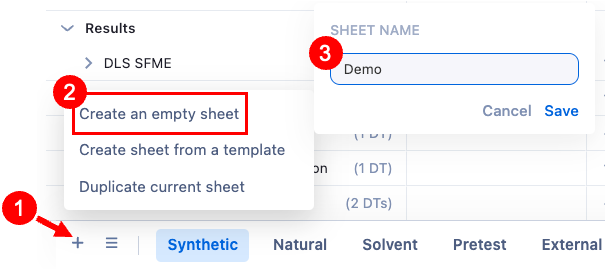
The newly created empty sheet opens. You can now add inventory items, create formulas, ...

Every sheet can be accessed by directly clicking on the sheet's name or using the more menu (3 lines). When clicking on the more menu, a list of all your sheets within a worksheet appears. You can search for a specific sheet and access it by clicking on the sheet's name.

2. Create a sheet from a template
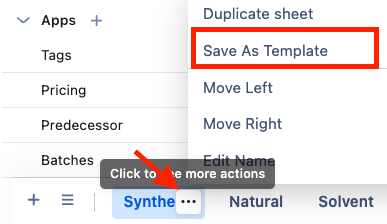
For this purpose, sheet templates need to be saved first. Open the sheet you would like to save as a template and click on the three dots that appear when hovering over the sheet's name. Select "Save as Template":
The "Create a Sheet Template" pop-up appears. You need to define the template's name and select which columns of the Product Design Grid you want to save in the template.

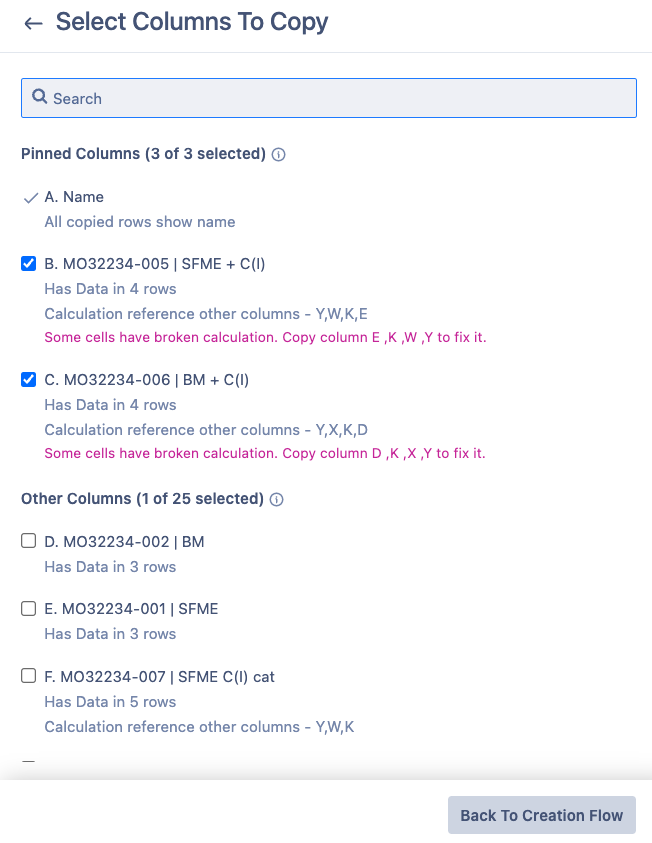
Clicking on "Copy (un)pinned columns" opens an overview of all (un)pinned columns present in your sheet. Select all columns you want to save in the template. The inventory name and ID columns are always saved. If you are not saving all columns and an unselected column would cause a calculation reference error, Albert will warn you with the "Some cells have broken calculation" information. You can select up to 15 columns in total.
Process Design Grid
This section determines which Parameter Groups (PGs) will be included in your template.
Copy Parameter Groups used in selected product columns:
Copies only the Parameter Groups linked to the columns you chose. Each PG includes its parameters and values. (Hover to the arrow then you can select the PGs to copy)

Copy other Parameter Groups:
Lets you include Parameter Groups not directly linked to selected columns.
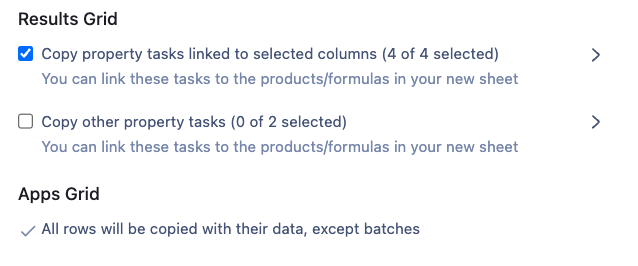
Results Grid
Select whether to include Property Tasks associated with your sheet:
Linked property tasks: Copies tasks connected to selected columns.
Other property tasks: Copies additional tasks not linked directly.
These tasks can later be relinked to formulas or products in the new sheet.
Apps Grid
All rows are copied with their data except batches.
This means Batch Instructions are not copied when you save a template.
They must be recreated manually in the new sheet.
Note: Batch information is specific to individual experiments and is excluded to maintain data integrity.
The last section of the pop-up allows you to define with whom you want to share this template. You can choose whether "Anyone can view, only selected users can edit" or "Only selected users can view or edit" (as is the case for task templates). Finally, click the "Create" button at the bottom right to save the sheet as a template.

Now, to create a new sheet from a template, click again the "+" button at the bottom left of your worksheet and select "Create sheet from a template".
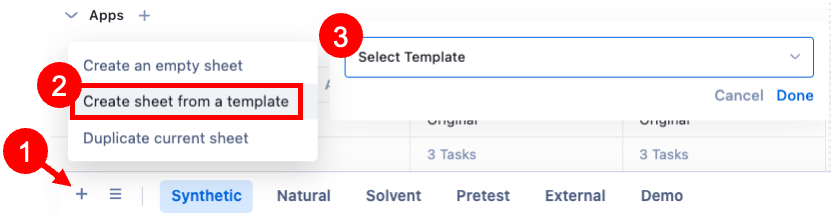
When you click on the "Select Template" bar that appears, a list of templates will open. You can scroll through the list or search for a template name. Click on the template you want to select and click "Done". A new sheet will be created based on this template and opens automatically.
3. Duplicate a sheet
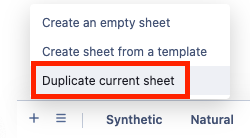
You can also create a new sheet by copying an already existing sheet. To do this, open the sheet you want to duplicate. Then, click the add button "+" at the bottom left and select "Duplicate the current sheet".
The "Create a Sheet" pop-up opens, which is very similar to the pop-up for sheet template creation. Define the sheet's name and select the rows, columns, and tasks you want to duplicate as described for the template creation.
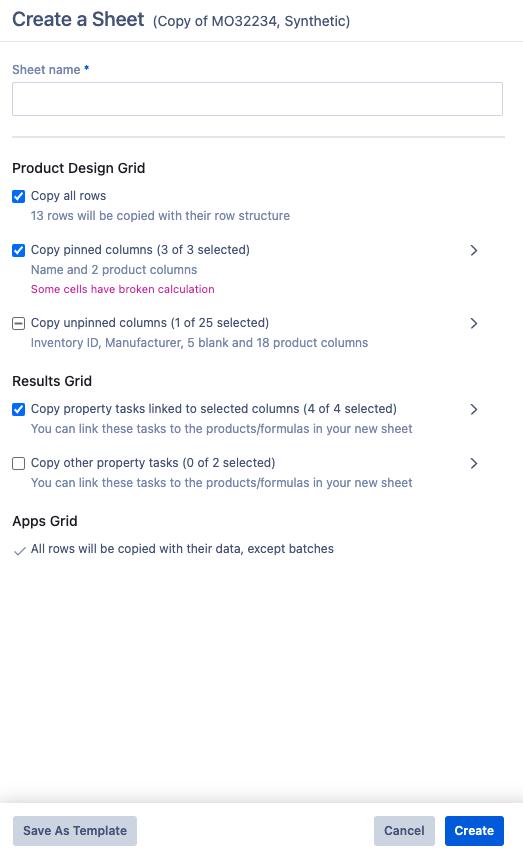
Additionally, you have the option to save the sheet (or the selected part of it) as a template. To do this, click "Save As Template" at the bottom left of the pop-up. Finally, click "Create" to duplicate the sheet!
Manage Sheets
To change the order of the sheets or a sheet's name, hover over the sheet's name and click the three dots "..." that appear.

Manage Sheets Templates
As is the case for task templates, you can manage all the sheets templates in the "Manage Templates" page. For more information on the "Manage Templates" page, please follow this link.