
Chemical Draw in The Albert Notebook
The Notebook offers advanced chemical drawing functionality using the Chemical Draw Block. This tool empowers users to create or import existing chemical compositions directly into the Albert Notebook. Notebook collaborators will have the ability to view, export, or collaborate within the Chemical Draw Block.

Adding Chemical Draw Blocks in the Notebook
The Notebook is built on block actions. When creating a new block, select "Chemical Draw" from the quick menu, or select the three dot menu to the right of the block and select "Chemical Draw". Once the chemical draw block has been created, click on the block to navigate into the chemical draw interface. Once within the chemical draw interface, you can create new chemical drawings from scratch or import as needed.

Navigating In and Out of Chemical Draw
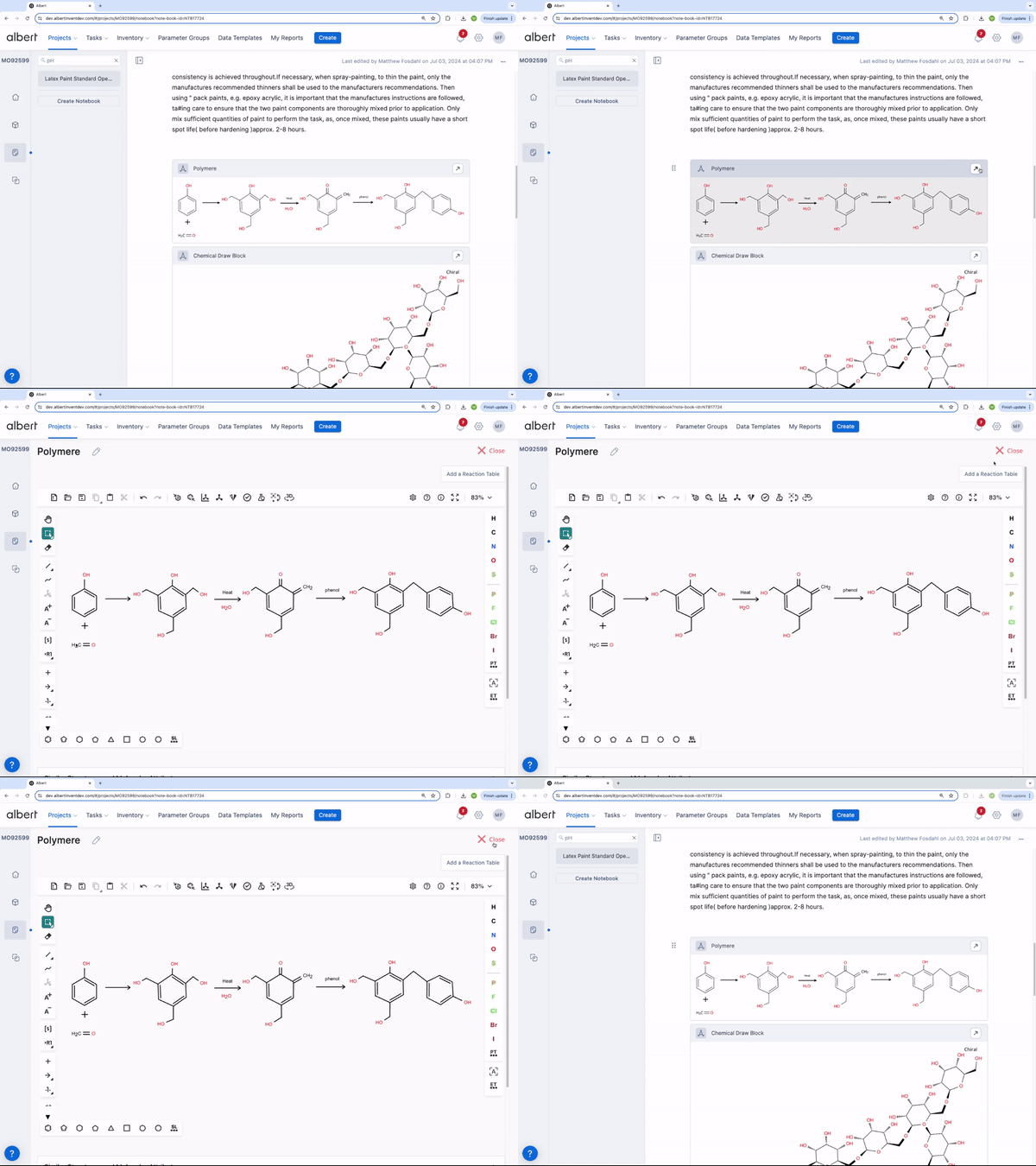
Existing chemical draw blocks will display created chemical components directly within the Notebook.
To navigate back into an existing chemical draw block for further editing, select the arrow in the top right corner of the Block. The chemical draw interface will automatically open, allowing you to continue working within the interface.
Selecting the red "X Close" at the top of the interface will bring you back to the Notebook.
Chemical Draw Functionality
Opening the Chemical Draw Block allows you to create new structures or import existing structures. You have access to various tools to customize and modify your structures as needed.
The tool menu on top of the interface allows you to create a new structure, open an existing structure, save a structure, duplicate, copy to interface, revert changes, and modify how the structure is displayed.

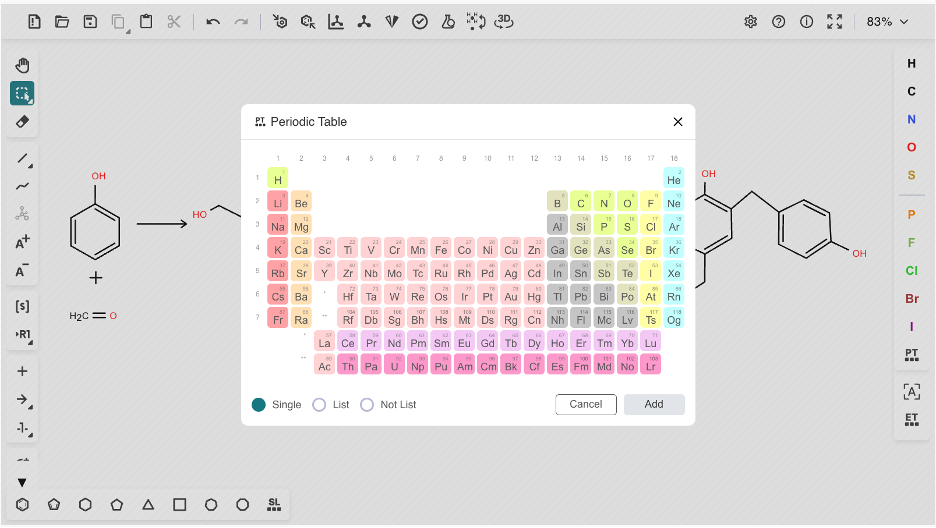
The tool menu on the right allows for the addition of elements outside of the listed elements. You can manually select an element from the periodic table, or use an extended periodic table which attaches commonly used functional groups.
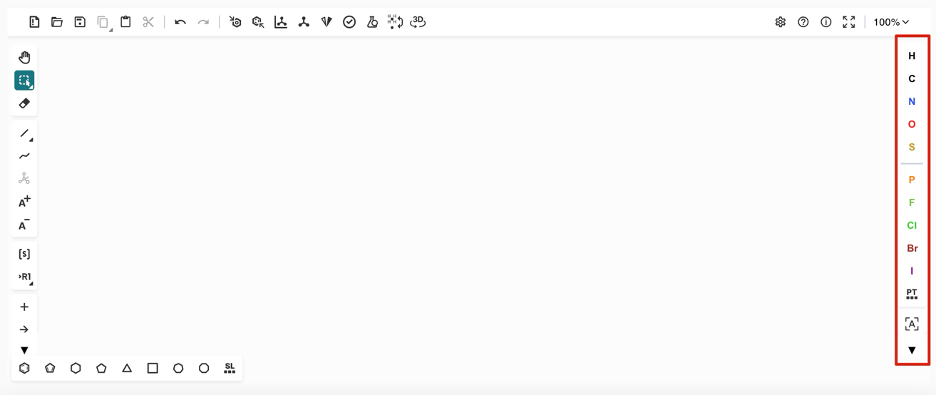
To access the Periodic Table, navigate to the lower right menu and select the "PT" icon.
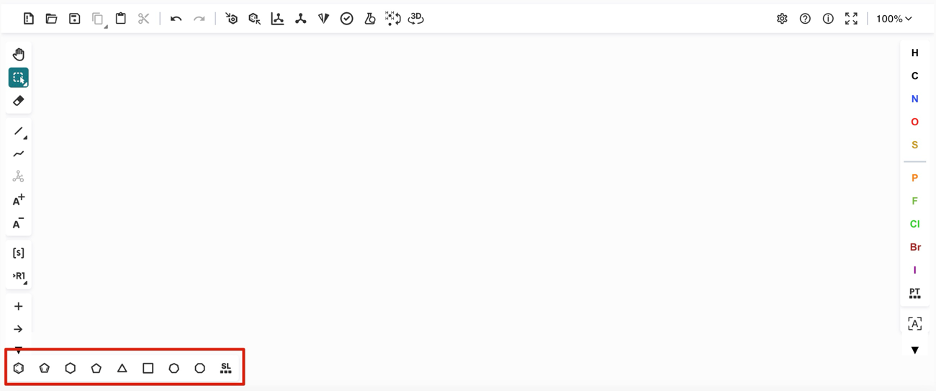
The bottom menu contains a Structure Library which allows you to quickly import complex structures such as sugars, cyclic and bridged structures, 3D templates, common functional groups, and salts/solvents from a library. The provided chemical structures help you build a reaction more quickly rather than having to manually create each element.
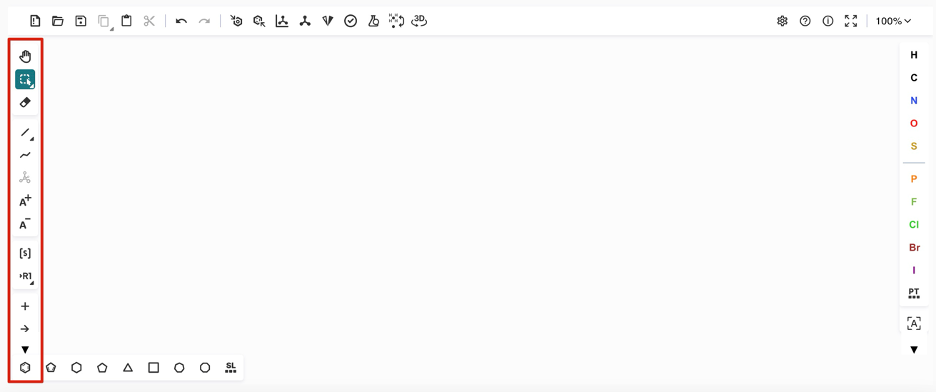
The menu on the left of the screen allows you to navigate your chemical drawing, create bonds, link charges, and add in text or arrows to display in a reaction.
Similar Structures and Molecular Attributes
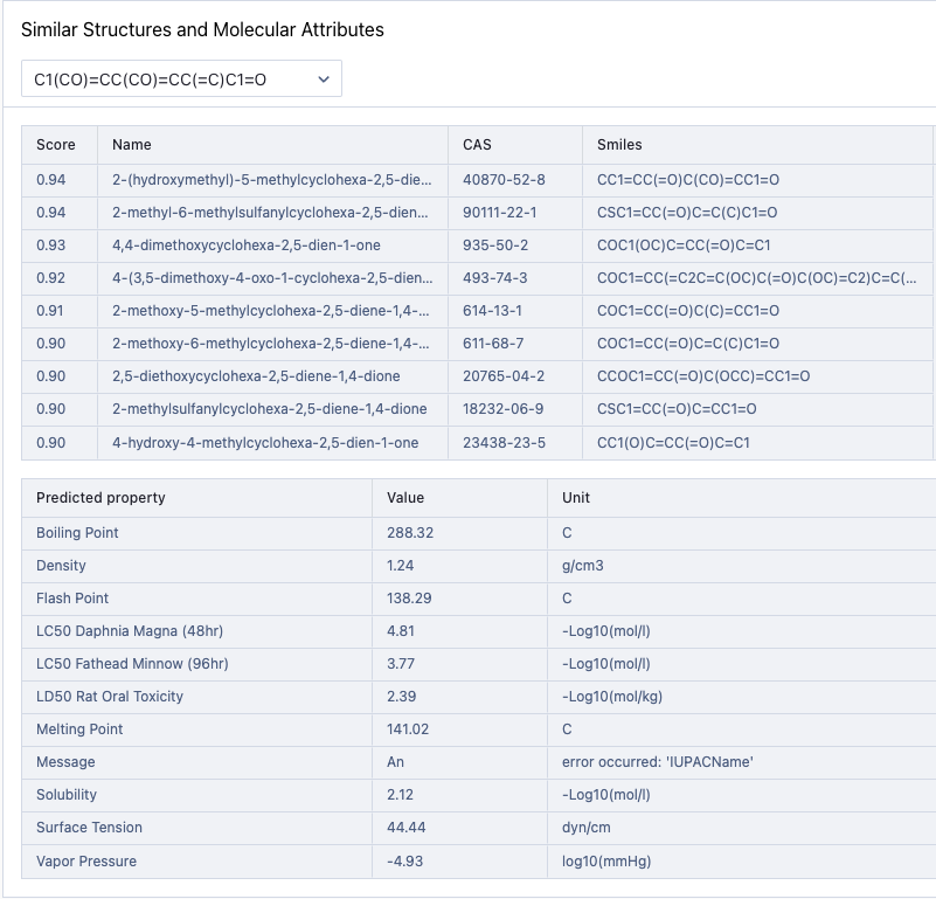
Once you create a molecular structure, a collapsable menu will appear labeled "Similar Structures and Molecular Attributes". Selecting the down carrot to the right of this will show additional information like similar molecules (listed by similarity score), molecular name, CAS #, and SMILES string.

An additional table will show the predicted properties, value, and units of your structure. This table can be used to find similar alternatives to chemicals used in your workplace:
Structure Library
The Chemical Draw Block links to a Structure Library to improve access to common functional groups, salts, and solvents, and provides a template library of molecules to build from.
To access the Structure Library, navigate to the lower menu and select the "SL" icon.

Once selected, navigate through the available options, and search using the magnifying glass.
Selecting any molecule from the template library, functional groups, or salts and solvent will bring the selected molecule into the Chemical Draw dashboard to be added as a new or existing structure.