
Notebook Templates
Any Notebook can be saved as a Template for future use, allowing you to save default layouts for new Projects. Notebook Templates allow for standardization of frequently used Notebook details such as testing instructions, formatted documentation within the lab, or supporting details on a Project.
Saving a Notebook as a Template
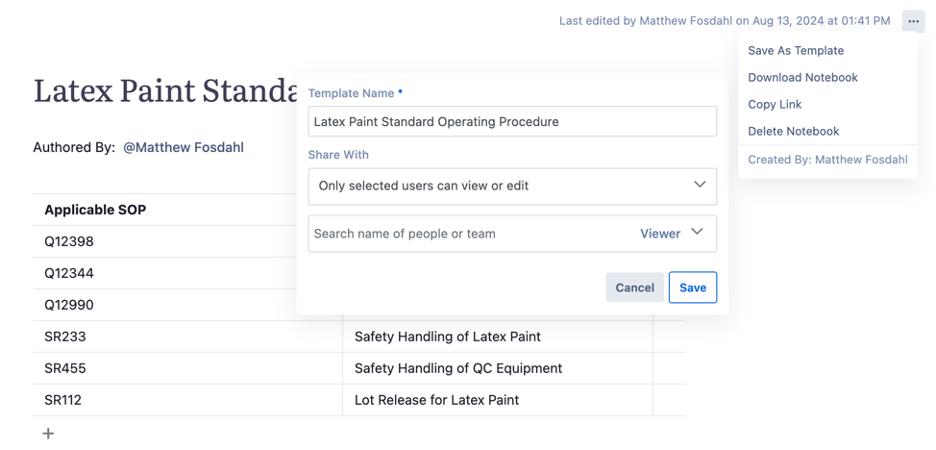
To save a Notebook as a Template, click the three dots in the upper right corner of your Notebook and select "Save As Template".
Saving Template and Sharing Templates
Once “Save As Template” is clicked create a “Template Name” for your Notebook Template. The saved “Template Name” will populate for any users with access when building from this template in future Notebooks.
Select who can view or edit this template in the future. Select between “Anyone can view, only select users can edit” in order for any users on your Albert Platform to access this template in the future. Selecting “Only select users can view or edit” will ensure that the template can only be access by defined users.

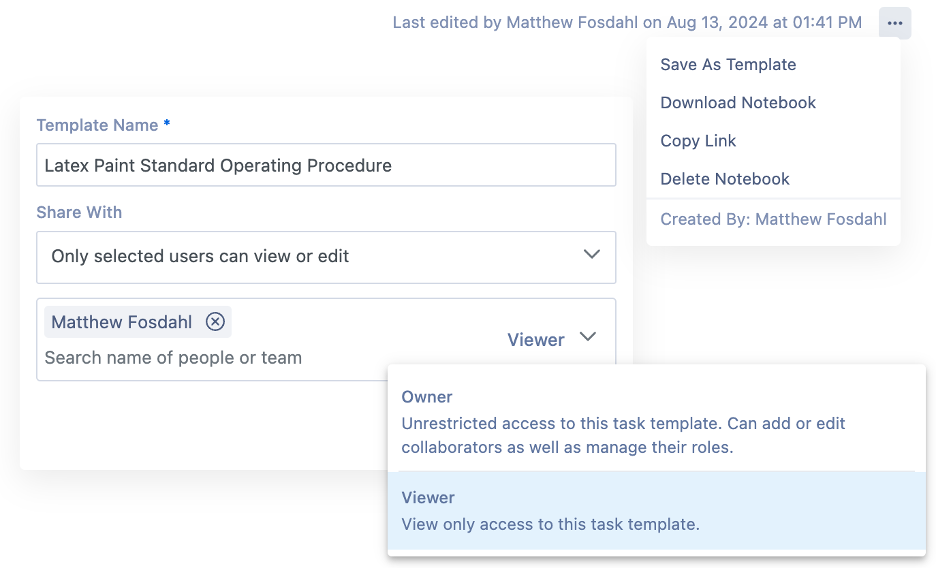
Finally, select who has Viewer or Owner access. Depending previous selection for “Share With”, defining Owners will allow specific users the ability to edit and modify the template in the future. Viewer access will grant access to view and select the template but will keep Viewers from making any modifications to the template. Viewers can still add to their own Notebook, but will not be able to adjust the base template format for future users.
Creating Notebook from a Template
Once the Notebook is accessed and a new Notebook is created, users will have access to a “Select a Template” on the bottom of the new Notebook. Clicking the “Select a Template” will open a menu where users can access any Notebook templates shared with them. Users can also navigate to the “Created by me” to open any templates saved by themselves. The magnifying glass at the top of this menu enables users to search for the name of the template to access faster. Once the desired template has been located within the menu, click on the template name to automatically populate the saved template within your new Notebook.
