Notebook Overview
The Albert Notebook offers you the ability to organize your laboratory work in a centralized, secure place that is connected to other parts of the Albert platform.
With the Notebook, you can:
Organize unstructured notes and data, attachments, images, and documents within Projects
Set up complex synthesis instructions
Document Standard Operating Procedures (SOPs)
Collaborate with @-mentions to notify and chat with team members
Limit or extend visibility across collaborators and teams
By the end of this article, you should be able to confidently create, manage, and collaborate on lab notebook entries within Albert, streamlining your experimental documentation and team communication.
Notebook Functionality
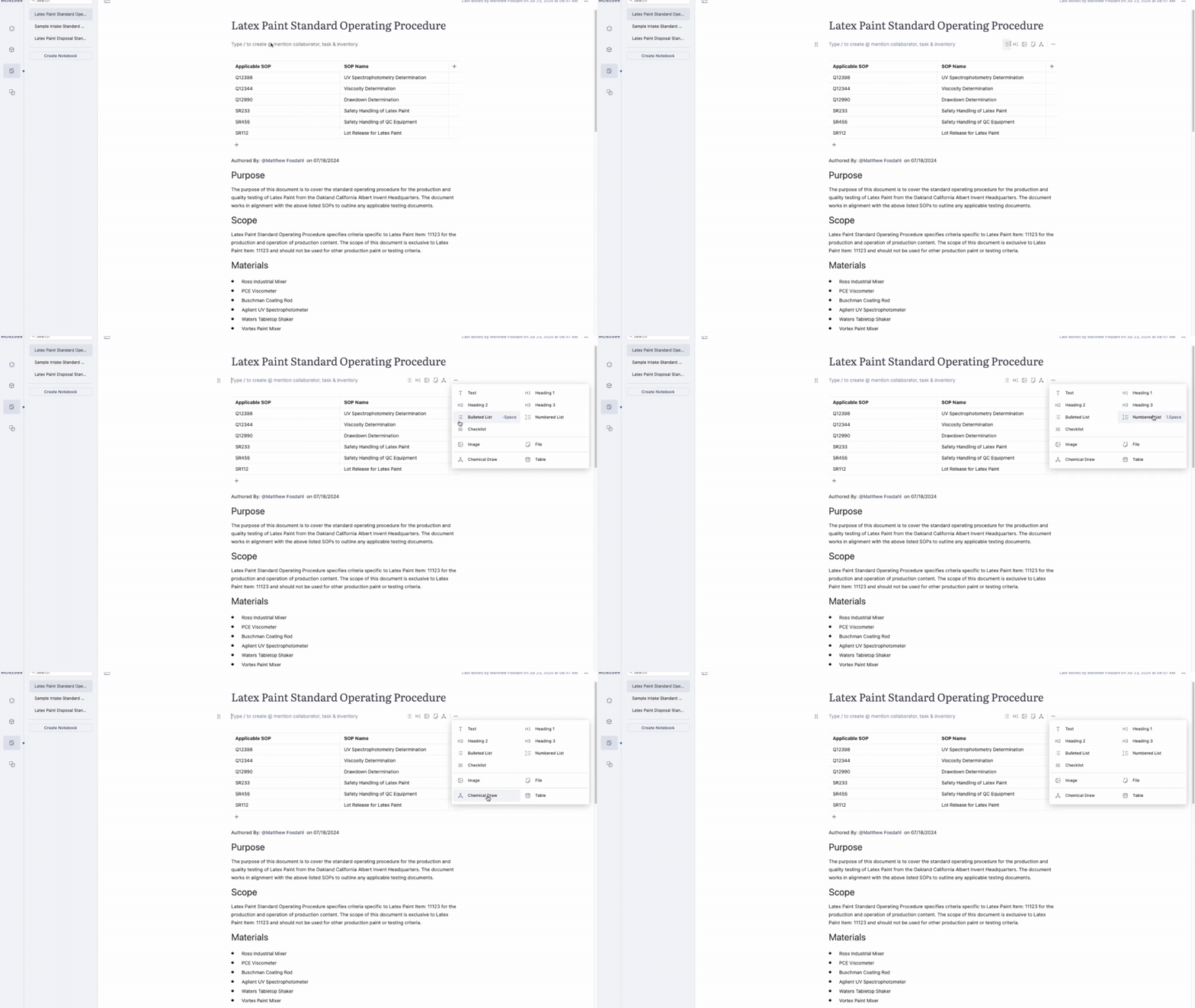
To customize the content in your Notebook, the Notebook offers a wide range of Block Types. To start editing your Notebook, simply type a forward slash "/" to access the block menu, use the quick block tool, or apply keyboard shortcuts as shown in the gif below:
What block types are available?
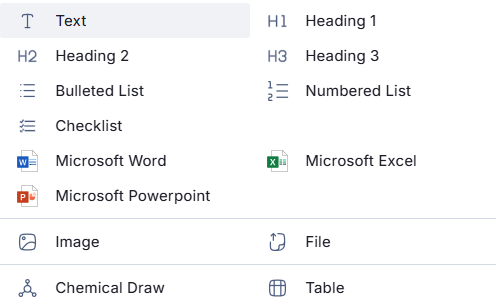
Text: Capture notes, ideas, links, or any text. Format using bold (CTRL+B), italics (CTRL+I), underline (CTRL+U), and hyperlinks. You can also "@" mention other users, tasks, and inventory items to create direct links and notifications.
Heading: Organize your Notebook with Large (#), Medium (##), and Small (###) headings.
Lists: Use Numbered (1., 2., etc.), Bulleted (-), and Checklists ([]) to capture different types of listed items.
Table: Add rows, columns, and headers in a familiar table format.
File: Attach files for easy storage. With Albert's Microsoft integration, you can open, edit, and save Microsoft Office files directly in Albert. The latest version will always be shown in the Notebook.
Image: Add images with previews for various file types.
Chemical Draw: Insert chemical structures, reaction schemes, and mechanisms.
Searching in the Notebook
The Notebook also has search capabilities. When a project has multiple Notebooks associated with it, you can easily search for the desired Notebook by name in the search toolbar shown below:

Additionally, the search bar can be used to search for any existing Albert Notebook content within a project. You can use the search bar to search for the entry of any text, @-mention, or specified content and narrow down applicable Notebooks that way.
Web browsing search functionality (such as Ctrl + F) will also work within a specific Notebook.
Block Actions
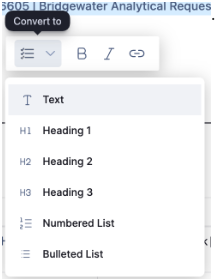
Within the Notebook, blocks can be reordered, converted to other block types, and removed, allowing you to further customize and edit your Notebooks.

Attachments
External files and images can be linked and displayed directly within the Albert Notebook.

Files and images can be attached by 1) dragging and dropping a file/image from your desktop directly into the Notebook, or 2) selecting the Block for image or file to create a new block for the attachment.
Collaborators and @-mentions
Tasks, Inventory, and Collaborators within the Project can be @-mentioned within a Notebook simply by typing the @ symbol. Any @-mentioned Collaborators, Tasks, and Inventory items can be clicked to expand the details, and link directly to their Albert page for you to quickly navigate to.

General Task Notebooks
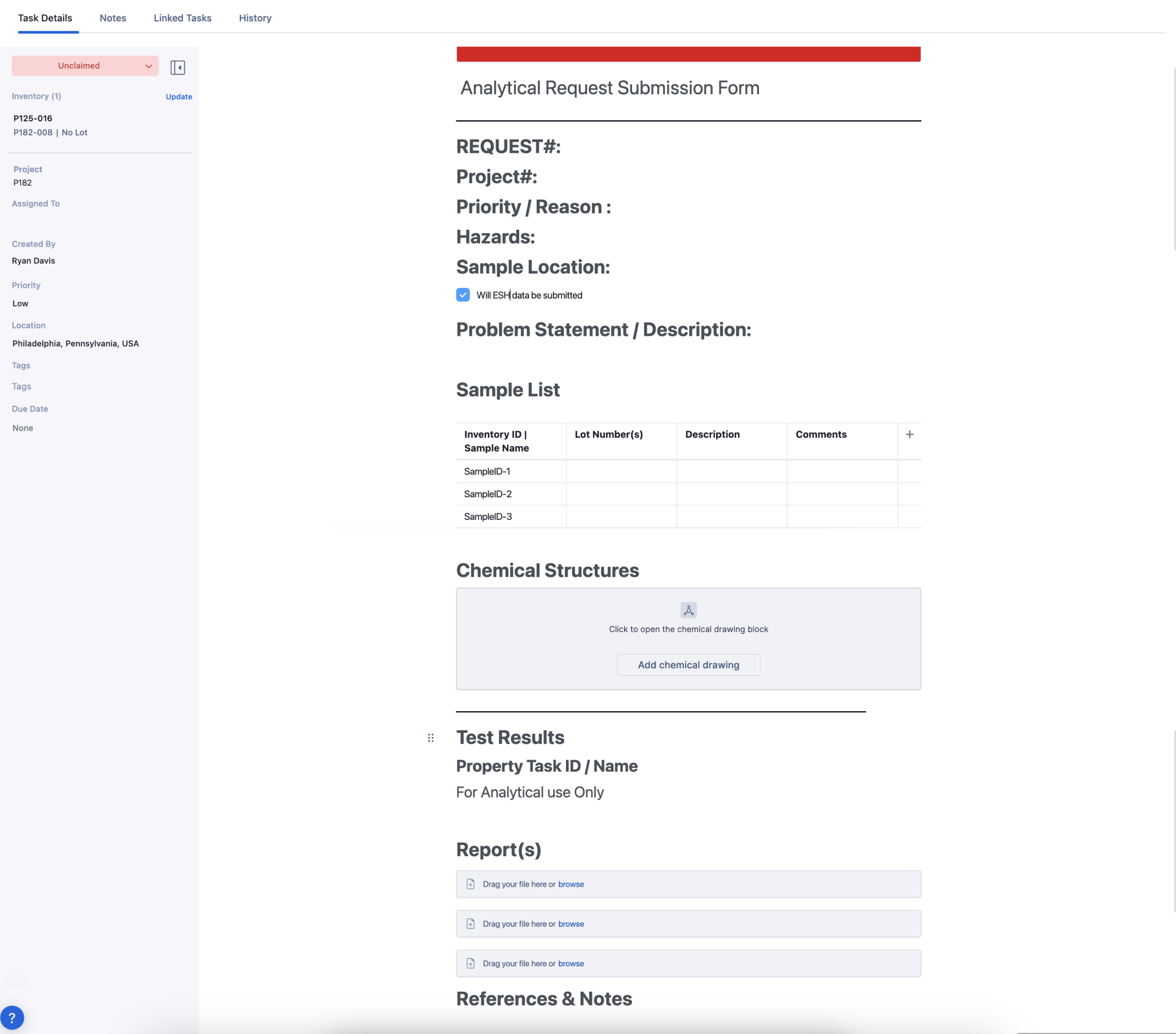
General Tasks with Notebook integration support flexible workflows attached to tasks. Create Notebooks from scratch or generate them from Task Templates, allowing for a variety of complex tasks. Use General Tasks with Notebook to create detailed task descriptions, request forms, calibration guides, and more. Below is an example of using a General Task Notebook as a request form for an analytical department.
Create Microsoft Files
You can create Microsoft Word, Excel, and PowerPoint files directly within the Notebook, no more switching between platforms or uploading files manually. This feature streamlines your workflow, helping you stay focused and efficient without ever leaving Albert.

Each file opens seamlessly in the corresponding Microsoft 365 web app, giving you immediate access to all the familiar MS Office features.
Open Documents in Desktop Applications
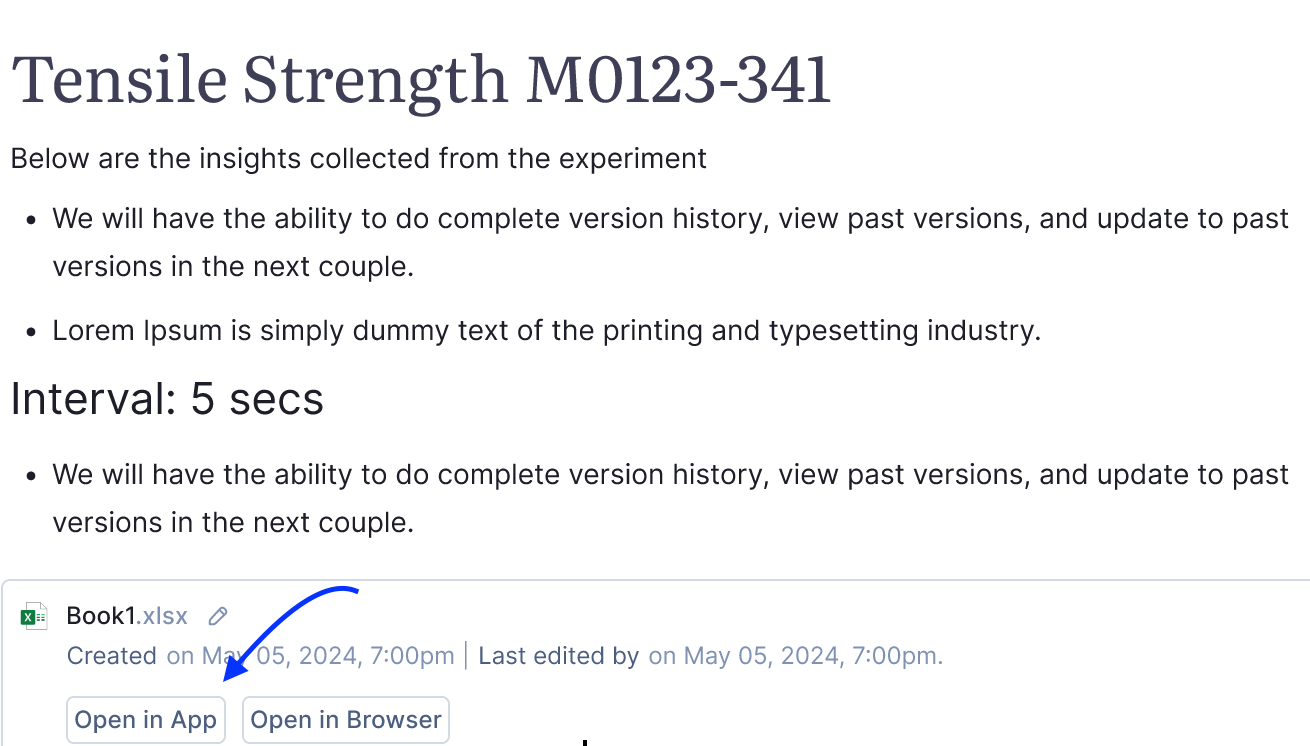
In addition to creating new Microsoft files directly in Albert, you can also open attached Microsoft Office documents (Word, Excel, and PowerPoint) directly in their desktop applications. This allows you to work in the full-featured desktop apps while still keeping your changes synced inside Albert.
How it works:
Attach a Microsoft file to your Notebook entry.
On the file card, click Open in App.
The file will automatically open in the corresponding desktop application (Word, Excel, or PowerPoint).
Make your edits as usual, all changes are saved back to Albert automatically.
Renaming Microsoft Blocks and Attachments
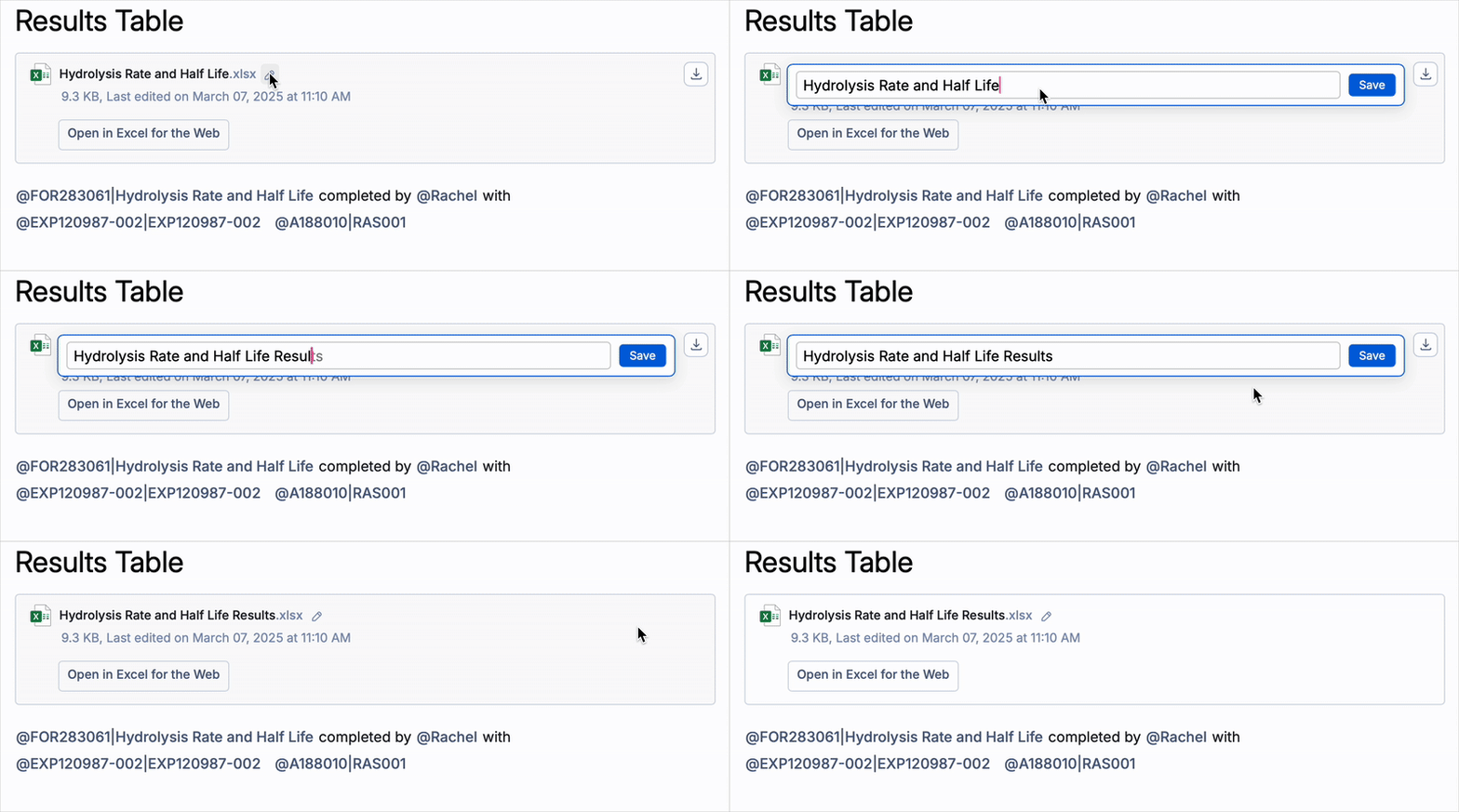
You can also rename Microsoft Blocks and their attachments directly within the notebook. Your changes will be reflected instantly across:
The block title
The Microsoft web file name
The downloaded file name
This ensures consistency and clarity across all references to your files.
Notebook Access Control
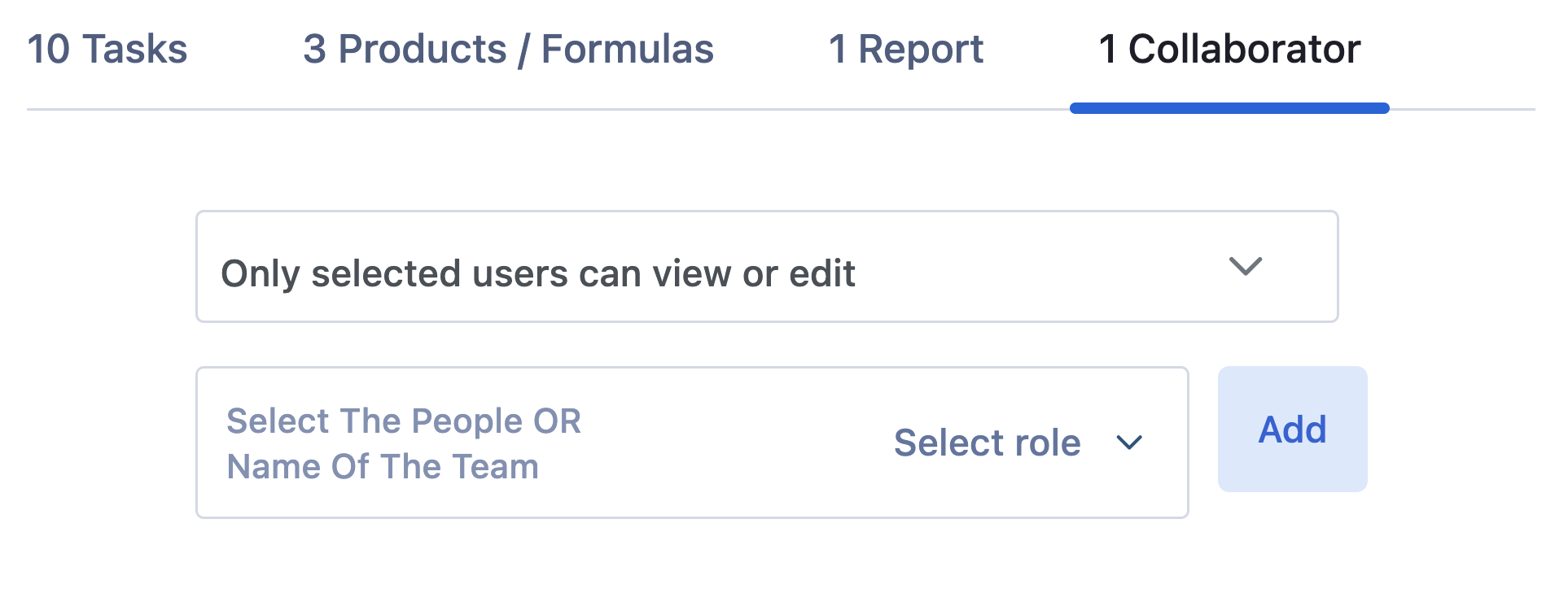
Notebook access and permissions are governed by a project's permission structure. Project collaborators will have access to any Notebooks within a project. The same access controls granted to users within a project will also apply to a project's Notebooks.
Notebook Template Access Control
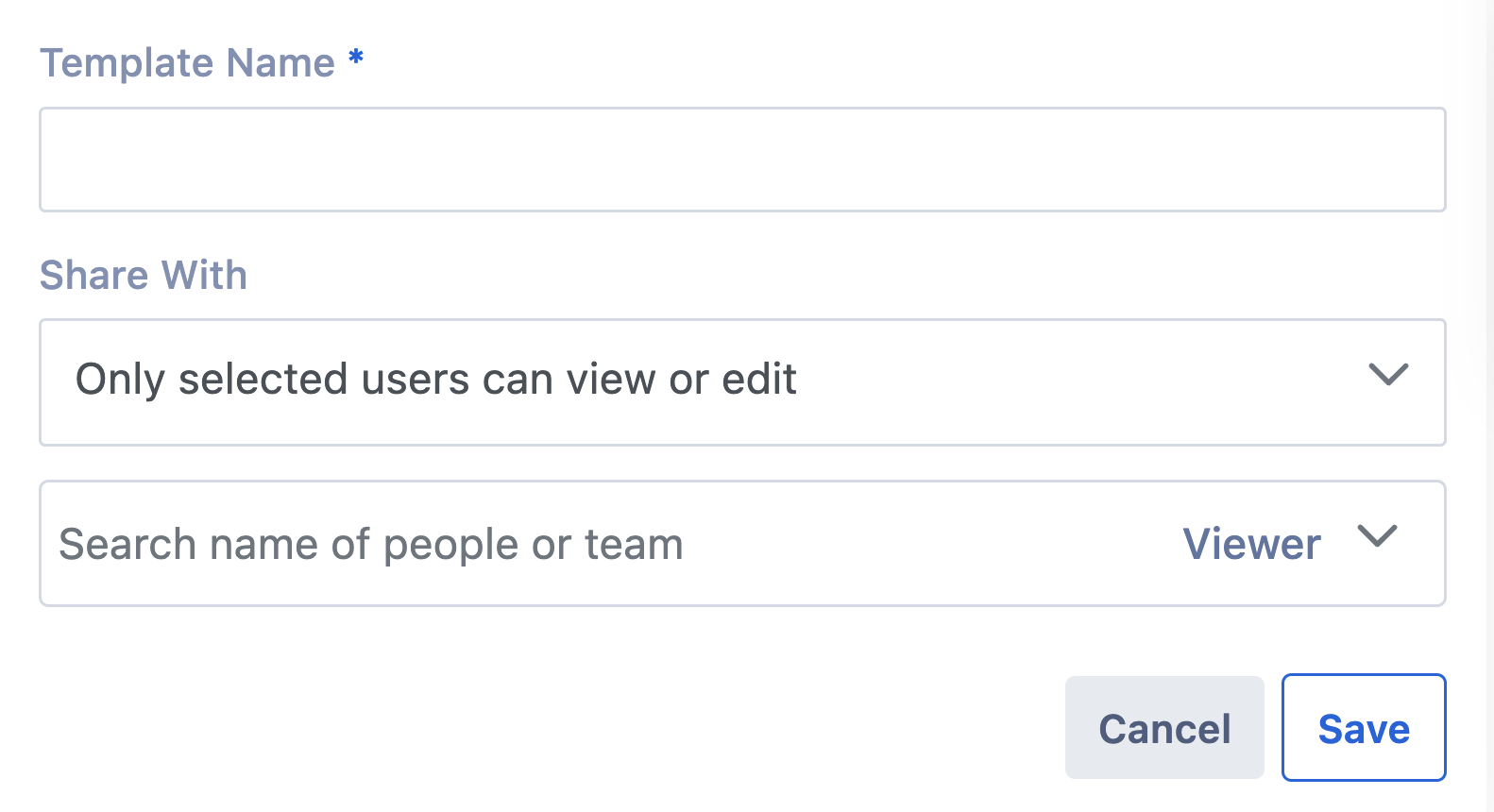
Notebook Templates can be saved to expedite the creation of new Notebooks. Templates are helpful to capture a specific format or create a layout that can repeatedly be used to capture unstructured content. Notebook Templates have their own permission structure, and can be shared with specific users while saving the Notebook as a template. Template permissions can be edited at a later date using Albert's Template Management functionality.