
Attachments
Albert allows attachments across the platform in the Notes section in the Tasks, Inventory, Parameter Groups, and Data Templates modules. In these modules, Albert supports attachment preview inside the application of a variety of file types.
How to Upload an Attachment
To upload an attachment in Albert, navigate to the Notes section of the respective object.

Click on the paper clip, browse the proper storage location and select the file for upload and click Open. Add any text notes to be associated for the file and click Save.

The document is now attached to the object in Albert. Once the file is attached as a note, users can download the file straight from Albert by clicking on the download arrow located on the top right of the attached file.

Attachment Preview
Albert supports attachment preview inside the Albert application of a variety of file types. To preview an attachment, simply click on the attachment, and a pop-up window will open up inside the application displaying the attachment without having to navigate out of the application or downloading. From this pop-up, downloading the attachment to the user's local device is as easy as clicking the download arrow in the top right corner. To exit the attachment preview view, click on the "X" in the top right of the pop-up. This will return users to the Albert platform.
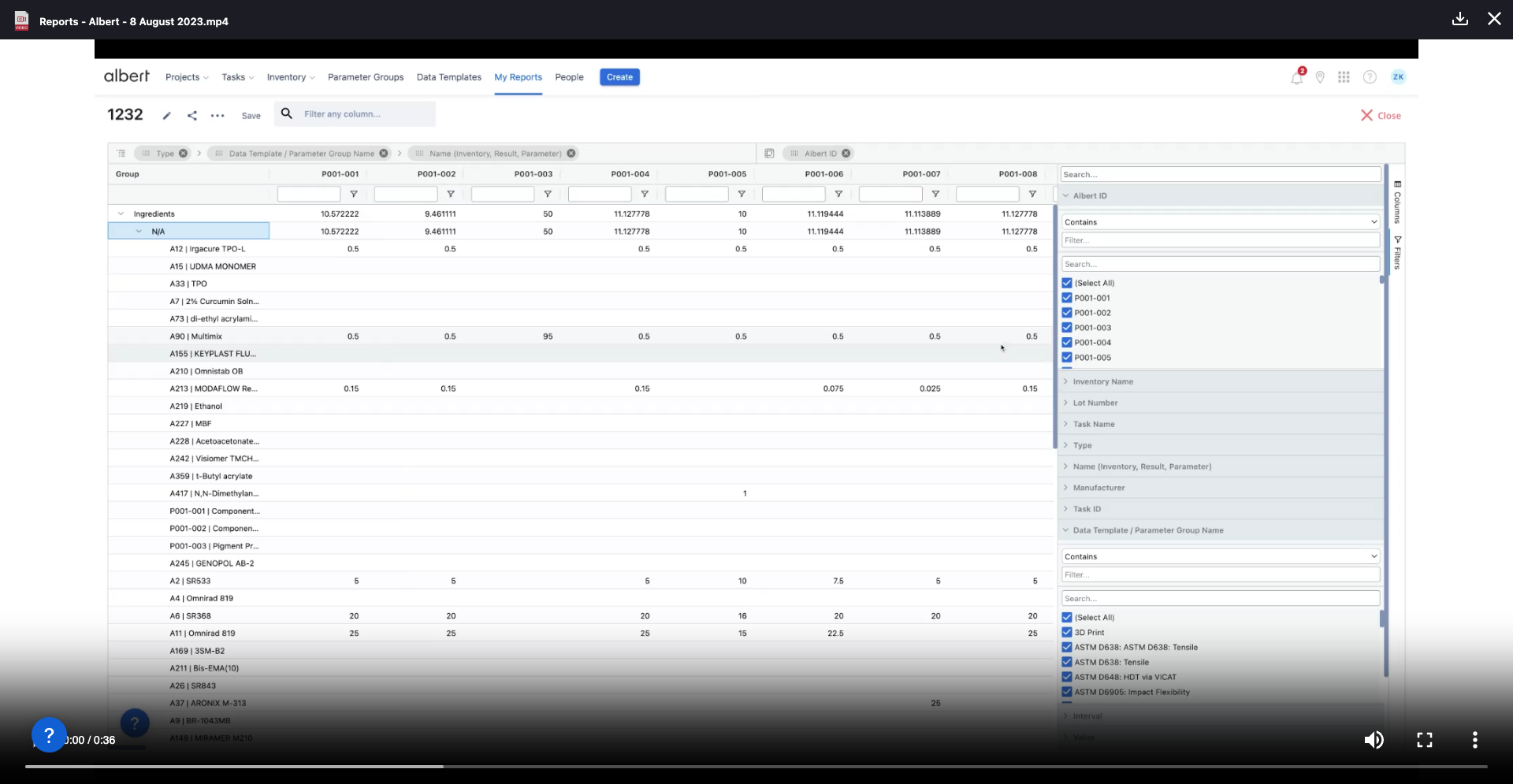
File Types Supported in Attachment Preview
The following file types are supported in the Albert application:
Office Documents: .xls, .xlsx, .doc, .docx, .ppt, .pptx
Images: .png, .jpg, jpeg, .bmp, .gif, .webp
Videos: .mov, .mp4, .m4v, .mkv, .webm
Audio Files: .mp3, .wav, .wave
Other Files: .txt, .pdf, .wps, .svg, .xlr, .html, .xhtml, .htm
As of now, .eml or .csv files are not supported.