
Language and Translation Support in Albert
Albert supports multiple languages to help global teams work efficiently in their preferred language. You can easily change the interface language from your user settings, ensuring a consistent, localized experience across modules, menus, and notifications.
Language support is designed to make Albert intuitive and accessible for every user, regardless of region or role, while maintaining the same functionality and performance.
Supported Languages
Albert currently supports the following languages across the platform:
English (EN)
Deutsch (DE) — German
日本語 (JA) — Japanese
Español (ES) — Spanish
简体中文 (ZH-HANS) — Chinese (Simplified)
Each of these translations covers Albert’s main navigation menus, module names, buttons, and user interface text.
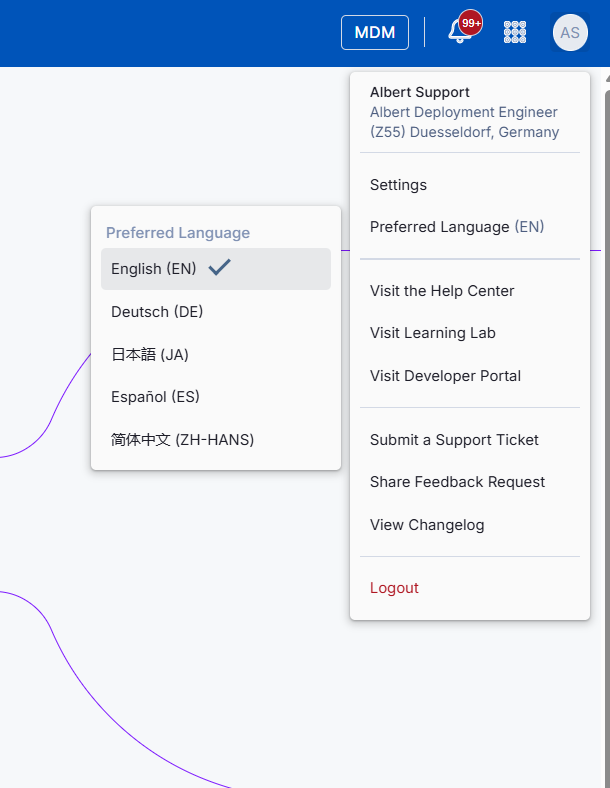
How to Change Your Language Settings
Click on your profile icon (top-right corner of the screen).
Select User Settings from the dropdown menu.
Click on Preferred Language.
Choose your preferred language from the list:
English (EN)
Deutsch (DE)
日本語 (JA)
Español (ES)
简体中文 (ZH-HANS)
The interface will automatically refresh and update to your selected language.
Where the Language Update Applies
Once your preferred language is set, Albert automatically translates:
Top navigation menus (Projects, Tasks, Inventory, etc.)
Side panels and module labels
Buttons, field names, and tooltips
System messages and notifications
Profile and settings pages
All core product features remain identical across languages only the interface language changes.
To help you understand how the translation applies, here are a few examples showing the interface before and after changing the language setting.
Inventory Page Example
Before (English)

After (Español)

Managing Translations in Data Templates and Parameter Groups
Albert allows the localization of Data Templates and Parameter Groups so that teams working in different languages can view and enter data with complete clarity. Translating field and parameter names ensures everyone knows exactly what information belongs in each column or field, regardless of their preferred interface language.
How to Manage Translations
To set or edit translations for a Data Template or Parameter Group:
Navigate to the relevant Data Template or Parameter Group.
Click the three-dot menu (⋯) in the top-right corner.
Select Manage Translations.
In the translation window:
Enter translated names for each data column or parameter.
Add translations for units, labels, and notes if applicable.
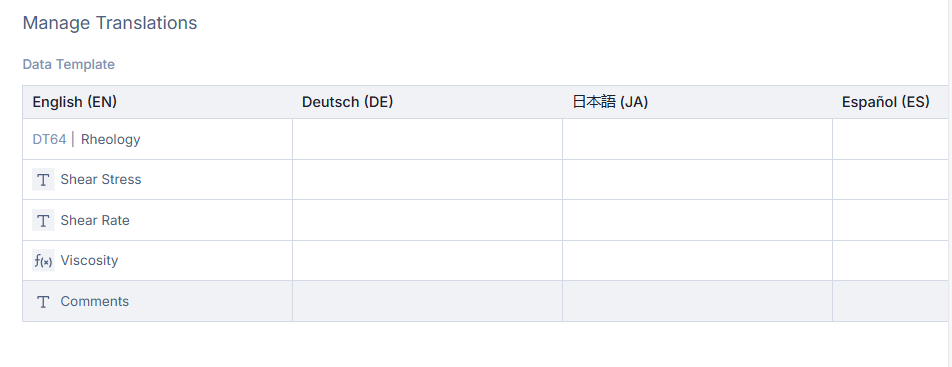

Click Save, translations will automatically appear whenever that language is selected in user settings.
Why It Matters
Improved Accessibility: Supports global teams working across multiple regions.
Consistency Across Modules: The entire interface reflects your selected language.
Anyone can independently choose their preferred language without affecting others in the same project.